 MacMD Viewer
Markdown to HTML: 5 Conversion Methods with Code (2026)
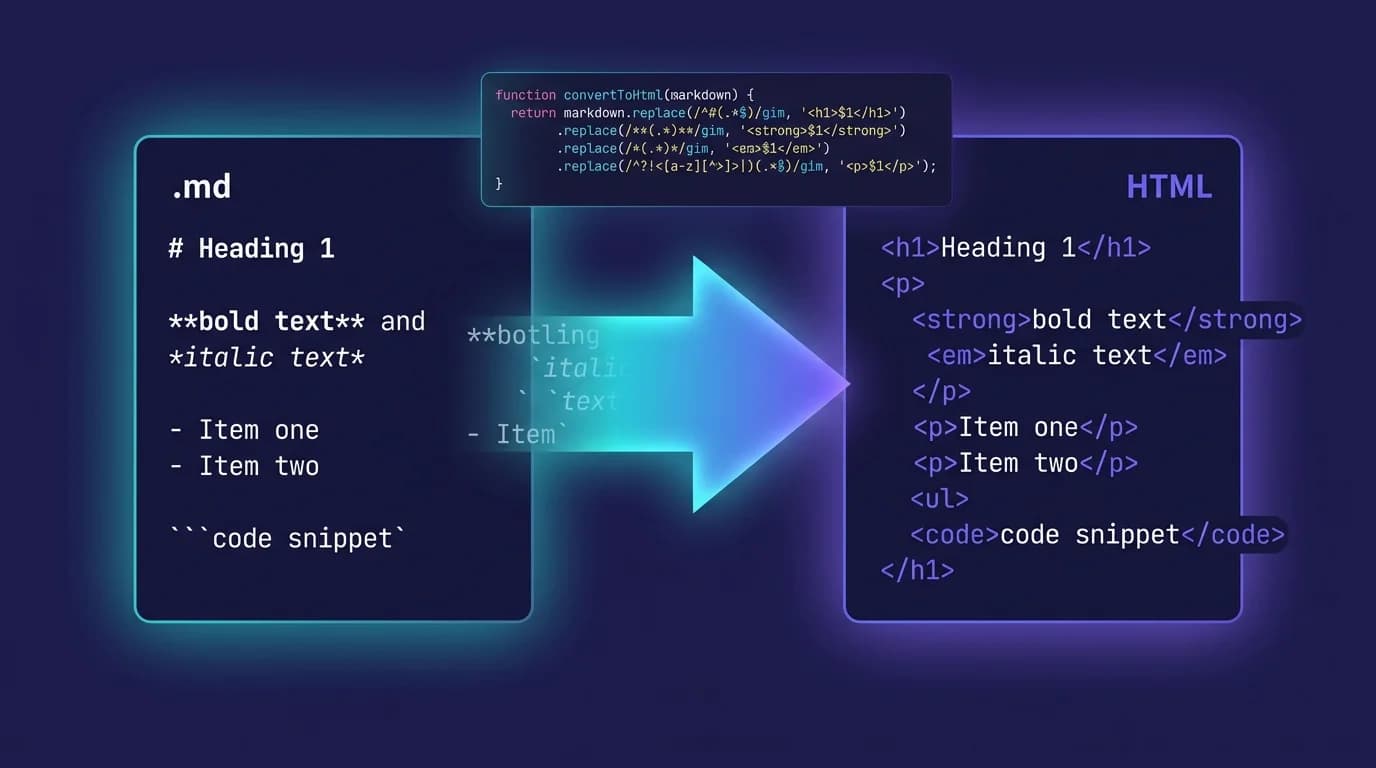
How do you convert markdown to HTML? You run your .md file through a parser — a program that reads plain-text syntax (#, **, -) and outputs the equivalent HTML tags. The process takes milliseconds, and you can do it from a command line, a JavaScript function, a Python script, or an online tool without installing anything. The CommonMark specification (version 0.31.2, released January 2024) standardizes exactly how this conversion works across 600+ conformance tests (CommonMark, 2024).
This guide covers five practical methods to convert markdown to HTML — from one-line terminal commands to browser-based converters — so you can pick the approach that matches your workflow and get clean HTML output in minutes.
TL;DR: Convert markdown to HTML with Pandoc (
pandoc input.md -o output.html), marked.js in JavaScript, Python-Markdown in Python, or a free online markdown to HTML converter. Each method produces valid, semantic HTML from the same plain-text source.
Why Would You Convert Markdown to HTML?
Browsers cannot render .md files directly — they need HTML. Every time you publish a blog post written in markdown, generate documentation from a README, or display formatted content in a web application, a conversion step transforms your plain-text source into HTML that browsers understand.
Three common scenarios drive this conversion:
- Static site generation. Tools like Hugo, Jekyll, and Astro convert markdown files to HTML pages at build time. Hugo processes thousands of markdown files in under a second (Hugo documentation, 2026).
- Documentation pipelines. Teams write docs in markdown for version control, then convert to HTML for deployment. GitHub alone hosts over 630 million repositories (GitHub Octoverse, 2025), and virtually all of them include
.mdfiles that get rendered as HTML on the web interface. - Real-time preview. Editors like VS Code, Obsidian, and MacMD Viewer convert markdown to HTML on every keystroke so you see formatted output while typing.
Understanding why this conversion matters helps you choose the right tool. A documentation pipeline needs batch processing and custom templates. A live preview needs sub-millisecond parsing. A quick one-off conversion just needs a browser tab.
Markdown to HTML conversion underpins static site generators, documentation systems, and real-time editors. GitHub renders markdown as HTML across 630 million repositories (GitHub Octoverse, 2025), and the CommonMark 0.31.2 specification ensures consistent output across all compliant parsers (CommonMark, 2024).
How Does Markdown to HTML Conversion Work Under the Hood?
Every markdown to HTML converter follows a two-stage pipeline regardless of language or platform.
Stage 1 — Parsing. The converter reads your markdown source and builds an abstract syntax tree (AST). Each node represents a structural element: heading, paragraph, code block, list, or inline formatting. The CommonMark specification defines the exact rules for this stage, covering edge cases like nested blockquotes and lazy continuation lines (CommonMark, 2024).
Stage 2 — Rendering. The converter walks the AST and emits the corresponding HTML. A ## node becomes <h2>, a **bold** span becomes <strong>, and a fenced code block becomes <pre><code>.
Here is a concrete example. Given this markdown input:
## Getting Started

Install the package with `npm install marked`.

- Fast conversion
- **CommonMark** compliant
The converter produces this HTML:
<h2>Getting Started</h2>
<p>Install the package with <code>npm install marked</code>.</p>
<ul>
  <li>Fast conversion</li>
  <li><strong>CommonMark</strong> compliant</li>
</ul>
The AST stage is important because it is where plugins and extensions hook in. Libraries like remark expose the tree between parsing and rendering, so you can add table-of-contents generation, syntax highlighting, or HTML sanitization before the final output. For a deeper look at how renderers work internally, see the render markdown guide.
How Do You Convert Markdown to HTML with Pandoc?
Pandoc is the most versatile command-line tool for document conversion. It handles markdown to HTML alongside dozens of other format pairs — LaTeX, PDF, DOCX, EPUB — using a single consistent interface (Pandoc, 2026).
Basic conversion
The simplest command takes a markdown file and outputs HTML:
pandoc README.md -o README.htmlPandoc infers the input and output formats from the file extensions. The result is an HTML fragment — just the body content, no <html> or <head> tags.
Standalone HTML document
To generate a complete, self-contained HTML file with a <head> section:
pandoc -s README.md -o README.htmlThe -s (standalone) flag wraps the output in a full HTML document structure with proper DOCTYPE, charset, and viewport meta tags.
Adding a table of contents
For longer documents, add an automatic table of contents:
pandoc -s --toc README.md -o README.htmlPandoc generates anchor IDs for each heading and builds a clickable navigation list at the top of the document.
Custom CSS styling
Apply your own stylesheet to control the visual output:
pandoc -s --css=style.css README.md -o README.htmlThis approach is popular for documentation sites where teams maintain a shared CSS file and convert hundreds of markdown files to consistently styled HTML pages.
When to use Pandoc
Pandoc is the best choice when you need a one-time conversion or a batch processing pipeline. It runs on macOS, Linux, and Windows, supports GitHub Flavored Markdown extensions (tables, task lists, strikethrough), and handles multi-file concatenation natively. Install it with brew install pandoc on macOS or download binaries from pandoc.org.
Pandoc converts markdown to HTML alongside 40+ other document formats using a universal AST representation (Pandoc User's Guide, 2026). A single command —
pandoc -s README.md -o README.html— produces a standalone HTML file with proper DOCTYPE and viewport meta tags.
How Do You Convert Markdown to HTML with JavaScript?
JavaScript offers the widest selection of markdown to HTML libraries, and they run in both Node.js and the browser. The three major options — marked, markdown-it, and remark — serve different use cases.
marked — speed-first conversion
marked is the most downloaded markdown parser on npm with over 28 million weekly installs (npm, 2026). It converts markdown to HTML in a single pass.
import { marked } from 'marked';

const markdown = '## Hello World\n\nThis is **bold** text.';
const html = marked(markdown);
// <h2>Hello World</h2>\n<p>This is <strong>bold</strong> text.</p>
marked supports GitHub Flavored Markdown by default and lets you override any rendering rule through a custom renderer object. Use it when speed matters — real-time previews, server-side rendering, or build scripts where latency is critical.
markdown-it — plugin extensibility
markdown-it follows the CommonMark specification strictly and supports opt-in extensions through plugins. It handles over 21 million weekly downloads (npm trends, 2026).
import markdownIt from 'markdown-it';

const md = markdownIt();
const html = md.render('## Hello World\n\n**Bold** text.');
Add plugins for footnotes, math (KaTeX/MathJax), task lists, or custom containers. markdown-it is the best choice when you need strict CommonMark compliance with selective extensions.
remark — AST-level control
remark is part of the unified ecosystem and processes markdown through a full AST pipeline. Use it when you need programmatic access to the document structure — extracting headings, validating links, or transforming content before rendering.
import { remark } from 'remark';
import remarkHtml from 'remark-html';

const file = await remark().use(remarkHtml).process('## Hello');
const html = String(file);
The AST approach adds overhead compared to marked or markdown-it, but it enables powerful transformations that single-pass parsers cannot match. For a comparison of all three libraries, see the markdown cheat sheet which covers syntax compatibility across parsers.
The JavaScript ecosystem offers three tiers of markdown to HTML conversion: marked for raw speed (28M+ weekly downloads), markdown-it for plugin extensibility (21M+ weekly downloads), and remark for full AST control (npm trends, 2026). Choose based on whether your priority is latency, extensibility, or programmatic document transformation.
How Do You Convert Markdown to HTML with Python?
Python developers have two well-maintained options for markdown to HTML conversion: the standard Python-Markdown library and the faster mistune parser.
Python-Markdown
Python-Markdown is the established library, available via pip and used in frameworks like MkDocs and Pelican:
import markdown

md_text = "## Hello World\n\nThis is **bold** text."
html = markdown.markdown(md_text)
# <h2>Hello World</h2>\n<p>This is <strong>bold</strong> text.</p>
Enable extensions for tables, fenced code blocks, and table of contents:
html = markdown.markdown(
    md_text,
    extensions=['tables', 'fenced_code', 'toc']
)
Python-Markdown powers MkDocs, one of the most popular documentation generators in the Python ecosystem (MkDocs, 2026).
mistune — high-performance alternative
mistune is a fast markdown parser written in pure Python. It uses a lexer-based approach instead of regex-heavy patterns, offering better performance for large documents:
import mistune

html = mistune.html("## Hello World\n\n**Bold** text.")
Command-line one-liner
For quick conversions without writing a script:
python -m markdown input.md > output.htmlThis reads input.md and writes the HTML to output.html. Combine it with find to batch-convert an entire directory of markdown files.
Python-Markdown powers MkDocs, one of the most widely used documentation generators in the Python ecosystem (MkDocs, 2026). For higher throughput, mistune uses a lexer-based architecture instead of regex patterns, offering faster markdown to HTML conversion on large documents.
How Do You Convert Markdown to HTML Online Without Installing Anything?
Sometimes you need to convert a single markdown file to HTML without setting up a development environment. Online converters handle this instantly in the browser.
The free markdown to HTML tool on MacMD Viewer lets you paste or type markdown in the left panel and see the converted HTML output in the right panel. The conversion runs entirely in your browser — no data is sent to a server — and you can copy the HTML with one click.
Online converters are ideal for:
- Quick one-off conversions — paste a README, copy the HTML for an email or CMS.
- Testing markdown syntax — verify how a specific construct renders before committing to a repository.
- Non-developers — content writers and marketers who need HTML output without touching a terminal.
For more complex needs — like converting markdown to a styled, downloadable file — the markdown to PDF tool handles that conversion in one step. And if you want real-time preview of your local .md files on macOS with syntax highlighting, Mermaid diagrams, and a clickable table of contents, MacMD Viewer renders markdown as you type in a native app without any configuration.
What Markdown Flavors Affect HTML Output?
Not all markdown parsers produce the same HTML. The differences come down to which "flavor" of markdown they implement.
CommonMark is the base specification. It defines the core syntax — headings, emphasis, links, images, code blocks, blockquotes, lists — and includes 600+ conformance tests to ensure consistent HTML output (CommonMark, 2024).
GitHub Flavored Markdown (GFM) extends CommonMark with four additions: tables, task lists (checkboxes), strikethrough (~~text~~), and autolinks. GFM is specified formally in a separate document (GFM Spec, 2019) and is what GitHub uses to render README files, issues, and pull request descriptions.
Other extensions vary by tool. Some parsers add footnotes, math equations (LaTeX syntax), definition lists, or custom containers. These features produce HTML that other parsers may not recognize.
The practical impact: if you write markdown using GFM tables and convert it with a strict CommonMark-only parser, the table will render as plain text instead of an <table> element. Always verify that your converter supports the markdown features you use. The markdown text formatting guide covers syntax compatibility across major platforms in detail.
The CommonMark specification (version 0.31.2, January 2024) includes 600+ conformance tests to guarantee identical markdown to HTML output across compliant parsers (CommonMark, 2024). GitHub Flavored Markdown extends this base with tables, task lists, strikethrough, and autolinks (GFM Spec, 2019).
Frequently Asked Questions
Is markdown the same as HTML?
No. Markdown is a plain-text formatting syntax designed to be human-readable. HTML is a markup language that browsers render into visual pages. Markdown gets converted into HTML — it is a simpler way to write content that eventually becomes HTML. See what is markdown for a full explanation.
Can you convert HTML back to markdown?
Yes. Tools like Pandoc (pandoc input.html -o output.md), Turndown (JavaScript), and the HTML to markdown converter reverse the conversion. The output may need minor cleanup since HTML allows structures that have no direct markdown equivalent. For a detailed walkthrough, see our HTML to Markdown guide.
Does markdown to HTML conversion preserve formatting exactly?
If both the source and the converter follow the same specification (usually CommonMark or GFM), the HTML output is deterministic — identical input always produces identical output. Inconsistencies arise when mixing markdown flavors or using non-standard syntax extensions.
What is the fastest way to convert markdown to HTML?
For a single file, use an online converter like the MacMD markdown to HTML tool — paste, convert, copy. For batch conversion, Pandoc handles thousands of files via shell scripting. For programmatic use in applications, marked.js converts markdown to HTML in under a millisecond for typical documents.
Which method should a beginner choose?
Start with an online converter to understand how markdown maps to HTML elements. When you need automation, move to Pandoc (command line) or marked.js/Python-Markdown (code). The right tool depends on your workflow, not your experience level.
Content licensed under CC BY 4.0. Cite with attribution to MacMD Viewer.