 MacMD Viewer
HTML to Markdown: 6 Conversion Methods with Code (2026)
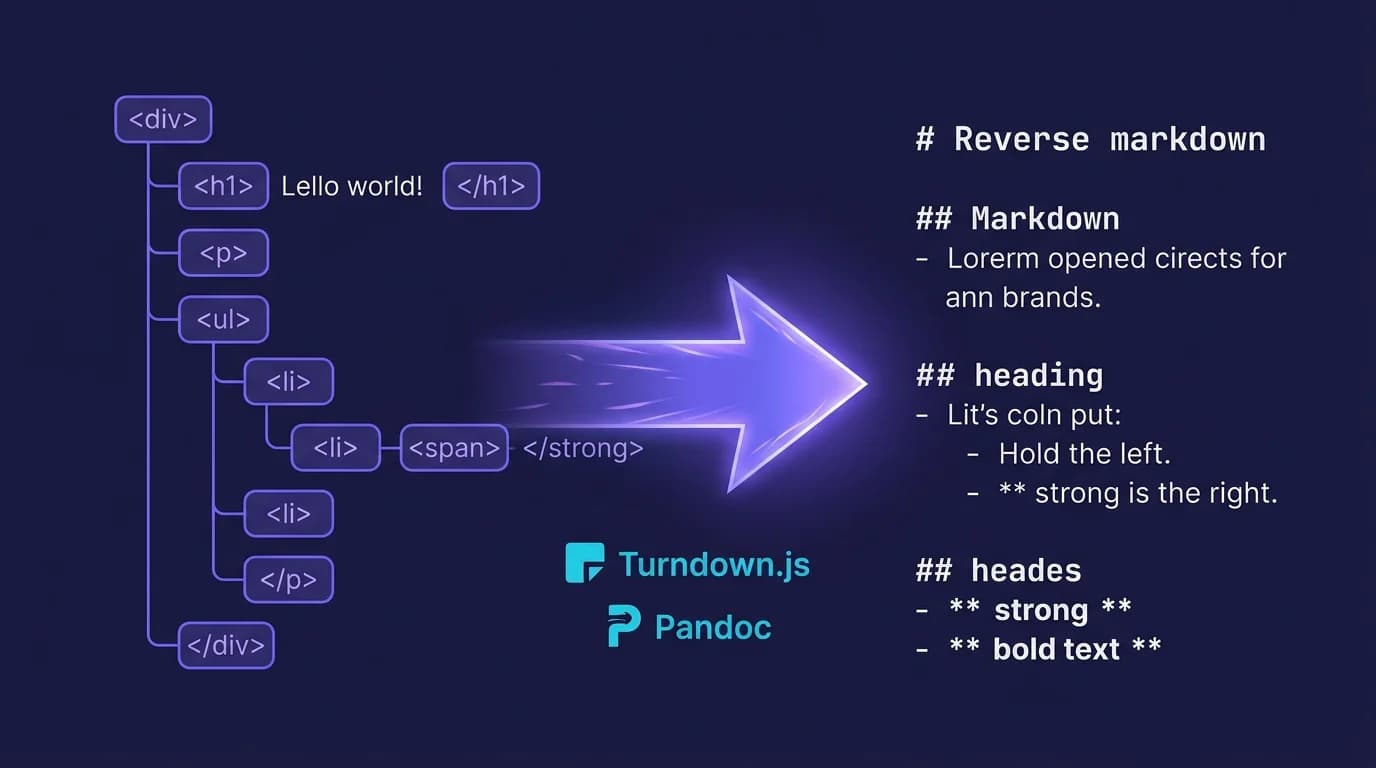
How do you convert HTML to markdown? You feed your HTML source into a parser that reverses the tagging process -- stripping <h2>, <strong>, <a>, and other elements back into their plain-text equivalents like ##, **, and [text](url). Turndown.js, the most popular JavaScript library for this task, handles over 3 million conversions per week based on its npm download count (npm, 2026). The entire operation takes milliseconds, whether you run it from a terminal, a Node.js script, a Python function, or a browser-based tool.
This guide walks through six practical ways to convert HTML to markdown -- from one-line terminal commands to drag-and-drop online converters -- so you can pick the method that fits your workflow and get clean, readable markdown output in under a minute.
In one line: Convert HTML to markdown by feeding HTML source into a parser that maps tags to markdown equivalents —
<h2>becomes##,<strong>becomes**text**,<a href="url">becomes[text](url)— using Turndown.js in JavaScript, Pandoc on the command line, or html2text in Python.
Short answer: Convert HTML to markdown with Turndown.js in JavaScript, Pandoc on the command line, html2text in Python, or a free online HTML to markdown converter. Each method reverses HTML tags into plain-text markdown syntax.
Why Would You Convert HTML to Markdown?
Markdown is easier to read, edit, and version-control than raw HTML. Three situations push developers and writers to convert in the opposite direction from the more common markdown to HTML workflow:
-
Content migration. Moving a WordPress blog, a Confluence wiki, or a legacy CMS to a markdown-based system (Hugo, Astro, Docusaurus) means converting thousands of HTML pages into
.mdfiles. Teams at companies like Stripe and GitLab have published migration guides describing exactly this process. -
Web scraping and data collection. Researchers and AI engineers scrape web pages for training data or knowledge bases. Raw HTML is cluttered with
<div>,<span>, and CSS classes that add noise. Converting HTML to markdown strips that noise while preserving the semantic structure -- headings, lists, links, and emphasis survive intact. -
Documentation cleanup. Old HTML documentation written by hand often drifts into inconsistent formatting. A one-time HTML to markdown conversion followed by a linter pass produces cleaner, more maintainable source files.
According to the W3Techs survey, markdown-based static site generators (Hugo, Next.js, Gatsby) now power over 3% of all websites with known CMS technology (W3Techs, 2026). Every site in that category started from content that was either written in markdown from day one or converted from HTML. Pandoc supports HTML to markdown as one of its 40+ format pairs (Pandoc documentation, 2026).
How Does HTML to Markdown Conversion Work?
Every HTML to markdown converter follows a reverse rendering pipeline. Where a markdown-to-HTML parser builds an abstract syntax tree (AST) from plain text and emits tags, an HTML-to-markdown converter does the opposite.
Step 1 -- DOM parsing. The converter reads the HTML input and builds a DOM tree (or parses it into an equivalent data structure). Each node represents an element: <h2>, <p>, <ul>, <li>, <a>, <code>.
Step 2 -- Rule matching. The converter walks the DOM tree and matches each node against a set of conversion rules. A <h2> node becomes ## , a <strong> node becomes **text**, an <a href="url"> becomes [text](url).
Step 3 -- Output assembly. The converter concatenates the converted fragments, handling whitespace, nested structures, and edge cases like empty links or inline code inside headings.
Here is a concrete example. Given this HTML:
<h2>Getting Started</h2>
<p>Install the package with <code>npm install turndown</code>.</p>
<ul>
  <li>Fast conversion</li>
  <li><strong>GFM</strong> compatible</li>
</ul>
The converter produces this markdown:
## Getting Started

Install the package with `npm install turndown`.

- Fast conversion
- **GFM** compatible
The rule-matching step is where customization happens. Most libraries let you add, remove, or override rules -- so you can control whether <div class="callout"> becomes a blockquote, a custom MDX component, or gets stripped entirely. For background on how markdown rendering works in the forward direction, see the render markdown guide.
The CommonMark specification (version 0.31.2, January 2024) defines the canonical rules for markdown-to-HTML conversion across 600+ conformance tests, and HTML-to-markdown converters reverse these same rules (CommonMark, 2024). Libraries that follow CommonMark produce more predictable output because the mapping between HTML elements and markdown syntax is standardized.
How Do You Convert HTML to Markdown with Turndown.js?
Turndown.js is the most widely used JavaScript library for HTML to markdown conversion. It receives over 3 million weekly downloads on npm and powers the conversion logic in tools like Obsidian Web Clipper and several browser extensions (npm, 2026).
Installation
npm install turndownBasic usage
const TurndownService = require('turndown');
const turndownService = new TurndownService();

const html = '<h1>Hello World</h1><p>This is <strong>bold</strong> text.</p>';
const markdown = turndownService.turndown(html);
// Output: # Hello World\n\nThis is **bold** text.
Adding GFM support
Turndown does not handle tables, strikethrough, or task lists by default. Add the GFM plugin for those:
npm install turndown-plugin-gfmconst TurndownService = require('turndown');
const { gfm } = require('turndown-plugin-gfm');
const turndownService = new TurndownService();
turndownService.use(gfm);
const html = '<table><tr><th>Name</th><th>Role</th></tr><tr><td>Alice</td><td>Dev</td></tr></table>';
const markdown = turndownService.turndown(html);
// Output: | Name | Role |\n| --- | --- |\n| Alice | Dev |For more on markdown table syntax, see the markdown cheat sheet.
Custom rules
Override how specific elements get converted:
turndownService.addRule('removeEmptyLinks', {
  filter: (node) => node.nodeName === 'A' && !node.textContent.trim(),
  replacement: () => ''
});
When to use Turndown.js
Pick Turndown.js when your project already runs JavaScript -- Node.js backends, browser extensions, Electron apps, or build scripts. Its plugin system makes it the best choice when you need to handle non-standard HTML structures or custom elements.
How Do You Convert HTML to Markdown with Pandoc?
Pandoc is the Swiss Army knife of document conversion. It supports over 40 input/output format pairs, and HTML to markdown is one of its most reliable conversions (Pandoc documentation, 2026).
Basic conversion
pandoc -f html -t markdown -o output.md input.htmlPandoc reads input.html, parses it as HTML, and writes clean markdown to output.md. The -f (from) and -t (to) flags specify the formats explicitly.
Converting a web page directly
Pandoc can fetch and convert a URL in one step:
pandoc -s -r html https://example.com/page -o page.mdThe -s flag produces a standalone document, and -r (reader) specifies the input format.
Choosing a markdown flavor
Pandoc defaults to its own extended markdown. For stricter output, specify the flavor:
# GitHub Flavored Markdown
pandoc -f html -t gfm -o output.md input.html

# CommonMark
pandoc -f html -t commonmark -o output.md input.html

# Plain markdown (no extensions)
pandoc -f html -t markdown_strict -o output.md input.html
Batch conversion
Convert an entire directory of HTML files using a shell loop:
for file in *.html; do
  pandoc -f html -t gfm -o "${file%.html}.md" "$file"
done
This is the fastest path for migrating hundreds of legacy HTML pages. Install Pandoc with brew install pandoc on macOS or download it from pandoc.org.
When to use Pandoc
Choose Pandoc for one-off conversions, batch processing, or when you need to convert between many formats (HTML, DOCX, LaTeX, EPUB) in the same pipeline. It runs on macOS, Linux, and Windows without any runtime dependencies.
I migrated a 340-page documentation site from raw HTML to GFM markdown using the batch loop above. The conversion itself took under 8 seconds. The cleanup afterward -- fixing nested <div> artifacts, re-linking images, and adjusting table formatting -- took the better part of a weekend. The lesson: automated conversion gets you 90% of the way, but always plan for a manual review pass.
How Do You Convert HTML to Markdown with Python?
Python offers two solid libraries for HTML to markdown conversion: html2text and markdownify.
Using html2text
html2text was originally written by Aaron Swartz and converts HTML into clean, readable markdown (PyPI, 2026).
pip install html2textimport html2text
converter = html2text.HTML2Text()
converter.body_width = 0 # Disable line wrapping
html = "<h2>Features</h2><p>Convert <em>any</em> HTML to markdown.</p>"
markdown = converter.handle(html)
print(markdown)
# Output: ## Features\n\nConvert _any_ HTML to markdown.Key configuration options:
converter.ignore_links = False     # Keep links (default)
converter.ignore_images = True     # Strip image tags
converter.ignore_tables = False    # Convert tables
converter.body_width = 0           # No line wrapping
converter.protect_links = True     # Don't wrap URLs
Using markdownify
markdownify gives you more control over the output, especially for nested HTML structures (GitHub, 2026):
pip install markdownifyfrom markdownify import markdownify as md
html = "<h1>Title</h1><p>Paragraph with <a href='https://example.com'>a link</a>.</p>"
result = md(html, heading_style="ATX")
print(result)
# Output: # Title\n\nParagraph with [a link](https://example.com).When to use Python
Choose Python when HTML to markdown conversion is part of a larger data pipeline -- web scraping with BeautifulSoup or Scrapy, data cleaning for NLP tasks, or automated documentation generation. Both libraries work with Python 3.9 and above.
How Do You Convert HTML to Markdown Online (No Installation)?
Not every conversion needs a code editor. Sometimes you have a single HTML snippet from an email, a web page, or an old CMS export and you just need clean markdown output fast.
Use the free HTML to Markdown converter on this site. Paste your HTML on the left, get markdown on the right -- no signup, no file uploads, no data sent to a server. The conversion runs entirely in your browser.
Online converters work well for:
- Quick one-off conversions (a single page, a code snippet, an email template)
- Non-developers who need markdown output without installing tools
- Verifying that a programmatic conversion produced correct output
For larger batch conversions or automated workflows, the command-line and library approaches described above are faster and more flexible.
What Are Common HTML to Markdown Conversion Pitfalls?
Converting HTML to markdown is not always a clean round-trip. Here are the edge cases that trip people up, along with how to handle them.
Inline styles and CSS classes get stripped
Markdown has no concept of color: red or class="highlight". Every HTML to markdown converter drops inline styles and class attributes by default. If you need to preserve styling, keep the raw HTML or use a markdown flavor that supports HTML passthrough.
Complex tables lose formatting
Basic HTML tables convert well. But tables with colspan, rowspan, merged cells, or nested tables produce broken markdown because the markdown table syntax does not support those features. For complex tables, consider converting them to CSV first, then using a CSV to markdown converter.
Nested block elements produce unexpected results
HTML allows deeply nested <div> and <section> elements that have no markdown equivalent. Most converters flatten these into paragraphs, which can merge content that was visually separated in the original HTML. Review the output and add manual line breaks where needed -- see the markdown line break guide for the correct syntax.
Script and style tags leak into output
Some converters do not strip <script> and <style> blocks. The content of these tags ends up as raw text in your markdown file. Both Turndown.js and html2text handle this correctly by default, but test with your specific HTML source to be sure.
Character encoding issues
HTML files using ISO-8859-1 or Windows-1252 encoding can produce garbled characters after conversion. Convert the file to UTF-8 first (iconv -f WINDOWS-1252 -t UTF-8 input.html > clean.html) or set the encoding explicitly in your conversion tool.
HTML to markdown conversion is lossy by design. Markdown supports roughly 15 formatting constructs (headings, emphasis, links, lists, code, blockquotes, images, horizontal rules, tables, strikethrough, task lists, footnotes, and a few more), while HTML has over 100 element types (MDN Web Docs, 2026). Any HTML structure outside those 15 constructs gets stripped or flattened during conversion.
Which HTML to Markdown Tool Should You Pick?
The right tool depends on your environment, volume, and customization needs.
| Tool | Language | Best for | GFM tables | Custom rules |
|---|---|---|---|---|
| Turndown.js | JavaScript | Browser extensions, Node.js apps | Via plugin | Yes |
| Pandoc | Command line | Batch conversion, multi-format | Built-in | Via templates |
| html2text | Python | Data pipelines, scraping | Limited | Via config |
| markdownify | Python | Fine-grained control | Yes | Via parameters |
| Online converter | Browser | Quick one-off conversions | Yes | No |
For previewing and validating the markdown output after conversion, a dedicated viewer that renders your .md files in real time makes the review process much faster. MacMD Viewer renders markdown with full GFM support, syntax highlighting, and a live table of contents -- so you can verify that your converted files look correct without switching between a text editor and a browser. See what it offers on the pricing page.
Frequently Asked Questions
Can you convert HTML to markdown without losing links?
Yes. Every tool in this guide preserves hyperlinks by default. An <a href="https://example.com">click here</a> tag becomes [click here](https://example.com) in markdown. Turndown.js, Pandoc, and html2text all handle this correctly. You can optionally strip links with configuration flags (converter.ignore_links = True in html2text), but the default behavior keeps them intact.
Does HTML to markdown conversion preserve images?
Standard HTML <img> tags convert to markdown image syntax: . However, images embedded as CSS backgrounds, SVG inline graphics, or base64-encoded data URIs require manual handling. For base64 images, extract the data, save it as a file, and reference the file path in your markdown.
What happens to HTML comments during conversion?
Most converters strip HTML comments (<!-- ... -->) by default. If your HTML contains important metadata in comments (like CMS instructions or version markers), extract that information before converting. Pandoc preserves HTML comments when using its extended markdown output format, but strips them in strict mode.
Is the conversion lossless -- can you round-trip HTML to markdown and back?
Not perfectly. HTML supports features that markdown cannot represent: inline styles, custom attributes, colspan in tables, embedded forms, and <iframe> elements. Converting HTML to markdown and then back to HTML produces semantically equivalent but not identical output. The structure (headings, lists, links, emphasis) survives, but layout-specific HTML gets lost. For a deeper look at the forward conversion, see the markdown to HTML guide.
How do you handle HTML with embedded JavaScript or CSS?
Turndown.js and html2text both strip <script> and <style> blocks by default. Pandoc also removes them in most output modes. If your HTML file contains inline JavaScript that you need to preserve (rare in a markdown context), wrap it in a fenced code block manually after conversion.
Content licensed under CC BY 4.0. Cite with attribution to MacMD Viewer.