 MacMD Viewer
How to Open an MD File (2026): Mac, Windows & Linux
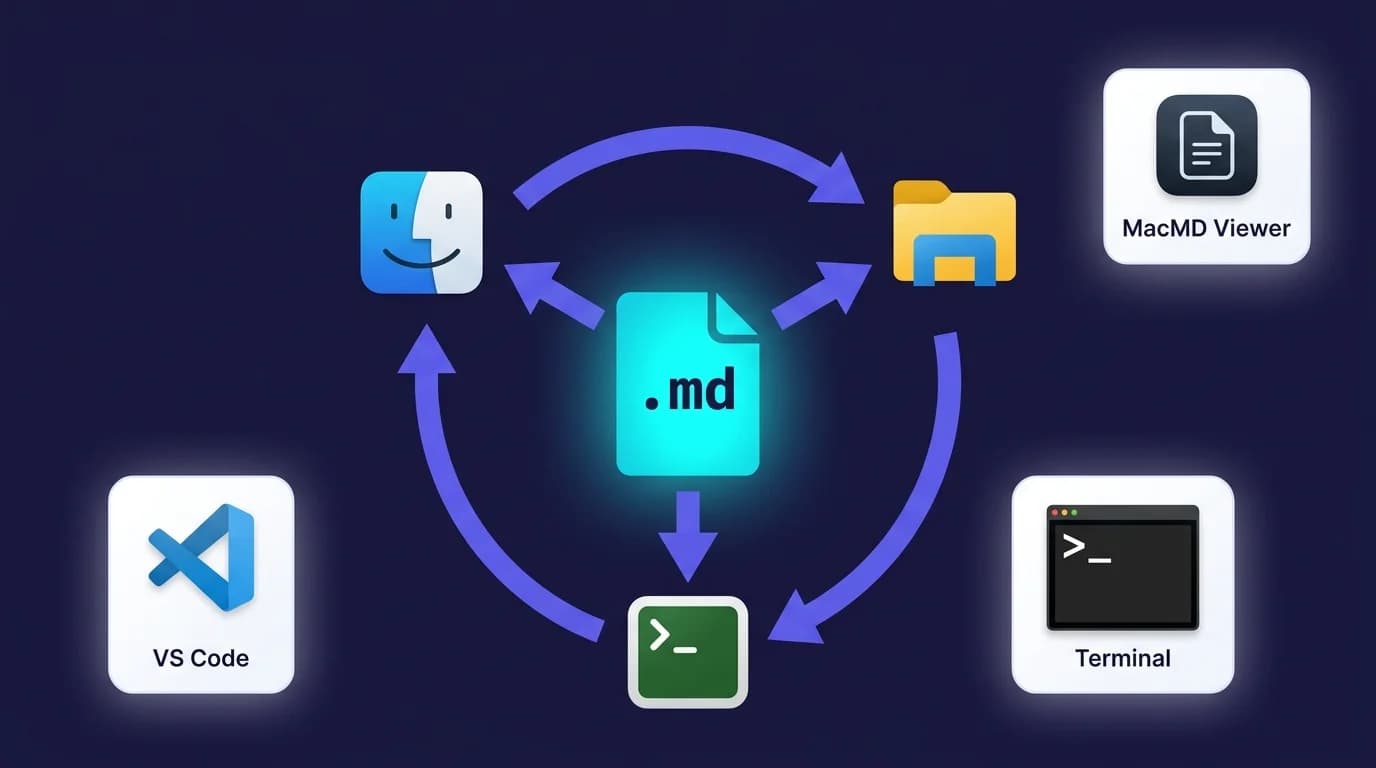
TL;DR: Opening an MD file gives you one of two results: the raw syntax, or the rendered document. Any text editor shows the raw version, on any operating system. For the rendered version, macOS users press Space on the file in Finder with MacMD Viewer ($19.99) installed; on Windows and Linux, VS Code renders it with
Ctrl+Shift+V. This guide covers 5 methods across macOS, Windows, Linux, and the browser.
Claude Code or Codex wrote a README.md into your project, Cursor generated docs, ChatGPT handed you a plan, you cloned a repository, or a colleague sent you a README — and now you have a .md file to open. Every operating system can open it, because an MD file is plain text. What differs is what you get back: a text editor shows you ## Heading and [link](url) as literal characters, while a Markdown viewer shows you the document those characters describe. Which one you want depends on whether you are about to edit the file or read it.
GitHub hosts over 630 million repositories (GitHub Octoverse, 2025), and nearly every one contains at least one .md file. If you work with code, documentation, or technical writing, knowing how to open MD files quickly — and with the right tool — saves time every single day.
630 million repositories on GitHub contain
.mdfiles for READMEs, changelogs, and documentation (GitHub Octoverse, 2025). Most people opening one want to read it rather than edit it, which is why the practical answer to "how do I open an MD file" is a renderer rather than a text editor: VS Code (Ctrl+Shift+V) on Windows and Linux, or MacMD Viewer on macOS, where pressing Space on the file in Finder previews it without opening an app at all.
What Is an MD File and Why Does It Need a Specific Opener?
An MD file is a plain-text document written in Markdown, the lightweight markup language created by John Gruber in 2004. The .md extension tells your system the file contains formatting syntax — characters like # for headings, ** for bold, and - for lists — that a renderer converts into styled HTML.
The CommonMark specification (version 0.31.2, January 2024) standardizes this syntax across more than 600 test cases. Any tool that follows CommonMark renders the same .md file identically, which is why Markdown became the default format for technical documentation.
Here is the catch: opening an MD file in Notepad or TextEdit shows the raw syntax, not the formatted output. You see ## Heading instead of a styled heading and [link](url) instead of a clickable hyperlink. That raw view is useful for editing, but when you need to read or review a Markdown document, you need a tool that renders it. For a deeper explanation of the format itself, see the guide to MD files.
The
.mdextension stands for Markdown, a plain-text formatting syntax standardized by the CommonMark specification (version 0.31.2, 2024). Unlike binary formats like.docx, an MD file is readable in any text editor — but a dedicated viewer renders headings, tables, and code blocks as styled HTML.
How Do You Open an MD File on macOS?
On macOS, you have two immediate choices: open the file as raw text in TextEdit, or render it as a document in a Markdown viewer. For the complete Mac-specific workflow—including Finder preview, default-app setup, and folders—use the dedicated guide to opening .md files on Mac.
Method 1: TextEdit (built-in, raw view)
TextEdit ships with every Mac. It opens .md files but shows raw Markdown syntax without rendering.
- Right-click the
.mdfile in Finder. - Select Open With and choose TextEdit.
- If the file appears with formatting artifacts, go to Format > Make Plain Text (
Shift+Cmd+T).
This works for quick edits but is not ideal for reading documentation. You see **bold** as literal characters, not styled text.
Method 2: Terminal commands (raw view)
For a fast glance at a file's contents without opening an editor:
cat README.md          # Print the entire file
less README.md         # Scroll through page by page
head -n 30 README.md   # Show the first 30 lines
Terminal output is plain text — no rendering. But when I need to check a README before cloning a full project, less is the fastest option because I am already in the terminal.
Method 3: MacMD Viewer (native rendered view)
A dedicated Markdown viewer renders the file as styled HTML with headings, tables, syntax-highlighted code blocks, and Mermaid diagrams. MacMD Viewer ($19.99 one-time) is built specifically for this workflow on macOS:
- Open MacMD Viewer or double-click any
.mdfile (once MacMD is set as the default handler). - The file renders instantly with a clickable table of contents sidebar.
- Edit the file in your preferred editor — MacMD watches for changes and refreshes the preview automatically.
MacMD also adds QuickLook integration, which means you can press Space on any .md file in Finder to see a rendered preview without opening any application. That single feature eliminates the most common friction point: double-clicking an MD file and getting dumped into Xcode or a raw text editor.
On macOS, double-clicking a
.mdfile typically opens Xcode or TextEdit — neither renders Markdown formatting. A dedicated viewer like MacMD Viewer registers as an MD file handler and adds QuickLook support, so pressing Space in Finder shows a fully rendered preview instantly.
Opening a .md file Claude gave you
A .md file from Claude is plain Markdown, so it opens like any other. Claude Code and other coding agents write these files straight into your project folder: plans, READMEs, summaries. On a Mac, select the file in Finder and press Space for a rendered QuickLook preview with MacMD Viewer installed, or double-click it once MacMD is the default handler. On any OS, open it in VS Code and press Cmd/Ctrl+Shift+V. If you run Claude Code every day, the guide to reading Claude Code files on Mac covers live reload while the agent works. If all you have is a chat answer, first save a Claude answer as Markdown.
How Do You Open an MD File on Windows?
Windows does not recognize .md files natively, but several methods let you open and view them. If you want a dedicated app rather than a workaround, our markdown viewer for Windows roundup compares the options in depth.
Method 1: Notepad (built-in, raw view)
- Right-click the
.mdfile in File Explorer. - Select Open with and choose Notepad.
- The file opens as plain text showing raw Markdown syntax.
Notepad works for quick edits but cannot render Markdown. For files with tables, code blocks, or diagrams, the raw view is difficult to follow. Windows 11 preview builds are adding basic Markdown syntax rendering to Notepad, including tables (Medium, 2026) — a meaningful shift, but not yet a full viewer.
Method 2: VS Code (free, rendered preview)
Visual Studio Code is the most popular code editor — used by 73% of developers according to the Stack Overflow Developer Survey, 2024 — and it has built-in Markdown support.
- Open VS Code and drag the
.mdfile into the window, or use File > Open File. - Press
Ctrl+Shift+Vto open a rendered preview in a new tab. - Press
Ctrl+K Vto open a side-by-side view with source on the left and preview on the right.
VS Code renders headings, bold, italic, links, images, lists, and code blocks. For extended syntax like Mermaid diagrams or LaTeX math, install the Markdown Preview Enhanced extension.
Method 3: Browser-based viewer (no install)
If you cannot install software, paste the file contents into an online Markdown preview tool to see the rendered output immediately. No account or download required.
Method 4: LibreOffice or Markdown View (rendered, native)
LibreOffice 26.2 (2026) added native Markdown import (Heise, 2026) — open a .md file directly in LibreOffice Writer via File > Open. It is the first major office suite with built-in Markdown import, and it works on Windows, macOS, and Linux. For a lightweight Explorer-integrated option, Markdown View from the Microsoft Store renders .md files with themes and print support.
VS Code is used by 73% of developers (Stack Overflow Developer Survey, 2024) and includes built-in Markdown preview. Press
Ctrl+Shift+Von Windows to render any.mdfile instantly.
How Do You Open an MD File on Linux?
On Linux, glow README.md gives a styled rendered view in the terminal; cat or less shows raw syntax with no install. For a GUI preview, VS Code with Ctrl+Shift+V works across major distributions.
Terminal-based viewing
Most Linux systems have cat, less, or bat pre-installed or easily available:
cat README.md            # Full file dump
less README.md           # Paginated scrolling
bat README.md            # Syntax-highlighted output (install via package manager)
The bat command is particularly useful — it applies syntax highlighting to the raw Markdown, making headings and code fences visually distinct even without full rendering.
GUI text editors
- gedit (GNOME) — opens
.mdfiles as plain text with syntax highlighting. - Kate (KDE) — includes a Markdown preview plugin that renders the file alongside the source.
- Mousepad (Xfce) — lightweight editor for raw Markdown viewing.
VS Code on Linux
The same VS Code workflow applies on Linux. Install VS Code via your distribution's package manager or Snap store, open the .md file, and press Ctrl+Shift+V for the rendered preview.
Dedicated terminal renderers
Tools like glow render Markdown directly in the terminal with styled output:
glow README.md # Renders Markdown with colors and formatting in the terminalglow is open source (charmbracelet/glow on GitHub) and available via Homebrew, Snap, and most Linux package managers. Two related tools cover other needs: mdcat renders Markdown with inline images in supporting terminals (brew install mdcat), and grip opens a local server that previews the file in your browser with GitHub's exact styling (pip install grip).
Linux users who open MD files frequently in the terminal should try
gloworbatbefore installing a GUI tool. Both render Markdown with visual structure —batadds syntax highlighting to the raw source, whileglowproduces fully styled output with colors, line wrapping, and heading hierarchy (charmbracelet/glow, GitHub).
How Do You Open an MD File in a Web Browser?
You do not always need to install software. Two browser-based approaches work on any operating system.
Drag and drop into the browser
Some browsers display .md files as raw text when you drag them into a browser window. This is functionally identical to opening them in Notepad — you see the source, not the rendered output.
Use an online Markdown viewer
Online tools parse your Markdown and render it as styled HTML in real time. The MacMD Markdown Preview tool lets you paste or type Markdown content and see the formatted result instantly. Other options include StackEdit and Dillinger.
This approach is ideal for:
- Previewing a single file without installing anything.
- Viewing Markdown on a shared or locked-down machine.
- Quickly checking formatting before committing a README.
For viewing Markdown files regularly, a desktop viewer is faster and works offline. But for occasional use, a browser-based MD file viewer renders any .md file instantly with nothing to install and nothing uploaded. For a full comparison of dedicated apps across every platform, see the best markdown viewer roundup.
Browser-based Markdown viewers require no installation and work on any operating system. They parse Markdown syntax client-side and render styled HTML in real time. The trade-off is that local file watching and offline access are unavailable — for daily use, a desktop viewer is more efficient.
Which Method Should You Choose to Open an MD File?
Use VS Code if you already have it installed — it covers editing and previewing in one tool. On macOS, a dedicated viewer like MacMD Viewer ($19.99 one-time) is faster for read-only workflows because it renders files on double-click and adds QuickLook. For one-off checks, an online preview tool is the lowest-friction option. The full comparison:
| Scenario | Recommended method | Why |
|---|---|---|
| Quick edit on any OS | Text editor (Notepad, TextEdit, nano) | Already installed, opens instantly |
| Daily development work | VS Code with preview | Editing + rendering in one tool |
| Reading docs on macOS | MacMD Viewer ($19.99 one-time) | Native rendering, QuickLook, file watching |
| One-off preview | Online Markdown preview | No install, works everywhere |
| Terminal workflow on Linux | glow or bat | Stays in the terminal, styled output |
If you open MD files more than a few times per week on a Mac, a dedicated viewer like MacMD Viewer ($19.99 one-time) pays for itself immediately. Once it's open, exporting is one shortcut away — see how to convert Markdown to PDF on Mac. The difference between reading raw ## Heading syntax and seeing a properly styled document with a sidebar table of contents is the difference between deciphering code and reading a document.
FAQ
ChatGPT or Claude gave me a .md file — how do I open it?
Coding agents like Claude Code, Codex, and Cursor write .md (Markdown) files straight into your project — plans, READMEs, and summaries — because the format keeps headings, lists, tables, and code in portable plain text. (The web versions of ChatGPT and Claude usually render Markdown inline, so it is the CLI and agent tools that leave you a file to open.) Open it like any Markdown file: a text editor shows the raw text, a renderer shows it formatted. On macOS, press Space on the file in Finder with MacMD Viewer ($19.99) installed; on any OS, VS Code (Ctrl/Cmd+Shift+V) or an online Markdown preview tool renders it in seconds. What these tools generate is finished content meant to be read formatted — not a config file.
Can I open an MD file on my phone?
Yes. On iOS, apps like Working Copy (Git client with Markdown preview) and iA Writer render MD files. On Android, Markor is a free, open-source Markdown editor and viewer. You can also paste Markdown content into any browser-based preview tool from your phone.
Why does my MD file open in Xcode on Mac?
macOS associates .md files with Xcode if it is installed, because Xcode registers itself as a handler for Markdown files. To change this: right-click any .md file in Finder, select Get Info, change the Open with dropdown to your preferred app (such as MacMD Viewer, $19.99 one-time), and click Change All to apply it to all .md files.
Is an MD file the same as a TXT file?
Both are plain text, but an MD file contains Markdown formatting syntax that a renderer can convert to HTML. A .txt file has no formatting standard — it is raw text. Renaming a .md file to .txt does not change its content, but text editors will not apply Markdown syntax highlighting. For a detailed comparison, see what is a Markdown file.
Do I need internet access to open an MD file?
No. An MD file is a local plain-text document. Any text editor opens it offline. Desktop viewers like MacMD Viewer ($19.99 one-time) and VS Code also work entirely offline. Only browser-based online viewers require an internet connection.
What is the difference between viewing and editing an MD file?
A viewer renders the Markdown as formatted HTML — read-only, no changes to the file. An editor lets you modify the content and often includes a live preview pane. If you only need to read documentation, a dedicated MD file viewer is cleaner and faster than opening a full editor.
What program opens a .md file?
Any text editor opens .md files as plain text — TextEdit on Mac, Notepad on Windows, Vim on Linux. For rendered viewing with formatted headings, code blocks, and diagrams, use a dedicated viewer like MacMD Viewer (Mac, $19.99 one-time), VS Code with preview (cross-platform, free), or glow in the terminal (free).
Can Word or LibreOffice open a .md file?
Microsoft Word does not natively read Markdown, so the file has to be converted first. The quickest route with nothing to install is the free Markdown to Word converter — open the .md file and download a .docx with headings, tables, lists, and code preserved, all in your browser. On the command line, Pandoc does the same job: pandoc file.md -o file.docx. LibreOffice 26.2 (2026) added native Markdown import, so you can open .md files directly in LibreOffice Writer via File > Open on Windows, Mac, or Linux.
How do I open an MD file as a PDF?
Markdown has no PDF viewer of its own — you convert, then read the PDF. The free Markdown to PDF converter turns any .md file into a formatted PDF in the browser, with nothing uploaded. If you already have the file open in a renderer, printing to PDF works too: VS Code needs the Markdown PDF extension, while on macOS a dedicated viewer prints the rendered document straight from File > Print.
Can Notepad read MD files?
Windows Notepad opens .md files as plain text, and Windows 11 preview builds are adding basic Markdown syntax rendering including tables. For full rendered viewing on Windows, use VS Code (free) or Markdown View from the Microsoft Store.
Content licensed under CC BY 4.0. Cite with attribution to MacMD Viewer.