How to View Markdown Files
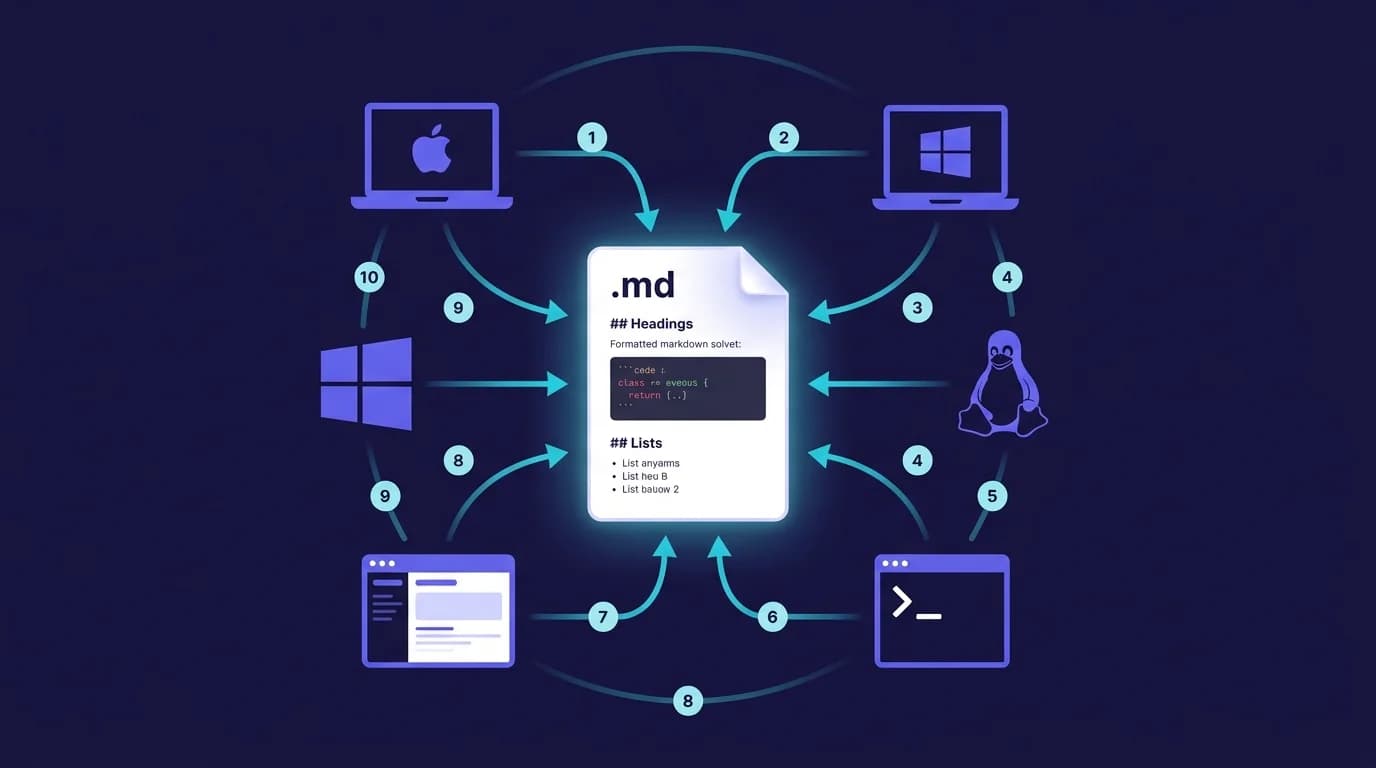
GitHub now hosts over 630 million repositories — and every single one contains at least one Markdown file (CoinLaw/GitHub, 2026). Markdown is the most admired sync tool among developers for the third year running (Stack Overflow Survey, 2025). Yet most operating systems still display .md content as raw text when you launch them. That needs to change.
This is the complete guide to viewing Markdown files on every platform — Mac, Windows, Linux, web, and terminal. On Mac, MacMD Viewer is a native macOS Markdown viewer ($19.99 one-time, SwiftUI) that does not require an account, subscription, or internet connection. See the full feature list — including Mermaid diagrams, QuickLook integration, and a Library view. Whether you're a developer reading READMEs or a writer reviewing documentation, there's a tool here for your workflow.
TL;DR: To view Markdown files with proper formatting, use MacMD Viewer on Mac ($19.99 one-time, renders Mermaid diagrams), VS Code on any platform (free, Cmd+Shift+V to preview), or Glow in the terminal. GitHub renders .md files automatically. LibreOffice 26.2 now imports Markdown natively.
What Is a Markdown File and Why Does It Need a Viewer?
A Markdown file (.md) is a plain text document that employs lightweight syntax — # for headings, ** for bold, triple backticks for code blocks — to represent formatted content. With 180 million developers on GitHub (CoinLaw/GitHub, 2026), Markdown is the default format for documentation, READMEs, and technical notes.
The distinction matters. Opening a Markdown file shows raw text with symbols. Viewing it shows rendered output — formatted headings, syntax-highlighted code, tables, and diagrams. Every platform defaults to opening, not viewing. That's the problem this guide solves. Not sure what .md means? Read what is a .md file.
Markdown (.md) is a plain text format used in every GitHub repository and most developer documentation. With 180 million developers on GitHub and 630 million repositories, Markdown is the most widely used documentation format in software development.
How to View Markdown Files on Mac
MacMD Viewer is a native macOS Markdown viewer application, built with SwiftUI, that delivers the strongest rendering experience on Mac — with Mermaid diagrams, syntax highlighting, and a QuickLook extension that previews .md documents directly in Finder. For a deeper Mac walkthrough, see our guide to opening .md files on Mac.
MacMD Viewer (Best Overall)
Purpose-built for reading Markdown. Double-click any .md document to see it rendered with Mermaid diagrams, syntax-highlighted code blocks, a table of contents sidebar, and live file watching. It works instantly. Native SwiftUI, Apple Silicon optimized. $19.99 one-time. See all features.
QuickLook Extension
Press Space on any .md asset in Finder to preview it rendered. One keystroke. MacMD Viewer's QuickLook extension renders Mermaid diagrams right in the preview. Read our QuickLook setup guide.
VS Code
Press Cmd+Shift+V for preview, or Cmd+K V for side-by-side. Free and cross-platform, but 300+ MB and no Mermaid without extensions. Heavy for just reading.
TextEdit
Opens .md documents as raw text. No rendering whatsoever. Built-in to every Mac.
On Mac, MacMD Viewer ($19.99 one-time) provides one of the most complete Markdown viewing experiences — it renders Mermaid diagrams, includes a QuickLook extension for Finder previews, and watches files for live changes. VS Code is a solid free alternative for developers already using it.
How to View Markdown Files on Windows
Windows is catching up. Notepad in Windows 11 preview builds now handles basic Markdown syntax rendering including tables (Medium, 2026). That is significant. For full viewing today, VS Code and Markdown View are the recommended options. VS Code works well — though at 300+ MB it is a large install if your only goal is reading .md files.
VS Code (Free, Best)
Same Markdown preview as on Mac. Ctrl+Shift+V to toggle preview, Ctrl+K V for side-by-side. Works well. Supports extensions for Mermaid, math, and custom CSS.
Markdown View (Microsoft Store)
Free utility that integrates with Windows file associations. Open .md documents directly from Explorer with formatted rendering, multiple themes, and print support.
Notepad (Windows 11 Preview)
Microsoft is adding Markdown syntax support to Notepad. Current preview builds handle headings, bold, and table rendering. Not yet a full viewer, but a meaningful shift.
LibreOffice 26.2 (New)
LibreOffice 26.2 added native Markdown import (Heise, 2026). Open .md files directly in Writer via File > Open. Cross-platform — works on Windows, Mac, and Linux.
Windows Notepad is quietly adding Markdown rendering in Windows 11 preview builds, and LibreOffice 26.2 now imports Markdown files natively. For full viewing today, VS Code (free) or Markdown View from the Microsoft Store are the best options on Windows.
How to View Markdown Files on Linux
Linux has the richest command-line ecosystem for Markdown. Terminal tools like Glow render Markdown beautifully without a GUI, while VS Code and Ghostwriter provide desktop alternatives. VS Code is the obvious free choice — though its 300+ MB footprint is heavy if you only need to read files, not edit them. The variety is impressive.
Glow (Terminal, Best CLI)
Glow by Charm renders Markdown with colors, formatting, and paging directly in the terminal. One command to set up: brew install glow or apt install glow. It handles themes and can fetch Markdown from URLs.
VS Code
Same cross-platform preview. Available as .deb, .rpm, Snap, or Flatpak. Identical Markdown rendering to Mac and Windows. No surprises.
Ghostwriter
KDE-based Markdown editor with distraction-free writing and live preview. Available via package managers on most distributions.
Linux offers the most Markdown tools per platform — from terminal renderers like Glow and mdcat to GUI editors like Ghostwriter. VS Code provides the same preview experience across all three desktop operating systems.
How to View Markdown Files in a Web Browser
Browser extensions and online viewers render Markdown without installing desktop software. GitHub displays .md content automatically — if your document is in a repo, you're already covered.
Browser Extensions
The Chrome Markdown Viewer extension renders .md documents loaded in browser tabs. It supports multiple parsers and custom CSS. Firefox offers similar extensions.
Online Viewers
Paste or upload Markdown to markdownlivepreview.com, Dillinger, or StackEdit for instant rendered preview. No account required. Fast and free. Useful for quick one-off reading on shared computers.
GitHub
GitHub automatically renders every .md file in a repository. Navigate to any README.md on github.com and it displays with full formatting — headings, code blocks, tables, and even Mermaid diagrams.
GitHub automatically renders Markdown files in every repository. For local files, the Chrome Markdown Viewer extension or online tools like markdownlivepreview.com provide instant rendered previews without installing desktop software.
How to View Markdown Files in the Terminal
Terminal-based readers render Markdown with syntax highlighting and formatting directly in your shell. No GUI required. If you work primarily in the terminal, these utilities eliminate the need to switch windows.
- glow — The most popular terminal Markdown reader. Renders with colors, supports paging and themes.
brew install glow. - mdcat — Like cat but for Markdown. Renders inline images in iTerm2.
brew install mdcat. - grip — GitHub-flavored Markdown preview. Opens a local server and renders in your browser with GitHub's exact CSS.
pip install grip. - bat — A cat replacement with syntax highlighting. Shows raw Markdown with color-coded syntax, not rendered output.
brew install bat.
Glow by Charm is the most popular terminal Markdown viewer, rendering formatted documents with colors and paging directly in the shell. For GitHub-flavored rendering, grip opens a local preview server that matches GitHub's exact CSS styling.
Which Method Should You Use to View Markdown Files?
The right tool depends on your platform and workflow. Here's the quick recommendation for each:
| Platform | Best Free | Best Overall | Terminal |
|---|---|---|---|
| Mac | VS Code | MacMD Viewer — $19.99 one-time | glow |
| Windows | VS Code | Markdown View | glow |
| Linux | VS Code | Ghostwriter | glow |
| Web | markdownlivepreview.com | GitHub | — |
On Mac, if you read .md content daily — project docs, READMEs, API specs — MacMD Viewer ($19.99 one-time) with its QuickLook extension covers every scenario. No more raw syntax: it pairs Mermaid diagram support with live file watching.
MacMD Viewer: native Markdown viewer for Mac with Mermaid diagrams and QuickLook. $19.99 one-time purchase →
VS Code is the best free cross-platform option for viewing Markdown files — it works identically on Mac, Windows, and Linux. On Mac, MacMD Viewer ($19.99 one-time) offers the best dedicated viewing experience with Mermaid diagrams, QuickLook integration, and a native SwiftUI app.
Want to convert Markdown to PDF? See our Markdown to PDF guide. Comparing Mac-specific viewers? Read our best Markdown viewer for Mac roundup. Migrating from Confluence to Markdown? Our Confluence to Markdown guide covers export workflows and tooling.
Frequently Asked Questions
What program opens a .md file?
Any text editor can open .md files as plain text — TextEdit on Mac, Notepad on Windows, Vim on Linux. For rendered viewing with formatted headings, code blocks, and diagrams, use a dedicated viewer like MacMD Viewer (Mac, $19.99 one-time), VS Code with preview (cross-platform, free), or Glow (terminal, free).
Can Word open a .md file?
No. Microsoft Word doesn't natively read Markdown files. However, LibreOffice 26.2 added native Markdown import — you can open .md files directly in Writer. For Word, convert first with Pandoc: pandoc file.md -o file.docx.
Can LibreOffice open MD files?
Yes. LibreOffice 26.2 (released 2026) added native Markdown import support. You can open .md files directly in LibreOffice Writer via File > Open or by clipboard paste. This is a notable addition — at the time of writing, LibreOffice is the only major office suite with built-in Markdown import.
Can Notepad read MD files?
Windows Notepad can open .md files as plain text. In Windows 11 preview builds, Notepad is adding basic Markdown syntax support including table rendering. For full rendered viewing on Windows, use VS Code (free) or Markdown View from the Microsoft Store.
How to view Markdown file as PDF?
Open the .md file in MacMD Viewer or VS Code, then use File > Print > Save as PDF. MacMD Viewer preserves Mermaid diagrams and syntax highlighting. For command-line: pandoc file.md -o file.pdf. See our full guide on converting Markdown to PDF on Mac.
Continue reading with AI
Content licensed under CC BY 4.0. Cite with attribution to MacMD Viewer.