How to Preview Markdown Files with QuickLook on Mac
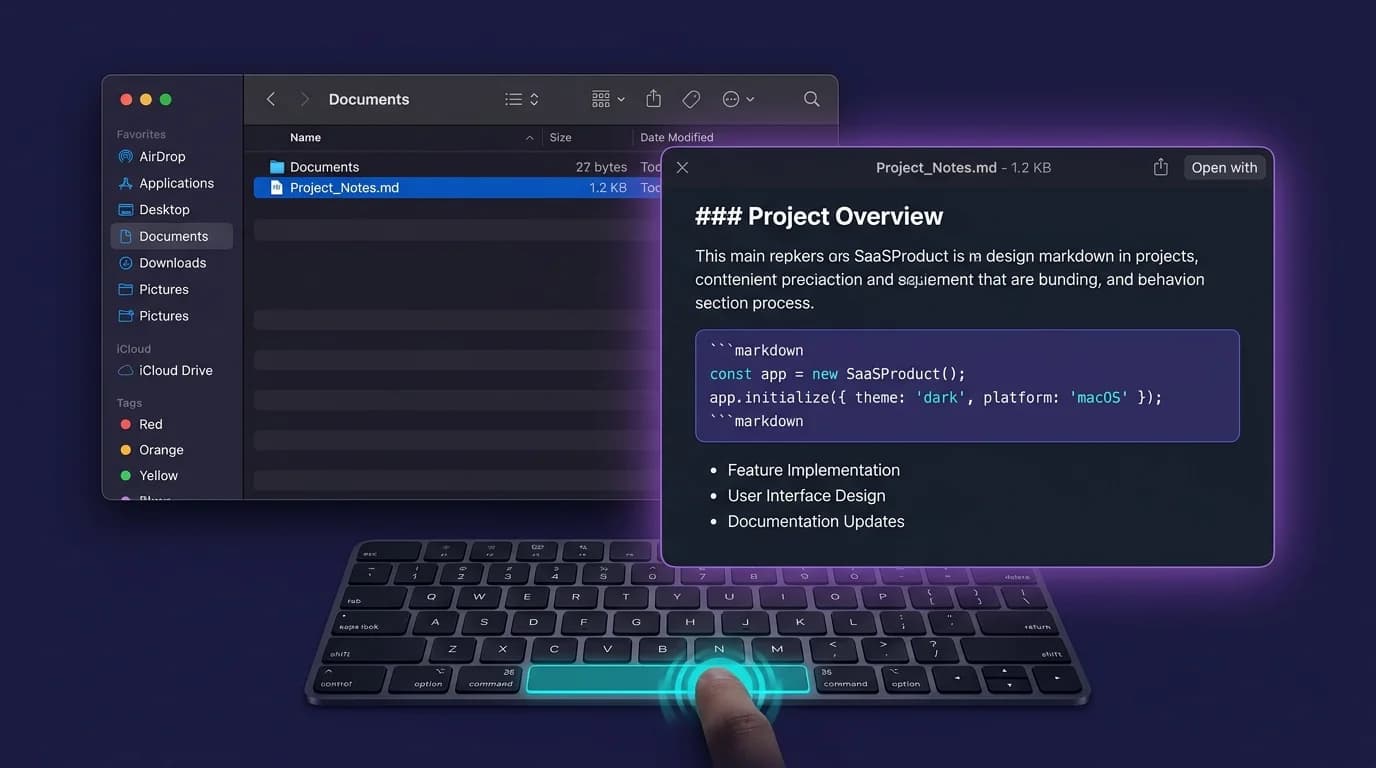
Press Space on any file in Finder to preview it. Works for PDFs, images, videos — but not Markdown. Your .md documents show up as raw text with hashtags and asterisks. No headings, no code blocks, no tables. Just symbols.
Three QuickLook extensions now render Markdown in Finder — each with different trade-offs. MacMD Viewer ($19.99 one-time) is a native macOS Markdown viewer built with SwiftUI; its QuickLook extension renders Mermaid diagrams in Finder's preview, and it ships a full reader app alongside. Unlike Electron-based tools, it does not bundle a Chromium browser. See the full feature list if you want to compare capabilities before choosing. This guide covers all three extensions with step-by-step configuration instructions.
MacMD Viewer ($19.99 one-time) is the only option here that pairs the QuickLook extension with a full standalone reader app.
TL;DR: macOS has no built-in Markdown QuickLook support. Install QLMarkdown via Homebrew (free, open source), Markdown Preview from the App Store ($2.99), or MacMD Viewer ($19.99 one-time), which adds a standalone reader app alongside its QuickLook extension. All three require enabling in System Settings > Extensions > QuickLook.
Why Doesn't macOS Preview Markdown in QuickLook?
macOS QuickLook handles over 30 file types natively — PDFs, images, videos, Office documents, and more. Markdown is not one of them. Apple has never shipped a built-in QuickLook renderer for .md files, despite Markdown being the standard format for developer documentation since 2004.
QuickLook relies on extensions to process each file type. Without a Markdown extension installed, pressing Space on a .md document shows the raw plain text — # Heading instead of a formatted heading, **bold** instead of bold. For more ways to view Markdown beyond QuickLook, see our guide on how to open .md files on Mac.
macOS QuickLook supports over 30 file types natively — PDFs, images, videos, Office documents — but Markdown (.md) is not one of them. To enable Markdown QuickLook previews in Finder, you need to install a third-party extension and enable it in System Settings.
How to Install QLMarkdown on Mac (Option 1 — Free)
QLMarkdown is a free, open-source QuickLook extension by sbarex that renders Markdown content as formatted HTML in Finder. It supports .md, .markdown, .rmd, .mdx, and .textbundle files.
Installation Steps
- Open Terminal
- Run:
brew install --cask qlmarkdown - Open QLMarkdown.app once to register the extension
- Go to System Settings > Privacy & Security > Extensions > QuickLook
- Enable "QLMarkdown"
- Press Space on any
.mdfile in Finder — it renders with headings, lists, code blocks, and tables
QLMarkdown displays headings, lists, code blocks, tables, LaTeX math and Mermaid diagrams — Mermaid landed in version 1.0.24 (January 2026), and 1.5.2 added standalone .mermaid files. It is a QuickLook extension only: there is no document window, so reading a long file means previewing it from Finder each time. That is the gap MacMD Viewer ($19.99 one-time) fills.
Is the Homebrew cask still supported?
The QLMarkdown Homebrew cask is active — not deprecated, not scheduled for disabling (Homebrew Formulae, checked 28 July 2026). brew install --cask qlmarkdown works and serves the current 1.5.2. An earlier version of this guide claimed a September 2026 disable date; that was wrong, and it is corrected here rather than quietly deleted.
QLMarkdown is a free, open-source macOS QuickLook extension by sbarex that renders Markdown files as formatted HTML in Finder. It is actively maintained — version 1.5.2 shipped on 30 June 2026 — and it renders Mermaid diagrams, LaTeX math and syntax-highlighted code.
MacMD Viewer: native Markdown viewer for Mac with Mermaid diagrams and QuickLook. 1 active Mac · One-time purchase · Taxes may apply at checkout.After payment, get your license key and download link. Your key is also emailed. No account needed.No free trial · 14-day money-back guarantee.
How to Set Up Markdown Preview from the App Store (Option 2 — $2.99)
Markdown Preview by Anybox Ltd is a $2.99 Mac App Store application that adds Markdown rendering to QuickLook with zero Terminal configuration. It's the simplest option — download, enable, done.
Installation Steps
- Search "Markdown Preview" on the Mac App Store
- Purchase and install ($2.99 one-time)
- Go to System Settings > Privacy & Security > Extensions > QuickLook
- Enable "Markdown Preview"
- Press Space on any
.mdfile in Finder
Markdown Preview handles standard formatting — headings, lists, code blocks, links. It doesn't support Mermaid diagrams or syntax highlighting in code blocks. Updates arrive automatically through the App Store. If those gaps matter, MacMD Viewer ($19.99 one-time) covers both.
Markdown Preview is a $2.99 Mac App Store app by Anybox Ltd that adds Markdown QuickLook support without using Terminal or Homebrew. It renders standard Markdown formatting but lacks Mermaid diagram rendering and code syntax highlighting.
How to Use MacMD Viewer's QuickLook Extension (Option 3 — Mermaid + Full App)
MacMD Viewer ($19.99 one-time) is a native macOS Markdown viewer application, built with SwiftUI, that includes a QuickLook extension covering capabilities the other two options don't reach. It renders Mermaid diagrams, syntax highlighting, and tables directly in Finder's QuickLook preview — a combination few extensions offer.
Installation Steps
- Choose a license ($19.99 one-time), then download the app from your post-purchase page
- Open the app once to register the QuickLook extension
- Enable in System Settings > Privacy & Security > Extensions > QuickLook
- Select a
.mdfile in Finder and press Space — the QuickLook panel shows the rendered document
What makes it the most complete option?
- Mermaid diagrams — renders flowcharts, sequence diagrams, and Gantt charts right in the QuickLook preview, which most extensions can't do
- Syntax highlighting — code blocks with proper language-specific coloring
- Works everywhere — Finder, Spotlight, and Open/Save dialogs
- Includes the full app — table of contents sidebar, zoom, live file watching, dark mode
- Full app included — open longer documents in a dedicated read-only window with a table of contents and live reload
See all MacMD Viewer features or visit the QuickLook extension page for more details.
MacMD Viewer renders Mermaid diagrams and syntax-highlighted code blocks directly in Finder's QuickLook preview. QLMarkdown does both too, and it is free; what MacMD adds at $19.99 one-time is a full standalone reader app alongside the extension — document themes, live reload and a window you can actually read a long file in.
Which QuickLook Extension Should You Choose?
Here's how the three options compare. Note that Readdown (free) also provides a QuickLook extension. If you also want to compare the full viewer landscape beyond QuickLook, see our native Markdown viewer roundup for macOS.
| Feature | QLMarkdown | Markdown Preview | MacMD Viewer |
|---|---|---|---|
| Price | Free | $2.99 | $19.99 one-time |
| Install method | Homebrew / GitHub | App Store | Direct download / Homebrew |
| Mermaid diagrams | Yes (since 1.0.24) | No | Yes |
| Syntax highlighting | Yes | No | Yes |
| Math (LaTeX) | Yes | No | No |
| Status | Active (1.5.2, June 2026) | Active | Active |
| Includes viewer app | No | No | Yes |
- Free? QLMarkdown — actively maintained, open source, and it covers Mermaid and LaTeX too.
- Simple and no Terminal? Markdown Preview from the App Store.
- Full-featured and future-proof? MacMD Viewer.
How to Fix QuickLook Markdown Not Working on Mac?
If Markdown QuickLook isn't working, the most common fix is resetting the cache. Launch Terminal and run qlmanage -r — this forces macOS to rediscover all installed extensions. If that doesn't resolve it, try these steps in order:
1. Check Extension Is Enabled
Go to System Settings > Privacy & Security > Extensions > QuickLook and verify your Markdown extension is toggled on.
2. Open the App Once
Some extensions only register after you launch the parent application. Open QLMarkdown.app or MacMD Viewer once, then check the extensions list again.
3. Restart Finder
Hold Option and right-click the Finder icon in your Dock. Select Relaunch.
4. Xcode Conflict
If double-clicking a .md file opens Xcode, change the default application by selecting the file in Finder, pressing Cmd+I, choosing your viewer under Open with, and clicking Change All. This does not control the Space-bar preview, but it fixes the separate double-click workflow.
5. macOS Sequoia Permission
On macOS 15 (Sequoia) and later, you may need to explicitly approve the extension. Check System Settings for a security prompt after first enabling.
6. More Than One Markdown Extension Is Enabled
If two Markdown QuickLook extensions are enabled, macOS may select a provider you did not expect. In System Settings > Privacy & Security > Extensions > QuickLook, temporarily disable the other Markdown providers, relaunch Finder, and test the same file again.
If QuickLook isn't rendering Markdown after installing an extension, run
qlmanage -rin Terminal to reset the QuickLook cache. If Xcode is installed, it may override .md file handling — change the default app via Finder > Get Info > Open With.
If you also need to reveal hidden .md files before previewing them, read our guide on how to view hidden files on Mac. For converting Markdown to PDF after previewing, see our Markdown to PDF on Mac guide.
Frequently Asked Questions
How do I install QLMarkdown on Mac?
Run 'brew install --cask qlmarkdown' in Terminal, then enable it in System Settings > Privacy & Security > Extensions > QuickLook. You can also install it manually from the GitHub releases page.
Is QLMarkdown still maintained?
Yes. QLMarkdown 1.5.2 shipped on 30 June 2026 and the Homebrew cask is active — not deprecated (Homebrew Formulae, checked 28 July 2026). An earlier version of this guide said the cask was deprecated; that was wrong and has been corrected.
Does any QuickLook extension support Mermaid diagrams?
Both MacMD Viewer ($19.99 one-time) and QLMarkdown (free) render Mermaid diagrams in QuickLook — QLMarkdown added Mermaid support in version 1.0.24, January 2026. The App Store's Markdown Preview does not.
Why doesn't QuickLook show formatted Markdown on my Mac?
macOS has no built-in Markdown renderer for QuickLook. You need to install a third-party extension — QLMarkdown (free), Markdown Preview ($2.99), or MacMD Viewer ($19.99 one-time) — and enable it in System Settings > Extensions > QuickLook. If it still doesn't work, run 'qlmanage -r' in Terminal.
How do I enable QuickLook extensions on Mac?
Go to System Settings > Privacy & Security > Extensions > QuickLook. Check the box next to your Markdown extension. If the extension doesn't appear, open the app once to register it, then restart Finder by holding Option and right-clicking the Finder icon in the Dock.
Content licensed under CC BY 4.0. Cite with attribution to MacMD Viewer.