Convert Markdown to PDF on Mac — 4 Easy Methods
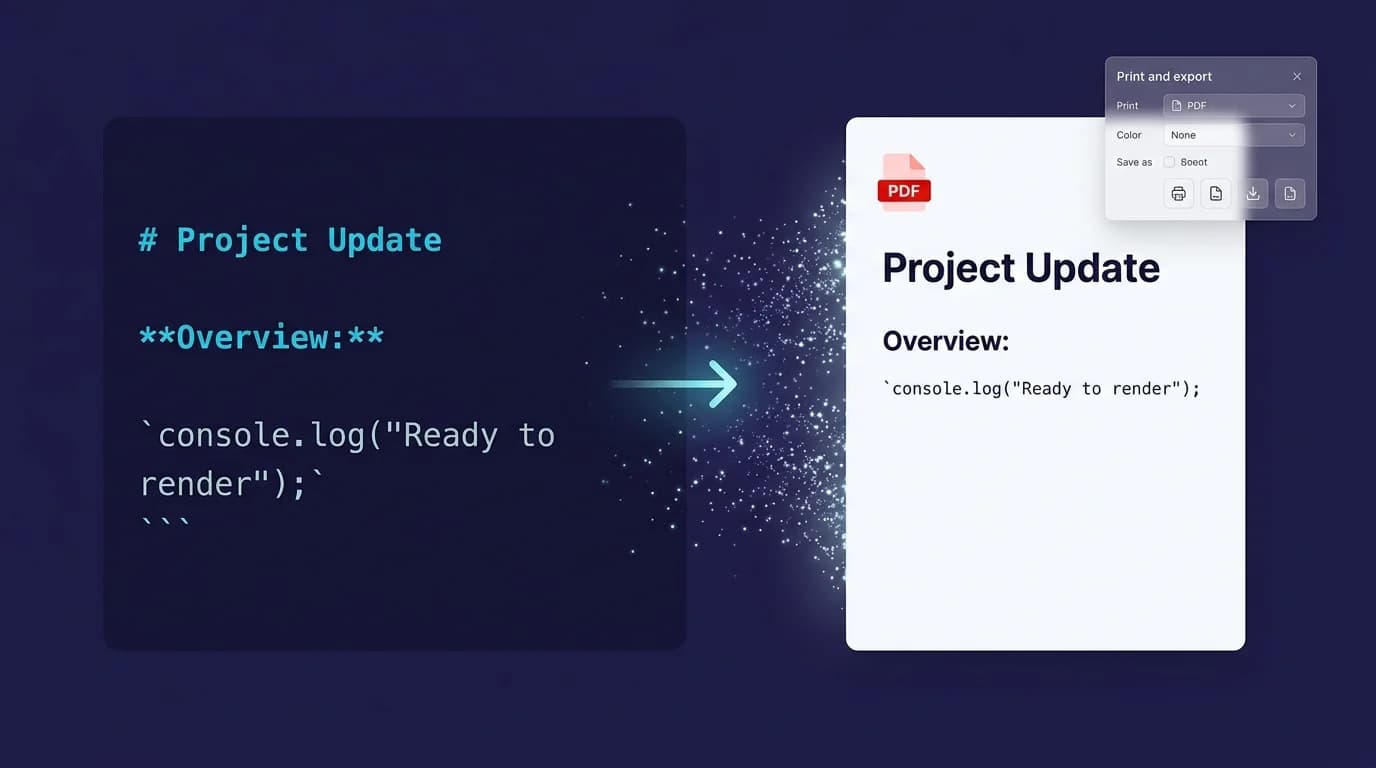
Markdown is perfect for writing documentation, but you can't send a .md document to a client or print it for a meeting. The fix? Convert it to PDF first — PDF preserves your layout across every device and operating system, which is why it's the default format for external business communication (Smallpdf, 2025).
Here are 4 methods to convert markdown to PDF on your Mac — from one-click print to batch command-line export. MacMD Viewer, a native macOS Markdown viewer ($19.99, SwiftUI, 5.4 MB download), preserves Mermaid diagrams and syntax highlighting in PDF output — it does not require plugins or external conversion tools. See the full feature list for what the viewer includes beyond PDF export.
TL;DR: The fastest way to convert markdown to PDF on Mac is to open the file in MacMD Viewer ($19.99 one-time) and press Cmd+P > Save as PDF. It preserves syntax highlighting, Mermaid diagrams, and clickable links. For batch conversion, use Pandoc:
pandoc file.md -o file.pdf.
Why Do You Need to Convert Markdown to PDF on Mac?
Markdown is ideal for writing. But your client, your manager, or your printer needs a PDF.
Common scenarios: sharing API documentation with a non-technical stakeholder, printing a project spec for a meeting, archiving release notes, or submitting a formatted report. Each demands the same thing — an application that renders the Markdown syntax and exports the result as a portable document. For more context, see our guide on how to open .md files on Mac. This page stays on macOS; if you are on another platform or want the format-level detail, read convert Markdown to PDF.
85% of businesses rely on PDF to share documents because the format preserves formatting across devices (Smallpdf, 2025). Generating a PDF from a Markdown file on Mac requires a rendering step — an application that interprets .md syntax and exports the formatted result as a portable document.
How to Convert Markdown to PDF with MacMD Viewer (Method 1 — Easiest)
MacMD Viewer is a native macOS Markdown viewer application, built with SwiftUI, that exports .md documents as PDF with a single keyboard shortcut. Open any .md file, press Cmd+P, save as PDF. Three steps. It preserves Mermaid diagrams, syntax-highlighted code blocks, and clickable links in the PDF output — no plugins, no command line. Available at macmdviewer.com for $19.99 one-time.
Steps
- Open the
.mdfile in MacMD Viewer ($19.99 one-time) - Press
Cmd+Pto open the Print dialog - Click the PDF dropdown in the bottom-left
- Select Save as PDF
The PDF output includes all heading hierarchy, syntax-highlighted code blocks with colors, properly aligned tables, Mermaid diagrams rendered as images, and clickable links. Your system theme (dark or light) carries over to the PDF.
We built this workflow because few Mac tools handle the Mermaid-to-PDF conversion natively. Editors like Typora focus on writing. Pandoc requires a separate filter plugin. MacMD Viewer delivers it out of the box. See all MacMD Viewer features.
MacMD Viewer preserves Mermaid diagrams, syntax-highlighted code blocks, and clickable links when exporting .md files as PDF — no plugins required. Open the file, press Cmd+P, save as PDF — the entire process takes under 10 seconds.
How to Convert Markdown to PDF with Pandoc (Method 2 — Most Powerful)
Pandoc is a free, open-source command-line utility created by John MacFarlane at UC Berkeley. It converts between dozens of document formats with full typographic control. With 480 monthly searches for "pandoc .md export" (DataForSEO, 2026), it's the most popular developer-oriented document conversion tool.
Installation
brew install pandoc
brew install --cask mactex-no-gui  # optional, for better typography
Basic Conversion
pandoc document.md -o document.pdf
Enhanced Conversion (Custom Fonts + Margins)
pandoc document.md -o document.pdf \
  --pdf-engine=xelatex \
  -V geometry:margin=1in \
  -V mainfont="Helvetica Neue" \
  -V monofont="SF Mono" \
  --highlight-style=tango
Pandoc excels at batch conversion. Transform every .md document in a folder with: for f in *.md; do pandoc "$f" -o "${f%.md}.pdf"; done
Limitation: Requires setting up Pandoc (and optionally MacTeX at ~4 GB). No Mermaid support without the mermaid-filter plugin. If that setup cost isn't worth it for a one-off export, MacMD Viewer does the same job in three clicks — Mermaid included — for $19.99 one-time.
Pandoc is the most powerful free command-line converter for .md files on Mac. It supports custom fonts, margins, LaTeX templates, and batch export of entire directories — but requires command-line familiarity and a separate install for Mermaid diagram support.
MacMD Viewer: native Markdown viewer for Mac with Mermaid diagrams and QuickLook. 1 active Mac · One-time purchase · Taxes may apply at checkout.After payment, get your license key and download link. Your key is also emailed. No account needed.No free trial · 14-day money-back guarantee.
How to Export Markdown to PDF in VS Code (Method 3 — For Developers)
VS Code's Markdown PDF extension adds one-click PDF export directly from the editor. Already in VS Code? This is the fastest way to convert without switching applications.
Steps
- Install the Markdown PDF extension from the VS Code marketplace
- Open your
.mdfile - Right-click in the editor and select Markdown PDF: Export (pdf)
- The PDF saves alongside the original file
The output is clean and readable, but not heavily customizable. Doesn't support Mermaid diagrams in PDF export. Good enough for quick conversions without leaving the editor — but if your document contains Mermaid diagrams, you'll need a different tool: either MacMD Viewer (one-click, Mermaid-native) or Pandoc with mermaid-filter.
VS Code's Markdown PDF extension creates a PDF from your document with a single right-click. The output includes formatted headings, code blocks, and tables, but doesn't support Mermaid diagrams or advanced syntax highlighting themes in the exported file.
How to Convert Markdown to PDF Online (Method 4 — No Install)
Online converters handle the conversion process directly in your browser — no software to install. Upload or paste your .md content, click export, download the PDF. Done.
- CloudConvert — Upload
.mdfiles, download PDF. Supports batch. - Dillinger — Full browser-based Markdown editor with Export As > PDF.
- MarkdownToPDF.com — Simple paste-and-convert tool.
Limitation: No Mermaid diagram support. Basic code formatting. Not recommended for sensitive or proprietary content — your data is uploaded to third-party servers. Consider the risk. If Mermaid diagrams or syntax highlighting matter, MacMD Viewer ($19.99 one-time) handles both locally without a server upload.
Online .md-to-PDF converters like CloudConvert work without any installation, but they upload your content to third-party servers and don't support Mermaid diagrams or syntax highlighting. Use them only for non-sensitive, one-off exports.
Which Method Should You Use to Convert Markdown to PDF on Mac?
For most Mac users, MacMD Viewer offers the fastest and highest-quality .md-to-PDF conversion — it preserves Mermaid diagrams in the output without any plugins. It also tops our comparison of native and Electron viewers for Mac. Here's how the four methods compare:
| Method | Ease of Use | Output Quality | Mermaid Diagrams | Batch Convert | Cost |
|---|---|---|---|---|---|
| MacMD Viewer | Very Easy | Excellent | Yes | No | $19.99 one-time |
| Pandoc | Technical | Excellent | With filter | Yes | Free |
| VS Code Extension | Easy | Good | No | No | Free |
| Online Tools | Very Easy | Basic | No | Some | Free |
- Best quality with Mermaid? MacMD Viewer — $19.99 one-time.
- Free + batch conversion? Pandoc.
- Already in VS Code? Markdown PDF extension.
- Nothing to install? CloudConvert or Dillinger.
MacMD Viewer produces the highest-quality PDF export from .md files and preserves Mermaid diagrams with no plugins. For free batch export of entire directories, Pandoc is the standard. VS Code handles quick one-off PDF generation for developers already in the editor.
For more ways to work with Markdown on Mac, see our guide to viewing Markdown files. Before converting, you may need to preview your file — set up QuickLook for Markdown to preview .md files in Finder by pressing Space. Or explore all MacMD Viewer features. Need to go the other way — turning a PDF back into editable Markdown? Use the free PDF to Markdown converter, which runs entirely in your browser.
FAQ
Can a Markdown file be converted to PDF?
Yes. The fastest method on Mac is to open the .md file in a Markdown viewer like MacMD Viewer ($19.99 one-time), then use File > Print > Save as PDF. This preserves headings, code highlighting, tables, and Mermaid diagrams. For command-line conversion, Pandoc converts Markdown to PDF using LaTeX.
Which method preserves Mermaid diagrams in the PDF?
MacMD Viewer ($19.99 one-time) renders Mermaid diagrams and preserves them when printing to PDF — no plugins required. Pandoc needs an additional mermaid-filter plugin. VS Code's Markdown PDF extension and online tools don't support Mermaid in PDF output.
How do I batch convert multiple Markdown files to PDF on Mac?
Pandoc is the best tool for batch conversion. In Terminal, run: for f in *.md; do pandoc \
What is the best free way to convert Markdown to PDF on Mac?
Pandoc (free, open source) produces the highest-quality free output. Install with 'brew install pandoc', then run 'pandoc file.md -o file.pdf'. For a simpler free option, open the .md file in VS Code with the Markdown PDF extension and export.
How to convert Markdown to PDF without installing anything?
Use an online converter like CloudConvert or Dillinger. Upload or paste your Markdown content, then export as PDF. These tools handle basic formatting but don't support Mermaid diagrams or advanced syntax highlighting.
Content licensed under CC BY 4.0. Cite with attribution to MacMD Viewer.