Best Markdown Viewer for Mac (2026): 11 Apps Tested
A good Markdown viewer on Mac should do four things well: open your .md file fast, render Mermaid diagrams without setup, let you Space-preview files in Finder, and stay snappy when you have 30 tabs open. Most popular options miss at least two of those.
Last re-checked: August 29, 2026 — updated Readdown to v1.16 (TeX math, revised privacy notes) and linked the new Readdown comparison.
In one line: the best Markdown viewer for Mac is the one that opens fast and previews in Finder with the Spacebar. Among native apps, MacMD Viewer ($19.99) leads for dedicated reading: QuickLook, Mermaid, live reload, plus a document outline and 12 themes. The free Readdown covers the QuickLook + Mermaid basics remarkably well, and Telescopo and Smackdown are solid free Mac App Store picks if you don't need Finder preview.
MacMD Viewer is the one tool built for the reading job specifically — fast native open, Mermaid built in, QuickLook integration so you don't even need to launch the app to preview a file. $19.99 one-time, no subscription. This guide compares the eleven Mac Markdown viewers worth knowing in 2026, ranked by what they actually do for your workflow.
TL;DR:
- Best pick for reading
.mdfiles: MacMD Viewer — opens fast, Mermaid + QuickLook + document outline, $19.99.- Best for previewing in Finder: MacMD Viewer or Readdown — the two apps here that ship a QuickLook extension.
- Best free option: Readdown (direct download, QuickLook included) — or Telescopo and Smackdown on the Mac App Store, though neither previews in Finder and Telescopo gates Mermaid + editing behind a $49.99 upgrade.
- Best for AI agent output (Claude/Cursor
.mdfiles): MacMD Viewer — watches the file, refreshes when the agent overwrites it.- Heavier but useful for editing: Typora ($14.99 WYSIWYG), Obsidian (free, knowledge base), VS Code (free, dev workflow). Not the right shape for pure reading.
MacMD Viewer: native Markdown viewer for Mac with Mermaid diagrams and QuickLook. 1 active Mac · One-time purchase · Taxes may apply at checkout.After payment, get your license key and download link. Your key is also emailed. No account needed.No free trial · 14-day money-back guarantee.
Is MacMD Viewer a Viewer or an Editor?
MacMD Viewer is a read-only Markdown viewer, not a Markdown editor. It is the right choice when you want to open a local .md file, read it rendered, navigate a long document, or monitor a file that Claude Code, Cursor, or your editor is updating. It never writes changes back to the Markdown file.
That constraint is deliberate. Use Typora, Obsidian, VS Code, Cursor, or your preferred text editor when you need to write. Use MacMD Viewer when you want a simple, native reading surface that works offline and keeps local documents on your Mac. The separation also removes the risk of accidentally changing a README, generated plan, or reviewed spec while reading it.
| If your main job is… | Choose… |
|---|---|
| Read local Markdown without editing it | MacMD Viewer or another dedicated viewer |
| Write Markdown in a distraction-free window | Typora or iA Writer |
| Maintain linked notes and a knowledge base | Obsidian |
| Edit code and Markdown in one workspace | VS Code or Cursor |
| Preview a file from Finder with the Space bar | A viewer with a QuickLook extension |
Why Are Most Mac Markdown Viewers Slow to Open?
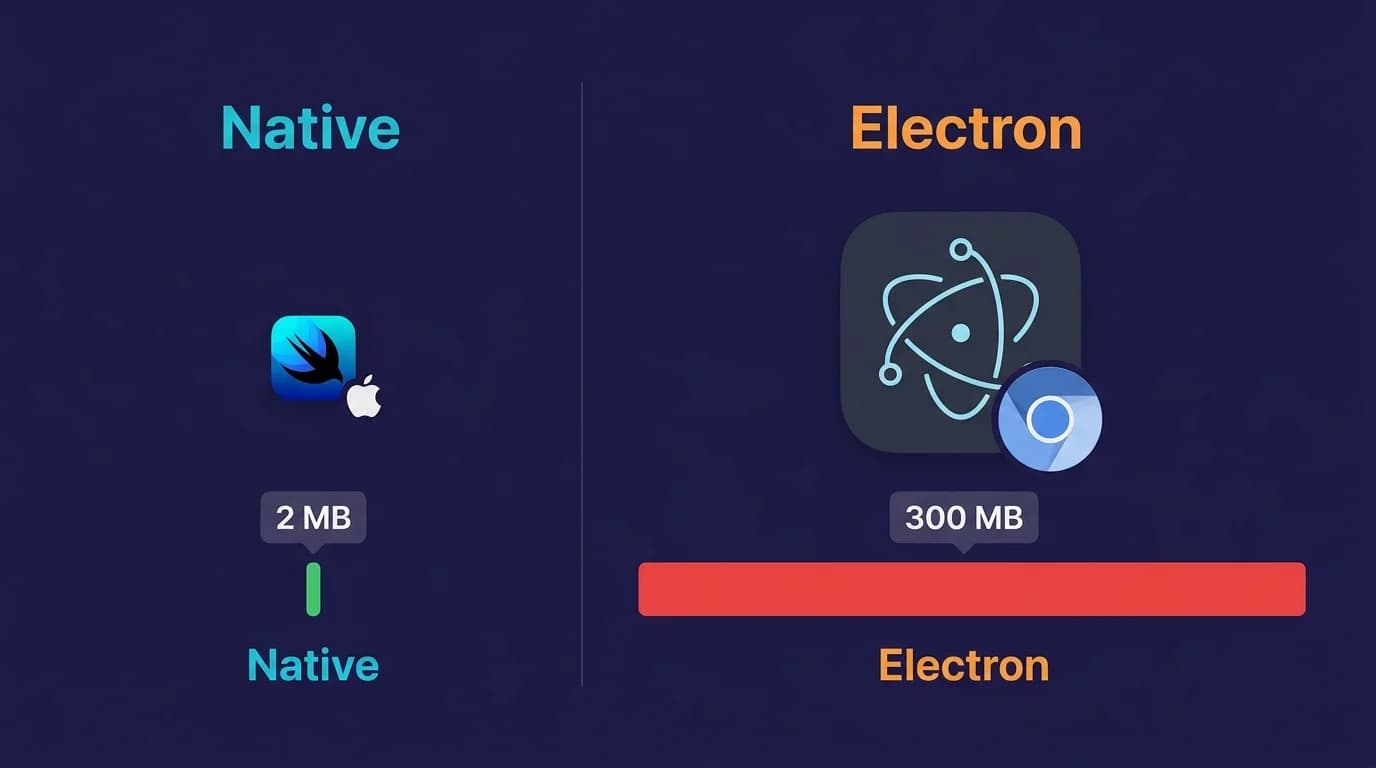
Open Obsidian or Typora to preview a single .md file and you wait noticeably before anything renders. That's because most popular Markdown apps run on cross-platform frameworks that load a full web rendering engine on every launch — convenient for developers shipping to Mac + Windows + Linux from one codebase, but it makes the app feel sluggish for users who just want to read a file.
For a viewer — a tool whose job is to render Markdown and get out of the way — that startup cost is paid every time you open a file. If you open 30 .md files a day reviewing AI agent output or skimming docs, that adds up to a couple of minutes of waiting daily. The math gets worse on battery: more background processes = faster drain on a MacBook Air unplugged.
If you've installed Obsidian just to read .md files, see our lightweight Obsidian alternative on Mac — vault setup is overkill when you only need to preview output.
How Do the Main Mac Markdown Viewers Compare on Real Workflows?
Below is what matters when you actually use a Markdown viewer day-to-day: Mermaid support, QuickLook in Finder, live reload, Apple Silicon performance. App size and RAM are listed too, but they're the result of those design choices — not the headline.
| Feature | MacMD Viewer | Readdown | Marked 2 | Typora | Obsidian | VS Code |
|---|---|---|---|---|---|---|
| Mermaid diagrams | Built-in | Built-in | Check current version | Built-in | Built-in (preview) | Extension |
| QuickLook in Finder | Yes | Yes | No | No | No | No |
| Live reload on save | Yes | Yes | Yes | Yes | In vault only | Yes (with bugs) |
| Apple Silicon native | Yes | Yes | Yes | Rosetta 2 | ARM-Electron | Yes (recent) |
| Best for | Reading any .md | Free reading | Marked-up preview | Writing + editing | Knowledge vault | Dev workflow |
| Engine | Native | Native | Native | Electron | Electron | Electron |
QuickLook splits this table in two: MacMD Viewer and the free Readdown are the only apps here that ship an extension letting you hit Space on a .md file in Finder and see formatted output inline. No app launch, no window switching. For users who shuffle through many Markdown files a day — agent outputs, downloaded READMEs, project specs — that's the highest-impact feature on this table.
The native-versus-Electron split tells the rest of the story. A native app that launches fast versus an Electron app that has to spin up a browser engine doesn't sound like much on paper. Multiplied across a working day of file-opening, it becomes the actual reason you reach for one tool over another.
MacMD Viewer: native Markdown viewer for Mac with Mermaid diagrams and QuickLook. 1 active Mac · One-time purchase · Taxes may apply at checkout.After payment, get your license key and download link. Your key is also emailed. No account needed.No free trial · 14-day money-back guarantee.
Why Does Native Performance Matter for a Markdown Viewer on Mac?
Native performance matters for a Markdown viewer because you open it dozens of times per day — checking READMEs, scanning changelogs, previewing documentation — and startup latency compounds across every one of those interactions. A native SwiftUI app launches immediately; an Electron-based viewer has to spin up a full browser engine first. Four reasons native wins for a viewer:
- Launch cost is paid per open. A native app launches fast; Electron has to spin up a browser engine first. Multiply that gap by dozens of opens a day and the waiting adds up.
- QuickLook is macOS-exclusive. Press Space on any
.mdfile in Finder and a native viewer renders it inline — no app launch, no window switch. Electron apps cannot register as QuickLook providers. See our QuickLook setup guide. - System appearance is free. Native apps inherit Dark Mode, accent color, and menu bar conventions automatically via SwiftUI. Electron has to replicate each one manually — and usually gets it partially wrong.
- Editor complexity is irrelevant here. Electron's trade-offs (syntax trees, plugins, language servers) make sense for an editor. A viewer has one job: render markdown and stay out of the way. Native is the right architecture for that job.
What Are the Best Native Markdown Viewers for macOS?
Four long-established native applications stand out (the 2026 free newcomers get their own section below). Each takes a different approach to rendering, pricing, and feature scope — but all avoid the Chromium overhead that makes Electron viewers heavy.
MacMD Viewer ($19.99)
MacMD Viewer is a dedicated Markdown viewer for macOS built with SwiftUI. It renders GitHub Flavored Markdown with tables, task lists, syntax-highlighted code blocks, and Mermaid diagrams—flowcharts, sequence diagrams, Gantt charts, all inline. The bundled QuickLook extension lets you preview any .md file by pressing Space in Finder, and the document outline helps you navigate long files. The current app includes 12 document themes, including Default, GitHub, Serif, Sepia, Solarized Light, Dracula, Nord, Tokyo Night, and Atom One Dark variants.
Price: $19.99 one-time. No subscription. Best for: developers and technical writers who read markdown files frequently and want fast, distraction-free rendering.
Marked 2 ($13.99)
Marked 2 is a preview companion that pairs with any text editor. Open a file in Marked 2 while editing in VS Code, Vim, or BBEdit, and the preview updates live. Custom CSS stylesheets, readability statistics, and word count tools round out its feature set.
Price: $13.99. Best for: writers who want a persistent preview window alongside their editor. No QuickLook extension.
MacDown (free)
MacDown is a free, open-source split-pane Markdown editor built with Cocoa. Write on the left, see rendered output on the right. However, the project has not received meaningful updates since 2020. Expect potential compatibility issues with recent macOS releases and no Apple Silicon native binary. The chip question cuts both ways, though. macOS 27 drops Intel support entirely, so if you are reading this on an Intel Mac, MacDown's missing arm64 binary is the smaller of your two problems — it is worth knowing how much life it has left.
Price: Free. Best for: users who want a zero-cost native option and accept the maintenance risk.
iA Writer ($49.99)
iA Writer is a premium native writing app — an editor rather than a viewer. Focus Mode, syntax highlighting for parts of speech, and content blocks set it apart. Its Markdown preview is excellent, though the app's primary purpose is composing text, not reading existing files.
Price: $49.99. Best for: professional writers. Not a viewer — if you only need to read .md files, it is overkill.
What Are the Best Free Markdown Viewers for Mac?
Readdown, Telescopo, and Smackdown are free native Markdown viewers for macOS — Readdown as a direct download, Telescopo and Smackdown on the Mac App Store. They cost nothing, which is a real advantage if you just want to open a .md file without a purchase approval. Here is how the strongest free options compare to a dedicated paid viewer.
| MacMD Viewer | Readdown | Telescopo | |
|---|---|---|---|
| Price | $19.99 one-time, everything included | Free | Free viewer · $49.99 Studio for editing/Mermaid/AI |
| QuickLook (Space in Finder) | Yes | Yes | No |
| Mermaid diagrams, no setup | Yes, included | Yes, included | Studio only ($49.99) |
| Folder browsing | No — open files from Finder | No | Tabs + outline |
| Document themes | 12 (QuickLook matches) | Light/dark | Themes (free tier) |
| Scope | Focused Markdown reader | Focused Markdown reader | Universal viewer (70+ formats) + editor |
| Distribution | Direct · Homebrew | Direct download | Mac App Store · Setapp |
| Min macOS | 14 (Sonoma) | 13 (Ventura) | 15 (Sequoia) |
| Best for | Reading .md + outline and themes, pay once | Free reading + Finder preview | All-in-one viewer that grows into an editor |
Readdown (free)
Readdown is a free, read-only Markdown reader distributed as a direct download (macOS 13 Ventura or later). It covers the core reading workflow well: double-click to open .md files rendered, a QuickLook extension for Space-preview in Finder, Mermaid diagrams in fenced code blocks, live refresh when the file changes, find-in-document, zoom, print/PDF export — and since v1.16 (July 2026), TeX math rendering, fully offline. No account required; update checks send anonymous system info, and usage stats are opt-in. It never modifies your files.
For pure free reading, it's the pick of this section—the one free app here that ships QuickLook. Document styling stays at light/dark rather than selectable themes. If you read the occasional README, that may be enough. MacMD Viewer offers 12 document themes and an outline sidebar for navigating long files; neither app provides a folder browser. See the full MacMD Viewer vs Readdown comparison for the feature-by-feature breakdown.
Telescopo (free viewer; $49.99 Studio)
Telescopo is a native universal viewer — Markdown, Mermaid, LaTeX, SVG, ePub, PDF, CSV and 70+ formats in one app. The free tier reads Markdown with themes, tabs, search and an outline; editing, Mermaid, LaTeX, on-device AI summaries, 200+ templates and PDF export are a one-time $49.99 Studio unlock. It is the most feature-broad option here and ships on the Mac App Store and Setapp.
The trade-offs for a reading workflow: Telescopo ships no QuickLook extension (you open files in the app, not with Space in Finder), and it requires macOS 15 Sequoia, where MacMD Viewer runs on macOS 14 Sonoma. If you want one app that does everything and don't mind the upsell path, it's a strong pick. If you only read .md files, breadth you may never use is weight you carry on every launch. See the full MacMD Viewer vs Telescopo comparison for a feature-by-feature breakdown.
Smackdown (free)
Smackdown is a free, ad-free native Markdown reader on the Mac App Store, with tabs, themes and fluid zooming. It's a clean, no-frills reader — no QuickLook extension and no built-in Mermaid pipeline. Best if you want zero-cost reading and don't need Finder preview or diagrams.
Glyph (free, open source)
Glyph is a free, open-source, fully local Markdown app for macOS. A good fit for users who want a community-maintained, no-cost option and are comfortable with an open-source release cadence rather than a commercially supported app.
What Are the Best Electron-Based Markdown Tools for macOS?
The leading Electron-based Markdown tools for macOS are Typora ($14.99), Obsidian (free), and VS Code (free) — each trading native macOS integration for a broader feature set and cross-platform reach. Three apps dominate the macOS Markdown landscape, each serving a distinct purpose that extends well beyond simply viewing files.
Typora ($14.99)
Typora is the most polished Electron-based WYSIWYG Markdown tool. It hides raw syntax as you type, rendering headings, bold text, and code blocks inline. Mermaid diagrams, LaTeX math, and export to PDF, Word, and HTML are built in. Despite the clean interface, Chromium runs underneath — the app weighs 150 MB on disk and carries the memory overhead of an embedded browser engine.
Price: $14.99 one-time. Best for: WYSIWYG Markdown editing across platforms. See our MacMD Viewer vs Typora comparison for a detailed breakdown.
Obsidian (free)
Obsidian is a knowledge management system that stores notes as local .md files. Bidirectional linking, a graph view, and 1,000+ community plugins make it powerfully extensible. The trade-off: Obsidian bundles Chromium, starts at 300 MB on disk, and requires adding files to a vault before viewing them.
Price: Free for personal use (Sync $50/year, Publish $8/month). Best for: building interconnected knowledge bases.
VS Code (free)
VS Code is a developer IDE with built-in Markdown preview. Press Cmd+Shift+V for a rendered view, or Cmd+K V for side-by-side editing. Extensions add Mermaid support, linting, and table formatting. When the built-in preview goes blank or Mermaid stops rendering — a common snag after a Cursor agent rewrites a file — our Cursor and VS Code preview fixes cover the causes. At 350 MB on disk plus the memory overhead of its Electron runtime, it is the heaviest option — but developers already running VS Code for other work pay no additional cost.
Price: Free. Best for: developers who already use VS Code daily.
Which Should You Choose — Native or Electron?
Choose native (MacMD Viewer, Marked 2) if you primarily read .md files and want QuickLook, fast launches, and low battery drain; choose Electron (Typora, Obsidian, VS Code) if you write, manage a knowledge base, or already live in a cross-platform tool. Here is a practical decision guide.
- You only read or preview
.mdfiles → Native. MacMD Viewer ($19.99) launches fast, stays lightweight, and includes QuickLook. - You write and preview Markdown → Electron is acceptable for the editor. Typora ($14.99) offers WYSIWYG editing cross-platform; many writers pair it with MacMD Viewer ($19.99) for fast read-only previews during reviews — native and lightweight.
- You manage a knowledge base → Electron is acceptable. Obsidian (free) has the strongest plugin ecosystem for linked notes.
- You already live in VS Code → Use the built-in preview. No additional tool needed unless you want QuickLook or lower resource usage.
Many developers pair two tools: an editor for writing (VS Code, Vim, Sublime Text) and a dedicated markdown viewer for macOS for reading (MacMD Viewer). That combination gives you the best of both worlds — a powerful editor and a fast, lightweight markdown viewer for macOS that handles QuickLook, Mermaid, and native rendering. For more recommendations, browse our best Markdown viewer roundup.
Which Mac Markdown Viewer Fits Your Workflow?
That last section picks an architecture. This one picks a job: no Markdown viewer for Mac here is best at everything, so what do you actually do with .md files most days? Pick the line that sounds like your week.
- You read AI agent output all day. Claude Code plans, Cursor diffs, generated specs: the file changes under you, so live reload matters. Both MacMD Viewer and Readdown refresh the open document when the agent overwrites it. MacMD Viewer also offers an outline sidebar for navigating long plans and specs.
- You triage files from Finder. If most of your reading is a quick look at a file you were sent, QuickLook is the workflow, and only MacMD Viewer and Readdown ship an extension for it. Take Readdown if free matters most; consider MacMD Viewer if you want its document themes and outline.
- Your files are full of Mermaid. MacMD Viewer, Readdown, Obsidian and Typora render diagrams with no setup. VS Code needs an extension, Telescopo unlocks Mermaid only in its $49.99 Studio tier, and MacDown has no Mermaid support at all.
- You want to spend nothing. Start with Readdown (QuickLook and Mermaid, direct download), then Telescopo or Smackdown from the Mac App Store if you prefer App Store distribution to a direct one.
Two of these can be true at once, and that is usually the tell: if you both triage in Finder and live in folders of generated docs, MacMD Viewer combines QuickLook with a document outline and 12 themes for $19.99.
Which macOS Markdown Viewers Will Your Mac Actually Run?
Before comparing features, check the floor. The native apps here do not target the same macOS versions, and the one you cannot install is not a candidate:
- Readdown — macOS 13 Ventura or later
- MacMD Viewer — macOS 14 Sonoma or later
- Telescopo — macOS 15 Sequoia or later
If you keep an older Mac on an older macOS on purpose, that ordering decides more than any feature column does.
The chip is the other half of the question. MacMD Viewer and Readdown ship Apple Silicon native builds; Typora runs under Rosetta 2 and Obsidian ships an ARM Electron build. MacDown, as covered above, ships no arm64 binary at all — which is the one architecture gap here that no macOS version will close.
Conclusion
For reading Markdown on macOS, a native app offers system integration that a general-purpose editor may not prioritize. MacMD Viewer bundles a Finder QuickLook extension, follows macOS appearance, opens local files in a dedicated reading window, and leaves editing to the tool you already use. For a read-only workflow, those integrations matter more than an editor's authoring features.
MacMD Viewer ($19.99) is built for exactly this workflow. One purchase, no subscription. Open your Markdown and read it—nothing more, nothing less.
Deeper Comparisons & Alternatives
Need a tighter comparison between two specific apps? These pages benchmark MacMD Viewer side-by-side with each major competitor:
- How to Open a .md File on Mac — Finder, QuickLook, and the no-app-installed path, plus every platform: Windows, Linux, terminal, and web
- MacMD Viewer vs Typora — native viewer vs Electron editor, RAM and startup time
- MacMD Viewer vs Marked 2 — both native, both fast — what's actually different
- MacMD Viewer vs MarkText — open-source editor vs read-only viewer, who each one is for
Already settled on a dedicated reader? The MD viewer for Mac page covers install, Finder preview, and what the free alternatives do and don't cover. For Finder integration, see our Markdown QuickLook guide. Need a print-ready copy? See how to convert Markdown to PDF on Mac — four methods, Mermaid-safe. Related: our wider Mac Markdown app roundup, MacMD Viewer vs Obsidian, the MacDown alternative guide, and how to read AI-generated Markdown on Mac. Working from source documents? Our free PDF to Markdown converter extracts .md from any PDF in the browser. And if you just need to peek at a .md file without installing anything, our free online MD file viewer renders it right in the browser — the file never leaves your device.
Frequently Asked Questions
Which Markdown viewer opens fastest on Mac?
MacMD Viewer is a native app that launches fast — and you can hit Space on a .md file in Finder for a QuickLook preview without ever opening the app. Heavier Electron alternatives like Typora or Obsidian are slower to spin up, which adds up when you open dozens of files a day.
Which Mac Markdown viewer renders Mermaid diagrams out of the box?
MacMD Viewer, Readdown, Obsidian, and Typora render Mermaid without plugins. VS Code and Cursor require the Markdown Preview Mermaid Support extension. MacDown does not support Mermaid at all, and Telescopo renders Mermaid only in its paid $49.99 Studio tier. If your .md files come from AI agents (which often include Mermaid), built-in support matters.
Can I preview Markdown files in Finder without opening any app?
Yes — two apps in this guide ship a QuickLook extension: MacMD Viewer ($19.99) and the free Readdown. With either installed, hit Space on any .md file in Finder and macOS renders it inline — headings, code, Mermaid diagrams, tables. The App Store viewers (Telescopo, Smackdown) and the editors (Typora, Obsidian, MacDown) don't register QuickLook providers.
Does Markdown viewer choice affect MacBook battery life?
Yes — heavier viewers (Typora, Obsidian, VS Code) keep more processes alive and wake CPU cycles for rendering. On an unplugged MacBook Air running multiple of them, you'll feel the difference over a workday. A lighter native viewer stays in the background without draining battery.
Is the cheapest Mac Markdown viewer the best one?
Not always. MacDown is free but unmaintained since 2020, with no Apple Silicon native build and no Mermaid support — you'll feel it stuttering on M-series Macs. MacMD Viewer ($19.99 one-time) is actively maintained, Apple Silicon native, and bundles features that paid editors charge subscription for.
What is the best MD file viewer for Mac?
For .md files specifically, MacMD Viewer ($19.99 one-time) is the strongest dedicated pick: double-click any .md file to read it rendered, or press Space in Finder for a QuickLook preview without opening the app. If you need a free option, Readdown covers .md reading with a QuickLook extension included.
Is there a free Markdown viewer for Mac?
Yes, several. Readdown (direct download) is the strongest free pick: read-only by design, with a QuickLook extension and Mermaid included. Telescopo and Smackdown ship free native viewers on the Mac App Store, though neither offers QuickLook, and Telescopo gates Mermaid, editing, and PDF export behind a $49.99 Studio upgrade. MacMD Viewer ($19.99 one-time) offers a document outline, 12 document themes, and Homebrew distribution.
Which macOS version do these Mac Markdown viewers need?
They differ, and it decides the shortlist before features do. Readdown runs on macOS 13 Ventura or later, MacMD Viewer on macOS 14 Sonoma or later, and Telescopo requires macOS 15 Sequoia. MacDown has had no meaningful update since 2020 and ships no Apple Silicon native binary, so it runs translated on M-series Macs.
How many document themes does MacMD Viewer include?
MacMD Viewer includes 12 document themes, with light and dark variants across Default, GitHub, Serif, Sepia, Solarized Light, Dracula, Nord, Tokyo Night, and Atom One Dark styles. Pick one in Settings and it applies across the reading window. The bundled Finder Quick Look preview follows the selected theme, so pressing Space on a .md file in Finder uses the same document style.
Content licensed under CC BY 4.0. Cite with attribution to MacMD Viewer.