MacDown Alternative: 5 Modern Markdown Tools for Mac
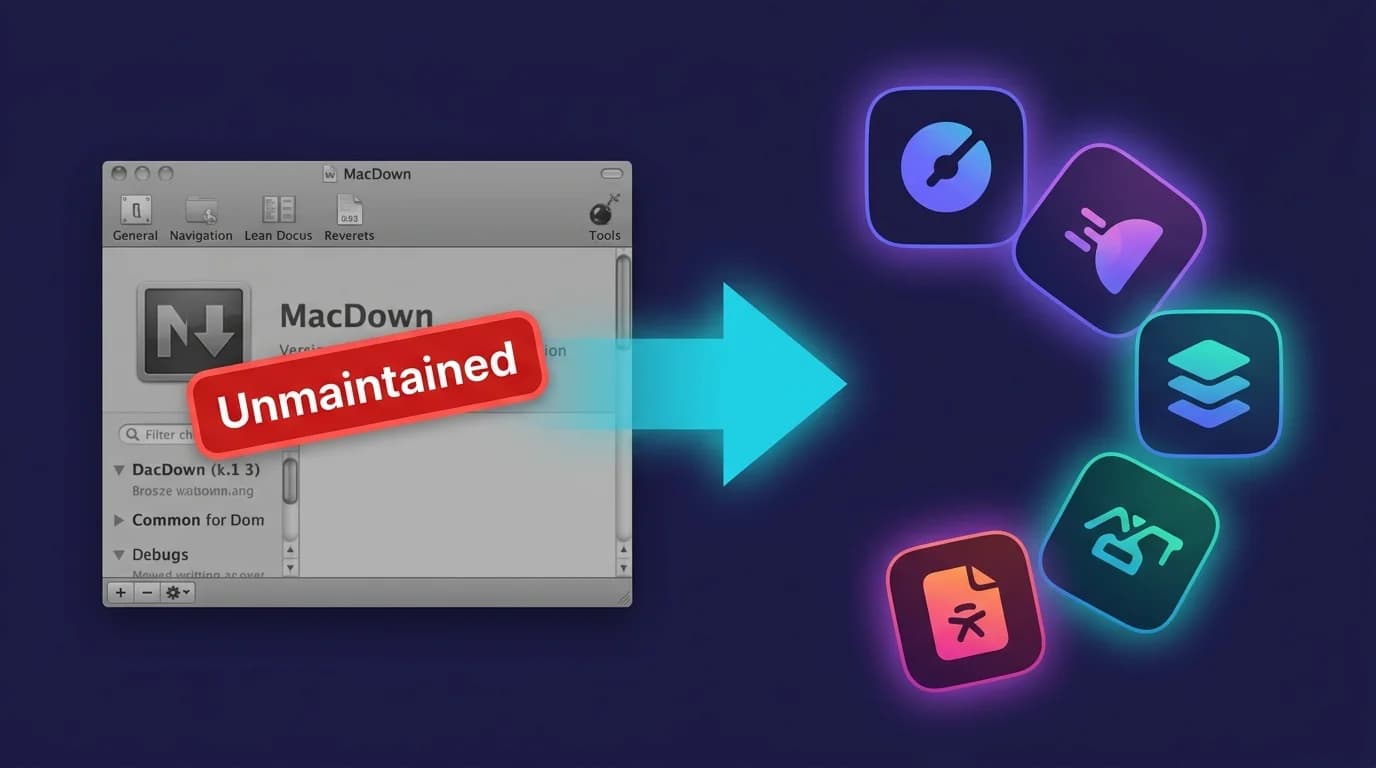
MacDown was one of the best free markdown editors for Mac. Built with native Cocoa, it offered a clean split-pane interface: write on the left, preview on the right. Thousands of developers relied on it daily. But the project has stopped shipping: the last stable release is v0.7.3 from January 2020, and the last commit on master is dated 30 April 2021. No QuickLook extension, and its bundled Mermaid is frozen at 8.4.3 from 2019. Bugs found today are unlikely to be patched by the original team, and the Homebrew cask is scheduled for disabling on 1 September 2026. The chip question has its own page — see MacDown on Apple Silicon for the arm64 build status and the Rosetta timetable. If you are searching for a MacDown alternative in 2026, five actively maintained tools deserve your attention. For dedicated viewing, MacMD Viewer is a native macOS Markdown viewer ($19.99, SwiftUI) that includes Mermaid diagram support out of the box.
TL;DR: MacMD Viewer ($19.99) for viewing-only with Mermaid support. Typora ($14.99) for WYSIWYG editing. VS Code (free) for developers. MarkText (free) for an open-source editor. Marked 2 ($13.99) for a preview companion.
Why Are Developers Looking for a MacDown Alternative?
MacDown is a free, open-source Markdown editor built with native Cocoa. It was excellent in its era — genuinely one of the best lightweight writing tools available on the platform. The split-pane layout rendered headings, code blocks, tables, and inline formatting side-by-side as you typed, giving writers instant visual feedback without the overhead of a full-blown Electron application bundling an entire Chromium browser engine underneath the interface. For years it was the default recommendation on r/macapps and Stack Overflow threads about Mac markdown tooling.
The problem: the MacDown GitHub repository has not taken a commit on master since 30 April 2021, and no stable release has shipped since v0.7.3 in January 2020. The repository is not archived — 9,802 stars, 571 open issues — it is simply idle. It never gained a QuickLook extension, and the Mermaid it does ship stopped at 8.4.3 in 2019, so anything written against current Mermaid syntax fails to render. On the chip side, the summary is MacDown on Apple Silicon, which covers the arm64 build status, the unmerged pull request, and the Rosetta end dates. Meanwhile, search interest for "macdown" has climbed 164% year-over-year according to DataForSEO. Demand is growing, but the product is not keeping pace.
None of this diminishes what MacDown accomplished. The official site still offers a solid download, and the app still functions. But if you depend on active maintenance, Apple Silicon optimization, or modern rendering features, it is time to evaluate other options.
What Are the 5 Best MacDown Alternatives for Mac?
1. MacMD Viewer ($19.99) — Best for Reading Markdown
If you used MacDown primarily to read and preview .md files, MacMD Viewer is the natural successor. It is a dedicated viewer — not an editor — built entirely with SwiftUI and compiled natively for Apple Silicon. It renders GitHub Flavored Markdown with syntax-highlighted code blocks, tables, task lists, and Mermaid diagrams out of the box.
The bundled QuickLook extension lets you press Space on any .md file in Finder to see it rendered instantly. No window switch, no app launch. That single feature eliminates the most common friction point for developers who open markdown files dozens of times per day.
Honest trade-off: no editing. MacMD Viewer is a viewer, not an editor — you cannot write or modify files inside the application, which is an intentional design decision that keeps the app small, focused, and extraordinarily fast at the one task it was built to perform. Pair it with VS Code or your preferred text editor for a complete workflow. $19.99 one-time, no subscription.
2. Typora ($14.99) — Best WYSIWYG Editor
Typora is the closest experience to MacDown's split-pane editing, but with inline WYSIWYG rendering. Type a heading and it renders immediately — no separate preview pane needed. Mermaid diagrams, LaTeX math, and export to PDF, Word, and HTML are built in. Cross-platform support covers Mac, Windows, and Linux.
The downside: Typora ships no QuickLook extension, so you cannot preview a .md from Finder with Space. It is a native Cocoa/AppKit app — a universal binary of about 44 MB installed, verified on the official 1.14.6 build, 29 July 2026 — not the Electron app older comparisons describe. For a deeper comparison, read our MacMD Viewer vs Typora breakdown.
Price: $14.99 one-time for up to 3 devices.
3. VS Code (Free) — Best for Developers
VS Code is the developer's Swiss Army knife. Open any .md file and press Cmd+Shift+V for a rendered preview, or Cmd+K V for side-by-side editing that mirrors MacDown's split-pane layout. Extensions add Mermaid support, linting, table formatting, and dozens of other capabilities. Git integration is built in.
Heavy. 350 MB on disk. 500+ MB RAM at idle. But infinitely more capable than MacDown ever was, with a plugin marketplace containing thousands of extensions for every language and file format imaginable. If you already use VS Code for coding, there is zero additional cost to preview markdown files. The recent Apple Silicon native build improved startup and rendering performance substantially compared to earlier Rosetta-translated versions.
Price: Free and open-source.
4. MarkText (Free) — Best Open-Source Editor
MarkText is the spiritual successor to MacDown as a free, open-source markdown editor. It offers a clean interface with six themes, focus mode, typewriter mode, and real-time preview. Cross-platform support spans Mac, Windows, and Linux. The project receives active community contributions on GitHub.
Like Typora, MarkText is built on Electron. Same trade-off: larger disk footprint, no QuickLook integration, no native macOS rendering pipeline. But the price is right — free, forever, with an MIT license that guarantees the codebase stays open even if the original maintainers move on to other projects. For users who want a zero-cost, actively maintained replacement for MacDown with full editing capabilities and cross-platform compatibility, MarkText fits the bill.
Price: Free, MIT license.
5. Marked 2 ($13.99) — Best Preview Companion
Marked 2 takes a different approach. Instead of bundling an editor, it pairs with any text editor you already use — VS Code, Vim, Sublime Text, BBEdit. Open a file in Marked 2 and the preview updates live as you save changes in your editor. Custom CSS stylesheets, readability statistics, word count tracking, and export to PDF round out the feature set.
Marked 2 is a native Mac app compiled for Apple Silicon. No Electron. No Chromium. Lightweight and responsive, exactly what you would expect from a purpose-built macOS application that avoids the overhead of bundling an entire web browser engine alongside a relatively simple document rendering interface. It renders Mermaid diagrams (built-in since v2.6.46); the main limitation versus MacMD Viewer is the lack of a Finder QuickLook extension.
Price: $13.99 one-time.
How Do These MacDown Alternatives Compare?
| Tool | Price | Type | Native Mac | Apple Silicon | Mermaid | Open Source |
|---|---|---|---|---|---|---|
| MacDown | Free | Editor | Yes (Cocoa) | Rosetta 2 | 8.4.3 (2019) | Yes |
| MacMD Viewer | $19.99 | Viewer | Yes (SwiftUI) | Native | Yes | No |
| Typora | $14.99 | Editor | No (Electron) | Native | Yes | No |
| VS Code | Free | Code Editor | No (Electron) | Native | With ext | Yes |
| MarkText | Free | Editor | No (Electron) | Native (arm64 build) | Yes | Yes |
| Marked 2 | $13.99 | Viewer | Yes | Native | Yes | No |
Two patterns emerge. Native apps — MacMD Viewer, Marked 2 — run directly on Apple Silicon without any translation layer, delivering the fastest launch times and lowest memory footprint of every option in the table above. VS Code ships a native ARM build too, and MarkText has published marktext-mac-arm64 DMGs since v0.19.1 (June 2026). MacDown is the one left on Rosetta 2. It works. But not optimally, and not indefinitely.
MacMD Viewer: native Markdown viewer for Mac with Mermaid diagrams and QuickLook. 1 active Mac · One-time purchase · Taxes may apply at checkout.After payment, get your license key and download link. Your key is also emailed. No account needed.No free trial · 14-day money-back guarantee.
Is MacDown Still Worth Using in 2026?
It depends. MacDown still works. It opens on macOS Sequoia through Rosetta 2, and the split-pane editing experience remains straightforward for basic Markdown documents without advanced rendering requirements. If you specifically want a free, native, open-source Markdown editor and you do not need Mermaid syntax newer than 2019, Apple Silicon optimization, or guaranteed compatibility with future macOS releases that may deprecate the Cocoa APIs the application depends on, MacDown remains a functional choice for everyday writing tasks.
The risk is forward-looking, and it now has dates attached rather than guesses. Apple deprecates older Cocoa APIs periodically, the Homebrew cask is disabled on 1 September 2026, and Rosetta 2 has a published end. The dated version of that argument lives on MacDown on Apple Silicon — this page stays on the question of what to use instead. For long-term reliability, an actively updated tool is the safer bet.
For a thorough side-by-side comparison, see the MacMD Viewer vs MacDown page. And if you are exploring the broader landscape, the best Markdown viewer for Mac roundup covers the field, while the best Markdown apps for Mac roundup splits viewers, editors, and note apps by category.
Conclusion
MacDown served the Mac markdown community well for years. Clean interface. Fast rendering. Completely free. In 2026, the landscape has shifted and five actively maintained alternatives now cover every conceivable markdown workflow — from lightweight reading-only viewers to full WYSIWYG editing environments to heavyweight development platforms with thousands of extensions and integrated version control.
Pick based on what you actually do with markdown files every day. Read them? MacMD Viewer. Edit them with inline preview? Typora. Code alongside them? VS Code. Want free and open-source? MarkText. Need a live preview companion for your existing editor? Marked 2. Each tool solves a different problem — choose the one that matches yours. For additional context, browse the native vs Electron viewer comparison to understand the architectural trade-offs behind each option.
Frequently Asked Questions
Is MacDown still maintained?
No. The last stable release is v0.7.3, published in January 2020, and the last commit on master is dated 30 April 2021. The repository is not archived, but no new version has shipped. Checked 29 July 2026.
What is the closest free alternative to MacDown?
MarkText is the closest free option: open-source, cross-platform, with a clean editing interface. VS Code is also free but considerably heavier. Both receive regular updates.
Does MacDown support Mermaid diagrams?
Yes, via Preferences then Rendering then Mermaid. The catch is the version: MacDown bundles Mermaid 8.4.3 from 2019, so flowchart, sequence, class, state, gantt and pie diagrams render, while ER diagrams, mindmaps, timelines and xychart do not. MacMD Viewer bundles Mermaid 11.13.0. Checked 29 July 2026.
Can I use MacMD Viewer as a MacDown replacement?
If you primarily used MacDown for reading and previewing .md files, yes. MacMD Viewer is a read-only viewer with a QuickLook extension, current Mermaid, and a native Apple Silicon build. If you need editing, pair it with VS Code or Typora, or take the free MacDown 3000 fork.
Content licensed under CC BY 4.0. Cite with attribution to MacMD Viewer.