How to View Hidden Files on Your Mac
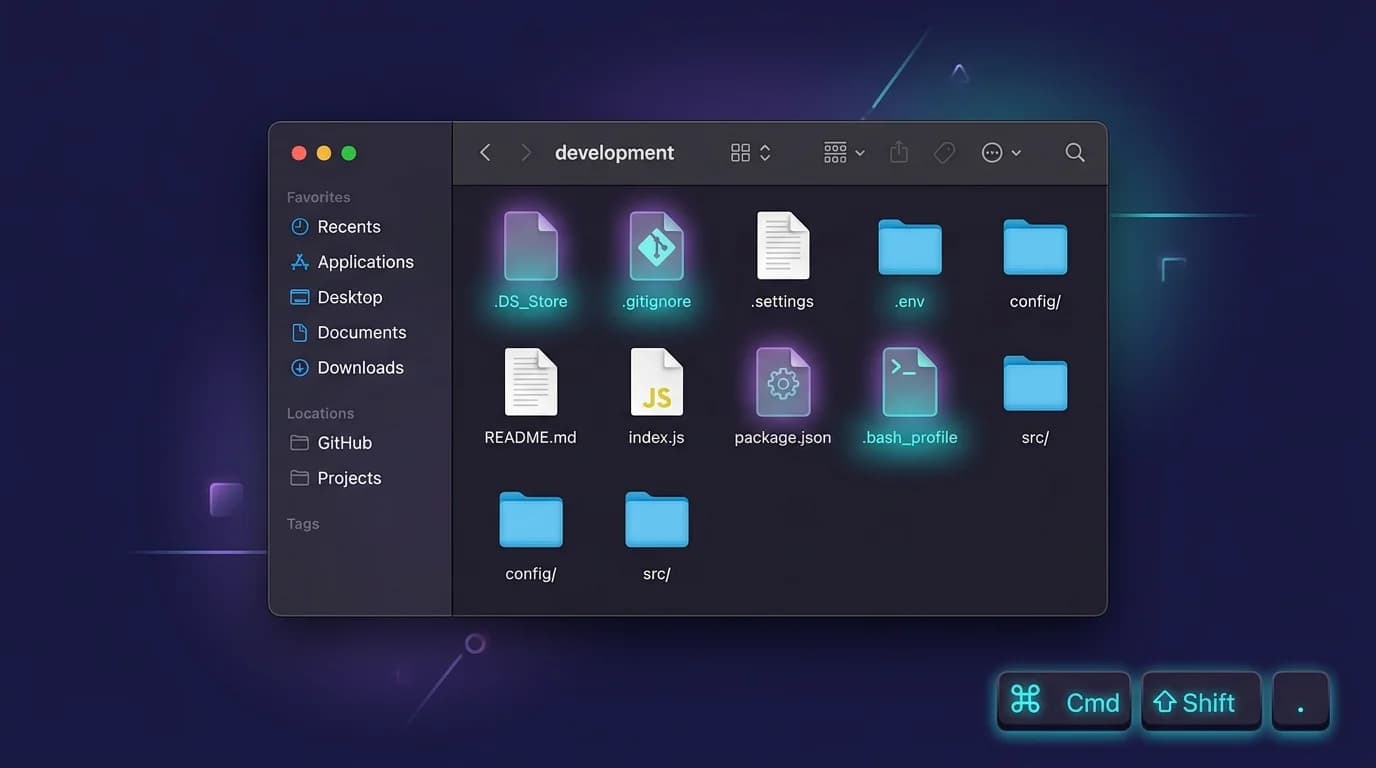
macOS conceals thousands of documents from you by default. Dotfiles like .gitignore, .env, and .zshrc — plus entire folders like ~/Library — are invisible in Finder.
If you're a developer, you need to access hidden files on Mac regularly. Project configuration lives in dotfiles. Environment variables sit in .env. Git rules are defined in .gitignore. And Markdown documentation assets like .markdownlintrc remain invisible until you know where to look.
Once revealed, open hidden .md files with MacMD Viewer, a native macOS Markdown viewer ($19.99, SwiftUI, 5.4 MB download) that renders them with proper formatting. Here are 4 methods to show hidden files on your Mac, from a one-second keyboard shortcut to a permanent Terminal command.
TL;DR: The fastest way to view hidden files on Mac is to press Cmd+Shift+Period in Finder — it works in Open/Save dialogs too. For permanent visibility, run
defaults write com.apple.finder AppleShowAllFiles truein Terminal, thenkillall Finder. Developers working with.md,.env, or.gitignorefiles can also usels -lain Terminal to list everything.
What Are Hidden Files on Mac?
Hidden files are documents and folders that macOS keeps invisible in Finder to prevent accidental modification. According to Apple's macOS documentation, there are two ways a file becomes hidden: its name starts with a dot (.), or it has been flagged with the chflags hidden command.
Common examples you'll encounter:
.gitignore— tells Git which files to exclude from version control.env— stores environment variables (API keys, database URLs).DS_Store— Finder's folder metadata (created automatically in every directory).zshrc— your shell configuration file~/Library— application preferences, caches, and support files
Apple conceals these assets for good reason — deleting .DS_Store or modifying ~/Library contents can break applications or cause unexpected behavior. But developers and power users need regular access to project dotfiles. If you work with Git repositories, you need to reveal hidden files on Mac to manage your configuration.
How Do You View Hidden Files in Finder?
Press Cmd+Shift+Period (⌘⇧.) in any Finder window — hidden files and folders appear immediately with translucent icons. Press the same shortcut again to hide them. This is the fastest way to view hidden files on Mac.
Steps
- Open a Finder window (click the Finder icon in the Dock, or press Cmd+N)
- Navigate to the folder where you want to see hidden files — for example, your project directory or home folder
- Press
Cmd+Shift+Period(⌘⇧.) — hidden files appear with translucent icons - Press the same shortcut again to toggle them back to hidden
This shortcut also works inside Open and Save dialogs in any application — a detail most guides miss. As noted in this Apple StackExchange thread (538 upvotes), Cmd+Shift+Period works everywhere — Finder, Open dialogs, Save dialogs. Need to select a .env file in an upload dialog? Press the shortcut and it appears.
Caveat: This shortcut resets when Finder restarts. If you reboot your Mac or force-quit Finder, hidden files go back to invisible. The shortcut was introduced in macOS Sierra (2016) and works in every version through macOS 26, including Sequoia.
Cmd+Shift+Period (⌘⇧.) is the fastest way to show hidden files on Mac. It works in Finder windows and Open/Save dialogs across all apps, but resets when Finder restarts. For permanent visibility, use the Terminal
defaults writemethod below.
How to Show Hidden Files Permanently with Terminal?
The defaults write command makes hidden files permanently visible in Finder — they stay visible across restarts until you reverse the setting. If you need to reveal hidden files on Mac permanently, this is the approach most developers adopt day-to-day.
Steps
- Open Terminal (Applications > Utilities > Terminal, or press Cmd+Space and type "Terminal")
- Run the following command:
defaults write com.apple.finder AppleShowAllFiles true
- Restart Finder to apply the change:
killall Finder
- Finder reopens with all hidden files visible — dotfiles,
~/Library, everything
To reverse this and hide files again, run the same command with false:
defaults write com.apple.finder AppleShowAllFiles false
killall Finder
The
defaults writecommand makes hidden files permanently visible in Finder. Unlike Cmd+Shift+Period, this setting persists across Finder restarts and reboots until you reverse it withfalse(PCMag, 2025).
Listing Hidden Files in Terminal
If you prefer staying in Terminal, use ls -la to list all items in a directory including hidden ones:
ls -la ~/Projects/my-app
The -a flag shows dotfiles. The -l flag displays permissions, ownership, and file sizes — see the macOS Terminal documentation for more. This is how most developers check for .env, .gitignore, or hidden .md configuration files in a project directory.
How Do You Access the Hidden Library Folder?
Hold the Option key (⌥) while clicking the Go menu in Finder — the Library folder appears in the dropdown. This is the quickest way to access ~/Library without enabling all hidden files system-wide.
Steps
- Click anywhere on the desktop to make sure Finder is the active app
- Click Go in the menu bar while holding the Option (⌥) key
- Select Library from the dropdown — it only appears while Option is held
Alternatively, use Go > Go to Folder (Cmd+Shift+G) and type ~/Library. This takes you directly to your user Library folder, which contains application preferences, caches, and support files. Apple's support documentation covers what each subfolder contains.
Can You View Hidden Markdown Files on Mac?
Yes. Markdown files (.md) in project folders — like .markdownlintrc or hidden README files — become visible using any of the methods above. Press Cmd+Shift+Period in Finder, run ls -la in Terminal, or use the defaults write command for permanent visibility.
Once you can see hidden .md files, you still need a way to read them with proper formatting. macOS loads .md documents in TextEdit as plain text — you see raw Markdown syntax instead of rendered headings, code blocks, and tables. Developers working in VS Code can press Cmd+Shift+V for a built-in preview. For a dedicated reading experience, MacMD Viewer renders Markdown with syntax highlighting and Mermaid diagram support in a native 5.4 MB download app.
For a full walkthrough of rendering options, see our guide on how to open .md files on Mac. If you use QuickLook to preview files in Finder, read our QuickLook for Markdown files setup guide — you can preview both hidden and visible .md files by pressing Space.
Which Method Should You Use?
| Method | Shortcut / Command | Persists? | Best For |
|---|---|---|---|
| Finder shortcut | Cmd+Shift+Period | No (resets on restart) | Quick toggle while browsing |
| Terminal defaults | defaults write ... true | Yes | Developers who always need dotfiles visible |
| Terminal ls | ls -la | N/A (per-command) | Listing files without changing Finder settings |
| Go menu + Option | Option + Go > Library | N/A | Accessing ~/Library specifically |
For most developers: run the defaults write command once and forget about it. Your dotfiles stay visible in every Finder window and dialog permanently. Use ls -la in Terminal when you need a quick listing without switching to Finder.
Summary
Now you know how to reveal hidden files on Mac using four methods. Cmd+Shift+Period gives you an instant toggle in Finder. The defaults write command in Terminal makes it permanent. ls -la lists hidden items without changing any settings. And Option+Go exposes the Library folder when you need application configuration files.
If you work with hidden Markdown files in project directories, revealing them is only half the problem — you also need a viewer that renders them properly. MacMD Viewer handles .md files with syntax highlighting, Mermaid diagrams, and a QuickLook extension, so you can preview hidden Markdown files directly in Finder by pressing Space.
Frequently Asked Questions
What is the keyboard shortcut to show hidden files on Mac?
Press Cmd+Shift+Period (⌘⇧.) in any Finder window to toggle hidden file visibility. The same shortcut works inside Open and Save dialogs. It was introduced in macOS Sierra (10.12) and works in every version through macOS 26.
How do I permanently show hidden files on Mac?
Open Terminal and run: defaults write com.apple.finder AppleShowAllFiles true — then run killall Finder. Hidden files stay visible across restarts until you reverse the command by changing true to false.
Why are some files hidden on Mac?
macOS hides system configuration files and folders to prevent accidental deletion. Files whose names start with a dot (like .zshrc, .gitignore, .DS_Store) and folders flagged with chflags hidden are invisible in Finder by default. Does the Cmd+Shift+Period shortcut work in macOS Sequoia?
Yes. The shortcut works in all macOS versions from Sierra (10.12) through Sequoia (15.x) and macOS 26. It toggles visibility in Finder windows and in Open/Save dialogs across all apps.
How do I view hidden .md files in a project folder?
Press Cmd+Shift+Period in Finder to reveal dotfiles like .markdownlintrc or hidden README files, then open .md files with MacMD Viewer, VS Code (Cmd+Shift+V for preview), or any text editor. For Terminal users, ls -la lists all files including hidden ones.
Content licensed under CC BY 4.0. Cite with attribution to MacMD Viewer.