 MacMD Viewer
PDF to Markdown: 5 Proven Conversion Methods (2026)
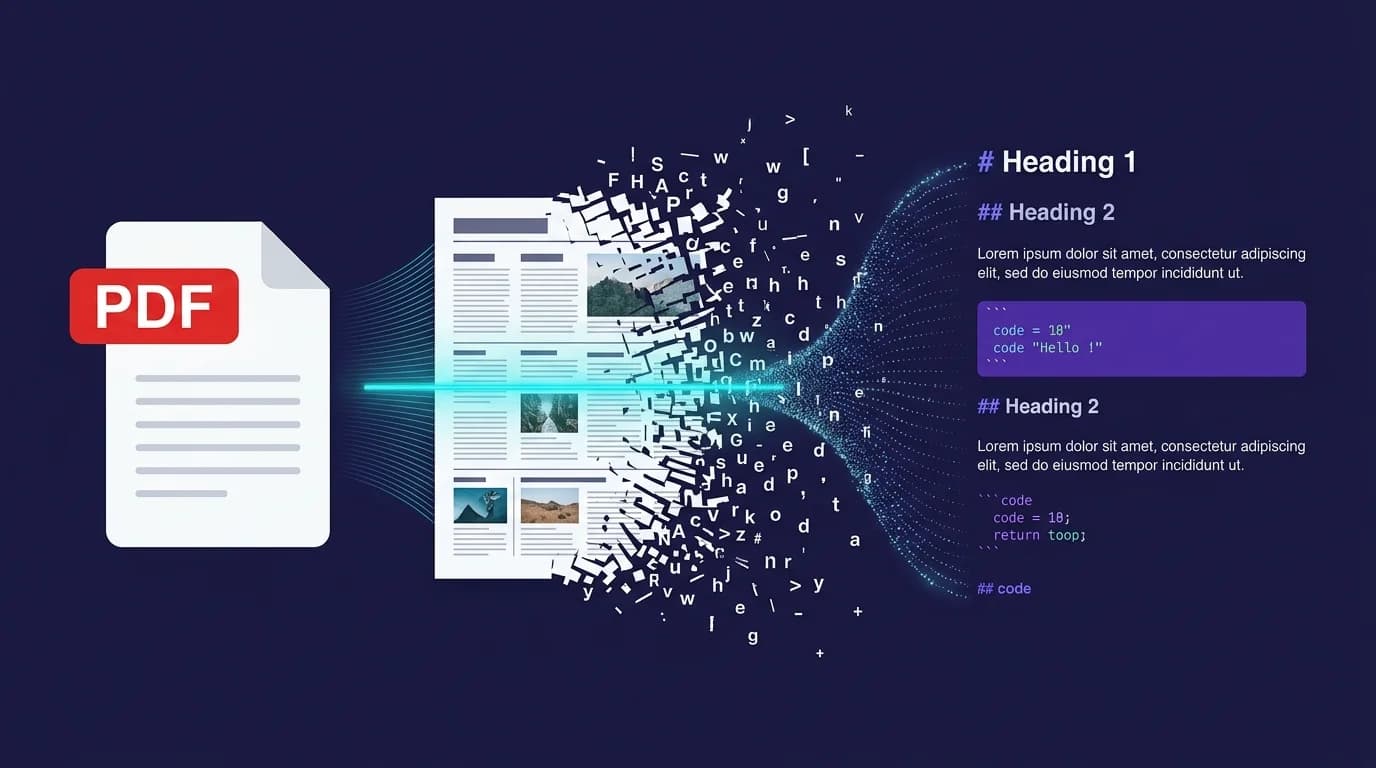
Over 2.5 trillion PDF files exist worldwide, with businesses creating roughly 290 billion new PDFs every year (Smallpdf, 2025). Yet PDFs are locked containers — fixed-layout, hard to edit, and impossible to version-control in Git. Converting pdf to markdown unlocks that content: plain-text files that diff cleanly, render on any platform, and feed directly into documentation pipelines, static site generators, and LLM workflows.
This guide covers five methods to convert PDF to Markdown — from AI-powered CLI tools that handle complex layouts to quick online converters for single files. Each method includes installation steps, example commands, and honest accuracy notes so you can pick the right approach for your documents.
TL;DR: Use Marker (Method 1) or MinerU (Method 2) for complex PDFs with tables, equations, and images. Use Pandoc (Method 3) for simple text-heavy documents. Use a Python script (Method 4) for custom pipelines. Use an online converter (Method 5) when you need a quick result without installing anything.
Why Convert PDF to Markdown?
Teams convert PDF to Markdown for editability, version control, and pipeline compatibility. PDF is a presentation format — it preserves how a document looks on screen. Markdown is a content format — it preserves what a document says and lets you transform it into HTML, DOCX, LaTeX, or any other output. The two serve fundamentally different purposes.
Common reasons to convert:
- Documentation-as-code — storing technical docs alongside source code in Git repositories, where every change is tracked via pull requests. Markdown files version-control cleanly; PDFs produce meaningless binary diffs.
- LLM and RAG pipelines — feeding document content into AI systems. Large language models process Markdown far more accurately than raw PDF text extraction, which often scrambles reading order across columns and pages.
- Static site publishing — converting legacy PDF reports into blog posts or knowledge base articles for platforms built on Markdown, like Jekyll, Hugo, Astro, or Next.js with MDX.
- Searchability — Markdown files are plain text. They are instantly searchable with
grep, Spotlight, or any full-text search engine without OCR preprocessing. - Collaboration — Markdown supports comments, suggestions, and diffs in GitHub or GitLab. PDF review cycles rely on separate annotation tools and lack merge capabilities.
I switched from copying PDF text manually to using Marker about a year ago when migrating a 200-page product specification into a Git-hosted docs site. The manual approach took hours per document and lost every table. Marker processed the entire spec in under two minutes and kept 90% of the tables intact. That single experience convinced me that AI-powered conversion is no longer optional for anyone working with technical PDFs.
2.5 trillion PDFs exist globally, and businesses produce 290 billion more each year (Smallpdf, 2025). Meanwhile, 60% of enterprises are investing in AI specifically to convert unstructured PDF data into structured formats (PDF Reader Pro, 2025).
98% of businesses use PDF as their default format for external communication (Smallpdf, 2025). But internally, teams increasingly need that content in Markdown for documentation systems, knowledge bases, and AI-powered search. The conversion step bridges the gap between how documents are shared and how they are actually used.
How Does AI-Powered PDF to Markdown Conversion Work?
AI-powered converters use vision models and layout analysis to reconstruct document structure, not just extract text. Traditional PDF text extraction (like pdftotext) reads characters in the order they appear in the file — which often differs from the visual reading order, especially in multi-column layouts, sidebars, or documents with figures.
Modern tools like Marker and MinerU use a multi-step pipeline:
- Layout detection — a vision model identifies regions: headings, paragraphs, tables, figures, equations, headers, footers.
- Reading order — the tool determines which region comes first, handling multi-column layouts and floating elements.
- Content extraction — text is extracted from each region. Tables are parsed into Markdown table syntax. Equations are converted to LaTeX. Images are saved as separate files with references.
- Markdown assembly — the extracted content is assembled into a clean
.mdfile with proper heading hierarchy, lists, code blocks, and links.
This approach is why AI-powered tools produce dramatically better output than simple text extraction. A two-column academic paper that pdftotext would interleave into gibberish comes out as clean, readable Markdown with headings, citations, and properly formatted equations.
60% of enterprises are investing in AI to convert unstructured PDF data into structured, queryable formats (PDF Reader Pro, 2025). Research on Copy Lookup Decoding (CLD) shows AI-assisted conversion can run up to 1.7x faster with no quality loss (Springer, 2025).
Method 1: How Do You Convert PDF to Markdown with Marker?
Marker is an open-source Python tool that converts PDF, DOCX, and PPTX files to Markdown with high accuracy on complex layouts. Developed by Datalab, Marker uses a pipeline of deep learning models for layout detection, table recognition, and equation conversion (GitHub — datalab-to/marker, 2025).
Step 1: Install Marker
Marker requires Python 3.10 or later. Install it via pip:
pip install marker-pdfFor GPU acceleration (recommended for large documents), install the CUDA version:
pip install marker-pdf[cuda]Step 2: Convert a Single PDF
Run the conversion command:
marker_single input.pdf --output_dir ./outputThis creates a folder in ./output containing:
input.md— the Markdown file- An
images/directory with extracted figures meta.json— metadata about the conversion
Step 3: Batch Convert Multiple PDFs
For converting an entire folder of PDFs:
marker ./pdfs --output_dir ./markdown_output --workers 4The --workers flag controls parallelism. On a machine with a GPU, Marker processes roughly 10 pages per second.
Step 4: Enable LLM-Enhanced Mode
Marker supports an optional LLM mode for higher accuracy on complex documents:
marker_single input.pdf --output_dir ./output --use_llmThis mode sends ambiguous regions to a language model for better interpretation. Benchmarks show it outperforms both standalone Marker and standalone Gemini on document conversion tasks (GitHub — datalab-to/marker, 2025).
Best for: Academic papers, technical documentation, reports with tables and equations. Handles multi-column layouts, inline math, and code blocks.
Limitations: Requires Python and pip. GPU recommended for speed. Scanned PDFs without embedded text need OCR preprocessing.
Method 2: How Do You Convert PDF to Markdown with MinerU?
MinerU is an open-source document parser from OpenDataLab that converts PDFs into LLM-ready Markdown with automatic heading detection and OCR support for 84 languages (GitHub — opendatalab/MinerU, 2025). MinerU was developed during the pre-training phase of the InternLM large language model and focuses on maximizing structure fidelity.
Step 1: Install MinerU
pip install magic-pdf[full]The [full] extra includes OCR models and all dependencies.
Step 2: Convert a PDF
magic-pdf -p input.pdf -o ./outputMinerU outputs three formats simultaneously:
- Markdown (
.md) - Structured JSON
- Intermediate layout annotations
Step 3: Handle Scanned PDFs
MinerU automatically detects scanned documents and applies OCR. For explicit control:
magic-pdf -p scanned.pdf -o ./output --method ocrThe --method flag accepts auto, ocr, or txt (for PDFs with embedded text).
Best for: Scanned documents, multilingual PDFs, academic papers. The automatic language detection and OCR pipeline handles documents that Marker and Pandoc would struggle with.
Limitations: Larger install footprint than Marker. Requires downloading model weights on first run (approximately 2 GB). Complex setup on Windows.
Method 3: How Do You Convert PDF to Markdown with Pandoc?
Pandoc is a universal document converter that handles PDF to Markdown conversion through an intermediate step — extracting text first, then converting to Markdown (Pandoc User's Guide, 2025). Pandoc cannot read PDFs directly, so you need pdftotext (from the poppler-utils package) as a preprocessing step.
Step 1: Install Dependencies
On macOS:
brew install pandoc popplerOn Ubuntu/Debian:
sudo apt install pandoc poppler-utilsStep 2: Extract Text and Convert
pdftotext input.pdf - | pandoc -f html -t markdown -o output.mdThis pipes the extracted text through Pandoc, which applies Markdown formatting rules.
Step 3: Preserve More Structure
For better results with headings and lists, extract to HTML first:
pdftohtml -s input.pdf temp.html
pandoc -f html -t markdown -o output.md temp.html
rm temp.html
The -s flag in pdftohtml generates a single HTML file instead of multiple frames.
Best for: Simple, text-heavy PDFs like ebooks, articles, or reports without complex layouts. Pandoc excels when the PDF has a linear reading order.
Limitations: No table reconstruction. No equation handling. Multi-column layouts often produce interleaved text. No image extraction. You get clean Markdown only when the source PDF has a straightforward structure.
Method 4: How Do You Build a Custom PDF to Markdown Pipeline in Python?
A custom Python script gives you full control over the conversion process — useful when you need to preprocess, filter, or transform content during conversion. This approach combines libraries for PDF parsing with Markdown generation.
Step 1: Install Libraries
pip install pymupdf markdownifyPyMuPDF (imported as fitz) handles PDF parsing. Markdownify converts HTML to Markdown.
Step 2: Basic Conversion Script
import fitz  # PyMuPDF
from markdownify import markdownify as md

def pdf_to_markdown(pdf_path):
    doc = fitz.open(pdf_path)
    markdown_pages = []

    for page in doc:
        # Extract text blocks with position data
        blocks = page.get_text("dict")["blocks"]
        html_parts = []

        for block in blocks:
            if block["type"] == 0:  # Text block
                for line in block["lines"]:
                    text = ""
                    for span in line["spans"]:
                        size = span["size"]
                        content = span["text"]

                        # Infer headings from font size
                        if size > 18:
                            text += f"<h1>{content}</h1>"
                        elif size > 14:
                            text += f"<h2>{content}</h2>"
                        else:
                            text += content
                    html_parts.append(text)

        page_html = "\n".join(html_parts)
        markdown_pages.append(md(page_html))

    return "\n\n---\n\n".join(markdown_pages)

result = pdf_to_markdown("input.pdf")
with open("output.md", "w") as f:
    f.write(result)
Step 3: Add Table Extraction
For PDFs with tables, add the tabula-py library:
pip install tabula-pyimport tabula
tables = tabula.read_pdf("input.pdf", pages="all")
for i, table in enumerate(tables):
print(table.to_markdown())This extracts tables as pandas DataFrames and converts them to Markdown table syntax.
Best for: Developers building automated pipelines, ETL workflows, or batch processing systems. You control every transformation step.
Limitations: Requires programming knowledge. You are building and maintaining a custom tool. Results depend heavily on your parsing logic and the complexity of source PDFs.
Method 5: How Do You Convert PDF to Markdown Online?
Online converters let you upload a PDF and download the Markdown output without installing any software. This is the fastest option for one-off conversions or when you are working on a machine where you cannot install Python or CLI tools.
Step 1: Open an Online Converter
Use the free PDF to Markdown converter on macmdviewer.com. The tool runs entirely in your browser — your file is not uploaded to a server.
Step 2: Upload Your PDF
Drag and drop your PDF file or click to browse. The converter processes the file and displays the Markdown output in an editor panel.
Step 3: Copy or Download
Copy the Markdown to your clipboard or download it as a .md file. You can preview the rendered output before downloading to verify the conversion quality.
Best for: Quick, one-off conversions. Non-technical users. Situations where you cannot install software on the current machine.
Limitations: File size limits vary by tool. Complex layouts with tables and equations may not convert as accurately as CLI tools like Marker or MinerU. Batch conversion is not supported.
Which PDF to Markdown Method Should You Choose?
The right method depends on your document complexity and workflow:
| Method | Best For | Tables | Equations | OCR | Batch | Difficulty |
|---|---|---|---|---|---|---|
| Marker | Complex docs, academic papers | Yes | Yes (LaTeX) | With preprocessing | Yes | Medium |
| MinerU | Scanned docs, multilingual | Yes | Yes (LaTeX) | Built-in (84 languages) | Yes | Medium |
| Pandoc | Simple text-heavy PDFs | No | No | No | Yes | Easy |
| Python script | Custom pipelines | With tabula-py | Manual | With libraries | Yes | Hard |
| Online tool | Quick one-off conversions | Partial | No | Varies | No | Easy |
98% of businesses rely on PDF for external sharing, yet Markdown is the dominant format for technical documentation across 630 million GitHub repositories (Smallpdf, 2025; GitHub Octoverse, 2025). Choosing the right conversion method depends on document complexity, batch volume, and whether you need table or equation support.
For most users, the decision tree is simple:
- One file, no install needed — use the online PDF to Markdown tool.
- Complex PDFs with tables or math — install Marker or MinerU.
- Simple text PDFs in bulk — use Pandoc with a shell script.
- Automated pipeline — build a custom Python solution.
How Do You Preview the Converted Markdown?
After converting your PDF to Markdown, you need to verify the output renders correctly — especially headings, tables, code blocks, and any extracted images. Raw .md files are readable but do not show you the final formatted result.
Several options exist for previewing:
- VS Code — open the
.mdfile and pressCmd+Shift+Vfor a built-in preview. Works for basic Markdown but lacks support for Mermaid diagrams and advanced syntax. - GitHub — push the file to a repository and GitHub renders it automatically. Good for collaboration but slow for iterative checking.
- MacMD Viewer — a native macOS application that renders
.mdfiles with live file watching, syntax highlighting for common languages, Mermaid diagram support, and Quick Look integration. Press spacebar in Finder to preview any.mdfile without opening an editor. Ideal for reviewing converted documents quickly on macOS. - Browser preview — use the free Markdown Preview tool on macmdviewer.com to paste and preview Markdown directly in your browser.
If you regularly convert PDFs to Markdown, a dedicated viewer saves significant time compared to switching between a terminal and a browser tab. The pricing page has MacMD Viewer for macOS.
What Are Common PDF to Markdown Conversion Issues?
Even the best tools encounter challenges with certain PDF structures. Knowing these issues upfront helps you choose the right method and post-process the output effectively.
Multi-column layouts — PDFs with two or three columns often produce interleaved text when converted with simple tools like Pandoc. AI-powered tools (Marker, MinerU) handle columns correctly by detecting layout regions first.
Scanned documents — PDFs created from scanned paper contain images, not text. You need OCR (optical character recognition) before conversion. MinerU includes built-in OCR for 84 languages. For other tools, preprocess with Tesseract: tesseract scan.png output -l eng.
Tables — Table extraction is the hardest part of PDF conversion. Simple tables convert well with Marker and MinerU. Complex tables with merged cells, nested headers, or spanning rows often need manual cleanup. The Markdown Table Generator can help you rebuild tables that did not convert cleanly.
Mathematical equations — Marker and MinerU convert equations to LaTeX syntax (e.g., $E = mc^2$). Pandoc and basic Python scripts skip equations entirely. If your PDFs contain significant math, Marker or MinerU are the only viable open-source options.
Headers and footers — Page numbers, running headers, and footer text often end up mixed into the body content. Most AI-powered tools filter these out, but simple extraction tools do not. You may need to strip repeated lines manually.
Images and figures — Marker and MinerU extract images as separate files and insert Markdown image references. Pandoc and pdftotext ignore images entirely. If your PDF contains charts, diagrams, or screenshots, choose a tool that handles image extraction.
Markdown syntax errors — Converted output sometimes contains broken links, mismatched formatting, or incorrect list indentation. Reviewing the Markdown cheat sheet helps you spot and fix syntax issues quickly. For a deeper understanding of .md file structure, see the guide on what is an .md file.
Frequently Asked Questions
Can you convert a PDF to Markdown for free?
Yes. All five methods in this guide are free. Marker and MinerU are open-source. Pandoc is open-source. Python libraries like PyMuPDF are free for non-commercial use. The online PDF to Markdown converter on macmdviewer.com is free with no signup required.
Does PDF to Markdown conversion preserve tables?
It depends on the tool. Marker and MinerU reconstruct tables into Markdown pipe syntax (| col1 | col2 |). Pandoc does not handle tables from PDFs. Online tools vary in quality. For complex tables with merged cells, expect to do some manual cleanup regardless of the tool.
What is the most accurate PDF to Markdown converter?
For complex documents with mixed layouts, tables, and equations, Marker with LLM mode enabled produces the highest accuracy according to Datalab's benchmarks (GitHub — datalab-to/marker, 2025). MinerU is comparable and better for scanned documents. For simple text-only PDFs, Pandoc is sufficient and faster to set up.
Can you convert scanned PDFs to Markdown?
Yes, but you need OCR. MinerU has built-in OCR supporting 84 languages with automatic detection. For other tools, preprocess the scanned PDF with Tesseract OCR to add a text layer, then convert the OCR output to Markdown.
How do you view the converted Markdown file on macOS?
Open the .md file in any text editor to see the raw syntax. For a rendered preview, use MacMD Viewer — it renders Markdown with syntax highlighting, Mermaid diagrams, and live file watching. You can also press spacebar on any .md file in Finder to preview it via Quick Look if MacMD Viewer is installed.
Content licensed under CC BY 4.0. Cite with attribution to MacMD Viewer.