 MacMD Viewer
Markdown Cheat Sheet: Complete Syntax Reference (2026)
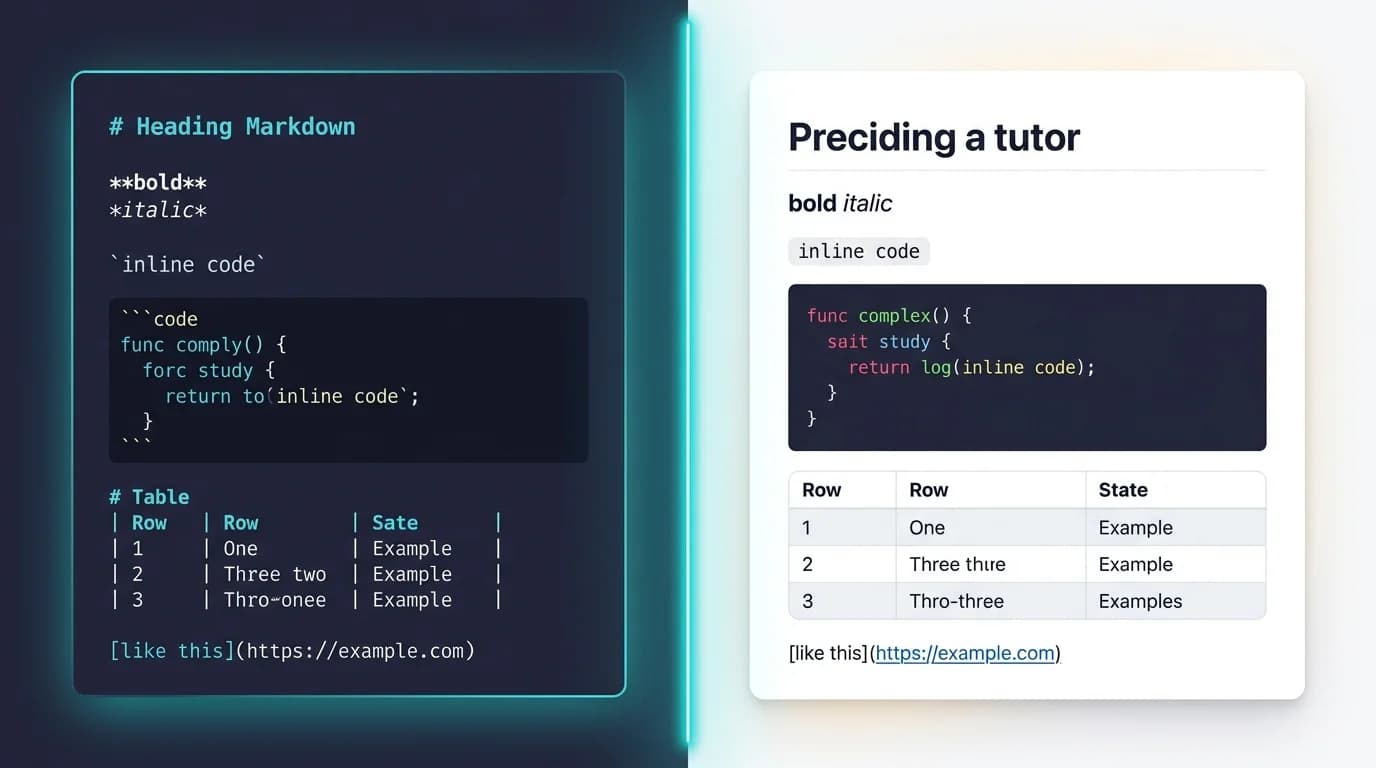
Every markdown cheat sheet you have bookmarked is probably missing something — a footnote syntax you forgot, a table alignment trick you keep Googling, or the exact fence characters for a nested code block. This reference covers the full CommonMark 0.31.2 specification (CommonMark, 2024) plus every GitHub Flavored Markdown extension (GFM Spec, 2019), organized so you can find any syntax element in seconds.
Markdown is the de facto standard for technical writing. GitHub alone hosts over 630 million repositories (GitHub Octoverse, 2025), and nearly all of them contain .md files for READMEs, docs, changelogs, and contribution guides. Whether you write in VS Code, Obsidian, Notion, or a native macOS viewer like MacMD, this markdown cheat sheet gives you the exact syntax — no guessing, no trial-and-error.
630 million repositories on GitHub use Markdown for documentation, READMEs, and changelogs (GitHub Octoverse, 2025). The CommonMark specification (version 0.31.2) includes over 600 test cases to ensure every parser renders identically.
What Does This Markdown Cheat Sheet Cover?
TL;DR: This markdown cheat sheet covers headings, emphasis (bold, italic, strikethrough), links, images, lists, code blocks, tables, blockquotes, horizontal rules, line breaks, footnotes, math equations, Mermaid diagrams, and raw HTML. Every example follows the CommonMark 0.31.2 specification (2024) or the GFM spec where noted. Bookmark this page — it is the only markdown cheat sheet you need.
How Do You Write Headings in Markdown?
Headings use hash characters (#) followed by a space. The number of hashes sets the heading level, from <h1> through <h6>. The CommonMark spec (section 4.2) requires at least one space between the hashes and the heading text.
# Heading 1
## Heading 2
### Heading 3
#### Heading 4
##### Heading 5
###### Heading 6
Rules to remember:
- Always add a blank line before and after headings — some parsers fail without it.
- Never skip levels (jumping from
##to####) as this breaks accessibility and document outline. - A maximum of six levels exist. Seven or more
#characters render as plain text. - Closing hashes (
## Heading ##) are optional and purely cosmetic.
For a deep dive into heading behavior across platforms, see the markdown text formatting guide.
How Do You Format Bold, Italic, and Strikethrough?
Text emphasis is the most frequently used formatting in any markdown cheat sheet — for every option in one place (bold, italic, underline, super/subscript), see the Markdown text formatting guide. The syntax relies on asterisks and underscores to produce bold, italic, and bold-italic text. I tested all three emphasis types across GitHub, VS Code, Obsidian, and MacMD Viewer to confirm cross-platform behavior.
Bold
**bold text**
__also bold__
Output: bold text
Use double asterisks (**) as the default. Double underscores fail mid-word on most parsers — un__break__able will not render on GitHub, while un**break**able works everywhere. The CommonMark specification (section 6.2) defines this as "strong emphasis."
Italic
*italic text*
_also italic_
Output: italic text
Single asterisks are safer mid-word for the same reason: un*frigging*believable works on all CommonMark parsers; underscores do not.
Bold and Italic
***bold and italic***Output: bold and italic
Strikethrough (GFM)
~~deleted text~~Output: deleted text
Strikethrough is a GFM extension, not part of core CommonMark. It works on GitHub, GitLab, Reddit, Obsidian, and most modern editors. For platform-specific behavior and common fixes, see the markdown strikethrough guide.
How Do You Create Links and Images?
Links and images share nearly identical syntax — images just add an exclamation mark prefix.
Inline Links
[Link text](https://example.com)
[Link with title](https://example.com "Title text")
The title text appears as a tooltip on hover. It is optional but useful for accessibility.
Reference Links
Reference links separate the URL from the text, which keeps long documents readable:
[Link text][ref-id]

[ref-id]: https://example.com "Optional title"
This is especially useful in documents with many links — the content stays clean and the URLs are grouped at the bottom.
Autolinks
Angle brackets turn raw URLs into clickable links:
<https://example.com>
<user@example.com>
GFM also auto-links bare URLs like https://example.com without angle brackets, but this is non-standard and will not work in all parsers.
Images

Markdown has no native syntax for image sizing. To control dimensions, use raw HTML:
<img src="image.png" alt="Alt text" width="400">How Do You Format Lists in Markdown?
Lists are one of the most common elements in any .md file. For full nesting rules, edge cases, and platform-specific behavior, see the markdown lists guide.
Unordered Lists
Use -, *, or + followed by a space:
- First item
- Second item
- Third item
Pick one character and stay consistent within a document. The dash (-) is the most common convention.
Ordered Lists
Use any number followed by a period and a space:
1. First item
2. Second item
3. Third item
The starting number matters — it sets the <ol start="N"> attribute — but subsequent numbers are ignored by the parser. Writing 1. 1. 1. for every item is valid and keeps diffs cleaner in version control.
Nested Lists
Indent child items by two to four spaces (four is safest across all renderers):
1. Parent item
    - Child item
    - Another child
        - Grandchild
2. Next parent
Task Lists (GFM)
- [x] Completed task
- [ ] Incomplete task
- [ ] Another task
Task lists render as interactive checkboxes on GitHub, GitLab, and most editors. For the full syntax including nesting, project management patterns, and platform support, see the markdown checkbox guide.
What Is the Syntax for Code in Markdown?
Code formatting is essential for any technical markdown cheat sheet. Markdown offers both inline code spans and fenced code blocks.
Inline Code
Wrap text in single backticks:
Use the `printf()` function to print output.If the code itself contains backticks, use double backticks as the delimiter:
``code with a `backtick` inside``Fenced Code Blocks
Use triple backticks or triple tildes, optionally followed by a language identifier for syntax highlighting:
```javascript
function greet(name) {
  return `Hello, ${name}!`;
}
```
Common language identifiers: javascript, python, bash, html, css, json, yaml, markdown, sql, typescript, go, rust, csharp, java, ruby, swift, php.
Indented Code Blocks
Indent every line by four spaces or one tab:
    function oldStyle() {
      return true;
    }
Fenced blocks are preferred over indented blocks because they support syntax highlighting and are easier to read in source form. In my testing, indented code blocks also cause parsing ambiguity when combined with list items — fenced blocks avoid this entirely. For a complete guide to fenced and indented code blocks with advanced examples, see the markdown code block guide.
How Do You Build Tables in Your Markdown Cheat Sheet?
Tables are a GFM extension defined in the GFM specification (section 4.10). They use pipes (|) and hyphens (-) to define columns and rows. I find tables are the single syntax element people Google most often — the alignment colon trick is easy to forget.
Basic Table
| Header 1 | Header 2 | Header 3 |
| -------- | -------- | -------- |
| Cell 1   | Cell 2   | Cell 3   |
| Cell 4   | Cell 5   | Cell 6   |
Column Alignment
Use colons in the separator row to control alignment:
| Left     | Center   | Right    |
| :------- | :------: | -------: |
| aligned | aligned | aligned |:---= left-aligned (default):---:= center-aligned---:= right-aligned
Table Tips
- Pipes at the start and end of each row are optional but improve readability.
- Cell content does not need to align visually — the parser ignores extra spaces.
- You can use inline formatting (bold, italic, code, links) inside cells.
- For complex tables, use the Markdown Table Generator to build them visually and copy the syntax.
- For the full pipe-and-alignment reference, edge cases, and platform quirks, see the complete Markdown table guide.
- The colon syntax centers cell content, not the table itself. To center an entire table or any other element on the page, see the markdown center text guide.
How Do You Write Blockquotes in Markdown?
Blockquotes use the > character at the start of a line:
> This is a blockquote.
> It can span multiple lines.
Nested Blockquotes
> First level
>> Second level
>>> Third level
Blockquotes with Other Elements
Blockquotes can contain any other Markdown element — paragraphs, lists, code blocks, and headings:
> #### A heading inside a blockquote
>
> - List item one
> - List item two
>
> `code` works here too.
This is useful for callouts, warnings, and attribution blocks in documentation.
What Are Horizontal Rules in Markdown?
Three or more hyphens, asterisks, or underscores on a line by themselves create a horizontal rule (<hr>):
---
***
___
All three produce identical output. Hyphens (---) are the most common convention. Always add blank lines above and below to prevent the parser from interpreting hyphens as a Setext heading underline.
How Do You Add Line Breaks in Markdown?
Line breaks are one of the trickiest parts of Markdown syntax — and the one I see cause the most confusion in code reviews. A single newline in source text does not create a <br> — it continues the same paragraph. Four methods exist to force a line break, and the markdown line break guide covers all of them in detail.
Trailing Spaces
Add two spaces at the end of a line:
First line··
Second line
(The ·· represents two space characters.)
Backslash
First line\
Second line
The backslash method is more visible in source text and is the recommended approach in modern Markdown.
HTML Break Tag
First line<br>Second lineThis always works but mixes HTML into your Markdown source.
Blank Line (New Paragraph)
First paragraph.

Second paragraph.
A blank line creates a new <p> tag, which adds more vertical space than a <br>.
What Extended Syntax Belongs on a Markdown Cheat Sheet?
Beyond the core CommonMark specification, several widely adopted extensions add features that are essential for modern documentation. These are supported by GitHub Flavored Markdown, Obsidian, and most modern editors. Any complete markdown cheat sheet must include them because they appear in real-world .md files constantly.
Key fact: GitHub added native footnote support in 2021, math rendering in May 2022, and Mermaid diagram rendering in February 2022 (GitHub Blog, 2022). These three extensions transformed what you can express in a single
.mdfile without any external tooling.
Footnotes
Here is a statement with a footnote.[^1]

[^1]: This is the footnote content.
Footnotes render as superscript numbers with a linked reference section at the bottom of the document. They are supported on GitHub (since 2021), Obsidian, Jekyll, Hugo, and other static site generators. For advanced footnote patterns including multi-paragraph footnotes and nested content, see the markdown footnotes guide.
Definition Lists
Term
: Definition of the term.

Another term
: Its definition.
Definition lists are supported in PHP Markdown Extra, Pandoc, and some static site generators, but not in GFM or core CommonMark.
Highlight / Mark
==highlighted text==Renders as <mark>highlighted text</mark>. Supported in Obsidian and some Markdown editors. Not part of GFM — see markdown highlight for the per-platform support table.
Subscript and Superscript
H~2~O (subscript)
X^2^ (superscript)
Limited support — works in Pandoc and some editors. For broader compatibility, use HTML: H<sub>2</sub>O and X<sup>2</sup>. The same tags are how you get markdown small text for captions and disclaimers.
Math Equations (LaTeX)
Inline math uses single dollar signs, and block math uses double dollar signs:
Inline: $E = mc^2$

Block:
$$
\sum_{i=1}^{n} x_i = x_1 + x_2 + \ldots + x_n
$$
GitHub added math rendering support in May 2022 (GitHub Blog, 2022). For the full LaTeX-in-Markdown syntax, see the markdown math equations guide.
Mermaid Diagrams
GitHub renders Mermaid diagrams directly from fenced code blocks:
```mermaid
graph LR
    A[Start] --> B{Decision}
    B -->|Yes| C[Action]
    B -->|No| D[End]
```
Mermaid supports flowcharts, sequence diagrams, Gantt charts, class diagrams, and more. You can preview and edit diagrams in the Mermaid Viewer or export them as images with the Mermaid to PNG converter.
How Do You Use HTML Inside Markdown?
Markdown supports inline HTML for anything the syntax cannot express natively. The CommonMark spec (section 6.6) defines the rules for raw HTML inclusion.
Common HTML Use Cases
<details>
<summary>Click to expand</summary>

Hidden content goes here. Markdown **works** inside.

</details>
<kbd>Ctrl</kbd> + <kbd>C</kbd><div align="center">
<img src="logo.png" alt="Logo" width="200">
</div>Rules for HTML in Markdown
- Block-level HTML (
<div>,<table>,<details>) must have blank lines before and after. - Markdown formatting inside block-level HTML only works if there is a blank line between the HTML tag and the Markdown content.
- Inline HTML (
<kbd>,<sup>,<sub>,<mark>,<br>) can be used anywhere within text. - Security-conscious renderers may strip or sanitize certain HTML tags (
<script>,<style>,<iframe>). - HTML comments (
<!-- -->) can be used to hide text from rendered output — but the text remains visible in the page source.
Which Tools Complement This Markdown Cheat Sheet?
Knowing the syntax is one thing — having the right tools makes writing Markdown faster. Here are free tools that complement this markdown cheat sheet:
- Markdown to PDF — Convert any
.mdfile to a clean PDF document, preserving formatting and code highlighting. - Markdown to HTML — Transform Markdown into standards-compliant HTML for web publishing.
- HTML to Markdown — Reverse-convert HTML pages back to Markdown source.
- CSV to Markdown — Turn spreadsheet data into properly formatted Markdown tables instantly.
- PDF to Markdown — Extract content from PDF files into editable Markdown.
- YAML Formatter — Validate and format YAML front matter used in static site generators.
- Markdown Table Generator — Build tables visually instead of typing pipes and dashes by hand.
- Mermaid Viewer — Preview and debug Mermaid diagrams before committing them.
- Mermaid to PNG — Export Mermaid diagrams as PNG images for platforms that do not render them.
For writing and previewing Markdown on macOS, MacMD Viewer renders .md files with live preview, scroll-synced sidebar, syntax highlighting, Mermaid diagram support, and a native macOS experience. New to opening .md files? Start with how to open an MD file. See how it stacks up in our Markdown viewer comparison for macOS.
Quick Reference Table
This condensed markdown cheat sheet table covers every syntax element for fast lookup:
| Element | Syntax | Notes |
|---|---|---|
| Heading 1 | # Text | Always add a space after # |
| Heading 2 | ## Text | Up to six levels (######) |
| Bold | **text** | Prefer ** over __ |
| Italic | *text* | Prefer * over _ |
| Bold + Italic | ***text*** | Triple asterisks |
| Strikethrough | ~~text~~ | GFM extension |
| Link | [text](url) | Optional title in quotes |
| Image |  | No native sizing — use HTML |
| Inline code | `code` | Double backticks for nested |
| Code block | ```lang | Add language for highlighting |
| Blockquote | > text | Nest with >> |
| Unordered list | - item | Also * or + |
| Ordered list | 1. item | Starting number matters |
| Task list | - [ ] item | GFM extension |
| Table | | H | H | | GFM extension |
| Horizontal rule | --- | Also *** or ___ |
| Line break | two spaces or \ | End of line |
| Footnote | [^1] | GFM since 2021 |
| Math (inline) | $formula$ | LaTeX syntax |
| Math (block) | $$formula$$ | LaTeX syntax |
| Highlight | ==text== | Limited support |
| HTML | <tag> | Inline or block-level |
Frequently Asked Questions
What is the difference between CommonMark and GFM?
CommonMark is the base specification that defines core Markdown syntax — headings, emphasis, links, images, code, lists, and blockquotes. The CommonMark spec (version 0.31.2, 2024) includes over 600 test cases to ensure consistent parsing. GitHub Flavored Markdown (GFM) is a strict superset of CommonMark that adds tables, task lists, strikethrough, autolinks, and footnotes. If your document works in CommonMark, it works in GFM — but not necessarily the reverse. For the full breakdown of GFM spec features versus GitHub's proprietary renderer extensions, see our GitHub Markdown guide.
Which Markdown syntax works on every platform?
Core CommonMark syntax is universally supported: headings, bold, italic, links, images, code spans, fenced code blocks, blockquotes, ordered lists, unordered lists, and horizontal rules. Extended features like tables, task lists, strikethrough, footnotes, and math depend on the renderer. When in doubt, stick to CommonMark and test with a Markdown to HTML converter.
How do you preview Markdown before publishing?
Most code editors (VS Code, Sublime Text, IntelliJ) have built-in Markdown preview. For a dedicated macOS experience, MacMD Viewer offers live rendering with syntax highlighting, Mermaid diagrams, and a scroll-synced table of contents. You can also use the online Markdown to HTML tool for quick previews without installing anything.
Can you use Markdown in Slack, Discord, and other chat apps?
Slack uses its own mrkdwn syntax that looks similar but differs in key ways — see the Slack markdown guide for the full syntax. Discord supports a subset of standard Markdown plus some unique features — see the Discord markdown guide. Both platforms use **bold** and *italic*, but code blocks, links, and lists behave differently from standard Markdown.
How do you convert between Markdown and other formats?
Use dedicated converters for reliable format translation: Markdown to PDF for print-ready documents, HTML to Markdown for converting web content, CSV to Markdown for spreadsheet data, and PDF to Markdown for extracting text from PDFs. For migrating from wiki platforms, the Confluence to Markdown guide covers five proven export methods.
Content licensed under CC BY 4.0. Cite with attribution to MacMD Viewer.