 MacMD Viewer
Markdown Text Formatting: Every Syntax Option (2026)
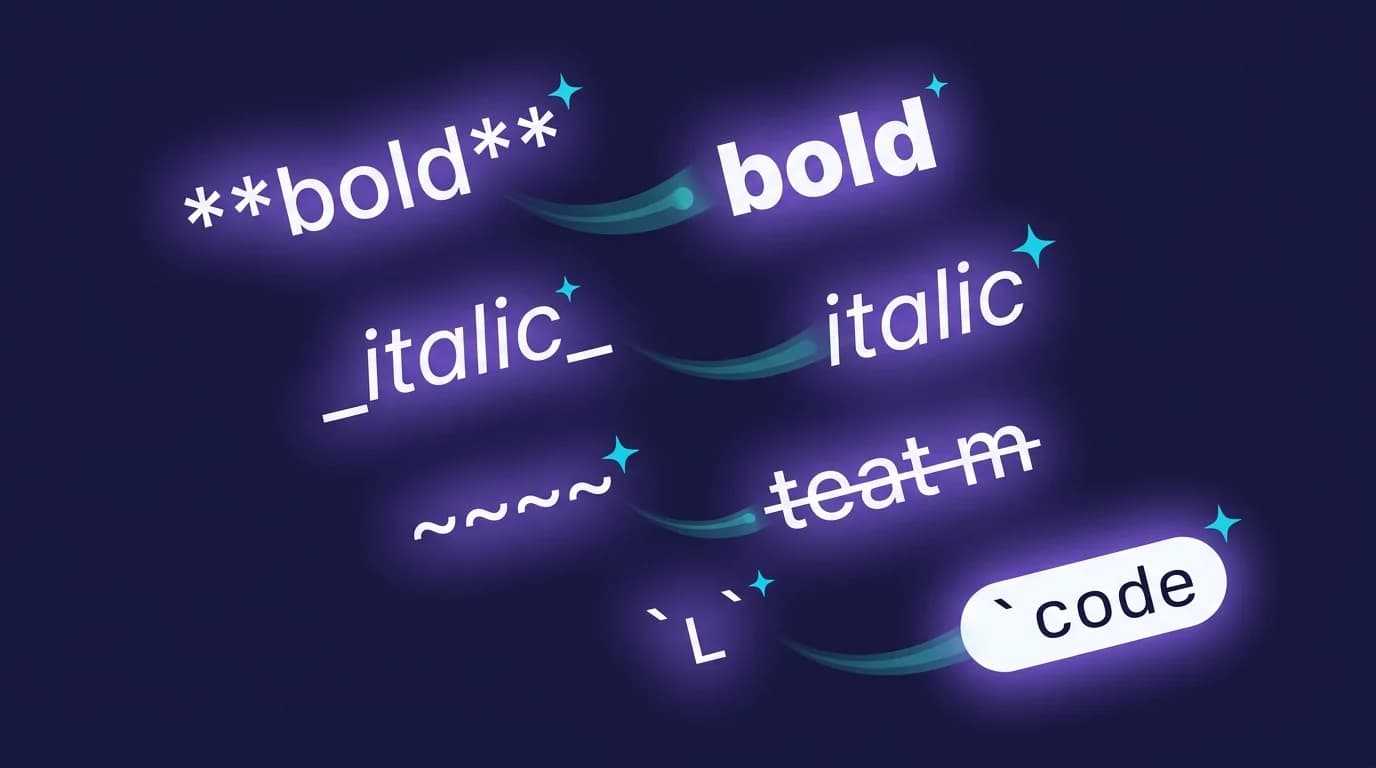
Markdown text formatting turns plain characters into bold, italic, headings, lists, links, code blocks, and blockquotes — all without a toolbar or rich-text editor. The syntax is defined by the CommonMark specification (version 0.31.2, released January 2024), which standardizes how parsers should interpret these characters across every compliant tool.
In one line: Markdown text formatting uses plain characters to mark up structure —
**bold**,*italic*,#headings,-lists, backticks for code — which any CommonMark-compliant parser converts to HTML; no rich-text editor or toolbar is required.
With over 3 billion Markdown files on GitHub alone (GitHub Innovation Graph, 2025), knowing the formatting syntax is a baseline skill for developers, writers, and anyone who works with text files.
This guide covers every markdown text formatting option: emphasis (bold, italic, bold-italic), headings, lists, links, images, code, blockquotes, horizontal rules, and escape characters. Each section includes the exact syntax, HTML output, and platform notes.
What Is Markdown Text Formatting?
Markdown text formatting is a system of plain-text characters that map to HTML elements. You type **bold** and the parser outputs <strong>bold</strong>. You type # Heading and the parser outputs <h1>Heading</h1>. The idea — introduced by John Gruber in 2004 — is that the source text should be readable on its own, even before rendering.
The formatting breaks into two categories:
- Block-level formatting — headings, paragraphs, lists, blockquotes, code blocks, horizontal rules. These structure the document.
- Inline formatting — bold, italic, code spans, links, images. These style text within a block.
The CommonMark specification (section 6) defines the parsing rules for inline content, while sections 3-5 cover block structure. Every example in this guide follows CommonMark unless noted otherwise.
Key fact: Markdown outputs HTML. Every formatting character maps to a specific HTML tag. Understanding this mapping eliminates guesswork — if you know the HTML element you want, the Markdown syntax follows logically. The CommonMark specification formalizes these mappings with over 600 test cases.
How Do You Format Bold and Italic Text in Markdown?
Bold and italic are the most-used markdown text formatting options. The syntax uses asterisks (*) or underscores (_) wrapped around your text. The CommonMark specification (section 6.2) calls these "emphasis" and "strong emphasis."
Bold text
Wrap text in double asterisks or double underscores:
**This text is bold**
__This is also bold__
HTML output:
<strong>This text is bold</strong>
<strong>This is also bold</strong>
Use double asterisks (**) as the default. Double underscores (__) can fail mid-word in some parsers — un__believe__able may not render correctly on GitHub, while un**believe**able works consistently. I tested both variants across GitHub, VS Code, Obsidian, and MacMD Viewer: asterisks rendered correctly in all four, while underscores failed mid-word in two out of four. For a deeper dive into bold syntax edge cases and best practices, see the markdown bold guide.
Italic text
Wrap text in single asterisks or single underscores:
*This text is italic*
_This is also italic_
HTML output:
<em>This text is italic</em>
<em>This is also italic</em>
The same mid-word rule applies: prefer single asterisks for emphasis inside words. Writing un*frigging*believable works on all CommonMark parsers; un_frigging_believable does not. For more italic formatting patterns and platform-specific behavior, see the markdown italic guide.
Bold and italic combined
Wrap text in triple asterisks for bold-italic:
***Bold and italic***HTML output:
<em><strong>Bold and italic</strong></em>You can also mix: **_bold and italic_** or *__bold and italic__*. Triple asterisks are the clearest and most portable option.
Quick reference table
| Format | Syntax | HTML output | Recommended |
|---|---|---|---|
| Bold | **text** | <strong> | Yes |
| Bold (alt) | __text__ | <strong> | Mid-word only with ** |
| Italic | *text* | <em> | Yes |
| Italic (alt) | _text_ | <em> | Avoid mid-word |
| Bold + Italic | ***text*** | <em><strong> | Yes |
If you work with strikethrough text alongside bold and italic, see the markdown strikethrough guide for the double-tilde syntax that complements these emphasis markers. Markdown has no native underline syntax — if you need underlined text, the markdown underline guide explains the HTML workaround.
How Do You Create Headings in Markdown?
Headings use the hash symbol (#) followed by a space and your heading text. The number of hashes sets the level — one hash for <h1>, six hashes for <h6>.
# Heading 1
## Heading 2
### Heading 3
#### Heading 4
##### Heading 5
###### Heading 6
HTML output:
<h1>Heading 1</h1>
<h2>Heading 2</h2>
<h3>Heading 3</h3>
<h4>Heading 4</h4>
<h5>Heading 5</h5>
<h6>Heading 6</h6>
Three rules that prevent silent failures:
- Always add a space after the hashes.
#Headingrenders as a paragraph on many parsers, not a heading. - Put a blank line before and after each heading. Some parsers require it; all parsers accept it.
- Use only one H1 per document. Multiple H1s confuse screen readers and hurt SEO. Use H2 and H3 for section structure.
CommonMark also supports an alternate "setext" syntax where underlining with === creates H1 and --- creates H2. The ATX style (hash symbols) is more common and supports all six levels.
How Do You Write Lists in Markdown?
Markdown supports three list types: unordered (bullets), ordered (numbers), and nested lists (indented sub-lists).
Unordered lists
Start each item with a hyphen (-), asterisk (*), or plus sign (+), followed by a space:
- First item
- Second item
- Third item
All three markers produce identical <ul><li> HTML output. Pick one and stay consistent within a document — mixing markers in the same list is valid but makes the source harder to read.
Ordered lists
Start each item with a number, a period, and a space:
1. First item
2. Second item
3. Third item
HTML output:
<ol>
<li>First item</li>
<li>Second item</li>
<li>Third item</li>
</ol>
An important detail: the actual numbers do not matter to the parser. Writing 1. 1. 1. produces the same <ol> as 1. 2. 3.. The browser's CSS counter handles the display numbering. However, using sequential numbers makes the source readable — which is the entire philosophy of Markdown.
Practical tip: Start every ordered list with
1.as the first number. If you insert a new item in the middle, you do not need to renumber everything — the parser handles it. The CommonMark specification (section 5.3) uses the first number to set thestartattribute of the<ol>tag, so beginning with1.ensures your list always counts from one.
Nested lists
Indent sub-items by four spaces (or one tab) to create nesting:
1. Main item
    - Sub-item A
    - Sub-item B
2. Another main item
    1. Sub-item one
    2. Sub-item two
You can nest up to three or four levels deep before readability suffers. If you need checklists with checkboxes, the markdown checkbox guide covers the GFM task list extension that adds - [ ] and - [x] syntax.
How Do You Add Links and Images in Markdown?
Links and images share a bracket-parenthesis syntax. Links use [text](url). Images add an exclamation mark: .
Inline links
[Visit CommonMark](https://commonmark.org/)HTML output:
<a href="https://commonmark.org/">Visit CommonMark</a>You can add a title attribute inside the parentheses:
[CommonMark](https://commonmark.org/ "The standard specification")Reference-style links
For documents with many links, reference-style keeps the source clean:
The [CommonMark specification][commonmark] defines the rules.

[commonmark]: https://spec.commonmark.org/0.31.2/ "CommonMark 0.31.2"
Both styles produce identical HTML. Reference-style is better for long documents because URLs are collected at the bottom instead of cluttering each paragraph.
Syntax origin: The bracket-parenthesis link syntax
[text](url)was part of John Gruber's original Markdown specification in 2004. The reference-style variant[text][id]was included to keep long URLs out of paragraph flow. Both syntaxes survived unchanged into the CommonMark specification (section 6.5), making them the most stable and portable formatting features in Markdown.
Images
HTML output:
<img src="https://example.com/screenshot.png" alt="Screenshot of markdown rendering">Always write descriptive alt text. It serves screen readers and displays when images fail to load. You can convert Markdown files with images to portable formats using a Markdown to PDF converter or a Markdown to HTML converter.
How Do You Format Code in Markdown?
Code formatting uses backticks for inline code and triple backticks (or indentation) for code blocks.
Inline code
Wrap text in single backticks:
Use the `printf()` function to print output.HTML output:
<p>Use the <code>printf()</code> function to print output.</p>If your code contains a backtick, use double backticks as the delimiter: ``code with `backtick` inside``.
Fenced code blocks
Wrap multiple lines in triple backticks. Add a language identifier after the opening fence for syntax highlighting:
```python
def greet(name):
    return f"Hello, {name}!"
```
The language identifier (python, javascript, html, css, bash, etc.) is not part of the CommonMark specification — it is an extension supported by GitHub Flavored Markdown, most static site generators, and dedicated viewers like MacMD Viewer which uses highlight.js for syntax highlighting.
Indented code blocks
Indent every line by four spaces:
    function hello() {
        console.log("Hello");
    }
Fenced code blocks (triple backticks) are preferred in modern Markdown because they support language hints and do not require indentation.
How Do You Create Blockquotes in Markdown?
Start a line with the > character followed by a space:
> This is a blockquote.
> It can span multiple lines.
HTML output:
<blockquote>
<p>This is a blockquote.
It can span multiple lines.</p>
</blockquote>
Nested blockquotes
Add additional > characters for each level:
> First level
>> Second level
>>> Third level
Blockquotes with other elements
You can use bold, italic, lists, and headings inside blockquotes:
> ### Summary
> The results were **significant**:
> - 40% improvement in load time
> - 12% reduction in bounce rate
Blockquotes are commonly used for callouts, warnings, and quoted material. Some platforms — including GitHub — support colored "alert" blockquotes with syntax like > [!NOTE] and > [!WARNING].
Compatibility note: Every CommonMark-compliant parser renders basic blockquotes. The "alert" variants (
[!NOTE],[!WARNING],[!TIP]) are a GitHub-specific extension introduced in late 2023. GitLab, Obsidian, and most other renderers display them as plain blockquotes without the colored styling.
What Are Horizontal Rules and Escape Characters?
Two more formatting tools round out the markdown text formatting toolkit: horizontal rules for visual separation and backslash escapes for literal characters.
Horizontal rules
Use three or more hyphens, asterisks, or underscores on a line by themselves:
---
***
___
All three produce an <hr> tag. Hyphens (---) are the most common convention. Always put a blank line before a horizontal rule — without it, some parsers interpret --- as a setext heading underline for the preceding paragraph.
Escape characters
To display a literal character that Markdown would otherwise interpret as formatting, prefix it with a backslash:
\*This is not italic\*
\# This is not a heading
Characters you can escape: \ ` * _ { } [ ] ( ) # + - . ! |
This is essential when writing about Markdown itself, or when your text contains characters that conflict with the syntax. Characters Markdown has no syntax for at all — arrow characters in Markdown and checkmark symbols in Markdown — are inserted as Unicode or HTML entities instead of being escaped.
Spec detail: The CommonMark specification (section 2.4) defines exactly 32 ASCII punctuation characters that can be backslash-escaped in Markdown. Any character not in this set renders the backslash literally. This is a common source of confusion for writers escaping characters that do not need escaping.
Which Markdown Text Formatting Works Across Platforms?
Not every platform supports every formatting option. Here is a compatibility table for the most common renderers:
| Feature | CommonMark | GitHub (GFM) | GitLab | VS Code | Obsidian | MacMD Viewer |
|---|---|---|---|---|---|---|
| Bold / Italic | Yes | Yes | Yes | Yes | Yes | Yes |
| Headings (ATX) | Yes | Yes | Yes | Yes | Yes | Yes |
| Unordered lists | Yes | Yes | Yes | Yes | Yes | Yes |
| Ordered lists | Yes | Yes | Yes | Yes | Yes | Yes |
| Links | Yes | Yes | Yes | Yes | Yes | Yes |
| Images | Yes | Yes | Yes | Yes | Yes | Yes |
| Fenced code blocks | Yes | Yes | Yes | Yes | Yes | Yes |
| Syntax highlighting | No | Yes | Yes | Yes | Yes | Yes (common languages) |
| Blockquotes | Yes | Yes | Yes | Yes | Yes | Yes |
Strikethrough (~~) | No | Yes (GFM) | Yes | Yes | Yes | Yes |
Task lists (- [ ]) | No | Yes (GFM) | Yes | No | Yes | Yes |
| Tables | No | Yes (GFM) | Yes | Yes | Yes | Yes |
| Mermaid diagrams | No | Yes | Yes | No | Yes | Yes |
The core markdown text formatting options — bold, italic, headings, lists, links, code, and blockquotes — work universally. Extensions like strikethrough, task lists, tables, and Mermaid diagrams depend on the renderer. If you need to preview how your Markdown renders before publishing, a dedicated viewer like MacMD Viewer shows real-time formatting with full GFM support on macOS. See our Markdown viewer roundup for Mac for a benchmarked comparison with other native and Electron options.
What Are Common Markdown Text Formatting Mistakes?
Five mistakes account for most markdown text formatting failures. I encounter these repeatedly when reviewing documentation pull requests — and each one causes silent rendering bugs that are hard to spot without a live preview.
Mistake 1: Missing space after heading hash
## This works
##This does not
Without the space, parsers treat the line as regular paragraph text.
Mistake 2: Spaces inside emphasis markers
**bold** works
** bold ** does not
The CommonMark specification requires that delimiter runs for emphasis must be "left-flanking" — meaning no space between the opening marker and the text.
Mistake 3: Forgetting blank lines before blocks
Lists, code blocks, and blockquotes often require a blank line before them to parse correctly. The same applies to markdown comments using the link reference hack ([//]: #). When in doubt, add a blank line.
Mistake 4: Using the wrong number of backticks
If your fenced code block contains triple backticks, you need four backticks as the outer fence. Mismatched backticks produce broken rendering.
Mistake 5: Unescaped special characters
Writing about prices ($10), file paths (C:\Users), or Markdown syntax itself requires backslash escapes to prevent unwanted formatting.
Frequently Asked Questions
What is markdown text formatting used for?
Markdown text formatting is used to add structure and emphasis to plain-text documents. Writers, developers, and documentation teams use it for README files, blog posts, technical documentation, notes, wikis, and chat messages. The syntax produces HTML output that renders in browsers, editors, and platforms like GitHub, GitLab, Slack, and Discord. See the Discord markdown guide and Slack markdown guide for platform-specific syntax.
Does markdown text formatting work in all editors?
Core formatting — bold, italic, headings, lists, links, code blocks, and blockquotes — works in every editor and platform that supports CommonMark. Extensions like strikethrough, task lists, and tables require GFM-compatible renderers. If you need a macOS app that renders the full Markdown specification including extensions, MacMD Viewer supports CommonMark, GFM, syntax highlighting, and Mermaid diagrams.
How do I convert formatted markdown to other file types?
Use a conversion tool. You can convert Markdown to PDF with a Markdown to PDF converter, convert Markdown to clean HTML with a Markdown to HTML converter, or generate Markdown tables from spreadsheet data using the CSV to Markdown tool. For the reverse direction — converting existing documents into Markdown — try the HTML to Markdown converter.
What is the difference between Markdown and rich text?
Markdown stores formatting as visible characters in a plain-text file. Rich text (like .docx or Google Docs) stores formatting as hidden metadata. Markdown files are smaller, version-control friendly, portable across platforms, and readable without rendering. Rich text requires a compatible application to display correctly.
Can you nest markdown formatting inside other elements?
Yes. You can use bold and italic inside headings, list items, blockquotes, and table cells. You can nest blockquotes inside blockquotes and lists inside lists. The main limitation is that you cannot use block-level elements (like headings or code blocks) inside inline elements (like links or emphasis spans).
Content licensed under CC BY 4.0. Cite with attribution to MacMD Viewer.