 MacMD Viewer
Slack Markdown: Complete Formatting Syntax Guide (2026)
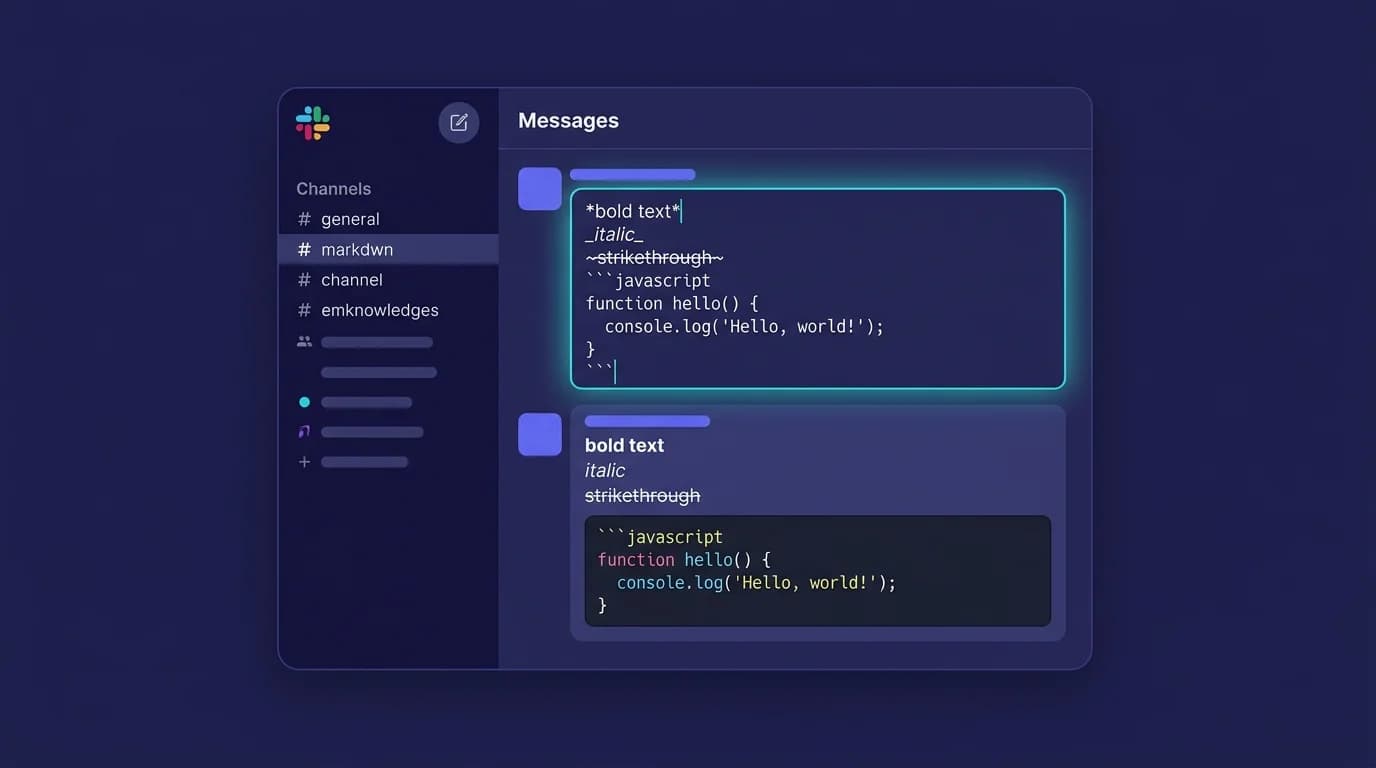
Slack markdown controls how 42 million daily active users format messages every day (DemandSage, 2025). But Slack does not use standard Markdown. It uses a proprietary syntax called mrkdwn — and the differences trip up even experienced developers. Typing **bold** in Slack displays literal asterisks instead of bold text. Using [link text](url) in the API produces broken output. These mistakes cost time in a tool where teams send an average of 92 messages per user per day.
TL;DR: Slack uses
*bold*(single asterisks),_italic_(underscores),~strike~(single tildes), and<url|text>for links. Headings, images, and tables are not supported. The new Block Kit markdown block (February 2025) accepts standard Markdown via the API. Desktop users can switch between rich text and markup mode in Preferences > Advanced.
This guide covers every slack markdown formatting option with exact syntax, a comparison table against standard Markdown, code block techniques, API-specific mrkdwn rules, and the new Block Kit markdown block released in February 2025. Whether you type messages in the desktop app or build Slack integrations, this is the complete reference.
What Is Slack Markdown and How Does It Differ from Standard Markdown?
Slack markdown (mrkdwn) is a simplified markup language that shares some syntax with standard Markdown but diverges in critical ways. The most common mistake is assuming Slack follows CommonMark or GitHub Flavored Markdown conventions. It does not.
Slack created mrkdwn as a lightweight formatting system optimized for chat messages rather than documents. The result is a syntax that looks familiar but behaves differently in at least seven areas.
Here is a side-by-side comparison of standard Markdown versus Slack mrkdwn:
| Feature | Standard Markdown | Slack mrkdwn | Notes |
|---|---|---|---|
| Bold | **text** | *text* | Single asterisks in Slack, double in standard |
| Italic | *text* or _text_ | _text_ | Underscores only in Slack |
| Strikethrough | ~~text~~ | ~text~ | Single tildes in Slack |
| Inline code | `code` | `code` | Same syntax |
| Code block | Triple backticks with language | Triple backticks, no language hint | Slack ignores language identifiers |
| Links | [text](url) | <url|text> | Completely different syntax |
| Headings | # H1, ## H2 | Not supported | No heading levels in mrkdwn |
| Images |  | Not supported | Use file uploads instead |
| Tables | Pipe syntax | Not supported | Use code blocks as workaround |
| Block quote | > text | > text | Same syntax |
| Ordered list | 1. item | 1. item (toolbar/keyboard only) | Markup mode does not auto-format lists |
| Bulleted list | - item | * item (toolbar/keyboard only) | Asterisk + space triggers bullet in compose |
The key takeaway: if you already write standard Markdown in tools like GitHub, Obsidian, or a dedicated Markdown viewer, you need to mentally switch syntax when composing Slack messages.
Key fact: Slack's official documentation calls its syntax "mrkdwn" (without the 'a') to distinguish it from standard Markdown (Slack Developer Docs, 2025). The naming is intentional — it signals that the two are not interchangeable.
How Do You Format Bold, Italic, and Strikethrough in Slack?
Wrap text with single asterisks for bold, underscores for italic, and single tildes for strikethrough. These three formats are the foundation of slack markdown and the ones most users reach for first. According to Slack's own markup documentation, these three inline styles are the only text-decoration options available in mrkdwn — underline is not supported in the markup syntax (Slack Help Center, 2025).
Bold text
Type *your text* and send the message. Slack renders it in bold after sending. Do not use double asterisks — **text** displays literally as two asterisks surrounding your text.
Keyboard shortcut: Select text and press Cmd+B (Mac) or Ctrl+B (Windows/Linux).
Italic text
Type _your text_ and send. The underscores disappear and the text renders in italics. Standard Markdown's single-asterisk italic (*text*) does not produce italics in Slack — it produces bold.
Keyboard shortcut: Select text and press Cmd+I (Mac) or Ctrl+I (Windows/Linux).
Strikethrough text
Type ~your text~ and send. A single tilde on each side crosses out the text. Standard Markdown requires double tildes (~~text~~), but Slack uses one.
Keyboard shortcut: Select text and press Cmd+Shift+X (Mac) or Ctrl+Shift+X (Windows/Linux).
Combining formats
You can nest formatting characters. For example, *_bold and italic_* renders as bold italic text. The order matters — the outer characters determine the primary format.
How Do You Create Code Blocks and Inline Code in Slack?
Use single backticks for inline code and triple backticks for multi-line code blocks. This is the one area where slack markdown syntax matches standard Markdown almost exactly.
Inline code
Wrap a word or phrase with single backticks: `variable_name`. Slack renders it in a monospace font with a light gray background. This works identically to standard Markdown inline code.
Multi-line code blocks
Wrap multiple lines with triple backticks:
function greet(name) {
  return `Hello, ${name}`;
}
Slack renders the text in a monospace font inside a bordered, scrollable container. Unlike GitHub or VS Code, Slack does not support syntax highlighting via language identifiers. Writing ```javascript has no effect — the language tag is ignored.
Code snippets (desktop only)
For longer code, Slack offers a dedicated snippet feature. Press Cmd+Shift+Enter (Mac) or Ctrl+Shift+Enter (Windows/Linux) to open the snippet editor. Snippets support titles, optional syntax highlighting by file type, and comment threads — features that plain code blocks lack (Slack Help Center, 2025).
Developer tip: When sharing Markdown files in Slack, the code block strips all formatting. For a proper preview of
.mdfiles with rendered headings, tables, and syntax highlighting, use a tool like MacMD Viewer to open the file locally and screenshot the output. This gives your team a readable visual instead of raw markup.
How Do You Add Links and Mentions in Slack Markdown?
Links in Slack mrkdwn use angle-bracket syntax, not the square-bracket format from standard Markdown. This is the most common source of errors for developers building Slack integrations. Slack's developer documentation specifies the <url|text> format as the only valid link syntax for API messages and Block Kit surfaces (Slack Developer Docs, 2025).
Link syntax in messages (desktop app)
When typing in the Slack desktop app, you can use the standard bracket format [display text](url) — Slack's compose box translates it automatically. You can also paste a URL and Slack auto-links it, or use Cmd+Shift+U (Mac) / Ctrl+Shift+U (Windows/Linux) to add a hyperlink to selected text.
Link syntax in the API (mrkdwn)
When sending messages via the Slack API, webhooks, or Block Kit, you must use the mrkdwn angle-bracket format:
<https://example.com|Display Text>
The pipe character (|) separates the URL from the display text. Omitting the display text (<https://example.com>) shows the raw URL as a clickable link.
Mentions and special links
Slack mrkdwn includes special link formats that have no equivalent in standard Markdown:
<@U12345678>— mention a user by their member ID<#C12345678>— link to a channel by its ID<!channel>— notify everyone in the channel<!here>— notify only active members<!everyone>— notify all workspace members (use sparingly)<!subteam^S12345678>— mention a user group
These special links are the reason Slack needed its own syntax. Standard Markdown has no concept of user mentions or channel references.
How Do You Use Block Quotes and Lists in Slack?
Block quotes use the greater-than symbol, and lists require the toolbar or keyboard shortcuts — not pure markup. This section covers the two formatting areas where Slack's behavior surprised many users when the compose experience changed.
Block quotes
Type > followed by a space and your text:
> This is a quoted message
Slack renders it with a vertical gray bar on the left, identical to standard Markdown block quotes. Multi-line quotes require a > at the start of each line.
Ordered lists
Type a number followed by a period and a space (1. ), then your text. Slack auto-formats it into a numbered list when using the rich text editor. In markup mode, automatic list formatting is disabled — the numbers render as plain text (Slack Help Center, 2025).
Bulleted lists
Type an asterisk followed by a space (* ), then your text. The same caveat applies: this works in the rich text editor but not in markup-only mode.
The markup mode limitation
Slack offers two compose modes: rich text (default) and markup. In markup mode, list auto-formatting is turned off. You can toggle between modes in Preferences > Advanced > Format messages with markup. Most users keep the default rich text mode, which means lists work as expected from the toolbar or keyboard.
What Is the Block Kit Markdown Block for Developers?
The Block Kit markdown block, released February 2025, accepts standard Markdown and converts it to Slack-compatible mrkdwn automatically. This is the biggest change to Slack's formatting capabilities in years, and it specifically targets AI-powered applications (Slack Developer Docs, 2025).
Why it matters
Before the markdown block, developers building Slack apps had to manually convert standard Markdown output (from LLMs, documentation generators, or CMS tools) into mrkdwn syntax. This meant:
- Replacing
**bold**with*bold* - Converting
[text](url)links to<url|text> - Stripping unsupported features like headings, images, and tables
- Using third-party libraries like
md-to-slackfor the conversion
The markdown block eliminates this translation layer. You pass standard Markdown to the block, and Slack handles the rendering.
How to use it
Include a markdown block in your Block Kit payload:
{
  "type": "markdown",
  "text": "## Status Report\n\n**Build passed** on `main` branch.\n\n- 42 tests passed\n- 0 failures\n- Coverage: 89%"
}
Slack renders the standard Markdown as formatted text, including headings and lists that mrkdwn alone cannot produce.
Limitations
The markdown block is available only in Block Kit messages sent via the API. It does not change how regular users type messages in the compose box. It also requires your Slack app to use the Block Kit framework — older webhook integrations that send plain text or mrkdwn strings cannot use it.
Syntax-highlighted code blocks (March 2026)
Slack extended Block Kit rich text to support syntax-highlighted code blocks with language identifiers (Slack Developer Docs, 2026). This means apps can now send code with proper highlighting — a feature standard Markdown users have expected for years.
How Do You Switch Between Markup Mode and Rich Text in Slack?
Open Preferences, navigate to Advanced, and toggle "Format messages with markup" to switch compose modes. This setting determines whether you type with visible markup characters or use the WYSIWYG toolbar.
Step-by-step
- Click your workspace name in the top-left corner.
- Select Preferences from the dropdown.
- Click Advanced in the left sidebar.
- Toggle Format messages with markup on or off.
When to use markup mode
Markup mode is ideal for developers and power users who prefer typing *bold* and `code` instead of reaching for toolbar buttons. It is faster once you memorize the syntax and avoids accidental formatting from the rich text editor.
When to use rich text mode
Rich text mode is better for non-technical team members and for features that only work with the toolbar: ordered lists, bulleted lists, and indent levels. Since markup mode disables automatic list formatting, teams that rely heavily on lists should keep rich text enabled.
How Should You Handle Markdown Files Shared in Slack?
Slack renders .md files as plain text attachments with no formatting — use a dedicated viewer to read them properly. This is a common frustration for developers who share README files, documentation, or notes written in Markdown.
When you upload a .md file to Slack, the preview shows raw text with all the #, **, and - characters visible. There is no rendered preview. Slack treats Markdown files the same as any plain text file.
Workarounds
- Screenshot the rendered output. Open the file in a Markdown viewer that renders headings, tables, code blocks, and diagrams, then share a screenshot in the channel. Tools like MacMD Viewer render
.mdfiles instantly on macOS with full syntax highlighting and Mermaid diagram support. For a short snippet, the Markdown to image converter downloads the rendered text as a PNG in your browser. - Paste key sections as formatted text. Copy the relevant paragraphs and format them using Slack's native formatting rather than sharing the entire file.
- Convert to PDF first. Use an online Markdown to PDF converter to generate a formatted document, then upload the PDF to Slack. PDFs render inline previews in Slack.
- Link to the rendered version. If the file is on GitHub, GitLab, or a documentation site, share the URL instead. Slack unfurls the link with a preview.
For teams that work with Markdown daily
If your team writes documentation, changelogs, or specs in Markdown, consider standardizing on a local viewer. Having a tool that renders .md files with live preview, table of contents, and syntax highlighting saves time versus constantly converting formats for Slack sharing. See our guide to viewing Markdown files for migration workflows and tool comparisons.
Slack Markdown Quick Reference Cheat Sheet
Here is the complete syntax reference for both the desktop compose box and the Slack API:
| What you want | Desktop compose (rich text) | Desktop compose (markup mode) | Slack API (mrkdwn) |
|---|---|---|---|
| Bold | Cmd+B / Ctrl+B | *text* | *text* |
| Italic | Cmd+I / Ctrl+I | _text_ | _text_ |
| Strikethrough | Cmd+Shift+X / Ctrl+Shift+X | ~text~ | ~text~ |
| Inline code | Select + click <> | `code` | `code` |
| Code block | Cmd+Shift+C / Ctrl+Shift+C | ``` | ``` |
| Block quote | Select + click quote icon | > text | > text |
| Link | Cmd+Shift+U / Ctrl+Shift+U | [text](url) | <url|text> |
| Ordered list | 1. + space | Not available | Not available |
| Bulleted list | * + space | Not available | Not available |
| Mention user | @name | @name | <@U12345678> |
| Mention channel | #channel | #channel | <#C12345678> |
Bookmark this table. The difference between desktop compose syntax and API mrkdwn syntax is the #1 source of formatting bugs in Slack integrations. Keep this reference handy when building bots, webhooks, or workflow automations.
Frequently Asked Questions
Does Slack support standard Markdown syntax?
No. Slack uses a proprietary syntax called mrkdwn that resembles standard Markdown but differs in key areas — bold uses single asterisks, links use angle brackets, and features like headings, images, and tables are not supported. The Block Kit markdown block (released February 2025) is the only way to send standard Markdown to Slack, and it requires the API.
Why does typing **bold** show literal asterisks in Slack?
Slack uses single asterisks (*bold*) for bold text, not double asterisks. Double asterisks are standard Markdown syntax (used on GitHub, VS Code, and most Markdown editors) but Slack treats them as literal characters. Remove one asterisk from each side.
Can you use Markdown tables in Slack?
Not directly. Slack's mrkdwn syntax does not support tables. The workaround is to wrap table data in a code block (triple backticks), which preserves column alignment thanks to the monospace font. For a properly formatted table, create it in a Markdown editor, convert it using a Markdown table generator, and paste the code block version into Slack. For advanced techniques including alignment tricks and multi-column layouts, see our Slack Markdown tables guide.
How do you format code with syntax highlighting in Slack?
Regular code blocks in Slack (triple backticks) do not support syntax highlighting. Use the snippet feature (Cmd+Shift+Enter on Mac) to select a language and get colored syntax. For apps built with Block Kit, syntax-highlighted code blocks became available in March 2026 via the rich text API.
Is Slack markdown formatting available on mobile?
Slack mobile apps support the formatting toolbar (bold, italic, strikethrough, code, quotes, lists) but do not support markup mode. You cannot type *bold* on mobile and have it render as bold — you must use the toolbar buttons or keyboard shortcuts. The mrkdwn syntax works in API messages regardless of the recipient's device.
Content licensed under CC BY 4.0. Cite with attribution to MacMD Viewer.