 MacMD Viewer
Discord Markdown: Complete Formatting Guide (2026)
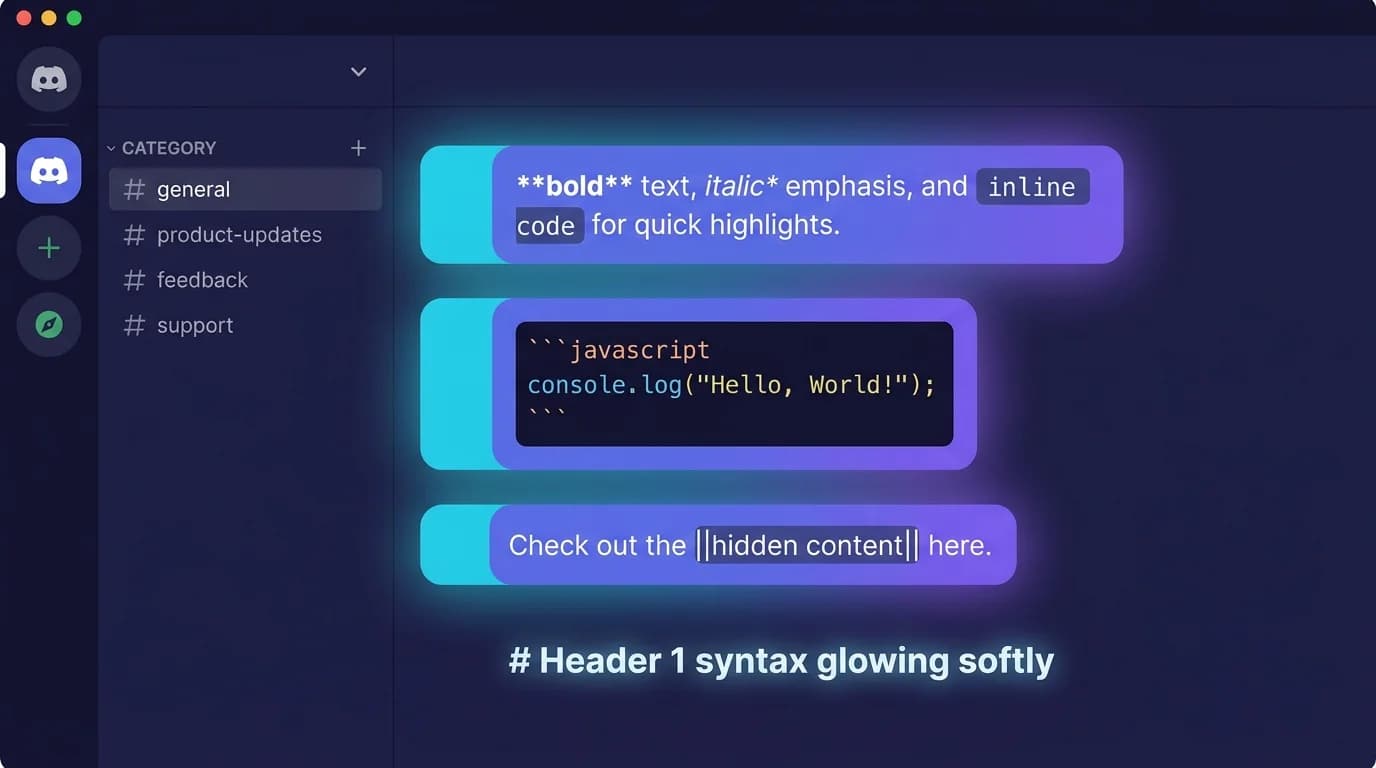
Discord markdown lets you format messages with bold, italic, underline, strikethrough, code blocks, headers, spoiler tags, and masked links — all using plain-text syntax characters typed directly into the chat input. Discord's implementation is based on a subset of standard Markdown with several platform-specific additions like spoiler tags and subtext (Discord Support, 2026).
TL;DR: Use
**text**for bold,*text*for italic,`code`for inline code, triple backticks for code blocks with syntax highlighting,# Headerfor headings,||text||for spoilers, and[text](url)for masked links. Discord supports 15+ formatting options but skips tables, images, and task lists from standard Markdown.
With over 200 million monthly active users as of 2026 (DemandSage, 2026), Discord is one of the largest platforms where Markdown is the primary text formatting method. This guide covers every discord markdown syntax option available today — from basic bold and italic to advanced features like syntax-highlighted code blocks and nested formatting.
What Discord Markdown Syntax Is Available?
Discord supports 15 distinct formatting options, all triggered by wrapping text in specific characters. The table below is the complete reference. Every syntax shown here works in chat messages, forum posts, and channel topics.
| Format | Syntax | Output |
|---|---|---|
| Bold | **text** | text |
| Italic | *text* or _text_ | text |
| Underline | __text__ | underlined text |
| Strikethrough | ~~text~~ | |
| Bold italic | ***text*** | text |
| Underline italic | __*text*__ | underline + italic |
| Underline bold | __**text**__ | underline + bold |
| Underline bold italic | __***text***__ | all three |
| Spoiler | ||text|| | hidden until clicked |
| Inline code | `text` | monospace text |
| Code block | ``` text ``` | multi-line code |
| Block quote | > text | indented quote |
| Multi-line quote | >>> text | quotes everything after |
| Header (large) | # text | large heading |
| Header (medium) | ## text | medium heading |
| Header (small) | ### text | small heading |
| Subtext | -# text | small muted text |
| Masked link | [text](url) | clickable hyperlink |
| Ordered list | 1. text | numbered list |
| Unordered list | - text or * text | bulleted list |
Quick reference: Bookmark this table. It covers every discord markdown option that works in 2026 across desktop, browser, and mobile clients.
How Do You Bold and Italicize Text in Discord?
Wrap text in double asterisks for bold, single asterisks for italic, and triple asterisks for both. These are the three most-used discord text formatting options.
Bold uses two asterisks on each side:
**This text appears bold**
Italic uses one asterisk or one underscore on each side:
*This text appears italic*
_This also appears italic_
Bold italic uses three asterisks:
***This text appears bold and italic***
The asterisk versions are more reliable across Discord clients. Underscores can conflict with usernames and URLs that contain underscores, so asterisks are the safer choice for italic formatting in Discord messages.
You can also combine underlining with bold and italic. Two underscores add an underline:
__**bold and underlined**__
__*italic and underlined*__
__***bold, italic, and underlined***__
If you work with Markdown outside of Discord — in documentation files, README files, or notes — the bold and italic syntax is identical to standard Markdown. A dedicated Markdown viewer like MacMD Viewer renders these same formatting characters in .md files on your Mac, so the syntax you learn in Discord transfers directly to your other writing workflows.
How Do Code Blocks Work in Discord Markdown?
Wrap text in single backticks for inline code or triple backticks for multi-line code blocks with optional syntax highlighting. Discord uses highlight.js for syntax coloring, which supports over 100 programming languages (highlight.js, 2026).
Inline Code
Single backticks create inline code — useful for mentioning a command, variable, or file name inside a sentence:
Type `npm install` to install dependencies.
Multi-Line Code Blocks
Triple backticks create a code block. Place the opening and closing backticks on their own lines:
```
function greet(name) {
  return `Hello, ${name}!`;
}
```
Syntax Highlighting
Add a language identifier immediately after the opening triple backticks to enable syntax coloring:
```javascript
function greet(name) {
  return `Hello, ${name}!`;
}
```
The most commonly used language identifiers on Discord include:
| Language | Identifier |
|---|---|
| JavaScript | javascript or js |
| Python | python or py |
| HTML | html |
| CSS | css |
| JSON | json |
| Bash / Shell | bash or sh |
| C++ | cpp |
| Java | java |
| TypeScript | typescript or ts |
| SQL | sql |
| Markdown | markdown or md |
| Diff | diff |
One important limitation: syntax highlighting does not render on the Discord mobile app. Mobile users see the code block with monospace font but without color. Desktop and browser clients both display syntax colors.
If you share code frequently and want to preview how Markdown renders code blocks before pasting into Discord, tools like the Markdown to HTML converter let you check your formatting first.
How Do You Create Headers and Subtext in Discord?
Use hash symbols at the start of a new line — one for large, two for medium, three for small — and -# for subtext. Headers were added to Discord in 2023 and work in chat messages, forum posts, and long-form content.
# Large Header
## Medium Header
### Small Header
-# This is subtext
Three rules to remember:
- The hash must be the first character on the line. Adding spaces or text before the
#breaks the header syntax. - A space is required between the
#and your text. Writing#textwithout a space will not render as a header. - Only three levels exist. Unlike standard Markdown which supports six heading levels (H1 through H6), Discord only supports three plus subtext.
Subtext (-#) renders as small, muted text below the main content. It works well for footnotes, disclaimers, or attribution lines in announcements.
Discord's heading support is limited to three levels. Standard Markdown supports six levels (H1-H6), so if you are writing documentation that needs deeper heading hierarchies, a full Markdown environment is more appropriate — see the markdown line break guide for how standard Markdown handles formatting that Discord simplifies.
How Do You Use Quotes and Lists in Discord?
Start a line with > for a single-line quote, >>> to quote everything after it, and - or * for bulleted lists. These organizational features help structure longer Discord messages.
Block Quotes
Single-line quotes indent one paragraph:
> This is a quoted line
This is not quoted
Multi-line quotes capture everything that follows the >>> marker in that message:
>>> Everything from here
to the end of the message
is quoted
Unordered Lists
Use a dash or asterisk followed by a space:
- First item
- Second item
- Third item
Indent with a space before the dash to create nested lists:
- Main item
 - Sub-item
 - Another sub-item
- Next main item
Ordered Lists
Use numbers followed by a period:
1. First step
2. Second step
3. Third step
Discord auto-formats ordered lists starting from the first number you provide. The actual numbers you type do not need to be sequential — Discord renumbers them automatically, matching standard Markdown behavior.
How Do Spoiler Tags and Masked Links Work?
Wrap text in double pipes (||) for spoilers and use [text](url) for masked links. These two features are Discord-specific additions to standard Markdown.
Spoiler Tags
Spoiler text is hidden behind a gray overlay until the reader clicks or taps it:
This message contains a ||spoiler|| that you must click to reveal.
You can spoiler entire paragraphs and even combine spoilers with other formatting:
||**bold spoiler text**||
||~~strikethrough spoiler~~||
Spoilers also work on image and file attachments. Upload a file and add || around the file name description, or use the spoiler checkbox in the upload dialog.
Masked Links
Masked links turn any text into a clickable hyperlink:
Check out [this article](https://example.com) for more details.
Discord shows a confirmation popup before opening masked links, which prevents phishing attacks. The recipient sees the actual URL in the popup before deciding to follow the link.
Masked links do not work in all contexts. They function in chat messages and embed descriptions but not in channel names or status messages.
What Are the 5 Most Common Discord Markdown Mistakes?
Most formatting failures in Discord come from missing spaces, misplaced characters, or mobile rendering differences. Here are the five errors that trip up users most often.
1. Missing Space After Header Hash
Writing #Header without a space produces plain text. The correct syntax requires a space: # Header. This applies to all three header levels and subtext.
2. Forgetting to Close Formatting Characters
An opening ** without a closing ** renders the asterisks as literal text instead of producing bold. Every formatting marker must have both an opening and closing pair in the same message.
3. Line Break Issues in Code Blocks
Pressing Enter inside a code block on desktop sends the message unless you hold Shift+Enter. Use Shift+Enter for new lines within code blocks, or type the entire block in a text editor and paste it in.
4. Syntax Highlighting on Mobile
Language-specific code block colors do not appear on the Discord mobile app. The code block itself renders correctly in monospace font, but without syntax coloring. There is no workaround — this is a platform limitation.
5. Underscores Inside Words
Using underscores for italic formatting can break when underscores appear inside words or URLs. For example, _some_variable_name_ may not render as expected. Use asterisks (*) instead of underscores for reliable italic formatting in Discord.
If you write Markdown frequently across multiple platforms — Discord, GitHub, documentation — previewing your formatting in a dedicated viewer helps catch these errors before posting. MacMD Viewer renders standard Markdown files in real time on macOS, so you can draft longer Discord messages or documentation in a .md file and see the formatted output instantly.
How Does Discord Markdown Compare to Standard Markdown?
Discord supports roughly 60% of the CommonMark specification and adds three platform-specific features: spoiler tags, subtext, and the confirmation popup for masked links. The table below shows where Discord diverges from standard Markdown (CommonMark Spec 0.31.2, 2024).
| Feature | Standard Markdown | Discord |
|---|---|---|
| Bold / Italic | Yes | Yes |
| Strikethrough | GFM extension | Yes |
| Underline | No (uses HTML) | Yes (__text__) |
| Headers | H1-H6 | H1-H3 + subtext |
| Code blocks | Yes | Yes (with highlight.js) |
| Links | [text](url) | Yes (with confirmation popup) |
| Images |  | Not rendered inline |
| Tables | GFM extension | Not supported |
| Task lists | GFM extension | Not supported |
| Footnotes | Extension | Not supported |
| Spoiler tags | Not standard | Yes (||text||) |
| Subtext | Not standard | Yes (-# text) |
| Horizontal rules | Yes (---) | Not supported |
The biggest gaps are tables, images, and task lists. If you need Markdown tables, you can build them using the Markdown table generator, turn the result into a PNG with the Markdown to image converter, and share that in Discord, since Discord's parser will not render table syntax.
For task lists and checkboxes, see the markdown checkbox guide — while they work on GitHub and many editors, Discord does not render the - [ ] checkbox syntax.
Frequently Asked Questions About Discord Markdown
Does Discord use standard Markdown?
Discord uses a modified subset of Markdown, not the full standard. The platform relies on the simple-markdown library, which draws from CommonMark. It supports basic formatting (bold, italic, strikethrough, code), headers (three levels), block quotes, lists, and masked links. It does not support tables, images, footnotes, horizontal rules, or task lists. Discord also adds spoiler tags (||text||) and subtext (-# text), which are not part of any standard Markdown specification.
Can you use Markdown in Discord on mobile?
Yes, all discord markdown syntax works on iOS and Android except syntax highlighting in code blocks. Bold, italic, underline, strikethrough, spoilers, headers, quotes, and lists all render correctly on mobile. Code blocks themselves display in monospace font, but the language-specific color highlighting only appears on desktop and browser clients.
How do you make colored text in Discord?
Discord has no built-in colored text feature, but syntax-highlighted code blocks provide a workaround. Use specific language identifiers that produce colored output in code blocks. For example, using diff as the language and prefixing lines with + (green) or - (red) creates color. Using css and writing a bracket-enclosed word like [orange] produces orange text. These are workarounds that depend on highlight.js color rules, not intentional colored text features.
What is the difference between > and >>> in Discord?
Single > quotes one line, while >>> quotes everything that follows it in the message. All remaining lines after >>> become part of the block quote automatically. Use > for quoting a single line or paragraph, and >>> when quoting a long passage or when everything after a certain point should appear quoted.
Can you format text in Discord embeds?
Yes, bot-generated embeds support most discord markdown formatting in descriptions and field values. Bold, italic, strikethrough, code blocks, masked links, and block quotes all work inside embed fields. Headers and subtext do not render inside embeds — they are only supported in regular chat messages and forum posts.
Content licensed under CC BY 4.0. Cite with attribution to MacMD Viewer.