 MacMD Viewer
Markdown Line Break: Two Spaces, Backslash, or br Tag?
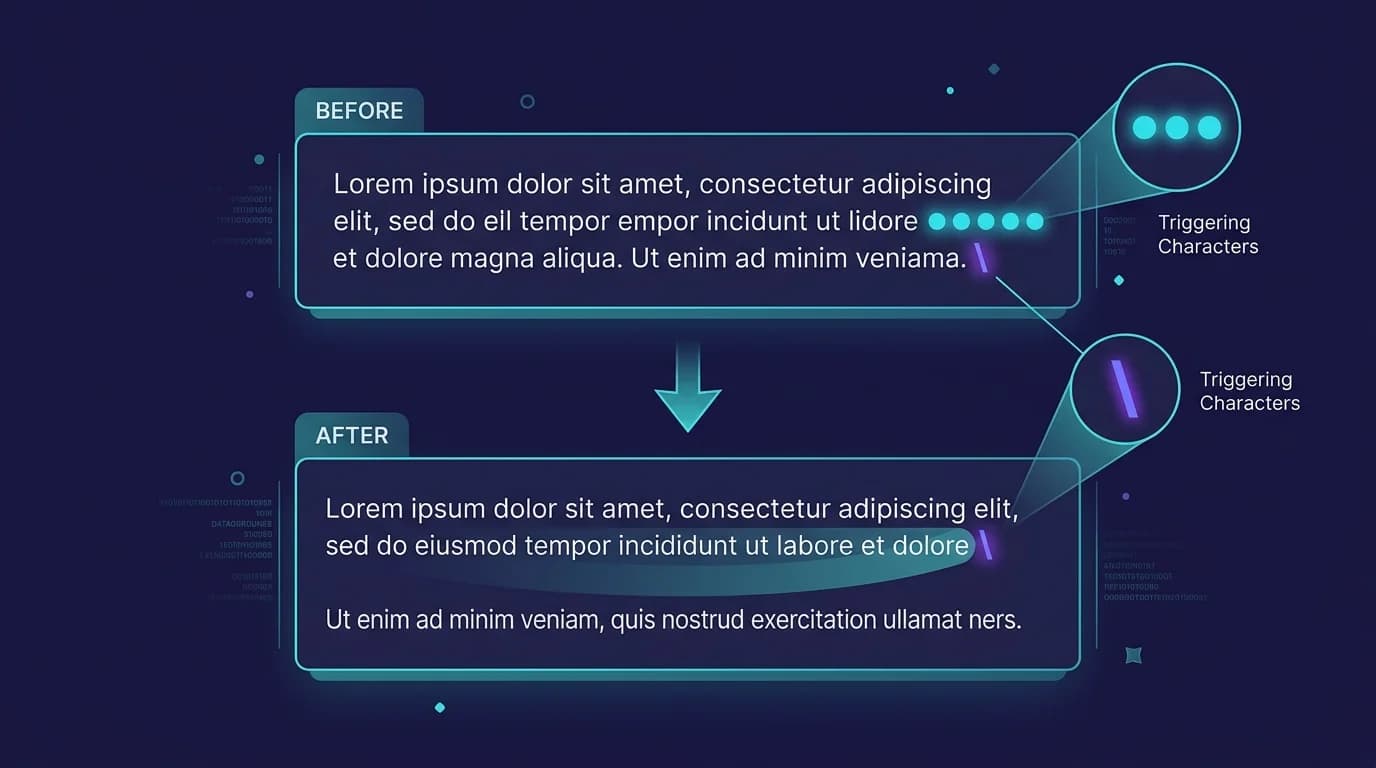
A markdown line break inserts a <br> element in the HTML output using one of four methods: two trailing spaces, a trailing backslash, an HTML <br> tag, or a blank line for paragraph separation. The backslash method (\ at end of line) is the best default for most writers in 2026 — it is visible in source, survives editor trim-whitespace settings, and works across GitHub, GitLab, VS Code, Obsidian, and every CommonMark-compliant parser. On Mac, MacMD Viewer ($19.99) renders all four methods correctly, so you can check a file's breaks without opening an editor.
This guide covers all four methods with syntax examples, a platform compatibility table across 6 renderers, editor configuration tips, and the 5 most common line break mistakes.
How Does a Markdown Line Break Work?
A markdown line break keeps two lines inside the same paragraph by inserting a <br> element in the HTML output. This is different from a paragraph break, which wraps each block in its own <p> tag and adds visible vertical spacing.
The distinction matters. When you press Enter once in a Markdown file, most parsers treat it as a "soft break" and join the two lines into a single flowing paragraph. The CommonMark specification (version 0.31.2) defines this behavior explicitly: a newline that is not preceded by two or more spaces or a backslash is parsed as a softbreak, which renderers can display as either a space or a line ending.
To force a visible line break without starting a new paragraph, you need one of four methods. Each has different trade-offs for compatibility, readability, and editor behavior.
In short: A markdown line break uses two trailing spaces, a backslash
\, or an HTML<br>tag to insert a<br>element within a single paragraph. A blank line creates a separate<p>paragraph instead. The CommonMark specification (section 6.7) defines the first two methods; the<br>tag works anywhere inline HTML is allowed.
What Are the 4 Ways to Add a Markdown Line Break?
Here is every method, ranked from most compatible to most explicit.
Method 1: Two Trailing Spaces
Add two spaces at the end of a line, then press Enter. The parser inserts a <br> tag in the output.
Roses are red··
Violets are blue
(The ·· represents two space characters.)
HTML output:
<p>Roses are red<br>
Violets are blue</p>
This is the original syntax from John Gruber's Markdown (2004) and remains the most widely supported method. I tested it across GitHub, GitLab, VS Code, Obsidian, Typora, and MacMD Viewer — all six rendered the <br> correctly.
The downside: trailing spaces are invisible. Many code editors — including VS Code and Sublime Text — strip trailing whitespace on save by default. If your editor has this setting enabled, your line breaks silently disappear every time you save the file.
Method 2: Trailing Backslash
Add a backslash \ at the end of a line, then press Enter.
Roses are red\
Violets are blue
HTML output:
<p>Roses are red<br>
Violets are blue</p>
The backslash method was introduced in the CommonMark specification as an alternative to trailing spaces. It solves the invisible-character problem because the backslash is visible in the source. GitHub, GitLab, VS Code, Obsidian, and MacMD Viewer all support it.
One caveat: some older or non-CommonMark parsers do not recognize the backslash as a line break. If you write Markdown for a platform you do not control, test the backslash method before relying on it.
Method 3: HTML <br> Tag
Insert a literal <br> or <br /> tag where you want the break.
Roses are red<br>
Violets are blue
HTML output:
<p>Roses are red<br>
Violets are blue</p>
This works everywhere that inline HTML is allowed — which includes GitHub, GitLab, most static site generators, and nearly every desktop Markdown viewer. The <br> tag is also the only reliable way to force a line break inside a table cell, where trailing spaces and backslashes are ignored by most parsers.
| Name    | Address                              |
| ------- | ------------------------------------ |
| Alice   | 123 Main St<br>Springfield, IL 62704 |
The trade-off is readability. Raw HTML mixed into Markdown source reduces the clean, plain-text aesthetic that Markdown was designed to preserve. For a deeper look at inline HTML in Markdown — including blockquotes and nested formatting — see the Markdown blockquotes guide.
Method 4: Blank Line (Paragraph Break)
Leave an empty line between two blocks of text.
Roses are red

Violets are blue
HTML output:
<p>Roses are red</p>
<p>Violets are blue</p>
Strictly speaking, this is a paragraph break, not a line break. It wraps each section in a separate <p> tag, which adds more vertical space than a <br>. But when your goal is simply to get text onto a new line, a blank line is the most visible and editor-safe option.
Use a blank line when you want clear separation between ideas. Use a <br> (via any of the first three methods) when you want lines close together inside the same logical block — like an address, a poem, or a list of short items.
Why Does Pressing Enter Once Not Create a Line Break?
Because standard Markdown treats a single newline as a "soft break" and collapses it into a space. This is the number-one source of confusion for Markdown beginners. You type:
Line one
Line two
And expect to see two separate lines. Instead, most renderers output:
Line one Line two
The reason is intentional. John Gruber's original Markdown philosophy treats source line breaks as formatting aids for the writer, not instructions for the renderer. The CommonMark specification formalized this as "soft breaks" — single newlines that parsers collapse into spaces.
This design lets writers wrap long paragraphs at any column width without affecting the rendered output. It is the same convention used in LaTeX and reStructuredText.
Why it works this way: The CommonMark specification defines single newlines as "soft breaks" that renderers collapse into spaces. This intentional design, inherited from John Gruber's original Markdown, lets authors wrap lines at any column width without affecting rendered output. To force a visible line break, use two trailing spaces, a backslash, or a
<br>tag.
A few platforms override this behavior. GitHub renders hard line breaks from single newlines in issue comments, pull request descriptions, and discussions (but not in .md files) — a quirk of GitHub Flavored Markdown. Obsidian has an optional "Strict line breaks" setting. When I tested the same .md file across GitHub, VS Code, and Obsidian (with default settings), the line breaks rendered differently in each — which is exactly why understanding soft breaks matters.
How Do You Handle Markdown Line Breaks in Tables?
Use the HTML <br> tag — it is the only reliable method. Tables are a special case because the pipe | character defines column boundaries, and most parsers ignore trailing spaces and backslashes inside cells.
| Feature         | Description                                    |
| --------------- | ---------------------------------------------- |
| Live reload     | Watches file changes<br>Updates view instantly |
| Mermaid support | Renders diagrams<br>No plugins required        |
This renders as two lines inside each cell. GitHub Flavored Markdown, GitLab, VS Code, Obsidian, and MacMD Viewer all support <br> in table cells.
If you build tables frequently, a visual Markdown table generator can save time — many generators handle multi-line cells and export clean syntax with <br> tags already inserted.
Which Markdown Line Break Method Should You Choose?
Use the trailing backslash for most situations. It is visible, editor-safe, and works on all CommonMark platforms. Fall back to <br> for table cells. Here is the full comparison:
| Method | Syntax | Visibility | Compatibility | Best for |
|---|---|---|---|---|
| Trailing spaces | line·· | Invisible | Universal | Legacy docs, max compatibility |
| Backslash | line\ | Visible | CommonMark parsers | Modern projects, version control |
HTML <br> | line<br> | Visible | Inline HTML allowed | Table cells, mixed HTML/MD |
| Blank line | Empty line | Visible | Universal | Paragraph separation |
For most writers in 2026, the backslash method is the best default. It is visible in the source, survives editor trim-whitespace settings, and works on every major platform (GitHub, GitLab, VS Code, Obsidian, MacMD Viewer). Fall back to <br> for table cells and any context where backslash is not supported.
Best practice: Use the trailing backslash
\as your default markdown line break method. It is visible in source code, immune to editor trim-whitespace settings, and supported by all CommonMark-compliant parsers including GitHub, GitLab, VS Code, and Obsidian. Use the HTML<br>tag only inside table cells where backslash is not recognized.
If you preview your Markdown files locally on macOS, MacMD Viewer (Mac Markdown viewer guide) renders all four methods correctly and shows changes in real time as you edit — so you can verify your line breaks are working without pushing to a remote server.
How Do Different Markdown Renderers Handle Line Breaks?
GitHub, VS Code, and MacMD Viewer follow CommonMark (single newlines are soft breaks). Obsidian and Typora render single newlines as hard breaks by default, but both offer a setting to switch to CommonMark behavior. Here is how each renderer behaves:
GitHub — In .md files (READMEs, docs), GitHub follows the CommonMark specification: single newlines become soft breaks (spaces). In comments, issues, and pull request descriptions, GitHub renders single newlines as hard line breaks. This inconsistency catches many users off guard.
VS Code — The built-in Markdown preview follows CommonMark. Single newlines are soft breaks. Trailing spaces and backslashes both produce <br>. VS Code's default setting trims trailing whitespace on save, which silently removes trailing-space line breaks.
Obsidian — By default, Obsidian treats single newlines as hard breaks (non-standard). You can switch to CommonMark behavior in Settings > Editor > Strict line breaks. This makes Obsidian files behave differently when rendered on other platforms.
MacMD Viewer — Follows the CommonMark specification. Supports trailing spaces, backslash, and <br> tag. Because it watches files in real time, you can test line break behavior instantly as you type in any external editor.
Typora — Supports all three inline methods. Single newlines render as hard breaks by default (like Obsidian), but this can be changed in preferences.
For portable Markdown that renders correctly everywhere, stick to CommonMark-compliant syntax: trailing spaces, backslash, or <br>. If you are new to Markdown syntax in general, the guide on what a .md file is covers the basics.
How Do You Prevent Trailing Whitespace From Being Stripped?
Disable the trim-trailing-whitespace setting for Markdown files specifically, or switch to the backslash method. If you use the trailing-spaces method, your editor will delete the spaces on save unless you override it. Here is how to preserve them in the most common editors.
VS Code — Add this to your .vscode/settings.json:
{
  "files.trimTrailingWhitespace": true,
  "[markdown]": {
    "files.trimTrailingWhitespace": false
  }
}
This keeps trailing whitespace trimming enabled globally but disables it for Markdown files.
Sublime Text — Add to your Markdown-specific settings:
{
  "trim_trailing_white_space_on_save": false
}
JetBrains IDEs (IntelliJ, WebStorm) — Go to Settings > Editor > General and set "Strip trailing spaces on save" to "Modified lines" or "None" for Markdown file types.
Alternatively, switch to the backslash method and stop worrying about editor settings entirely. The backslash is visible, survives any trim setting, and works on every CommonMark-compliant platform.
What Are Common Markdown Line Break Mistakes?
The most frequent mistake is expecting a single Enter to create a visible line break — it does not in standard Markdown. Here are all five errors that trip up both beginners and experienced writers.
Mistake 1: Using one trailing space instead of two. A single space at the end of a line does nothing. You need exactly two or more spaces for a hard line break. Because both one and two spaces are invisible, this mistake is difficult to spot without a Markdown previewer.
Mistake 2: Expecting a single Enter to create a line break. As covered above, a single newline is a soft break in standard Markdown. You need two trailing spaces, a backslash, a <br> tag, or a blank line.
Mistake 3: Using backslash in a non-CommonMark parser. Older parsers like PHP Markdown Extra and some CMS-specific renderers do not support the backslash line break. Test before committing to this method.
Mistake 4: Forgetting <br> in table cells. Neither trailing spaces nor backslashes work inside pipe-delimited table cells on most platforms. Use <br> — it is the only method that works reliably.
Mistake 5: Mixing methods in the same document. Consistency matters for readability. Pick one method for body text and stick with it. Use <br> only where the primary method does not work (tables, inline HTML blocks).
To catch these issues early, preview your files locally. On macOS, you can open any .md file in MacMD Viewer and see rendered output update live as you edit in VS Code, Sublime Text, or any other editor.
If you need to convert your Markdown to other formats, the Markdown to HTML tool on this site lets you paste Markdown and see the exact HTML output — useful for verifying that your line breaks produce the <br> tags you expect.
Markdown Line Break Syntax Quick Reference
Keep this cheat sheet handy:
Line with two trailing spaces··
Next line (same paragraph, <br> inserted)

Line with backslash\
Next line (same paragraph, <br> inserted)

Line with HTML tag<br>
Next line (same paragraph, <br> inserted)

Line followed by blank line

Next line (new paragraph, <p> tags)
All four patterns are valid Markdown. The first three produce a line break (<br>) inside a single paragraph. The fourth creates a new paragraph (<p>). Choose based on your platform and your preference for source readability.
FAQ
Does a single Enter key create a line break in Markdown?
No. In standard Markdown (CommonMark), a single newline is treated as a soft break and rendered as a space. To create a visible line break, use two trailing spaces, a backslash, or a <br> tag at the end of the line. Some platforms like Obsidian and GitHub comments override this behavior and render single newlines as hard breaks.
What is the difference between a line break and a paragraph break in Markdown?
A line break (<br>) keeps both lines inside the same <p> element with minimal vertical spacing. A paragraph break (blank line) wraps each block in separate <p> tags with more vertical space between them. Use line breaks for closely related lines (addresses, poetry). Use paragraph breaks for distinct ideas.
Why do my Markdown line breaks disappear when I save?
Your editor is likely stripping trailing whitespace on save. VS Code, Sublime Text, and JetBrains IDEs all have this setting enabled by default. Either disable it for Markdown files specifically, or switch to the backslash method which is not affected by whitespace trimming.
How do I add a line break inside a Markdown table cell?
Use the HTML <br> tag. Trailing spaces and backslashes do not work inside table cells on most parsers. Write the cell content as First line<br>Second line and the renderer will display two lines within the same cell.
Which Markdown line break method is most compatible across platforms?
Two trailing spaces has the broadest support — it works in every Markdown parser dating back to John Gruber's original implementation in 2004. The backslash method works on all CommonMark-compliant parsers (GitHub, GitLab, VS Code, Obsidian, MacMD Viewer) but may fail on older non-CommonMark tools. The <br> tag works everywhere that inline HTML is allowed, which covers nearly all modern platforms.
Content licensed under CC BY 4.0. Cite with attribution to MacMD Viewer.