 MacMD Viewer
Markdown Blockquote: Syntax and Nesting Guide (2026)
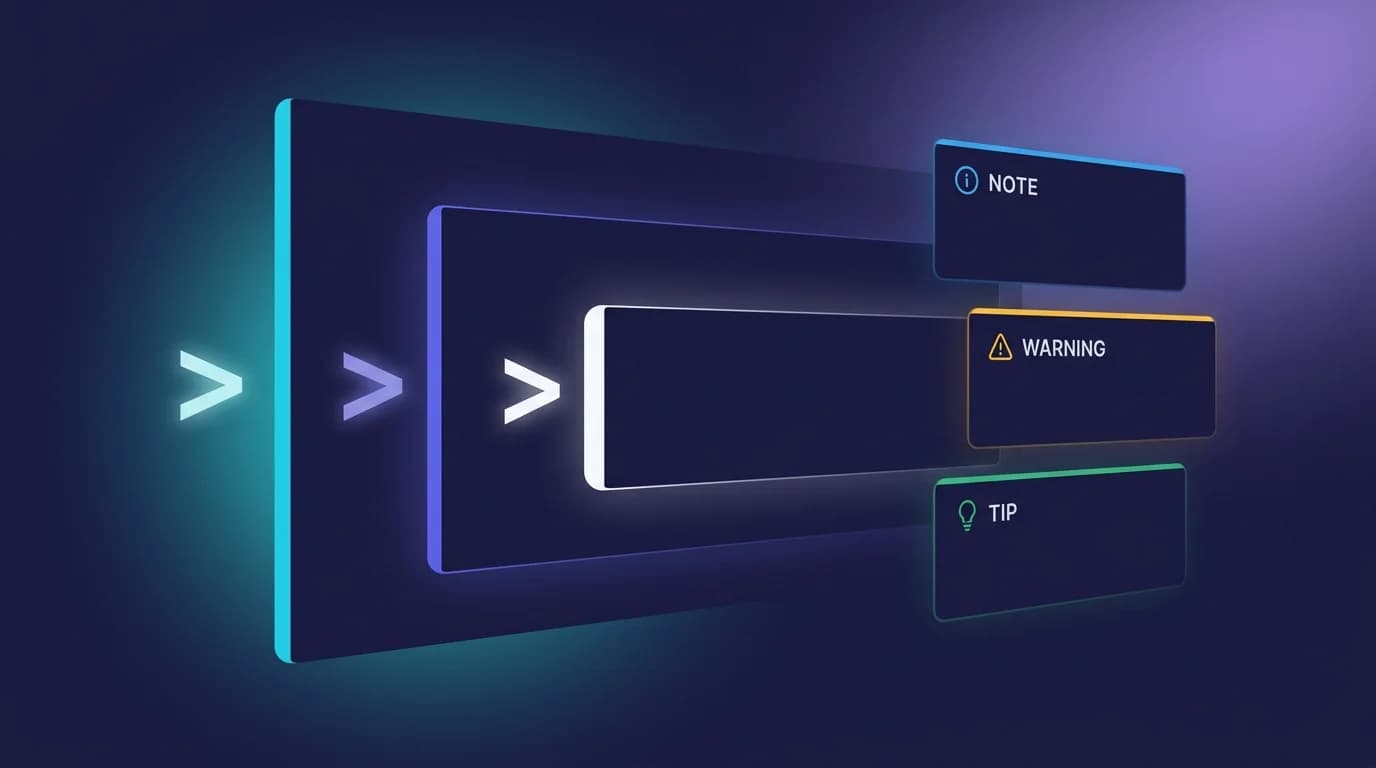
TL;DR: A markdown blockquote starts with
>at the beginning of a line. The parser wraps the content in an HTML<blockquote>tag. You can nest blockquotes with> >, span multiple paragraphs with a blank>line, and include any Markdown element inside them. GitHub extends the syntax with[!NOTE],[!TIP],[!WARNING], and other alert types for color-coded callout boxes.
A markdown blockquote starts with a single > character at the beginning of a line. The parser reads that character, strips it from the output, and wraps everything that follows in an HTML <blockquote> tag. That one rule — defined in section 5.1 of the CommonMark specification (version 0.31.2, January 2024) — covers the basic case, but blockquotes can also nest, span multiple paragraphs, contain other Markdown elements, and even power GitHub's alert system.
Blockquotes rank among the most frequently used Markdown structures after headings and lists. Documentation teams use them for callouts and warnings. Technical writers use them to highlight key definitions. README authors use them for important notes. And yet the syntax has quirks that trip up even experienced users — lazy continuation lines, nested indentation, and platform-specific extensions like Obsidian callouts and GitHub alerts.
This guide covers every markdown blockquote scenario: basic syntax, multi-paragraph blocks, nesting, combining with other elements, GitHub alert extensions, platform compatibility, and the most common rendering mistakes with fixes.
How Do You Create a Markdown Blockquote?
Type the > character at the start of a line, followed by a space, then your text. The space after > is optional in most parsers, but the CommonMark specification recommends it for readability:
> This is a blockquote.HTML output:
<blockquote>
  <p>This is a blockquote.</p>
</blockquote>
That is the complete syntax for a single-line markdown blockquote. The > acts as a container marker — it tells the parser "everything on this line belongs inside a <blockquote> element." The parser handles the rest.
Step 1: Start the line with >
Place a > character at column one. Do not indent it with spaces or tabs — indenting four or more spaces triggers a code block instead of a blockquote in most CommonMark-compliant parsers.
Step 2: Add a space after the marker
While technically optional, always add a single space after >. Omitting the space works in most renderers, but including it ensures consistent behavior across GitHub, GitLab, VS Code, Obsidian, and other tools.
Step 3: Write your content
Everything after > on that line becomes blockquote content. You can include inline formatting — bold, italic, links, code spans — inside the blockquote just like regular text:
> **Important:** Check the [CommonMark spec](https://spec.commonmark.org/) for edge cases.How Do Multi-Paragraph Blockquotes Work?
A markdown blockquote can span multiple paragraphs. The key is placing a > on the blank line between paragraphs. Without that marker, the parser treats the blank line as the end of the blockquote:
> First paragraph inside the blockquote.
>
> Second paragraph, still inside the same blockquote.
HTML output:
<blockquote>
  <p>First paragraph inside the blockquote.</p>
  <p>Second paragraph, still inside the same blockquote.</p>
</blockquote>
The > on the blank line is what keeps both paragraphs inside a single <blockquote> tag. Drop that line and you get two separate blockquotes — or worse, the second paragraph renders as normal body text. I tested this across GitHub, VS Code, Obsidian, and MacMD Viewer: all four split the blockquote when the blank > line is missing.
Lazy continuation lines
CommonMark allows "lazy continuation" — subsequent lines in a blockquote paragraph do not need a > prefix:
> This is the first line
and this continues the same blockquote paragraph.
The parser recognizes that the second line belongs to the open blockquote. However, relying on lazy continuation is risky. Some renderers (particularly Slack and Discord) do not support it, and it makes the source text harder to scan visually. Best practice: prefix every line with > for clarity and portability.
How Do You Nest Blockquotes in Markdown?
To nest a blockquote inside another blockquote, add additional > characters. Each > adds one level of nesting:
> Outer blockquote.
>
> > Nested one level deep.
> >
> > > Nested two levels deep.
HTML output:
<blockquote>
  <p>Outer blockquote.</p>
  <blockquote>
    <p>Nested one level deep.</p>
    <blockquote>
      <p>Nested two levels deep.</p>
    </blockquote>
  </blockquote>
</blockquote>
Each additional > creates a nested <blockquote> element in the HTML. The CommonMark specification (section 5.1) places no hard limit on nesting depth, but practically, most renderers handle three to four levels before the visual indentation becomes unreadable. I tested five-level nesting across GitHub, Obsidian, and MacMD Viewer — all three rendered correctly, though the result was barely legible on mobile screens.
Formatting tip: Add a space between each > character for readability in the source (> > > rather than >>>). Both forms produce identical output, but the spaced version is easier to edit.
What Markdown Elements Can You Put Inside a Blockquote?
Blockquotes are container blocks — they can hold almost any other Markdown element. The CommonMark specification (section 5.1) defines blockquotes as containers that can include paragraphs, headings, lists, code blocks, and even other blockquotes.
Headings inside blockquotes
> ## Section Title
> Regular paragraph text below the heading.
Lists inside blockquotes
> Key points:
> - First item
> - Second item
> - Third item
Code blocks inside blockquotes
Use triple backticks inside the blockquote, prefixing each line with >:
> Example code:
> ```python
> print("Hello from a blockquote")
> ```
Bold, italic, and links
All inline formatting works inside blockquotes:
> **Bold text**, *italic text*, and [a link](https://example.com) all render normally.Combining multiple elements
A realistic example that uses headings, lists, bold text, and a code span inside a single blockquote:
> ### API Rate Limits
>
> The following limits apply per API key:
>
> - **Free tier:** 100 requests/hour
> - **Pro tier:** 10,000 requests/hour
>
> Check your current usage with `GET /api/usage`.
This flexibility makes blockquotes one of the most versatile container elements in Markdown. Documentation teams frequently use them for callout boxes, definition blocks, and quoted passages with attribution.
How Do GitHub Markdown Alerts Extend Blockquotes?
GitHub introduced a blockquote-based alert syntax that turns standard blockquotes into color-coded callout boxes. The syntax adds a special marker — [!TYPE] — on the first line of the blockquote. Five alert types are available, each with distinct styling and semantic meaning, as documented in the GitHub Docs:
> [!NOTE]
> Useful background information the reader should know.

> [!TIP]
> Helpful advice for doing things more easily.

> [!IMPORTANT]
> Key information the reader needs to achieve their goal.

> [!WARNING]
> Urgent information that needs immediate attention.

> [!CAUTION]
> Negative potential consequences of an action.
Each type renders with a distinct icon and color on GitHub:
| Alert type | Color | Use case |
|---|---|---|
[!NOTE] | Blue | Background context, supplementary info |
[!TIP] | Green | Shortcuts, best practices, efficiency advice |
[!IMPORTANT] | Purple | Prerequisites, critical requirements |
[!WARNING] | Yellow | Potential problems, deprecated features |
[!CAUTION] | Red | Data loss risks, irreversible actions |
Platform support: GitHub alerts are a GitHub-specific extension. They do not render on GitLab, Bitbucket, or standard CommonMark parsers. However, several community plugins bring the syntax to other tools — remark-github-blockquote-alert for remark-based processors and markdown-it-github-alerts for markdown-it.
Obsidian callouts vs. GitHub alerts
Obsidian uses a similar but distinct syntax for its callout blocks:
> [!info] Custom title here
> Callout content goes here.
The key difference: Obsidian callouts support custom titles after the type keyword and offer additional types like [!info], [!example], [!question], and [!quote]. Obsidian callouts also support foldable blocks with + and - modifiers. These are not compatible with GitHub — and GitHub alerts do not render in Obsidian without a plugin.
Which Platforms Support Markdown Blockquotes?
Basic blockquote syntax (>) is part of the original Markdown specification (John Gruber, 2004) and works on every Markdown renderer. The compatibility differences appear with extensions and edge cases.
| Platform | Basic > | Multi-paragraph | Nesting | Lazy continuation | GitHub alerts |
|---|---|---|---|---|---|
| GitHub | Yes | Yes | Yes | Yes | Yes |
| GitLab | Yes | Yes | Yes | Yes | No |
| VS Code preview | Yes | Yes | Yes | Yes | Plugin required |
| Obsidian | Yes | Yes | Yes | Yes | Plugin required |
| Slack | Yes | Single block only | No | No | No |
| Discord | Yes | Yes | Limited | No | No |
| Yes | Yes | Yes | Yes | No | |
| Notion | Yes | Yes | No | No | No |
| MacMD Viewer | Yes | Yes | Yes | Yes | Rendered as standard blockquote |
Slack is the most limited — it supports a single-line blockquote with > but does not handle nesting or multi-paragraph blocks. If you need more on Markdown in Slack, see the Markdown in Slack guide. Discord supports basic nesting but strips deeper levels. Notion converts > into its own "quote block" element, which does not support nesting.
What Are Common Markdown Blockquote Mistakes and Fixes?
Four rendering problems account for the majority of markdown blockquote issues. Each traces back to a specific rule in the CommonMark specification and has a reliable fix.
Problem 1: Blockquote breaks across paragraphs
Symptom: The second paragraph renders outside the blockquote as normal text.
Cause: Missing > on the blank line between paragraphs.
Fix:
<!-- Wrong -->
> First paragraph.

> Second paragraph.

<!-- Correct -->
> First paragraph.
>
> Second paragraph.
The blank > line tells the parser to keep both paragraphs inside the same <blockquote> element. Without it, the parser closes the first blockquote at the blank line and opens a new one.
Problem 2: Nested blockquotes render flat
Symptom: All nesting levels render at the same depth.
Cause: Missing space between > characters or inconsistent indentation.
Fix:
<!-- Potentially problematic -->
>>> Deep nesting

<!-- Correct -->
> > > Deep nesting with spaces
While >>> works in many parsers, the spaced version > > > is more portable and explicitly signals the nesting depth.
Problem 3: Code blocks inside blockquotes break
Symptom: The code fence closes the blockquote, and the code renders as a normal code block.
Cause: Missing > prefix on the code fence lines.
Fix: Prefix every line of the code block — including the opening and closing fences — with >:
> ```javascript
> const greeting = "Hello";
> console.log(greeting);
> ```
Every line between and including the backtick fences needs the > prefix. Miss one line and the parser exits the blockquote.
Problem 4: Blockquote renders as code block
Symptom: Your text appears in a monospaced code block instead of a styled blockquote.
Cause: Four or more spaces before the > character.
Fix: Remove leading spaces. The > must start at column one (or after a list marker in nested contexts). In CommonMark, four leading spaces trigger a code block — a common mistake when copying blockquote text from indented editors.
How Do You Preview Markdown Blockquotes on macOS?
Checking blockquote rendering before committing to a repository or publishing documentation saves time. On macOS, you have several preview options depending on your workflow.
MacMD Viewer renders blockquotes, nested blockquotes, and all elements inside them in real time as you edit your Markdown file in any editor. It watches the file for changes and refreshes the preview automatically — no manual reload needed. The QuickLook extension also renders blockquotes directly in Finder when you press Space on any .md file.
For checking how blockquotes look across different renderers, the free Markdown Preview tool on macmdviewer.com renders your Markdown in the browser with full CommonMark support, including nested blockquotes and mixed content. Paste your blockquote, verify the output, and copy the result.
If you work with blockquotes in documentation that will be exported as PDF, the Markdown to PDF tool preserves blockquote styling in the exported document — including nested blockquotes and inline formatting.
What Are the Most Common Blockquote Questions?
What is the HTML output of a markdown blockquote?
A markdown blockquote converts to an HTML <blockquote> element. The content inside becomes <p> tags within the <blockquote>. For example, > Hello becomes <blockquote><p>Hello</p></blockquote>. Nested blockquotes produce nested <blockquote> elements. The CommonMark specification (section 5.1) defines this mapping with 25 test cases covering edge cases.
Can you use blockquotes inside lists in Markdown?
Yes. Indent the > marker to match the list item's content indentation (typically four spaces for ordered lists, two or three for unordered lists). Example: a list item followed by an indented > quote on the next line. The tricky part is getting the indentation right — too few spaces and the blockquote breaks out of the list; too many and it may become a code block. Test in your target renderer.
What is the difference between a blockquote and a code block in Markdown?
A blockquote uses > and renders as a styled, indented paragraph meant for quoted text, callouts, or notes — it produces <blockquote> in HTML. A code block uses triple backticks (```) or four-space indentation and renders in monospaced font for code — it produces <pre><code> in HTML. Blockquotes support inline formatting (bold, links, images). Code blocks preserve text literally with no formatting.
Do blockquotes support Markdown formatting inside them?
Yes. Blockquotes are container blocks, meaning they can hold paragraphs, headings, lists, code blocks, images, links, bold, italic, and even nested blockquotes. Every line inside the blockquote needs a > prefix. The only limitation varies by platform — Slack strips most inner formatting, while GitHub, GitLab, and standard CommonMark renderers support the full range of nested elements.
How do GitHub alerts differ from standard blockquotes?
GitHub alerts extend the blockquote syntax with a [!TYPE] marker (NOTE, TIP, IMPORTANT, WARNING, CAUTION) on the first line, documented in the GitHub Docs. Standard blockquotes render as plain indented text. GitHub alerts render with colored borders, icons, and type labels. The alert syntax only works on GitHub — other platforms render it as a regular blockquote with the [!TYPE] text visible. See the markdown cheat sheet for a quick reference of all Markdown syntax including blockquotes.
Frequently Asked Questions
How do you create a blockquote in Markdown?
Start a line with the > character followed by a space, then your text. For example: > This is a blockquote. The parser wraps the content in an HTML <blockquote> tag. This syntax is defined in section 5.1 of the CommonMark specification.
How do you nest blockquotes in Markdown?
Add additional > characters for each level of nesting. For example, > > Nested quote creates a second-level blockquote inside the first. Most CommonMark-compliant parsers support unlimited nesting depth.
What are GitHub Markdown alerts (callouts)?
GitHub extends blockquote syntax with alert types: > [!NOTE], > [!TIP], > [!IMPORTANT], > [!WARNING], and > [!CAUTION]. Each renders as a color-coded callout box with an icon. This extension is specific to GitHub Markdown and not part of the CommonMark spec.
Can you put code blocks inside a Markdown blockquote?
Yes. Any Markdown element can appear inside a blockquote, including fenced code blocks. Prefix the code fence with > to keep it inside the blockquote container. Each code line inside the blockquote also needs a > prefix.
Why is my Markdown blockquote not rendering correctly?
Common causes include indenting the > character with four or more spaces (which triggers a code block instead), missing a blank > line between paragraphs in a multi-paragraph blockquote, or using a renderer that does not support lazy continuation lines.
Content licensed under CC BY 4.0. Cite with attribution to MacMD Viewer.