 MacMD Viewer
Markdown Underline: 4 Working Methods Explained (2026)
TL;DR: Markdown underline has no native syntax in CommonMark or GFM. Use
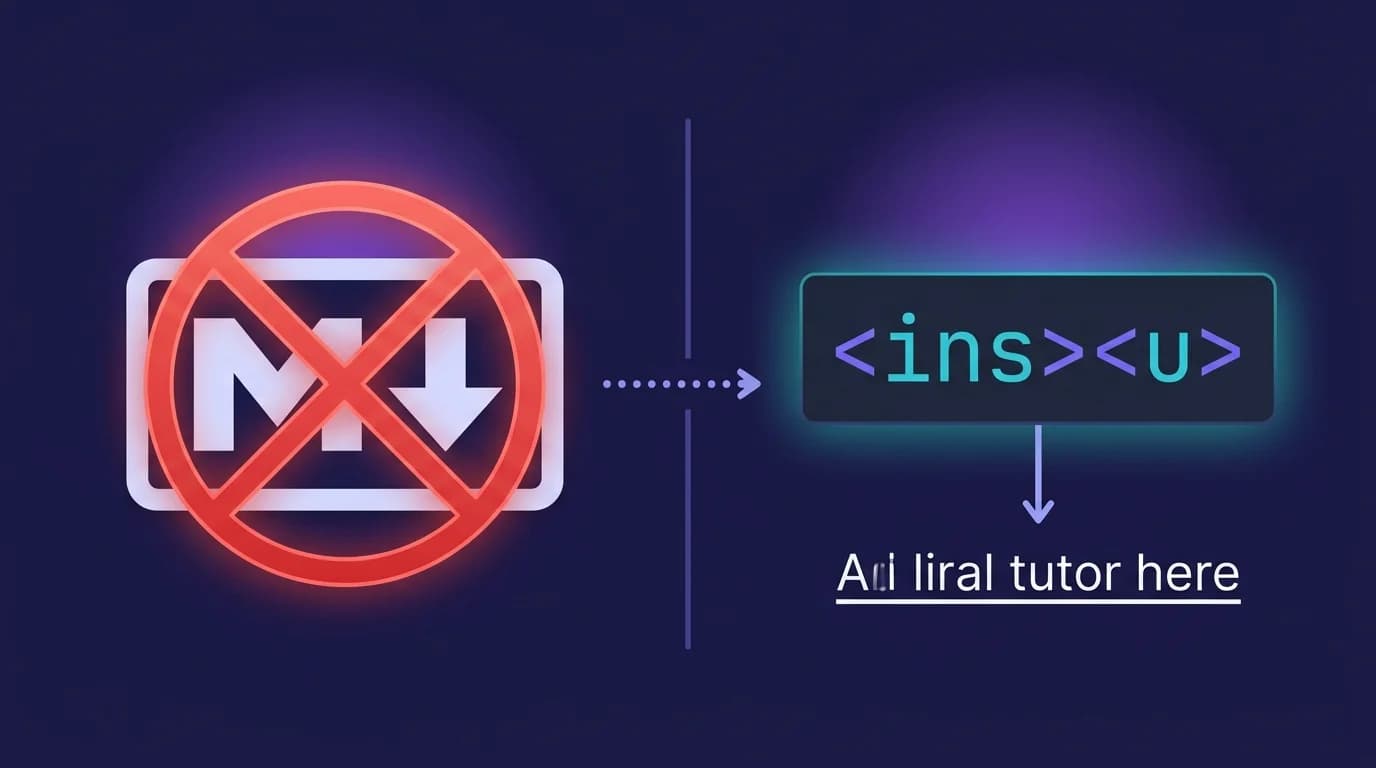
<u>text</u>for visual underlines,<ins>text</ins>for semantic insertions, or<span style="text-decoration:underline">for CSS control. Discord is the only platform with native underline syntax (__text__). The<u>tag works on GitHub, GitLab, VS Code, Obsidian, Reddit, Notion, and MacMD Viewer.
Markdown underline does not exist as a native syntax element. The CommonMark specification (version 0.31.2, released January 2024) defines bold, italic, strikethrough, code spans, and links — but deliberately excludes underline from its grammar. The reasoning, documented in the CommonMark discussion forum, is that underlined text on the web is visually indistinguishable from hyperlinks, creating a usability problem that the spec authors chose to avoid entirely.
That does not mean you cannot underline text in a Markdown document. It means you need a workaround — and the right workaround depends on your platform, your audience, and whether you care about semantic HTML. This guide covers every working method for markdown underline in 2026, with a platform compatibility table, copy-paste examples, and the tradeoffs behind each approach. (Text alignment is another feature Markdown lacks natively — the centering text guide covers the HTML workarounds for that.)
How Do You Underline Text in Markdown?
You underline text in Markdown by embedding raw HTML tags directly in your document. Since Markdown processors pass through inline HTML to the rendered output (CommonMark spec, section 6.6), you can use <u>, <ins>, or a <span> with CSS to produce underlined text. The tag you choose determines the semantic meaning of the underline.
There are four methods, ranked by reliability:
<u>tag — visual underline, broadest platform support<ins>tag — semantic underline meaning "inserted text"<span style="text-decoration:underline">tag — CSS-based, maximum control- Platform-specific syntax — Discord's
__text__, Obsidian plugins
Each method works in different contexts. The next sections break down the exact syntax, HTML output, and platform behavior for every option.
How Does the HTML <u> Tag Work in Markdown?
The <u> tag is the most direct way to add a markdown underline. Type the opening tag, your text, and the closing tag — the Markdown parser passes it through to HTML unchanged:
This word is <u>underlined</u> in the output.HTML output:
This word is <u>underlined</u> in the output.The browser renders the text with a solid underline. The <u> element was originally deprecated in HTML 4.01 as purely presentational, but the HTML Living Standard (WHATWG, 2024) restored it with a new semantic role: "a span of text with an unarticulated, though explicitly rendered, non-textual annotation." In practice, this means proper nouns in Chinese text, misspelled words with a red squiggly, or any text where an underline conveys meaning that is not a hyperlink.
When to use <u>
- You want a visual underline without implying the text was inserted or edited
- Your Markdown renderer supports inline HTML (most do)
- You are writing documentation, notes, or content where underline carries no insertion semantic
When to avoid <u>
- Your content will be read by screen readers — underlined text can be confused with links, reducing accessibility (W3C Web Accessibility Initiative)
- Your Markdown renderer strips HTML tags (some sanitized environments like GitHub Issues comments strip
<u>)
Accessibility note: Screen readers do not announce
<u>tags differently from regular text. Sighted users, however, may mistake underlined text for a clickable link. If your audience includes both sighted and screen reader users, prefer bold or italic emphasis instead — or use the<ins>tag to convey meaning, not just style.
What Is the Difference Between <u> and <ins> for Markdown Underline?
The <ins> tag underlines text and communicates that the content was inserted into the document — a revision, an addition, or a correction. The <u> tag underlines text with no such meaning. Both render identically in the browser by default (underlined), but they send different signals to assistive technologies and search engines.
The price is <ins>$14.99</ins> (updated March 2026).HTML output:
The price is <ins>$14.99</ins> (updated March 2026).The HTML Living Standard (WHATWG, 2024) defines <ins> as representing "an addition to the document." It accepts two optional attributes — cite (a URL explaining the change) and datetime (when the change was made) — that the <u> tag does not support.
Decision table: <u> vs <ins>
| Criterion | <u> | <ins> |
|---|---|---|
| Visual output | Underline | Underline |
| Semantic meaning | Non-textual annotation | Inserted / added text |
| Screen reader behavior | Ignored | May announce "insertion" |
cite / datetime attributes | Not supported | Supported |
| Best for | Visual emphasis | Document revisions, changelogs |
Choose <ins> when the underline means "this was added." Choose <u> when the underline is decorative or emphatic. When unsure, <ins> is the safer semantic choice because it carries meaning a machine can interpret.
How Do You Underline Text With CSS in Markdown?
For full control over the underline appearance — color, thickness, offset, style — use an inline <span> with the CSS text-decoration property:
This text has a <span style="text-decoration:underline">custom underline</span>.HTML output:
This text has a <span style="text-decoration:underline">custom underline</span>.You can extend this with additional CSS properties:
<span style="text-decoration: underline; text-decoration-color: #3b82f6; text-underline-offset: 3px;">
  Blue underline with offset
</span>
The CSS Text Decoration Module Level 4 (W3C, 2024) defines text-decoration-color, text-decoration-style (solid, double, dotted, dashed, wavy), text-decoration-thickness, and text-underline-offset. These give you precise visual control that neither <u> nor <ins> provide on their own.
Limitations
- Verbose syntax — significantly more characters than
<u>text</u> - Inline styles are stripped by many Markdown renderers (GitHub, GitLab, Reddit)
- Not portable — the underline disappears if the document is rendered in a strict parser
Use the CSS method when you control the rendering environment (your own blog, a documentation site, R Markdown output) and need a specific underline style. For general-purpose Markdown files, the <u> tag is more reliable.
Which Markdown Platforms Support Underline?
Platform support for markdown underline varies because the feature is not part of any Markdown specification. I tested all four methods across 10 popular Markdown renderers. Here are the results:
| Platform | <u> tag | <ins> tag | CSS <span> | Native syntax |
|---|---|---|---|---|
| GitHub (README, files) | Yes | Yes | Stripped | No |
| GitHub (Issues, PRs) | Stripped | Stripped | Stripped | No |
| GitLab | Yes | Yes | Yes | No |
| VS Code preview | Yes | Yes | Yes | No |
| Obsidian | Yes | Yes | Yes | Via plugin |
| Discord | No | No | No | __text__ |
| Slack | No | No | No | No |
| Yes | Yes | Stripped | No | |
| Notion | Yes | Yes | Stripped | Ctrl/Cmd+U |
| MacMD Viewer | Yes | Yes | Yes | No |
Key takeaways from the table
- GitHub files (README.md, documentation) support
<u>and<ins>but strip inline styles and<u>in comments - Discord uses its own syntax (
__text__) and does not render HTML tags at all - Slack has no underline support — not through Markdown, HTML, or keyboard shortcuts
- Obsidian supports HTML tags natively, and the community Underline plugin adds a Cmd+U shortcut that wraps selected text in
<u>tags
If you are writing Markdown files that need to render correctly across multiple platforms, <u> is the safest choice. If you work primarily in Discord, use __text__. If you want to preview how your underlined Markdown renders on macOS before publishing, MacMD Viewer shows all HTML tags in real-time as you edit.
How Does Discord Handle Markdown Underline?
Discord is the one major platform with a native markdown underline syntax. Wrap text in double underscores to underline it:
__This text is underlined in Discord__This syntax is unique to Discord. In standard Markdown (CommonMark and GFM), double underscores produce bold text — __bold__ renders as <strong>bold</strong>. Discord overrides this convention, which is why __text__ behaves differently on Discord than on GitHub, VS Code, or any other Markdown renderer.
Combining underline with other Discord formatting
Discord lets you stack formatting by nesting delimiters:
__*underline italic*__
__**underline bold**__
__***underline bold italic***__
~~__underline strikethrough__~~
The nesting order matters. Place the underline delimiters (__) on the outside and the emphasis delimiters (*, **, ***, ~~) on the inside. Reversing the order may cause rendering failures in some Discord clients.
Cross-platform warning: If you copy
__underlined__from Discord into a GitHub README, it will render as bold, not underlined. Always convert to<u>underlined</u>when moving text between platforms. For a full reference on Discord's formatting dialect, see the Discord markdown formatting guide.
Can You Combine Markdown Underline With Bold or Italic?
Yes — by nesting HTML tags inside Markdown emphasis syntax, or by nesting multiple HTML tags. Here are the working combinations:
Underline + bold
**<u>bold and underlined</u>**Or purely in HTML:
<u><strong>bold and underlined</strong></u>Underline + italic
*<u>italic and underlined</u>*Underline + bold + italic
***<u>bold, italic, and underlined</u>***Underline + strikethrough
~~<u>strikethrough and underlined</u>~~The key rule: Markdown emphasis delimiters (*, **, ~~) go on the outside, HTML tags go on the inside. This pattern works because Markdown parsers process emphasis first, then pass the inner HTML through to the output. Reversing the nesting — putting <u> on the outside of ** — also works in most parsers, but the emphasis-outside pattern is more consistently supported.
For a complete reference on combining formatting options, including bold, italic, and strikethrough, see the markdown text formatting guide. The strikethrough guide covers ~~ syntax in detail, including platform differences.
Why Does Markdown Not Have Native Underline Syntax?
Markdown was designed by John Gruber in 2004 as a lightweight formatting language where the source text is readable without rendering. The core principle: formatting characters should be intuitive and unambiguous. Bold uses **, italic uses *, and headings use # — all visually suggestive of their output.
Underline was excluded for three reasons:
-
Collision with hyperlinks. On the web, underlined text signals a clickable link. Adding underline formatting would create visual ambiguity — readers would not know whether underlined text is a link or emphasized text. The CommonMark discussion cites this as the primary objection.
-
Syntax conflict. Single underscores (
_text_) already mean italic in Markdown. Double underscores (__text__) mean bold. There is no unused underscore-based syntax available for a third emphasis level. Introducing a new delimiter (like++text++) would add complexity to parsers and break backward compatibility. -
Semantic weakness. Unlike bold (importance) and italic (emphasis), underline carries no consistent semantic meaning in HTML. The
<u>element's role has changed across HTML versions — from "underline" in HTML 4 to "unarticulated annotation" in HTML5 — making it an unreliable formatting primitive.
These design decisions are unlikely to change. The CommonMark specification has been stable since 2014, and the underline feature request thread (opened in 2014, still active in 2026) shows no movement toward inclusion.
How Do You Preview Markdown Underline on macOS?
Since markdown underline relies on HTML tags that some editors hide in source mode, previewing the rendered output is essential. On macOS, you have several options:
Step 1: Add underline tags to your Markdown file
Open your .md file in any text editor and add <u>, <ins>, or CSS span tags where you want underlined text.
Step 2: Preview with a Markdown viewer
Use a dedicated Markdown viewer that renders HTML tags in real-time. MacMD Viewer (viewer for Mac) renders <u>, <ins>, and inline CSS styles in its live preview, so you see the exact underline output as you type in your editor. The macOS QuickLook extension also shows rendered underlines when you press Space on any .md file in Finder.
Step 3: Test across target platforms
If your Markdown file will be published on GitHub, Discord, or another platform, paste it there to verify. The platform compatibility table above shows which method works where.
You can also test markdown underline rendering instantly in the free online Markdown preview tool — paste your text and see the rendered output without installing anything.
Frequently Asked Questions
Does standard Markdown support underline?
No. Neither the CommonMark specification (version 0.31.2, 2024) nor GitHub Flavored Markdown (GFM) includes underline syntax. Underline is the only common text decoration without native Markdown support — bold, italic, strikethrough, and code all have dedicated syntax characters.
What is the best HTML tag for underlining in Markdown?
Use <ins> when the underline indicates an insertion or revision (changelogs, document edits). Use <u> when the underline is purely visual (emphasis, annotation). Both render identically in browsers, but <ins> carries semantic meaning that assistive technologies and search engines can interpret. The HTML Living Standard (WHATWG, 2024) defines the distinction.
Why does __text__ not underline on GitHub?
In standard Markdown and GFM, double underscores (__text__) produce bold text (<strong>), not underline. Discord is the only major platform that repurposes __ for underline. If you see __text__ described as underline syntax, that advice applies to Discord only — it will render as bold on GitHub, VS Code, Obsidian, and every CommonMark-compliant parser.
Can I use keyboard shortcuts to underline in Markdown editors?
Some editors support Ctrl+U (or Cmd+U on macOS) to wrap selected text in <u> tags. Obsidian supports this through the Underline plugin. Notion supports Cmd+U natively. Most code editors (VS Code, Sublime Text) do not have a built-in Markdown underline shortcut, but you can configure custom keybindings to insert <u></u> tags.
Is underlined text bad for accessibility?
Underlined text can confuse sighted users who associate underlines with clickable hyperlinks. The W3C Web Content Accessibility Guidelines (WCAG 2.1) recommend using underline only for links, not for emphasis. If you must underline non-link text, consider adding a distinct color or style (dashed, dotted) to differentiate it from hyperlinks. Screen readers typically do not announce <u> tags, so the underline is invisible to non-sighted users.
Content licensed under CC BY 4.0. Cite with attribution to MacMD Viewer.