 MacMD Viewer
Jupyter Markdown Table: Complete Formatting Guide (2026)
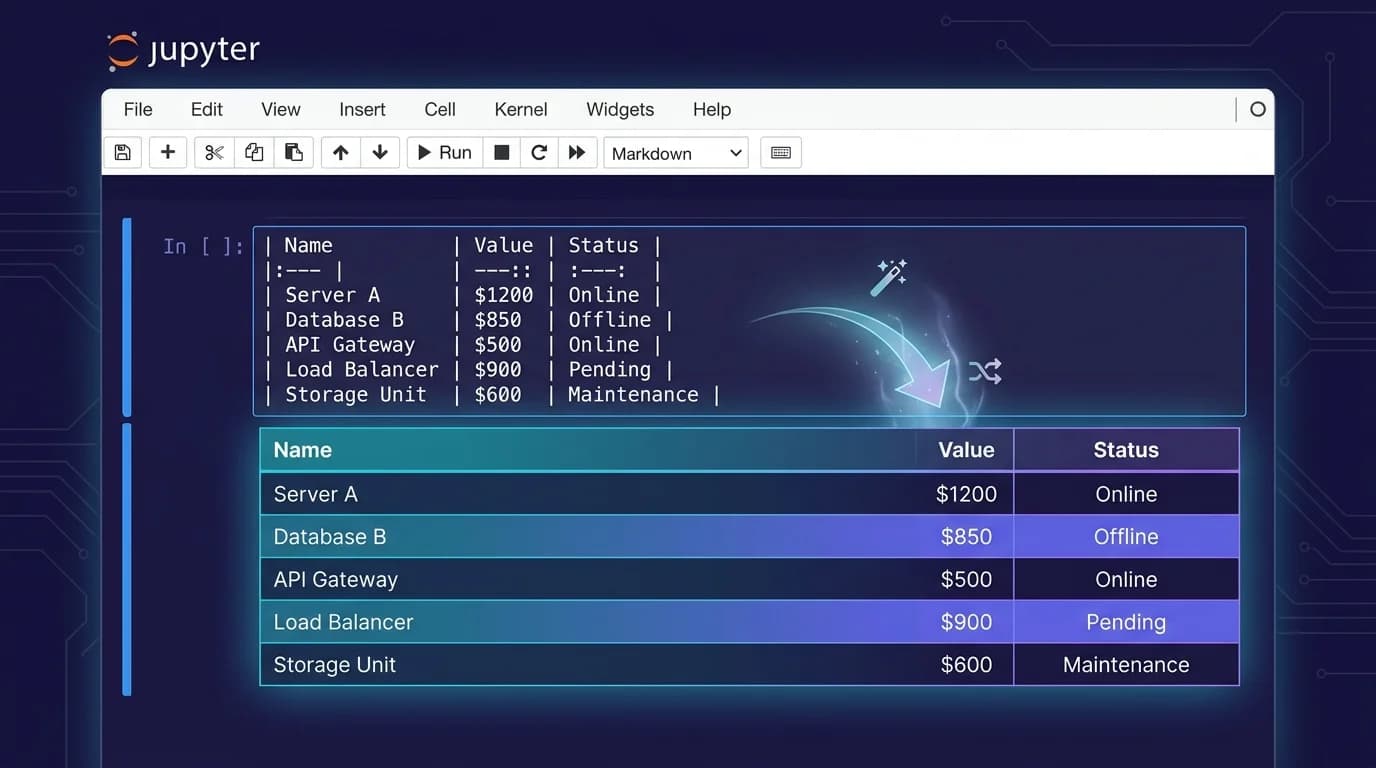
A jupyter markdown table uses pipe characters (|) and dashes (---) inside a Markdown cell to create structured data grids without writing any Python code. The syntax follows GitHub Flavored Markdown, which Jupyter adopted as its default Markdown parser (Jupyter Notebook Docs, 2026). You type the table in a Markdown cell, press Shift+Enter, and Jupyter renders it as a formatted HTML table.
This guide covers everything you need to create jupyter markdown tables — basic pipe syntax, column alignment, common formatting mistakes, HTML fallbacks for merged cells, converting pandas DataFrames to Markdown with to_markdown(), and the five errors that silently break table rendering. Whether you document data analysis, write lab reports, or build teaching notebooks, this is the reference that saves you from trial-and-error formatting.
TL;DR: Use pipes
|to separate columns and---for the header row. Add colons for alignment::---left,:---:center,---:right. For merged cells or advanced styling, drop down to HTML<table>tags inside the same Markdown cell. Convert DataFrames withdf.to_markdown()(requires thetabulatepackage). Use the Markdown Table Generator to build tables visually and paste the output into Jupyter.
How Does Jupyter Markdown Table Syntax Work?
A jupyter markdown table works by parsing pipe-delimited text inside a Markdown cell through the marked.js rendering engine that Jupyter Notebook 7.x uses internally. The parser converts pipe-and-dash syntax into HTML <table> elements during cell execution. This is the same GitHub Flavored Markdown (GFM) table extension defined in the GFM specification — not a Jupyter-specific feature.
Three structural components define every Markdown table:
Header row — the first row, separated by pipes:
| Name | Score | Grade |Separator row — dashes that divide the header from data rows:
|---|---|---|Data rows — each subsequent line of pipe-separated values:
| Alice | 92 | A |
| Bob | 85 | B |
Here is the complete, working example you can paste directly into a Jupyter Markdown cell:
| Name  | Score | Grade |
|-------|-------|-------|
| Alice | 92    | A     |
| Bob   | 85    | B     |
| Carol | 78    | C     |
Press Shift+Enter and Jupyter renders a clean, formatted table. The pipes do not need to be vertically aligned in the source text — Jupyter normalizes the spacing during rendering. However, aligning them improves readability when editing the raw cell.
Practical tip: The separator row must contain at least three dashes per column (
---). Using fewer causes Jupyter to treat the text as a regular paragraph instead of a table. This is the single most common reason a jupyter markdown table fails to render (Saturn Cloud, 2024).
How Do You Align Columns in a Jupyter Markdown Table?
Column alignment in a jupyter markdown table is controlled by colon placement in the separator row. The colons act as alignment directives that the Markdown parser translates into CSS text-align properties on the rendered <td> elements.
Three alignment options exist:
| Syntax | Alignment | Use Case |
|---|---|---|
:--- | Left (default) | Text, names, labels |
:---: | Center | Status indicators, categories |
---: | Right | Numbers, currency, percentages |
Here is a practical example with mixed alignment:
| Metric         | Q1 2025 | Q2 2025 | Change   |
|:---------------|--------:|--------:|---------:|
| Revenue ($M)   |    12.4 |    14.8 |   +19.4% |
| Users (K)      |     340 |     412 |   +21.2% |
| Churn Rate     |    4.2% |    3.8% |   -0.4pp |
Right alignment on numeric columns prevents misreading — the decimal points and percentage signs stack vertically, matching how spreadsheets display figures. Left alignment on the metric names keeps the row labels scannable.
Alignment Rules
Four rules govern alignment behavior:
- Default is left — omitting colons (plain
---) produces left-aligned columns. - Colons go in the separator row only — placing them in header or data rows has no effect.
- One colon minimum —
:---is left,---:is right,:---:is center. A bare---defaults to left. - Alignment is per-column — each column in the separator row can have independent alignment.
If you have tabular data in a CSV file, the CSV to Markdown converter handles alignment syntax automatically — paste your CSV, pick column alignments, and copy the Markdown output into Jupyter.
What Formatting Can You Use Inside Jupyter Markdown Table Cells?
Jupyter markdown table cells support inline Markdown formatting because the parser processes cell content through the same inline rules it applies to regular paragraphs. This means bold, italic, code, and links all work inside table cells.
Supported Inline Formatting
| Formatting | Syntax | Rendered Output |
|---|---|---|
| Bold | **bold text** | bold text |
| Italic | *italic text* | italic text |
| Inline code | `code` | code |
| Link | [text](url) | clickable link |
| Strikethrough | ~~deleted~~ | |
| Image |  | embedded image |
Practical Example
| Package       | Version  | Status          |
|---------------|----------|-----------------|
| **pandas**    | `2.2.0`  | *stable*        |
| **numpy**     | `1.26.4` | *stable*        |
| **matplotlib**| `3.9.0`  | ~~beta~~ stable |
This renders a dependency table where package names are bold, versions appear as inline code, and status uses italic or strikethrough — all common patterns in data science documentation.
What Does Not Work Inside Cells
Three Markdown features fail inside jupyter markdown table cells:
- Multi-line content — cells cannot span multiple lines in the source. Each row must be a single line.
- Block elements — headings, blockquotes, code fences, and lists do not render inside cells.
- Nested tables — you cannot place a table inside a table cell using Markdown syntax.
For any of these cases, switch to HTML tables (covered in the next section). Similar formatting constraints apply to Markdown tables in other contexts, not just Jupyter.
How Do You Create Advanced Tables with HTML in Jupyter?
When the pipe-and-dash syntax hits its limits — merged cells, rowspan, custom colors, or multi-line content — you switch to HTML. Jupyter Markdown cells render raw HTML directly, so you can write <table> markup that the Markdown parser passes through to the browser unchanged (Jupyter Notebook Docs, 2026).
Merged Cells with colspan and rowspan
Standard Markdown has no syntax for merging cells. This is a deliberate limitation of the GFM specification — it prioritizes simplicity over layout control. HTML solves this:
<table>
  <tr>
    <th colspan="3">Quarterly Performance</th>
  </tr>
  <tr>
    <th>Metric</th>
    <th>Q1</th>
    <th>Q2</th>
  </tr>
  <tr>
    <td rowspan="2">Revenue</td>
    <td>$12.4M</td>
    <td>$14.8M</td>
  </tr>
  <tr>
    <td colspan="2"><em>+19.4% growth</em></td>
  </tr>
</table>
The colspan="3" attribute spans the title across all three columns. The rowspan="2" attribute makes the "Revenue" cell cover two rows. Neither is possible with pipe-and-dash Markdown syntax.
Multi-Line Cell Content
Use <br> tags for line breaks within an HTML table cell:
<table>
  <tr>
    <td>Step 1</td>
    <td>Install pandas<br><code>pip install pandas</code></td>
  </tr>
  <tr>
    <td>Step 2</td>
    <td>Import the library<br><code>import pandas as pd</code></td>
  </tr>
</table>
Styled Tables with Inline CSS
Jupyter renders inline CSS on HTML tables, which lets you add borders, background colors, and padding:
<table style="border-collapse: collapse; width: 100%;">
  <tr style="background-color: #f0f0f0;">
    <th style="border: 1px solid #ddd; padding: 8px;">Feature</th>
    <th style="border: 1px solid #ddd; padding: 8px;">Markdown</th>
    <th style="border: 1px solid #ddd; padding: 8px;">HTML</th>
  </tr>
  <tr>
    <td style="border: 1px solid #ddd; padding: 8px;">Merged cells</td>
    <td style="border: 1px solid #ddd; padding: 8px;">No</td>
    <td style="border: 1px solid #ddd; padding: 8px;">Yes</td>
  </tr>
</table>
When to use which: Stick with Markdown pipe syntax for simple data tables (under 10 rows, no merging). Switch to HTML when you need colspan, rowspan, colored rows, or content that spans multiple lines within a cell.
How Do You Add Row Headers to a Jupyter Markdown Table?
Markdown pipe syntax can't create row headers. The GFM tables extension defines a single header row across the top and a delimiter row beneath it, with no syntax for turning the first column into headers. To label rows down the side, you have two choices: bold the first cell for a look-only effect, or switch to HTML with <th scope="row"> for a real, accessible header.
The Quick Way: Bold the First Cell
If you only care about appearance, wrap the first cell of each row in **:
|             | Q1     | Q2     |
|-------------|--------|--------|
| **Revenue** | $12.4M | $14.8M |
| **Users**   | 1,240  | 1,890  |
This renders bold text, but the cell is still a plain <td> underneath — not a header. Screen readers announce it as ordinary data, and nothing formally links a row's values back to its label. It's fine for a quick note. It's the wrong choice for anything that needs to be accessible or survive export.
The Correct Way: HTML with scope="row"
For a genuine row header, drop to HTML inside the same Markdown cell and mark each row's first cell as <th scope="row">. Jupyter passes raw HTML straight through to the browser, so it renders as a proper table:
<table>
  <tr>
    <td></td>
    <th scope="col">Q1</th>
    <th scope="col">Q2</th>
  </tr>
  <tr>
    <th scope="row">Revenue</th>
    <td>$12.4M</td>
    <td>$14.8M</td>
  </tr>
  <tr>
    <th scope="row">Users</th>
    <td>1,240</td>
    <td>1,890</td>
  </tr>
</table>
The scope attribute is what makes it work. scope="col" ties each top cell to the column beneath it; scope="row" ties each left cell to the row beside it (MDN, 2026). Use both in one table, like above, and you get a header row and a header column at once. Why bother with scope when the bold trick looks identical? Because W3C's WAI recommends exactly this pattern so a screen reader can announce the row's label when someone lands on any cell in that row (W3C WAI Tables Tutorial). Style the <th> cells with inline CSS if you want the labels to stand out, the same way you would style any other HTML table.
How Do You Convert a Pandas DataFrame to a Markdown Table?
The pandas.DataFrame.to_markdown() method converts any DataFrame into pipe-formatted Markdown text that you can paste into a Markdown cell or render inline with display(Markdown(...)). This method was added in pandas 0.25 and uses the tabulate library internally (pandas documentation, 2026).
Basic Usage
import pandas as pd

df = pd.DataFrame({
    'City': ['Tokyo', 'London', 'New York'],
    'Population (M)': [13.96, 8.98, 8.34],
    'Country': ['Japan', 'UK', 'USA']
})

print(df.to_markdown())
Output:
|    | City     |   Population (M) | Country   |
|---:|:---------|------------------:|:----------|
|  0 | Tokyo    |             13.96 | Japan     |
|  1 | London   |              8.98 | UK        |
|  2 | New York |              8.34 | USA       |
Notice that to_markdown() automatically right-aligns numeric columns and left-aligns string columns — matching the convention for readable data tables.
Removing the Index Column
The default output includes the DataFrame index (the leftmost column of row numbers). To remove it:
print(df.to_markdown(index=False))Output:
| City     |   Population (M) | Country   |
|:---------|------------------:|:----------|
| Tokyo    |             13.96 | Japan     |
| London   |              8.98 | UK        |
| New York |              8.34 | USA       |
Rendering Inline in a Code Cell
Instead of printing the Markdown and manually copying it, render it directly inside the notebook:
from IPython.display import Markdown, display

display(Markdown(df.to_markdown(index=False)))
This executes the code cell and renders the table as formatted HTML — identical in appearance to a Markdown cell table but generated dynamically from your data.
Installing tabulate
The to_markdown() method requires the tabulate package. If you see ImportError: tabulate is not installed, run:
pip install tabulateOr in a notebook cell:
!pip install tabulatePro tip: If you are converting CSV data to Markdown outside of Python, the CSV to Markdown converter produces the same pipe syntax without any code. Paste your CSV, copy the Markdown table, and drop it into Jupyter.
What Are the 5 Most Common Jupyter Markdown Table Errors?
These five errors account for the majority of rendering failures when creating a jupyter markdown table. Each one produces a silent failure — the cell renders as plain text instead of a formatted table, with no error message from Jupyter.
1. Missing Separator Row
The separator row (|---|---|---|) is mandatory. Without it, Jupyter treats the content as regular paragraph text:
<!-- BROKEN: no separator row -->
| Name | Score |
| Alice | 92 |
| Bob | 85 |
Fix: Always include a separator row between the header and the first data row.
2. Inconsistent Column Count
Every row must have the same number of pipe-separated cells. A missing pipe breaks the table from that row onward:
<!-- BROKEN: row 2 has 2 columns, header has 3 -->
| Name | Score | Grade |
|---|---|---|
| Alice | 92 |
Fix: Count the pipes in every row. Each row (including the separator) must have the same number of | characters.
3. No Blank Line Before the Table
Jupyter's Markdown parser requires a blank line between a paragraph and the start of a table. Without it, the table is interpreted as a continuation of the paragraph:
Here are the results:
| Name | Score |
|---|---|
| Alice | 92 |
Fix: Add an empty line between any preceding text and the table's first row.
4. Fewer Than Three Dashes in the Separator
The separator needs at least three dashes per column. Using one or two dashes causes the parser to skip table detection:
<!-- BROKEN: too few dashes -->
| Name | Score |
|-|-|
| Alice | 92 |
Fix: Use --- (three dashes minimum) in every separator column. More dashes work fine — ------ is valid.
5. Pipe Characters in Cell Content
If your cell data contains a literal pipe character (|), the parser interprets it as a column separator and splits the cell:
<!-- BROKEN: the pipe in "A|B" creates an extra column -->
| Expression | Result |
|---|---|
| A|B | True |
Fix: Escape the pipe with a backslash: A\|B. This tells the parser to treat it as content rather than a column boundary.
Building tables by hand invites these errors. The Markdown Table Generator produces syntactically valid tables every time — set your rows, columns, and alignment, then paste the output directly into a Jupyter Markdown cell.
Markdown Table vs HTML Table vs Pandas: Which Should You Use in Jupyter?
Each approach solves a different problem. Choosing the wrong one wastes time — either fighting Markdown limitations or writing unnecessary HTML for a simple grid. Here is a comparison based on practical Jupyter notebook usage.
| Criteria | Markdown Table | HTML Table | Pandas to_markdown() |
|---|---|---|---|
| Setup time | None — type directly | Moderate — write tags | Requires tabulate install |
| Merged cells | Not supported | Full support | Not supported |
| Dynamic data | Manual only | Manual or generated | Automatic from DataFrame |
| Alignment | Left, center, right | Full CSS control | Automatic by dtype |
| Best for | Static documentation | Complex layouts | Data analysis output |
| Export fidelity | Good in nbconvert | Varies by exporter | Good in nbconvert |
Decision Framework
Use this three-step decision to pick the right approach:
-
Is the data in a DataFrame? Use
df.to_markdown()ordf.stylefor conditional formatting. There is no reason to hand-type a table that already exists as structured data. -
Do you need merged cells, colors, or multi-line content? Use HTML. Markdown cannot express these layouts.
-
Is it a simple, static reference table? Use Markdown pipe syntax. It is faster to type, easier to read in raw form, and converts cleanly through nbconvert to PDF, HTML, and LaTeX.
For Markdown files outside of Jupyter — README files, documentation, or blog posts — MacMD Viewer renders tables with live preview as you edit, so you can see formatting errors instantly instead of switching between edit and rendered modes in Jupyter.
How Do You Export Jupyter Tables to Other Formats?
Tables created in Jupyter Markdown cells or via pandas export cleanly through nbconvert — Jupyter's built-in conversion tool. However, the output format affects how well tables survive the conversion.
nbconvert Compatibility
| Export Format | Markdown Tables | HTML Tables | Pandas Output |
|---|---|---|---|
| HTML | Fully rendered | Fully rendered | Fully rendered |
| PDF (via LaTeX) | Converted | Partial support | Converted |
| Markdown (.md) | Preserved as-is | Preserved as HTML | Converted to text |
| Slides (reveal.js) | Fully rendered | Fully rendered | Fully rendered |
PDF export is the most fragile. HTML tables with colspan or rowspan sometimes lose structure during the LaTeX conversion step. If your notebook targets PDF output, test the table rendering with:
jupyter nbconvert --to pdf notebook.ipynbConverting Markdown Tables to Other Formats
If you need to move a jupyter markdown table out of the notebook into another format:
- To HTML: Use the Markdown to HTML converter — paste the pipe syntax, get clean
<table>HTML. - To PDF: Use the Markdown to PDF converter — handles alignment and formatting automatically.
- From HTML back to Markdown: Use the HTML to Markdown converter if you need to reverse the process.
Frequently Asked Questions
Can you use Markdown tables in JupyterLab?
Yes. JupyterLab uses the same GFM-compatible Markdown parser as Jupyter Notebook. The pipe-and-dash table syntax works identically in JupyterLab Markdown cells. JupyterLab 4.x renders tables with the same CSS styling as Jupyter Notebook 7.x (JupyterLab Docs, 2026).
How do you add a table of contents in Jupyter Notebook?
A table of contents (TOC) is different from a data table. JupyterLab includes a built-in TOC panel that auto-generates from Markdown headings. For Jupyter Notebook 7.x, enable the TOC extension or use the jupyter-toc package. The TOC reads ## Heading syntax from Markdown cells, not table content.
Why does my Jupyter Markdown table render as plain text?
Three causes account for nearly every case: (1) missing separator row between header and data, (2) no blank line above the table, or (3) fewer than three dashes in the separator. Check these three things first before investigating further.
How do you make row headers in a Jupyter Markdown table?
Markdown pipe syntax has no row-header option — the header is always the top row. For a label that only needs to look bold, wrap the first cell of each row in **. For a header that screen readers and exporters recognize, use an HTML table and mark each row's first cell with <th scope="row">, which Jupyter renders directly inside the Markdown cell.
Can you sort or filter Markdown tables in Jupyter?
No. Markdown tables are static — they render as plain HTML with no JavaScript interactivity. For sortable and filterable tables, use pandas with df.style or the itables package, which renders DataFrames as interactive DataTables.js widgets inside Jupyter notebooks.
How do you create large tables efficiently in Jupyter?
For tables with more than 10 rows, hand-typing pipe syntax is error-prone. Three better approaches: (1) generate the Markdown from a DataFrame with df.to_markdown(), (2) use the Markdown Table Generator to build the table visually, or (3) convert a CSV file using the CSV to Markdown converter and paste the output into a Markdown cell.
Content licensed under CC BY 4.0. Cite with attribution to MacMD Viewer.