Markdown Table Syntax: How to Create Tables in Markdown
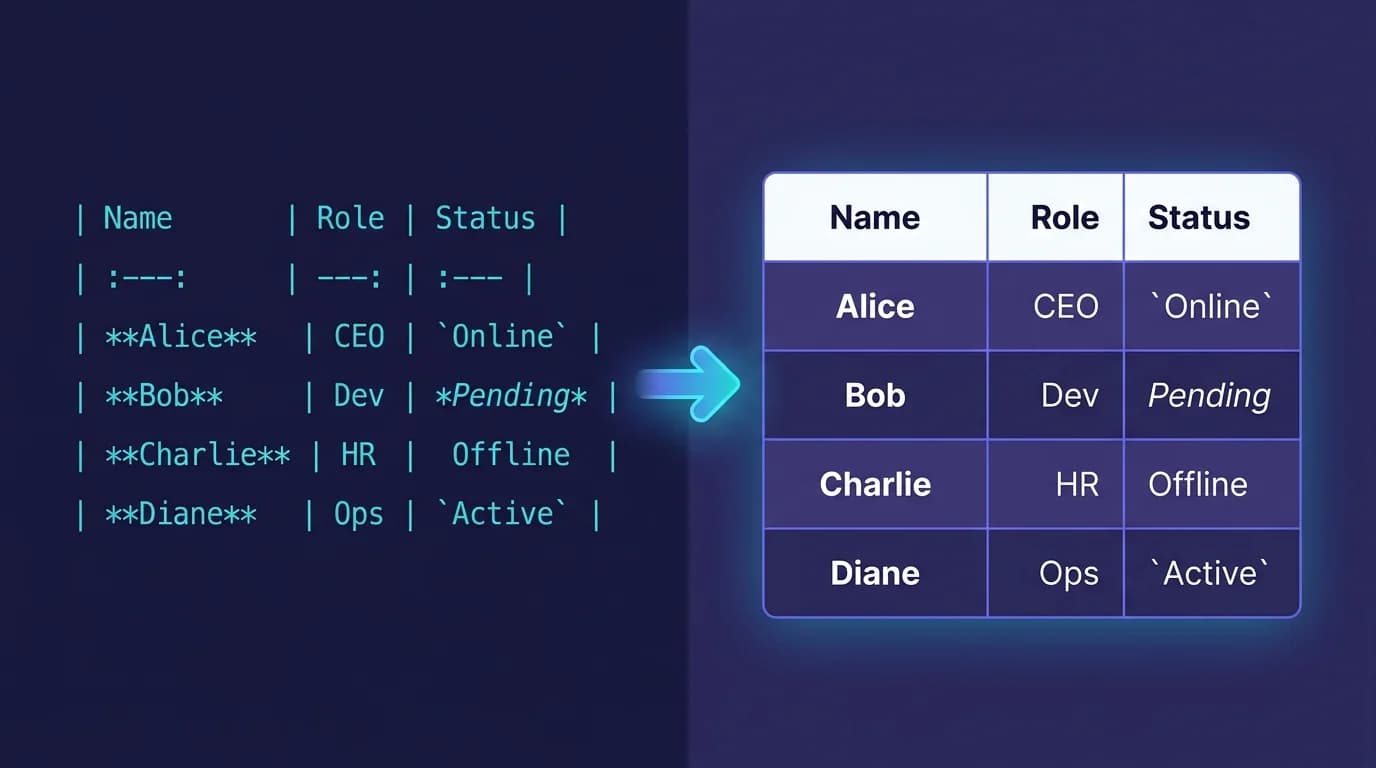
Markdown tables use pipes (|) and hyphens (-) to create structured data grids directly inside plain text files. The markdown table syntax is part of GitHub Flavored Markdown (GFM) — one of the five official extensions in the GFM spec — and is supported by virtually every modern renderer — GitHub, VS Code, Obsidian, Typora, and MacMD Viewer. MacMD Viewer is a native macOS Markdown viewer ($19.99, SwiftUI, 5.4 MB download) that renders tables with header highlighting and border styling — it does not require plugins or configuration. This guide covers everything from basic syntax to column alignment, inline formatting tricks, known limitations, and when to reach for a generator tool instead of writing tables by hand.
TL;DR: Basic syntax:
| Header | Header |then|--------|--------|then| Cell | Cell |. Align with:---(left),:---:(center),---:(right). For complex tables, use a generator like tablesgenerator.com.
How Do You Create a Basic Markdown Table?
A markdown table starts with a header row, followed by a mandatory separator row made of hyphens, then one or more data rows. Each column is delimited by a pipe character. Here is a complete example:
| Name  | Role     | Location |
|-------|----------|----------|
| Alice | Engineer | NYC      |
| Bob   | Designer | London   |
That syntax renders as a clean two-column data grid in every GFM-compatible renderer. The rules for constructing a valid markdown table are straightforward:
- Pipes separate columns. Each row begins and ends with a
|character, and every column boundary uses one as well. - The header row comes first. It defines the column names and must be the very first row of the markdown table.
- The separator row is required. At least three hyphens per column (
---) sit between the header and the data. Without this row, most parsers will not recognize the block as a table. - Column widths auto-adjust. The renderer calculates width from the longest cell content in each column. You do not need to pad spaces in the source — though alignment makes raw Markdown easier to read.
- Trailing pipes are optional in some parsers but recommended for consistency and compatibility. Leading pipes are required in GFM.
A minimal markdown table needs exactly two rows: one header and one separator. Data rows are optional (though a table without data has limited practical use). For a broader overview of the Markdown format itself, see our guide on what is a .md file.
How Do You Align Columns in a Markdown Table?
Column alignment is controlled by colons in the separator row. Place a colon on the left side for left-align, both sides for center-align, or the right side for right-align. The default is left-aligned when no colons are present.
| Left-aligned | Center-aligned | Right-aligned |
|:-------------|:--------------:|--------------:|
| text         | text           |          text |
| longer text  | more text      |         12345 |
The three alignment patterns for a markdown table are:
| Syntax | Alignment | Typical use |
|---|---|---|
:--- | Left (default) | Text, names, descriptions |
:---: | Center | Status indicators, short labels |
---: | Right | Numbers, prices, percentages |
Alignment works in GitHub, VS Code, MacMD Viewer, Typora, Obsidian, and virtually every renderer that supports the markdown table extension. Right-alignment is particularly useful for numeric columns where decimal points should line up visually. Some writers also center header labels while left-aligning the data beneath — but this is a CSS concern handled by the renderer rather than the Markdown syntax itself.
What Formatting Can You Use Inside Markdown Table Cells?
Most inline Markdown formatting works inside table cells. You can apply bold, italic, code, links, and even small inline images within any cell of a markdown table. Here is what works and what does not:
| Format | Syntax | Works? |
|---|---|---|
| Bold | **text** | Yes |
| Italic | *text* | Yes |
| Inline code | `code` | Yes |
| Links | [text](url) | Yes |
| Images |  | Yes (inline only) |
| Strikethrough | ~~text~~ | Yes (GFM) |
| Lists | - item | No |
| Headings | # text | No |
| Code blocks | Triple backticks | No |
| Blockquotes | > text | No |
Block-level elements — lists, headings, fenced code blocks, and blockquotes — cannot appear inside a markdown table cell. This is a fundamental limitation of the GFM table extension. Some renderers support <br> tags for multi-line content within a single cell, but this is not standardized across all parsers. If you need block elements inside table cells, the only reliable option is raw HTML. For more on formatting capabilities across different tools, see our Markdown app roundup for Mac.
What Are the Limitations of Markdown Tables?
Markdown tables are deliberately simple — and that simplicity comes with trade-offs. Compared to HTML tables, the markdown table syntax lacks several features that complex data layouts require:
- No colspan or rowspan. Every cell occupies exactly one row and one column. Merged cells are not possible in Markdown.
- No nested tables. You cannot place a markdown table inside another markdown table. This is a hard limitation of the GFM parser.
- No block elements inside cells. Lists, code blocks, headings, and blockquotes are all off-limits inside table cells.
- Wide tables break on narrow screens. A markdown table with many columns overflows horizontally on mobile devices. There is no native responsive behavior in the syntax.
- No cell styling. Background colors, borders, padding, and font sizes cannot be controlled through Markdown. CSS or HTML is needed for visual customization.
When you hit these limits, you have two options. First, switch to a raw HTML <table> inside your Markdown document — most renderers accept HTML blocks alongside Markdown content; the same technique drives multi-column layout in Markdown when you want text side by side rather than a data grid. Second, for tabular data that needs sorting or filtering, consider embedding a CSV file or linking to a spreadsheet. The CommonMark spec explicitly allows raw HTML blocks, so this approach is standards-compliant. For a deeper look at the tools that render complex Markdown including tables, check our best Markdown viewer for Mac comparison.
What Are the Best Markdown Table Generator Tools?
Generators let you build tables visually and then copy the Markdown syntax — far faster than writing pipes and hyphens by hand for large datasets. Here are the best options in 2026:
- Tables Generator — A visual spreadsheet-like editor that exports to Markdown, HTML, LaTeX, and plain text. Paste data from Excel or Google Sheets, arrange columns, and click Generate. The most full-featured markdown table generator available.
- Table Convert — Converts between CSV, JSON, SQL, Excel, and Markdown in both directions. Lightweight and fast. Useful for importing existing datasets into a markdown table format.
- VS Code Table Formatter — A VS Code extension that auto-formats existing Markdown tables with aligned columns and consistent spacing. Does not generate tables from scratch but cleans up messy ones instantly.
- ChatGPT and Claude — Describe your table in natural language and get valid Markdown syntax back. Particularly effective for comparison tables and structured data summaries. Paste the output into your
.mdfile and adjust as needed.
For small tables (under 5 columns), writing the markdown table by hand is usually faster. For anything larger — especially when importing from a spreadsheet — a generator saves significant time. For a dedicated roundup of generator tools, see our Markdown table generator comparison. Also check our Markdown app roundup for tools that complement these generators in a Mac-based workflow.
How Do Markdown Renderers Display Tables?
The visual appearance of a markdown table varies by renderer. Each tool applies its own CSS to the underlying HTML <table> element. Here is how the most popular renderers handle table display:
- GitHub — Styled with borders, header background shading, and alternating row colors (zebra stripes). Tables are horizontally scrollable on narrow viewports.
- VS Code — Basic table styling in the built-in Markdown preview (
Cmd+Shift+V). Clean borders with minimal decoration. Extensions can enhance the rendering. - MacMD Viewer — Clean rendering with visible borders, header highlighting, and proper alignment. Tables display consistently alongside Mermaid diagrams, code blocks, and other elements.
- Typora — WYSIWYG table editing. Click any cell to edit directly. Supports adding and removing rows and columns via context menu. The closest experience to a spreadsheet inside a Markdown editor.
- Obsidian — Renders tables in preview mode with theme-dependent styling. Community plugins add sortable columns and advanced table management.
The raw markdown table syntax is identical everywhere — only the visual presentation differs. If consistent rendering matters for your workflow, test your tables in the renderer your audience will use. For Mac users, our Markdown viewer for macOS guide covers the rendering differences in detail. Check MacMD Viewer features to see how tables look with native SwiftUI rendering.
Conclusion
A markdown table is pipes, hyphens, and colons — nothing more. The header row defines columns, the separator row activates the table, and colons control alignment. Inline formatting works inside cells; block elements do not. For visual separators between table sections, see our guide to horizontal rules in Markdown. For anything beyond basic grids, switch to HTML or use a generator.
To preview markdown tables with clean borders, header highlighting, and Mermaid diagram support on Mac, try MacMD Viewer — a native SwiftUI viewer that renders tables, code blocks, and diagrams from any .md file. Check pricing to get started.
For Jupyter notebook table formatting, see our Jupyter Markdown table guide.
Frequently Asked Questions
Do all Markdown parsers support tables?
No. Tables are part of GitHub Flavored Markdown (GFM), not the original CommonMark spec. Most modern parsers — GitHub, VS Code, MacMD Viewer, Obsidian, Typora — support them. Older or strict CommonMark parsers do not.
Can I merge cells in a Markdown table?
No. Markdown tables do not support colspan or rowspan. Use an HTML <table> with colspan and rowspan attributes for merged cells. Raw HTML is valid inside most Markdown renderers.
How do I make a Markdown table wider?
Add more columns or longer cell content. Column width adjusts automatically to fit the widest cell in each column. For fixed widths, use an HTML table with CSS width properties instead.
Can I sort a Markdown table?
Not in the Markdown source file — it is always static text. Some renderers like GitHub and Obsidian (with plugins) add interactive sorting in the rendered view, but the underlying .md file remains unchanged.
How do I create a table from a CSV file?
Use an online converter like tableconvert.com, or a CLI tool. Pandoc converts CSV to Markdown tables with: pandoc data.csv -t markdown. You can also paste CSV data into Tables Generator and export as Markdown.
Content licensed under CC BY 4.0. Cite with attribution to MacMD Viewer.