Horizontal Rule in Markdown: Syntax, Examples, and Best Practices
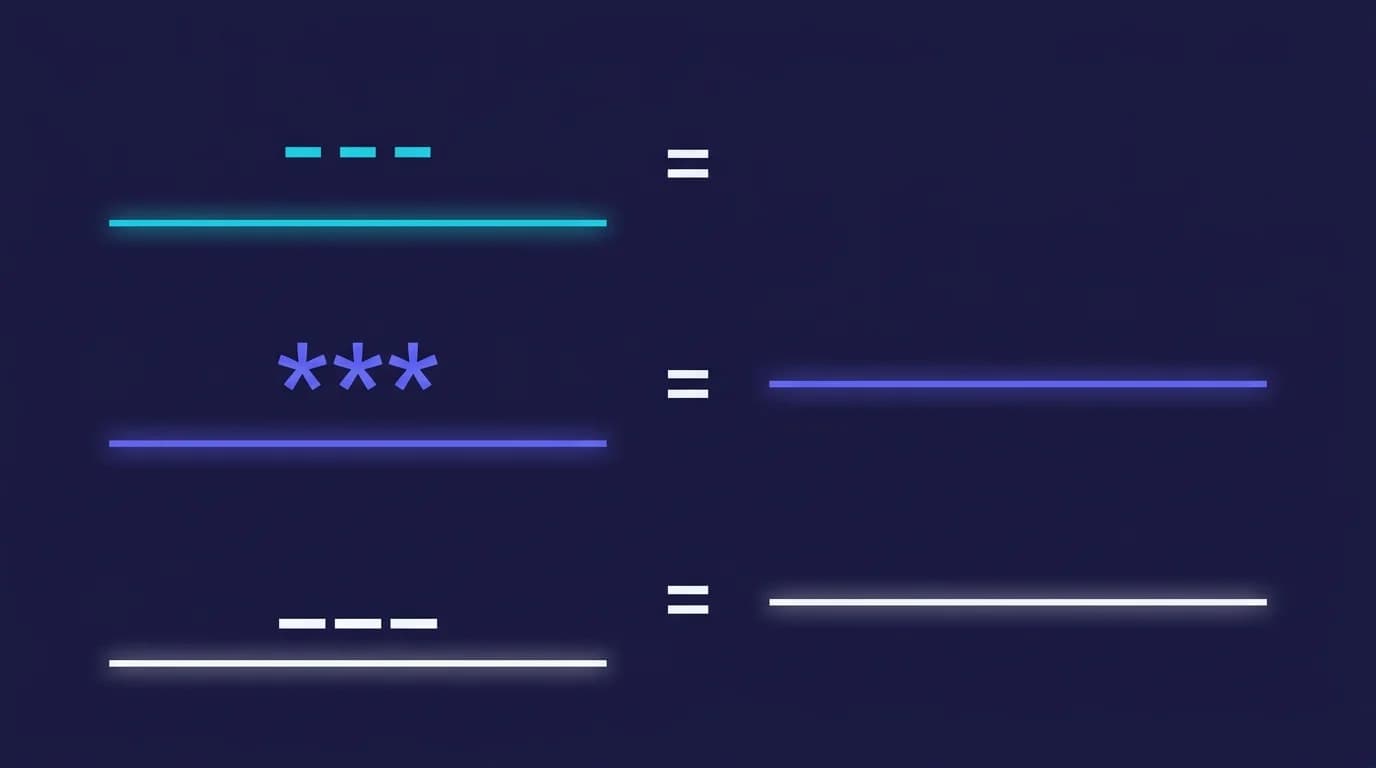
A horizontal rule in Markdown creates a thematic break — a visual separator between sections of content. The CommonMark specification calls it a "thematic break" and defines three valid syntaxes that all produce the same HTML <hr> element. Whether you call it a horizontal rule, a divider, or a thematic break, the underlying mechanism is identical. MacMD Viewer, a native macOS Markdown viewer ($19.99, SwiftUI, 5.4 MB download), renders horizontal rules with automatic theme-aware styling. Here is everything you need to know about horizontal rules in Markdown.
TL;DR: Type
---,***, or___on their own line with blank lines before and after. All three render as an HTML<hr>element. The blank line before is mandatory — without it,---becomes a Setext heading.
What Is a Horizontal Rule in Markdown?
A horizontal rule is a thematic break that renders as a full-width line in the output document. In HTML, the horizontal rule in Markdown becomes an <hr> element — a self-closing tag that draws a visible divider across the page. The CommonMark spec (Section 4.1) defines it as "a line containing three or more matching -, *, or _ characters."
The term "horizontal rule" comes directly from HTML, where the <hr> element has existed since HTML 2.0. Markdown adopted the concept and simplified the syntax to three characters on a line by themselves. Every compliant Markdown parser — including GitHub Flavored Markdown, CommonMark, and MultiMarkdown — recognizes horizontal rules.
One critical distinction: --- after a line of text with no blank line creates a Setext heading, not a horizontal rule. The blank line before the markers is what tells the parser to treat --- as a thematic break. For a broader introduction to the Markdown file format, see our guide on what is a .md file.
How Do You Write a Horizontal Rule in Markdown?
Place three or more matching characters on their own line with a blank line above. Here is the standard horizontal rule in Markdown using hyphens:
Text above the break.

---

Text below the break.
That --- renders as a full-width <hr> element between the two paragraphs. The horizontal rule in Markdown accepts three equivalent syntaxes:
| Syntax | Name | HTML Output |
|---|---|---|
--- | Three hyphens | <hr> |
*** | Three asterisks | <hr> |
___ | Three underscores | <hr> |
- - - | Spaced hyphens | <hr> |
* * * | Spaced asterisks | <hr> |
***** | Five asterisks | <hr> |
The key rule: a blank line before --- is required. Without it, the parser treats the hyphens as a Setext heading underline for the preceding paragraph. A blank line after is recommended for clarity and maximum compatibility across renderers. You can use more than three characters — ------ works identically to ---. The horizontal rule in Markdown is one of the simplest syntax elements to learn.
What Are Common Mistakes with Horizontal Rules?
The number one mistake is forgetting the blank line before ---. This single omission changes the meaning of your document entirely. Here is how it plays out:
My Heading
---
That renders as a Setext-style H2 heading, not a horizontal rule. The parser sees text directly above the hyphens and interprets --- as a heading underline. The correct approach:
My Heading

---
Now the blank line tells the parser that My Heading is a paragraph and --- is a thematic break. Other common mistakes with horizontal rules in Markdown include:
- Mixing with list syntax:
- - -works as a horizontal rule, but can visually resemble list items in raw source files. Stick to---for clarity. - Using fewer than three characters:
--does not produce a horizontal rule. The minimum is three matching characters. - Mixing character types:
-*-is invalid. All characters on the line must match — all hyphens, all asterisks, or all underscores. - Overusing horizontal rules: Too many dividers fragment the reading experience. Use them for major thematic shifts, not between every section. Headings alone are usually sufficient for document structure.
The Markdown Guide reinforces this advice: always include blank lines before and after thematic breaks for compatibility. For a companion reference on the same element using different terminology, see our complete Markdown cheat sheet for a full syntax reference.
How Do Markdown Renderers Style Horizontal Rules?
The <hr> element receives default browser or renderer styling. Every tool applies its own CSS to the identical HTML output, so the same horizontal rule in Markdown looks different depending on where you view it:
- GitHub: A thin gray line, approximately 1px, with generous vertical padding above and below. Consistent across READMEs, issues, wikis, and pull request descriptions.
- VS Code: A subtle themed line that adjusts automatically between light and dark modes. Weight and color follow the active editor theme.
- MacMD Viewer: A styled horizontal rule that matches the document theme. The rule inherits typography and color settings from the active stylesheet, producing a polished visual break.
- Custom CSS: You can override the default appearance with a simple rule:
hr { border: none; border-top: 2px solid #333; margin: 2em 0; }
The underlying HTML is always <hr> — only the CSS differs. If you want consistent rendering across tools, rely on default styles and avoid inline HTML overrides. For a detailed comparison of Mac rendering tools, see our best Markdown viewer for Mac guide. Check pricing for MacMD Viewer to see what is included.
Conclusion
Three characters, a blank line before, done. That is the entire horizontal rule in Markdown. Pick ---, stay consistent, and your documents gain clean thematic breaks that every parser and renderer understands.
To preview horizontal rules and all other Markdown formatting on Mac, try MacMD Viewer (Mac Markdown viewer) — a native SwiftUI viewer that renders horizontal rules, Mermaid diagrams, syntax highlighting, and tables of contents from any .md file. Check pricing to get started.
Frequently Asked Questions
Is a horizontal rule the same as a horizontal line in Markdown?
Yes. Horizontal rule, horizontal line, thematic break, and divider all refer to the same element: an <hr> rendered from ---, ***, or ___. The CommonMark spec uses the term thematic break.
Why does --- create a heading instead of a horizontal rule?
If there is text directly above --- with no blank line, Markdown parsers interpret it as a Setext-style heading. Always add a blank line before --- to produce a horizontal rule instead of an H2.
Can I use horizontal rules in GitHub Markdown?
Yes. GitHub Flavored Markdown supports all three syntaxes (---, ***, ___) per the CommonMark spec. They render as a thin gray line with vertical padding in READMEs, issues, and pull requests.
How many characters do I need for a horizontal rule?
At least three (---, ***, or ___). More characters (------) work identically. Spaces between characters are also valid (- - -). The output is the same <hr> element regardless of length.
Can I customize the appearance of a horizontal rule?
In standard Markdown, no. In HTML-accepting contexts, use <hr style="...">. In CSS-customizable viewers like MacMD Viewer, the hr selector controls border, color, margin, and thickness.
Content licensed under CC BY 4.0. Cite with attribution to MacMD Viewer.