Best Mermaid Viewers in 2026: Desktop vs Online (7 Tools)
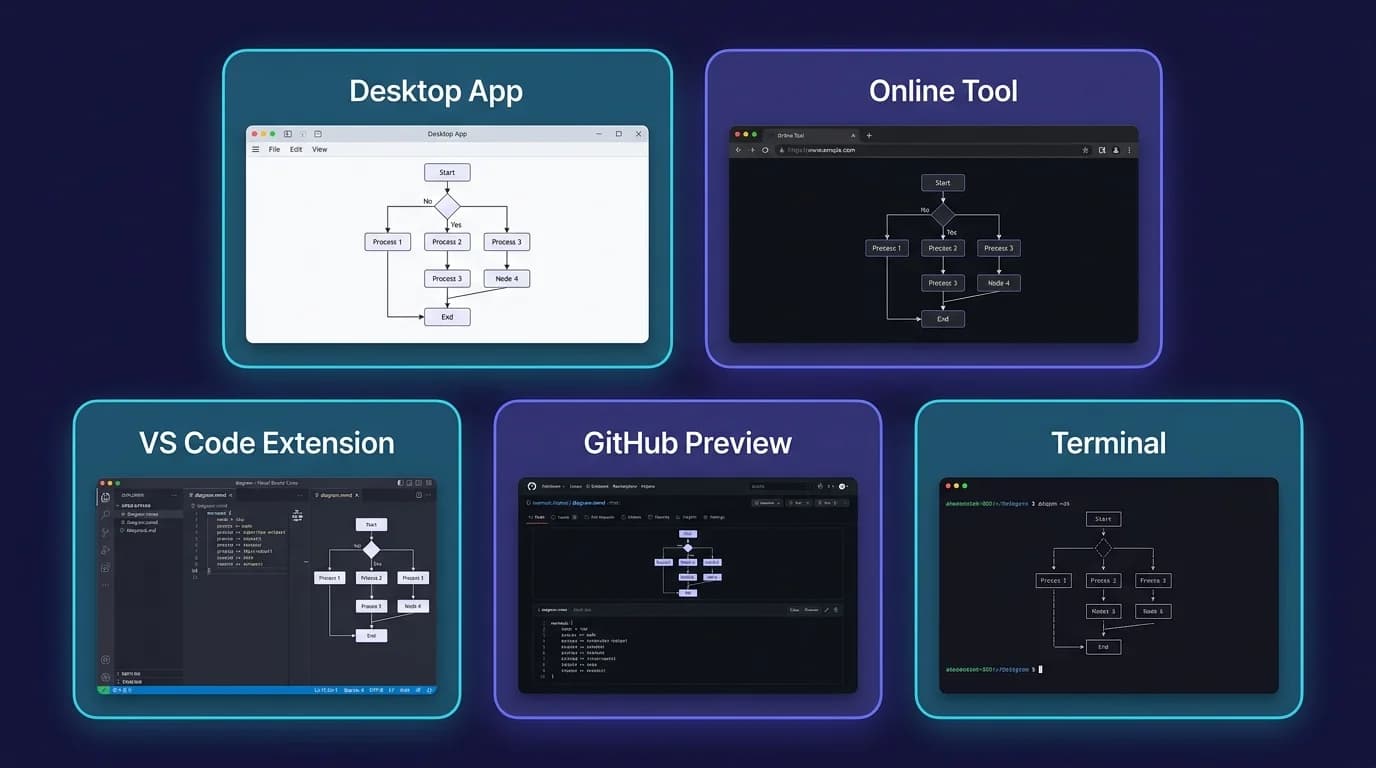
The best Mermaid viewer depends on where your files live. VS Code renders Mermaid natively since version 1.121 (May 2026) on Windows, Linux and Mac. Mermaid Live Editor handles browser previews. GitHub covers repositories. MacMD Viewer ($19.99) renders local .md files on Mac, including inside Finder Quick Look.
In one line: The seven Mermaid viewers worth knowing in 2026 are VS Code (free, now native, all desktops), Mermaid Live Editor (free, browser, official), GitHub (free, repos), MacMD Viewer ($19.99, Mac, Quick Look), MarkChart (free with a $12.99 Pro unlock, Mac and iOS), mermaidviewer.com (freemium browser tool), and Typora ($14.99, cross-platform editor-viewer).
Need to render a block right now without installing anything? Paste it into my free online mermaid viewer — syntax in, diagram out, export as PNG or SVG. Everything below is about the tools you install and keep. This guide compares seven of them across desktop and browser, with prices, platforms and offline behaviour, so you can pick on the two things that actually decide it: where the file sits, and whether it may leave your machine.
| Use case | Best Mermaid viewer | Price |
|---|---|---|
| Windows / Linux / any desktop | VS Code (native since 1.121) | Free |
| Browser, official, no account | Mermaid Live Editor | Free |
| Repository documentation | GitHub (built-in) | Free |
Local .md files on Mac, with Quick Look | MacMD Viewer | $19.99 one-time |
| Mermaid-only app on Mac and iOS | MarkChart | Free · $12.99 Pro |
| Browser with AI assistance and sharing | mermaidviewer.com | Free · $69.99–119.99/yr |
| Editing and rendering in one window | Typora | $14.99 one-time |
| Render a block right now, nothing installed | Free online mermaid viewer | Free |
What Is a Mermaid Viewer and Why Do You Need One?
A mermaid viewer is a tool that parses Mermaid.js text syntax and renders it as a visual diagram. Unlike a Mermaid editor where you write syntax from scratch, a viewer focuses on displaying diagrams embedded in existing .md documents. The distinction matters. Editors are optimized for authoring. Viewers are optimized for reading, reviewing, and presenting.
You need a mermaid viewer when reviewing documentation that contains architecture diagrams, reading technical specifications with sequence flows, or previewing README files that use Mermaid code fences. Raw Mermaid syntax is readable enough for simple diagrams, but complex flowcharts with dozens of nodes become unreadable without rendering. A good viewer parses the syntax instantly and displays polished vector graphics that you can inspect, zoom, and — in some tools — export to SVG or PNG.
The seven tools in this guide cover every desktop platform and the main browser options. Desktop viewers handle local files without uploading them. Online viewers are faster for sharing and collaboration. The right choice depends on where your Markdown files live and whether privacy is a concern.
What Are the 7 Best Mermaid Viewers?
1. MacMD Viewer ($19.99, Mac) — Best for Local Files on macOS
MacMD Viewer is a dedicated, read-only macOS Markdown viewer that renders Mermaid in local .md files offline, without plugins or a browser upload. Drop a fence like this one into any document and the diagram appears inline:
graph LR
    A[.md file on disk] --> B{Mermaid fence?}
    B -->|Yes| C[Rendered diagram]
    B -->|No| D[Plain Markdown]
    C --> E[Quick Look or app window]
    D --> E
The app is built with SwiftUI, ships as a 5.4 MB DMG and takes about 16 MB installed, and runs natively on Apple Silicon and Intel with no bundled Chromium. It bundles Mermaid.js 11.13.0, and the Mermaid feature page documents six diagram types: flowchart, sequence, state, Gantt, pie, and class.
The defining feature is where the rendering happens. MacMD Viewer draws the diagram locally, with no upload and no browser. The bundled Quick Look extension lets you press Space on any .md file in Finder and see the diagrams without launching the app. File watching means edits saved in VS Code, Cursor, or any other editor show up in the viewer as soon as they hit disk — which is the actual point of a viewer sitting next to an editor, rather than replacing it.
It is not the only Quick Look route: QLMarkdown is free, open source, and has rendered Mermaid in Quick Look since version 1.0.24 (January 2026). MacMD Viewer's argument is the app around the preview — document outline navigation, 12 document themes, live reload when an external editor saves, and syntax highlighting for around 34 languages. One-time $19.99, no subscription and no trial: see pricing.
2. VS Code (Free, Mac/Windows/Linux) — Best on Windows, Linux, and Any Desktop
VS Code renders Mermaid with no extension at all. In version 1.121, released 20 May 2026, Microsoft merged Matt Bierner's Markdown Preview Mermaid Support into the editor as a built-in extension called Mermaid Markdown Features, covering the built-in Markdown preview, Markdown cells in notebooks, and chat responses. Rendered diagrams support panning and zooming, which matters as soon as a flowchart outgrows the pane.
Open any .md file, press Cmd+Shift+V on Mac or Ctrl+Shift+V on Windows and Linux, and the diagrams appear next to the text. If you installed bierner.markdown-mermaid in the past, uninstall it: the marketplace listing now carries a deprecation notice ("merged into VS Code 1.121"), and running it alongside the built-in extension causes conflicts. Version 1.32.1 with 5.1 million installs is still downloadable, which is exactly why so many setups still have it (marketplace listing, checked 29 July 2026).
This is the answer for most people on Windows and Linux, and it is a complement to a viewer rather than a competitor to one: VS Code is where you write, a viewer is where you read. On a Mac I keep both open — the editor for changes, a separate window for reading long documents without a sidebar, a tab bar, and a terminal in the frame.
3. Mermaid Live Editor (Free, Online) — Best for Quick Previews
The Mermaid Live Editor is the official browser-based playground maintained by the Mermaid.js team. Paste syntax on the left panel, see the rendered diagram on the right in real time. Export as SVG or PNG. Share via URL — the encoded diagram definition sits in the query string so anyone with the link sees exactly what you see without an account.
The editor supports every diagram type that Mermaid ships, and it tracks upstream releases first — Mermaid.js is at 11.16.0 as of 29 July 2026 (npm registry). Theme selection, direction toggles, and auto-sync make it the fastest path from idea to visual output. No registration, no paywall. The project is open source on GitHub. One limitation: it works with pasted syntax, not with local files. You cannot open a .md file from disk and render the embedded Mermaid blocks. For a deeper look at the browser workflow, see the Mermaid Live Editor syntax guide.
4. GitHub (Free) — Best for Repository Documentation
GitHub renders Mermaid natively in any .md file. Wrap your diagram in ```mermaid code fences in READMEs, issues, pull requests, and wikis. No plugin or extension needed. Push a commit with a Mermaid code block and the diagram appears on the repository page within seconds.
This makes GitHub the default mermaid viewer for software teams that already host their code there. Architecture diagrams live alongside the code they describe. Pull request reviews can include visual representations of proposed changes. The rendering engine tracks the Mermaid.js library, so newer diagram types may appear with a slight delay after upstream releases. GitLab renders Mermaid natively too. Bitbucket Cloud does not — the request is still open (BCLOUD-21675), so rendering there needs a Marketplace app or a browser extension.
5. MarkChart (Free, $12.99 Pro — Mac, iPad, iPhone) — Best Mermaid-Only Apple App
MarkChart does one thing: Mermaid. It is free on the App Store with an optional MarkChart Pro unlock at $12.99, a one-time universal purchase covering macOS, iPadOS and iOS (App Store listing, version 4.1, checked 29 July 2026). It requires macOS 13.5 or later. Templates cover sequence diagrams, state diagrams and flowcharts, exports go to PDF, PNG and SVG, and the editor pane has syntax highlighting for the diagram source.
If Mermaid is the only thing you need to look at, and especially if you want the same purchase on an iPad, this is the cheapest native Apple option and it belongs in the comparison — it is the closest direct alternative to MacMD Viewer on price. The difference is scope: MarkChart opens diagram files, MacMD Viewer opens whole .md documents with the Mermaid inside them, plus Quick Look in Finder.
6. mermaidviewer.com (Freemium, Online) — Best for AI-Assisted Drafting
mermaidviewer.com is a browser tool that renders as you type, with AI-assisted diagram writing, real-time collaboration and export presets. The free tier allows 3 diagrams, 5 AI conversations a day, and watermarked PNG export; Starter is $69.99/year for 30 diagrams and high-resolution export; Pro is $119.99/year for unlimited diagrams and all export formats (pricing page, checked 29 July 2026).
It ranks on the term itself, so you will meet it whether or not you were looking for it. Worth knowing what you are paying for: the free tier is a demo, and the paid tiers buy AI generation, collaboration and asset management rather than better rendering — the rendering is the same open-source Mermaid.js everything else here uses. If you want a diagram drafted from a prompt, that is the pitch. If you want to read diagrams already written in files you own, a recurring subscription is the wrong shape of tool.
7. Typora ($14.99, Cross-Platform) — Best Hybrid Editor-Viewer
Typora renders Mermaid diagrams inline as you write. It is an editor, not a pure viewer, but the rendering quality is excellent. Supported types include flowcharts, sequence diagrams, state diagrams, class diagrams, Gantt charts, and pie charts. The WYSIWYG interface hides the raw syntax behind the rendered output, which makes Typora feel more like a word processor than a code editor.
Typora runs on Mac, Windows, and Linux. The $14.99 one-time license covers three devices, after a 15-day free trial (typora.io, checked 29 July 2026). The app is built with Electron, which means a larger footprint than a native alternative, and it cannot register as a Quick Look provider on macOS. If you want editing and viewing in a single polished interface across platforms, Typora delivers. For reading-only workflows, a dedicated viewer starts faster and stays out of the way.
How Do These Mermaid Viewers Compare?
| Viewer | Price | Platform | Local files | Works offline | Quick Look |
|---|---|---|---|---|---|
| VS Code (native, 1.121+) | Free | Mac / Win / Linux | Yes | Yes | No |
| Mermaid Live Editor | Free | Browser | No | No | No |
| GitHub | Free | Browser | No | No | No |
| MacMD Viewer | $19.99 one-time | Mac | Yes | Yes | Yes |
| MarkChart | Free · $12.99 Pro | Mac / iPad / iPhone | Yes | Yes | No |
| mermaidviewer.com | Free · $69.99–119.99/yr | Browser | No | No | No |
| Typora | $14.99 one-time | Mac / Win / Linux | Yes | Yes | No |
Read the table in two cuts. Local files and offline splits the desktop tools from the browser tools: VS Code, MacMD Viewer, MarkChart and Typora keep the file on your machine; Mermaid Live Editor, GitHub and mermaidviewer.com need the syntax to reach a server. Price shape splits it again: three of these are free, three are one-time purchases, and one is a yearly subscription.
Quick Look is a Mac-only column and a narrow one. MacMD Viewer has it among the seven tools here, and QLMarkdown — free, open source, Mermaid support since 1.0.24 in January 2026 — is the alternative outside this list if a Finder preview is all you need.
Which Mermaid Diagram Types Can These Viewers Render?
Every viewer here renders the core set: flowchart, sequence, class, state, Gantt, and pie. Those six cover the large majority of technical documentation — architecture overviews, API interaction flows, project timelines, proportional breakdowns. Entity-relationship diagrams are widely but not universally documented, so check that one against the tool you pick.
The newer types are where versions start to matter. Mindmap, timeline, sankey, quadrant chart and XY chart arrived across the Mermaid.js 10 and 11 lines, so whether a given tool draws them comes down to which library build it ships. Mermaid Live Editor tracks upstream closest — Mermaid.js is at 11.16.0 as of 29 July 2026 (npm registry). VS Code follows through its built-in extension. GitHub, Typora and the native apps update on their own release cycles. MacMD Viewer bundles Mermaid.js 11.13.0 and documents six types on its Mermaid feature page: flowchart, sequence, state, Gantt, pie, and class. If you depend on a specific newer type, test it in the tool before you commit to it — that goes for all seven.
- Flowchart — directed graphs with nodes and edges (syntax reference)
- Sequence diagram — interactions between actors over time (syntax guide)
- Class diagram — UML structures with inheritance
- State diagram — finite state machines and transitions
- ER diagram — database schema visualization
- Gantt chart — project timelines with dependencies
- Pie chart — proportional data display
- Mindmap — hierarchical brainstorming (newer)
- Timeline — chronological event visualization (newer)
- Sankey — flow volume between nodes (newer)
Once a diagram renders, exporting it is a separate problem. If you need a raster file out of a fence, the Mermaid to PNG converter does that step in the browser without an account.
What Is the Best Mermaid Viewer on Windows and Linux?
VS Code, and it is no longer close. Since 1.121 the built-in Markdown preview draws Mermaid on Windows, Linux and Mac with nothing to install, with pan and zoom for large diagrams, and the same rendering in notebook cells and chat responses. Ctrl+Shift+V on a .md file is the whole setup.
Two alternatives are worth keeping in reach on those platforms. Mermaid Live Editor needs only a browser, so it works on a locked-down machine where you cannot install anything. Typora ($14.99, after a 15-day trial) covers Windows and Linux if you want the diagram rendered in place while you write rather than in a second pane.
What does not exist on Windows or Linux is a Finder-style shell preview for Mermaid. Quick Look is a macOS feature, and the Mermaid-in-preview behaviour described in this guide — press Space, see the diagram — has no direct equivalent in File Explorer or in the common Linux file managers.
When Should You Use a Desktop Viewer vs an Online Viewer?
Desktop viewers handle local .md files without uploading them to any external service. That distinction matters for private documentation, proprietary code specifications, or air-gapped environments where network access is restricted. If your Mermaid diagrams contain internal architecture details or sensitive business logic, a desktop mermaid viewer keeps everything on your machine.
Online viewers are faster for sharing and collaboration. Send a Mermaid Live Editor URL and the recipient sees the diagram instantly. GitHub renders diagrams for anyone who visits the repository. No software installation required on either side.
- Private or client documentation — desktop (VS Code, MacMD Viewer, MarkChart)
- Quick sharing with someone else — online (Mermaid Live Editor)
- Repository documentation — GitHub, GitLab or Bitbucket, built in
- Editing and reading in one window — Typora
- Drafting a diagram from a prompt — mermaidviewer.com
There is a third case people forget: the file is local, but you only want to look at it for four seconds. That is what a Finder preview is for, and it is the reason a viewer and an editor are not the same purchase. The best Markdown viewer for Mac roundup covers that broader ecosystem, native and Electron alike.
Which Mermaid Viewer Should You Choose?
Seven tools, and the choice collapses fast. On Windows or Linux, use VS Code — native since 1.121, free, nothing to install beyond the editor you probably already run. In a browser, use Mermaid Live Editor: official, free, no account, and a URL you can send. For repository documentation, GitHub already does it and you do not need a second tool. On Mac, VS Code still works, and the question becomes whether you want the reading experience separated from the editor.
That last case is the one I built for. MacMD Viewer ($19.99, one-time) opens a .md file, renders the Mermaid inside it, reloads when your editor saves, and previews the same document in Finder with the spacebar — no browser tab, no project open, no subscription. If Mermaid is genuinely the only thing you look at, MarkChart is cheaper at $12.99 and I would rather say so than pretend otherwise. If you want the whole document rendered around the diagrams, see pricing. After purchase, download the app and open your own files.
If you are shopping specifically on macOS and want the Mac field compared in one place — native apps, editors, Quick Look extensions and the online options side by side — the best Mermaid viewer and editor for Mac roundup goes deeper on that platform than this cross-platform comparison can.
For syntax rather than tools, the Mermaid Live Editor syntax guide covers the browser workflow end to end, and the Mermaid flowchart syntax reference covers node shapes, arrows and subgraphs.
Frequently Asked Questions
Is there a free Mermaid viewer?
Yes, several. VS Code renders Mermaid natively since version 1.121 (released 20 May 2026) with no extension to install. Mermaid Live Editor is free in the browser. GitHub renders Mermaid in repository files at no cost. On Mac, QLMarkdown is a free, open-source Quick Look extension that has rendered Mermaid since version 1.0.24 (January 2026).
What is the best Mermaid viewer on Windows and Linux?
VS Code, since version 1.121 (20 May 2026) renders Mermaid in its built-in Markdown preview with pan and zoom, no extension required, on Windows, Linux and Mac alike. If you would rather not install anything, Mermaid Live Editor runs in any browser on any operating system. Typora ($14.99 one-time) covers Windows and Linux if you want editing and rendering in one window.
Can I view Mermaid diagrams in Finder on Mac?
Yes. MacMD Viewer includes a Quick Look extension: press Space on any .md file containing Mermaid syntax in Finder and the diagrams render inline. QLMarkdown, free and open source, also renders Mermaid in Quick Look since version 1.0.24 (January 2026). MacMD Viewer differs by wrapping a full reading app around the same preview — document outline navigation, 12 document themes, and live reload when an external editor saves.
Does Obsidian support Mermaid diagrams?
Yes. Obsidian renders Mermaid code fences in preview mode. It is not in this comparison because it is a knowledge management tool, not a dedicated viewer. The best markdown viewer for Mac roundup covers Obsidian in full.
Can I render Mermaid diagrams offline?
Yes. MacMD Viewer, VS Code (native Mermaid rendering since 1.121), MarkChart, and Typora all render Mermaid diagrams locally with no internet connection. The file stays on your machine — nothing is uploaded to an external server.
What is the difference between Mermaid Live Editor and Mermaid Chart?
Mermaid Live Editor is the free, open-source playground for quick prototyping. Mermaid Chart is the commercial platform with team collaboration, version history, and AI-assisted diagram generation. Both are built by the Mermaid.js team.
Content licensed under CC BY 4.0. Cite with attribution to MacMD Viewer.