How to Add Links in Markdown: Complete Syntax Guide
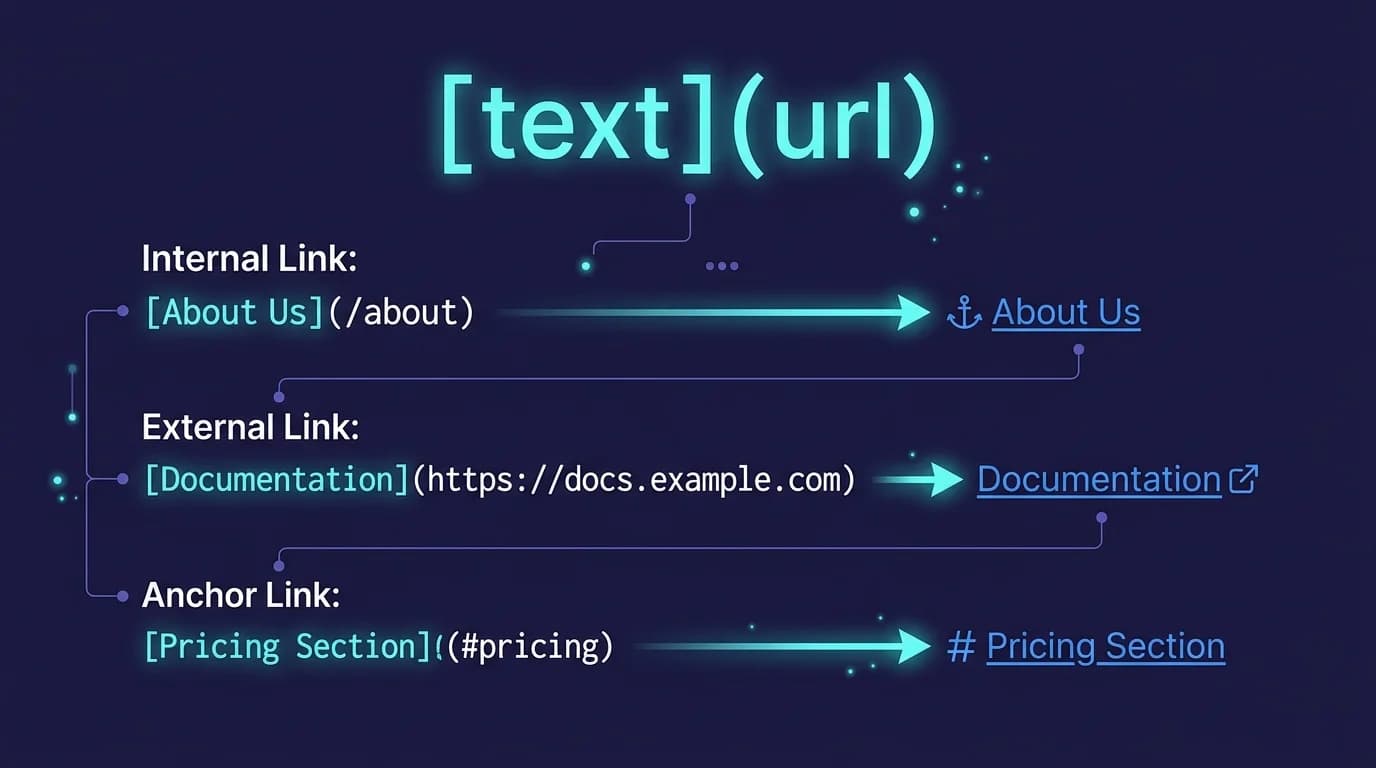
Links are everywhere in Markdown. Every README, every wiki page, every pull request description relies on them — and if you have ever written a single line of Markdown, you have almost certainly created one already, whether you realized it or not. Five distinct link types in markdown cover virtually every use case you will encounter: inline links, reference-style links, autolinks, image links, and heading anchors. Each type has a specific syntax defined in the CommonMark specification, and every major renderer — GitHub, VS Code, MacMD Viewer, Obsidian — supports all five. MacMD Viewer is a native macOS Markdown viewer ($19.99, SwiftUI, 5.4 MB download) that renders all link types with clickable navigation — it does not require a browser extension or internet connection to follow local file links.
TL;DR:
[text](url)for inline links.[text][ref]+[ref]: urlfor reference links.<url>for autolinks. Wrap an image in a link with[](url). Link to a heading with[Section](#heading-id).
How Do You Create an Inline Link in Markdown?
Inline links are the most common way to add links in markdown. The syntax places the link text in square brackets followed immediately by the URL in parentheses:
[Google](https://google.com)
That renders as a clickable link with "Google" as the anchor text. You can also add an optional title attribute that appears as a tooltip on hover:
[Google](https://google.com "Search engine")
The title string goes inside double quotes after the URL, separated by a space. Most writers skip titles entirely. They are optional, but screen readers do announce them, so they matter for accessibility in documentation that serves a broad audience including users who rely on assistive technology to navigate content.
Inline links work with any URL scheme. Link to an external site, a relative file path, or even a mailto: address:
[Read the docs](./docs/README.md)
[Email support](mailto:help@example.com)
[Jump to setup](#setup)
The CommonMark spec defines inline links as the default link type. No compatibility concerns. Every single Markdown parser on every platform supports them without exception, which is why inline links in markdown are the syntax you will reach for 90% of the time when connecting pages, referencing external resources, or pointing readers to related content within your own documentation. For a broader look at the Markdown format, see our guide on what is a .md file.
What Are Reference-Style Links in Markdown?
Reference-style links separate the URL from the link text, keeping your Markdown source cleaner — especially when the same URL appears multiple times. The syntax uses two parts:
[CommonMark spec][commonmark]
[GitHub Flavored Markdown][gfm]

[commonmark]: https://spec.commonmark.org/0.31.2/
[gfm]: https://github.github.com/gfm/
The first part — [text][id] — goes inline where you want the link to appear. The second part — [id]: url — is the reference definition, typically placed at the bottom of the document. Reference IDs are case-insensitive: [GFM] and [gfm] resolve to the same definition.
Why bother? Reference-style links in markdown solve two problems at once. First, repeated URLs are defined once and reused everywhere — update the URL in one place and every reference updates automatically, which eliminates the tedious search-and-replace dance that breaks documentation when domains change or paths move. Second, readability. Long URLs do not interrupt the flow of your prose.
You can also use an implicit reference where the link text doubles as the ID:
[CommonMark][]

[CommonMark]: https://commonmark.org/
Reference definitions are invisible in the rendered output — they produce no visible element. They exist only to supply URLs for reference-style links elsewhere in the document.
How Do Autolinks and Email Links Work?
Autolinks are dead simple. Wrap a URL or email address in angle brackets and the parser handles everything — no square brackets, no parentheses, no title attributes to worry about:
<https://spec.commonmark.org/>
<user@example.com>
The URL autolink renders as <a href="https://spec.commonmark.org/"> with the full URL as both the href and the visible text. The email autolink generates a mailto: link. Both are defined in the CommonMark autolinks section.
GitHub Flavored Markdown extends this with bare URL autolinks — typing https://example.com without angle brackets is automatically linked on GitHub, GitLab, and most modern renderers. Strict CommonMark parsers require the angle brackets. When writing links in markdown for maximum compatibility, always use the angle bracket syntax.
Can You Link to Headings Within the Same Document?
Yes. Anchor links let you jump to any heading in the same Markdown file. The syntax is a standard inline link with a fragment identifier:
[Jump to FAQ](#frequently-asked-questions)
[Back to top](#how-to-add-links-in-markdown-complete-syntax-guide)
The heading ID is generated automatically by most renderers. The rules are consistent across GitHub, GitLab, and MacMD Viewer:
- Convert the heading text to lowercase.
- Replace spaces with hyphens.
- Remove punctuation except hyphens.
- Duplicate headings get a suffix:
-1,-2, etc.
So a heading ## What Is a .md File? becomes #what-is-a-md-file. Anchor links in markdown are essential for long documents — table-of-contents sections, API references, and guides all rely on them. For a practical example, see how our Markdown table guide uses anchor links to navigate between sections.
How Do You Add Image Links in Markdown?
An image link wraps an image inside a standard inline link. The image syntax () goes where the link text normally appears:
[](https://macmdviewer.com/features)
Click the image, follow the link. This pattern shows up everywhere in README files — CI status badges, version shields, license indicators — where each small graphic links to a relevant page that provides more context about the project build status, latest release, or licensing terms. The nesting is straightforward: the inner  is the image, the outer [...](url) is the link.
You can combine image links with reference-style syntax for cleaner source:
[![Build status][badge]][ci-url]

[badge]: https://img.shields.io/github/actions/workflow/status/owner/repo/ci.yml
[ci-url]: https://github.com/owner/repo/actions
Image links in markdown work in GitHub, VS Code, all major Mac viewers, and every CommonMark-compliant renderer. For horizontal separators between linked image sections, see our Markdown horizontal line guide.
How Do Markdown Renderers Handle Links?
The syntax is universal. The behavior is not. Every renderer converts links in markdown to HTML <a> tags, but what happens when a user clicks that link — and what attributes get added to the anchor element behind the scenes — varies significantly from tool to tool:
- GitHub — Adds
rel="nofollow"to external links for SEO protection. Internal repository links resolve relative paths. Bare URLs are autolinked without angle brackets. - VS Code — Makes links clickable in the built-in preview (
Cmd+Shift+V). Ctrl+Click on a link in the editor opens it directly. Relative links to other.mdfiles navigate within the workspace. - MacMD Viewer — Opens external links in the default browser. Internal anchor links scroll within the document. Relative file links open the target file in a new viewer window. See all features.
- Obsidian — Uses
[[wikilinks]]as the primary link syntax but also supports standard Markdown links. External URLs open in the system browser. Internal links connect notes in the knowledge graph. - Static site generators — Jekyll, Hugo, and Astro process Markdown links into HTML during build. Relative links must match the output URL structure, not the source file paths.
The underlying link syntax is identical everywhere — only the rendering behavior differs. If you need consistent results, test your links in markdown in the renderer your audience will use. For Mac-specific rendering options, check our best Markdown viewer for Mac comparison.
Conclusion
Five patterns. That is all. Inline links for everyday use, reference-style for documents with repeated URLs, autolinks for bare URLs and email addresses, anchor links for same-page navigation, and image links when you need a clickable graphic. Start with [text](url) — it covers 90% of real-world usage — and add reference-style definitions when your document grows beyond a few hundred lines and the URLs start cluttering the prose to the point where readability suffers. Links pair naturally with other inline elements like blockquotes to build well-structured documents.
To preview how your links render with proper styling, syntax highlighting, and Mermaid diagram support on Mac, try MacMD Viewer — a native SwiftUI viewer that handles every link type from inline to anchor. Check pricing to get started.
Frequently Asked Questions
Can I make a Markdown link open in a new tab?
Standard Markdown has no syntax for target="_blank". Use raw HTML instead: <a href="url" target="_blank" rel="noopener noreferrer">text</a>. GitHub strips target attributes for security, but most other renderers honor them.
Do relative links work in Markdown?
Yes. Use [Setup guide](./docs/setup.md) to link to files relative to the current document. GitHub, GitLab, VS Code, and MacMD Viewer all resolve relative paths correctly.
How do I check for broken links in Markdown?
Use markdownlint or markdown-link-check (npm install -g markdown-link-check). Run markdown-link-check README.md to scan every URL in a file. CI tools like GitHub Actions can automate this on every push.
Can I link to an email address in Markdown?
Yes. Use the autolink syntax: <user@example.com>. Markdown parsers convert it to a clickable mailto: link. You can also write it explicitly: [Email us](mailto:user@example.com).
How do I link to a local file in Markdown?
Use a relative path: [Read the changelog](./CHANGELOG.md). For images in a subdirectory: . Paths are resolved relative to the current Markdown file location.
Content licensed under CC BY 4.0. Cite with attribution to MacMD Viewer.