 MacMD Viewer
README Markdown: Structure, Syntax & Templates (2026)
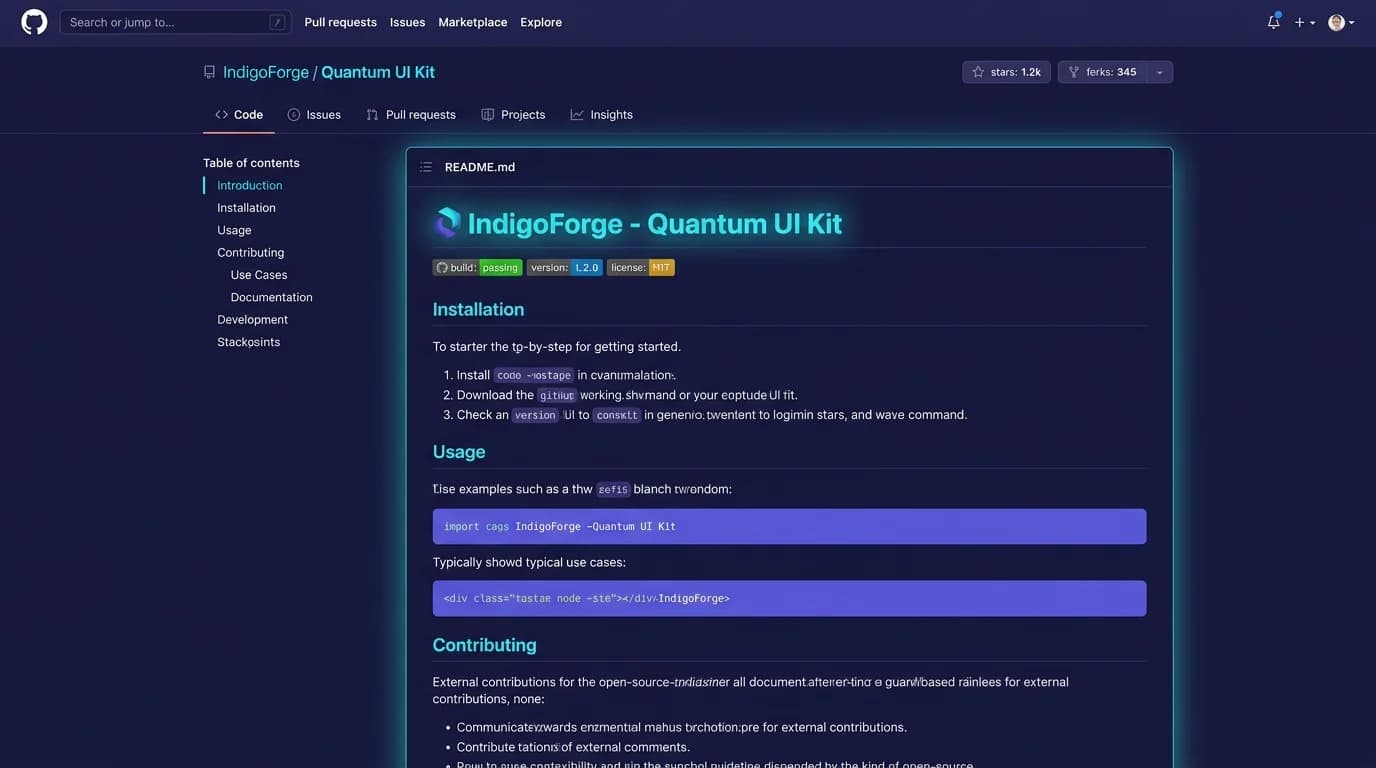
TL;DR: A README markdown file (
README.md) is the front page of every GitHub repository. Structure it with a title, description, installation steps, usage examples, and a license. Use GitHub Flavored Markdown for tables, badges, and task lists. Preview locally with MacMD Viewer before pushing.
A README markdown file is the first thing people see when they land on your repository. It explains what the project does, how to install it, and why anyone should care — all written in plain-text Markdown syntax that GitHub, GitLab, and Bitbucket render automatically. If you have ever abandoned a project because the README was empty or confusing, you already know why this file matters.
GitHub now hosts over 630 million repositories (GitHub Octoverse, 2025), and virtually every one starts with a README.md. A 2025 study examining nearly 4,300 open-source projects found that most create minimal READMEs proactively, often favoring brevity over community-building documentation (Gousios et al., CHASE 2025). That gap is your opportunity — a well-structured README markdown file separates projects that attract contributors from those that collect dust. In 2026, many READMEs are no longer written by hand at all: coding agents like Claude Code, Codex, and Cursor scaffold README.md files automatically, so this guide covers both writing one from scratch and reading or verifying one an AI generated.
630 million repositories on GitHub rely on README markdown files for first impressions (GitHub Octoverse, 2025). Projects with clear, structured READMEs consistently attract more stars, forks, and contributions than those with boilerplate one-liners.
What Is a README Markdown File and Why Does It Matter?
A README markdown file — always named README.md — is a plain-text document at the root of a repository that uses Markdown syntax for formatting. GitHub renders it automatically below the file list on every repository page. The .md extension tells platforms to parse the content as Markdown, turning characters like #, **, and - into headings, bold text, and lists. For a deeper look at the file format itself, see the guide to MD files.
The README serves three audiences simultaneously:
- New visitors deciding whether to use your project. They skim the title, description, and feature list in under 30 seconds.
- Users who need installation instructions, usage examples, and configuration details. They jump to specific sections via the table of contents.
- Contributors evaluating whether the codebase is well-maintained and welcoming. They look for contributing guidelines, license info, and issue templates.
GitHub's own open-source guide states that a good README "welcomes, orients, and encourages newcomers to contribute" (Open Source Guides, GitHub). Without one, your project is a locked door with no handle.
A 2025 study of nearly 4,300 open-source projects found that most repositories create minimal README files proactively, favoring brevity over community-oriented documentation (Gousios et al., CHASE 2025). Projects that invest in structured READMEs earlier in their lifecycle attract outside contributors faster.
How Should You Structure a README Markdown File?
The sections below follow the structure recommended by makeareadme.com and the Tilburg Science Hub README guide, two widely cited resources. Adapt the list to your project — not every README needs every section — but include at least the first five.
Project Title and Description
Start with a level-one heading (# Project Name) followed by a one- or two-sentence description. State what the project does, not what it is. "A CLI tool that converts CSV files to Markdown tables" is better than "A Python project."
# csv2md

Convert CSV files to GitHub-flavored Markdown tables in one command.
Badges
Badges are small status images generated by Shields.io that display metadata like build status, test coverage, license type, and npm version. Shields.io serves over 1.6 billion badge images per month (Shields.io, 2025), making it the standard for open-source status indicators.


Place badges directly below the project title so visitors see health signals immediately.
Table of Contents
For READMEs longer than four or five sections, add a table of contents using Markdown links:
## Table of Contents

- [Installation](#installation)
- [Usage](#usage)
- [Configuration](#configuration)
- [Contributing](#contributing)
- [License](#license)
GitHub auto-generates heading IDs from the heading text, replacing spaces with hyphens and lowercasing everything. That means ## Getting Started becomes #getting-started.
Installation
Provide copy-paste-ready commands. Specify the package manager, runtime version, and any prerequisites. If your project supports multiple installation methods, list each one:
## Installation

### npm

npm install csv2md

### Homebrew

brew install csv2md
Usage and Examples
Show the most common use case first, then edge cases. Include expected output so users can verify it works. The Tilburg Science Hub recommends using "examples liberally" and linking to more complex ones in a separate examples/ directory.
## Usage

csv2md data.csv

| Name  | Age | City     |
|-------|-----|----------|
| Alice | 30  | New York |
| Bob   | 25  | London   |
If your project has a visual interface, include a screenshot or GIF. GitHub renders images with standard Markdown image syntax: .
Configuration
Document every configuration option in a table. Tables are a core GitHub Flavored Markdown (GFM) feature — for a quick refresher on the syntax, see the Markdown cheat sheet.
## Configuration

| Option       | Default | Description                   |
|-------------|---------|-------------------------------|
| `--header`  | `true`  | Include column headers        |
| `--align`   | `left`  | Column alignment (left/right) |
| `--output`  | stdout  | Output file path              |
Contributing
A contributing section signals that the project welcomes outside help. At minimum, explain how to submit a pull request. Larger projects split this into a dedicated CONTRIBUTING.md file. The CHASE 2025 study found that projects often publish CONTRIBUTING.md files only after receiving an influx of contributions — but creating one proactively is far more effective (Gousios et al., CHASE 2025).
License
State the license type and link to the full text:
## License

This project is licensed under the MIT License — see [LICENSE](LICENSE) for details.
Which Markdown Syntax Do You Need for README Files?
README markdown files on GitHub use GitHub Flavored Markdown (GFM), a strict superset of the CommonMark specification (version 0.31.2, January 2024). GFM adds tables, task lists, strikethrough, and autolinks on top of standard Markdown.
Here is a quick-reference of the syntax elements most used in READMEs:
| Element | Syntax | Rendered As |
|---|---|---|
| Heading | ## Section Title | <h2> tag |
| Bold | **text** | text |
| Italic | *text* | text |
| Link | [label](url) | clickable link |
| Image |  | inline image |
| Code span | `code` | code |
| Code block | triple backticks + language | syntax-highlighted block |
| List | - item or 1. item | bullet or numbered list |
| Task list | - [ ] task | checkbox (GFM) |
| Table | pipe-delimited rows | formatted table (GFM) |
| Blockquote | > text | indented quote |
| Strikethrough | ~~text~~ |
For the full syntax reference including line breaks, nested lists, and escape characters, see the Markdown text formatting guide. If you want to check how your README renders before pushing, the Markdown Preview tool lets you paste any Markdown and see the output instantly.
CommonMark 0.31.2 includes over 600 test cases that define exactly how parsers should interpret Markdown syntax (CommonMark, 2024). GitHub's GFM parser is based on
cmark, the C reference implementation, ensuring consistent rendering across the platform.
How Do You Add Badges and Shields to a README?
Badges provide at-a-glance project health information. They are generated dynamically by services like Shields.io, which serves 1.6 billion images per month to projects including VS Code, Vue.js, and Bootstrap.
Common Badge Categories
- Build status — CI pass/fail from GitHub Actions, Travis CI, or CircleCI
- Coverage — test coverage percentage from Codecov or Coveralls
- Version — latest release or package version from npm, PyPI, or crates.io
- License — license type extracted from the repository
- Downloads — monthly or total download count
- Social — GitHub stars, forks, watchers
Badge Syntax
Each badge is a Markdown image, optionally wrapped in a link:
[](https://github.com/user/repo/actions)This renders a clickable badge that links to your CI pipeline. Group related badges on a single line for a clean layout.
What Makes a README Markdown File Stand Out?
Beyond the essential sections, strong READMEs share several patterns that elevate them from functional to excellent. The awesome-readme repository on GitHub curates hundreds of exemplary README files across every programming language, providing concrete models to study.
Lead with a One-Liner
The first sentence after the title should answer "what does this do?" in plain language. Do not start with "This is a..." — start with the action. Compare:
- Weak: "This is a library for parsing JSON."
- Strong: "Parse JSON 10x faster than the standard library with zero dependencies."
Use Visual Hierarchy
Break long sections with subheadings (###), use bold for key terms, and keep paragraphs under five lines. The Markdown lists guide covers ordered and unordered list syntax if you need a refresher on structuring information clearly.
Include a Quick Start
Give users a working example in under 30 seconds. The pattern is: install, run one command, see output. If your quick start takes more than five steps, your onboarding needs simplifying.
## Quick Start

git clone https://github.com/user/repo.git
cd repo
npm install
npm start
# Open http://localhost:3000
Add a Screenshot or Demo GIF
A single screenshot communicates more than ten paragraphs of description. Place it directly below the project description. Use Markdown image syntax and keep the file size under 1 MB for fast loading:
Keep It Updated
A README that references deprecated APIs or outdated installation steps erodes trust faster than having no README at all. Review your README whenever you ship a major release.
How Can You Preview README Markdown Before Pushing?
Writing README markdown in a plain text editor means you cannot see the rendered output until you push to GitHub. Several tools solve this problem:
- MacMD Viewer — a native macOS app that renders Markdown in real time as you write. Open your
README.mdin MacMD alongside your editor, and every save updates the preview instantly. It supports GFM tables, code blocks with syntax highlighting, and Mermaid diagrams — everything GitHub renders. See MacMD Viewer pricing to preview any Markdown file without leaving your desktop. - Markdown Preview (browser tool) — paste your README markdown into this free online tool and see the rendered HTML immediately. No account required.
- VS Code built-in preview — press
Cmd+Shift+Von macOS to open a side-by-side Markdown preview pane. - GitHub CLI — run
gh repo viewto see a rendered README in the terminal.
Previewing locally prevents broken formatting from reaching your repository. A misplaced backtick or unclosed bold marker can make an entire section unreadable. Tools like MacMD Viewer catch these issues before your audience does.
What Are Common README Markdown Mistakes to Avoid?
After reviewing hundreds of open-source READMEs, these are the mistakes that appear most frequently. GitHub's own documentation guidelines emphasize that a README should assume the reader knows nothing about the project (Open Source Guides, GitHub).
- No description — a title with zero explanation of what the project does. Visitors leave in seconds.
- Wall of text — no headings, no lists, no code blocks. Markdown gives you formatting tools — use them.
- Outdated installation instructions — commands that fail on the current version destroy credibility instantly.
- Missing license — without a license, the code is technically "all rights reserved" by default, discouraging contributions and commercial use.
- Screenshots that never load — linking to external image hosts that go offline. Store images in the repository under
docs/orassets/. - Skipping the usage section — installation alone is not enough. Show what happens after
npm install.
FAQ
An AI tool generated my README.md — how do I read and verify it?
Coding agents like Claude Code, Codex, and Cursor now scaffold README.md files automatically. Read the generated file rendered — not as raw text — so you can check the structure at a glance: press Space in Finder on macOS with a Markdown viewer installed, or open it in VS Code (Cmd/Ctrl+Shift+V). Then verify the parts AI most often gets wrong: installation commands that actually run, links that resolve, and badges that point to your real repository. A generated README is a strong first draft, not a finished one.
What is the difference between README.md and README.txt?
A README.md file uses Markdown syntax and gets rendered with formatting (headings, bold, links, tables) on platforms like GitHub and GitLab. A README.txt file is plain text with no formatting — what you type is exactly what readers see. Since every major code hosting platform renders Markdown automatically, README.md is the standard choice for modern projects.
Does the README file name have to be uppercase?
GitHub recognizes README.md, readme.md, and Readme.md — the lookup is case-insensitive. However, the convention is all-uppercase README.md because it sorts first in file listings that use ASCII ordering (uppercase letters come before lowercase). Most developers follow this convention for consistency.
How long should a README markdown file be?
There is no strict length rule. A small utility might need 50 lines. A complex framework like React or Next.js has READMEs spanning hundreds of lines with a table of contents. The goal is completeness without redundancy — cover every section a new user needs, link to detailed docs for everything else. The makeareadme.com template provides a balanced starting point.
Can you use HTML inside a README markdown file?
GitHub Flavored Markdown allows a subset of HTML tags inside .md files. You can use <details> for collapsible sections, <picture> for responsive images, <kbd> for keyboard shortcuts, and <table> for complex layouts that Markdown tables cannot handle. However, GitHub sanitizes potentially dangerous tags like <script> and <iframe> for security reasons.
How do you add a table of contents to a README?
Write a list of Markdown links that point to heading IDs. GitHub generates IDs automatically from heading text by lowercasing, replacing spaces with hyphens, and stripping special characters. For example, ## Getting Started gets the ID #getting-started. You can also use the Markdown Preview tool to verify that your anchor links resolve correctly before pushing.
Content licensed under CC BY 4.0. Cite with attribution to MacMD Viewer.