 MacMD Viewer
Mermaid Live Editor: Complete Syntax Guide for Flowcharts, Sequence & More
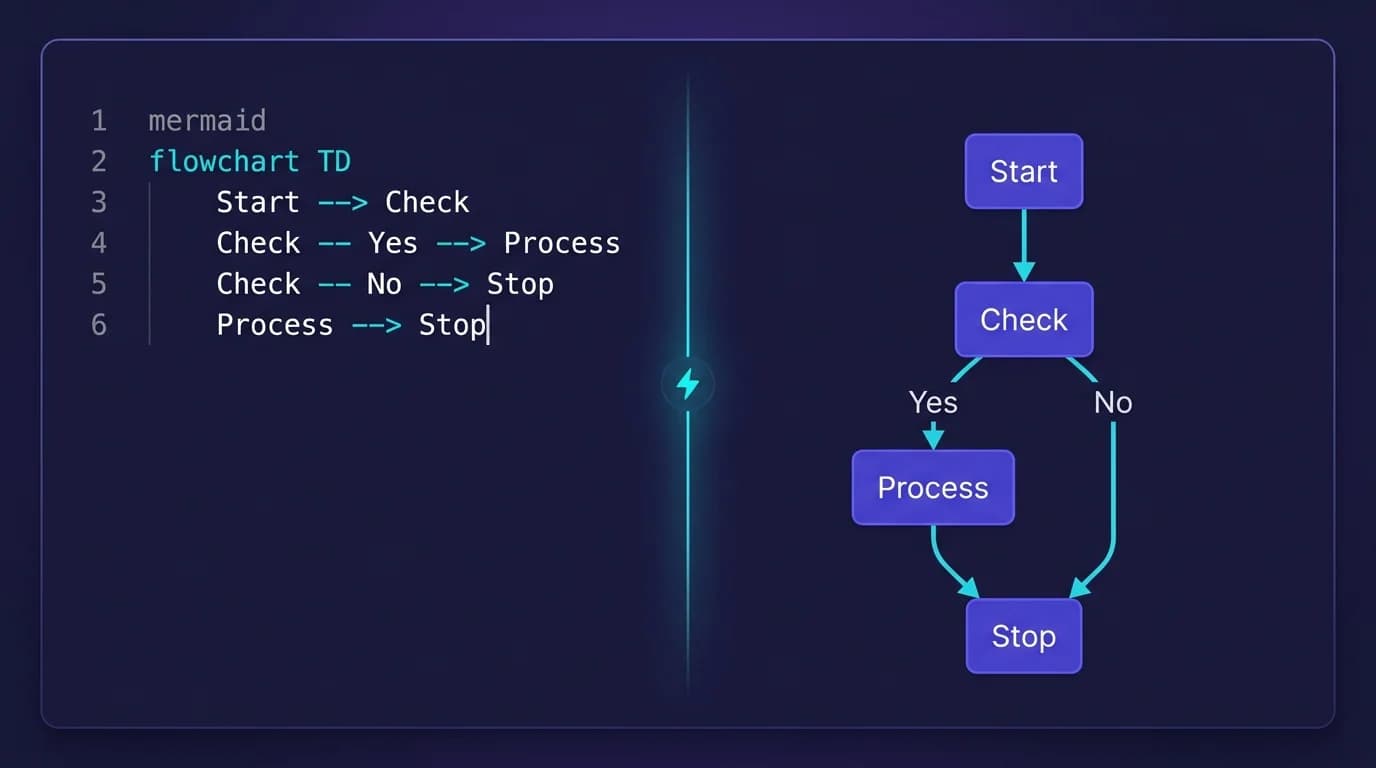
The Mermaid Live Editor is the fastest way to create a Mermaid diagram without installing anything. Open mermaid.live, type syntax on the left, see the diagram render on the right, export as SVG or PNG, or share the URL. It is free, open source, no account required, and runs entirely in your browser with 14,800 monthly searches (DataForSEO, 2026).
This guide covers every feature: creating your first diagram, navigating the interface, exporting results, sharing via URL, and the moment a desktop viewer replaces the Live Editor for daily work. For offline rendering of .md files containing Mermaid, MacMD Viewer is a native macOS viewer ($19.99 one-time, SwiftUI, 5.4 MB download) — no browser, no uploads, no internet required.
TL;DR:
- Go to mermaid.live
- Write Mermaid syntax on the left pane
- See the diagram render on the right
- Export as SVG or PNG from the toolbar
- Share the URL — the diagram is encoded in the query string
- For local
.mdfiles with Mermaid: use MacMD Viewer ($19.99, one-time) — renders offline, no upload
What Is the Mermaid Live Editor?
The Mermaid Live Editor is a free, open-source browser app at mermaid.live maintained by the Mermaid.js team. It provides a split-pane interface — Mermaid syntax on the left, rendered diagram on the right.
Key facts:
| Attribute | Value |
|---|---|
| URL | mermaid.live |
| Price | Free, open source |
| Account required | No |
| Installation | None (browser-based) |
| Diagram types supported | All Mermaid.js types (flowchart, sequence, class, ER, state, Gantt, pie, mindmap, timeline, gitgraph) |
| Export formats | SVG, PNG |
| Sharing | URL encoding (diagram in query string) |
| Offline use | No — requires internet |
| Mobile support | Works on tablet; cramped on phone |
Because the Live Editor loads the latest Mermaid.js version on every load, new diagram types appear as soon as Mermaid.js ships them. That makes it the canonical reference for testing syntax before embedding in GitHub READMEs, Confluence pages, or local .md files.
How Do You Create Your First Diagram in the Mermaid Live Editor?
It takes under 60 seconds. Seriously. Follow these five steps to go from a completely blank canvas to a fully rendered, exportable flowchart inside the Mermaid Live Editor.
Step 1: Open mermaid.live
Navigate to mermaid.live in any modern browser — Chrome, Firefox, Safari, or Edge. The editor loads instantly with a default example diagram already rendered in the preview pane on the right side.
Step 2: Clear the Default Code
Select all text in the left editor panel and delete it. Done. You now have a blank canvas ready for your own diagram syntax, and the preview pane on the right side of the screen will show absolutely nothing until you type valid Mermaid code that the rendering engine can parse and display as a visual diagram.
Step 3: Write Your Diagram
Type your Mermaid syntax. The preview updates in real-time as you type each character. Here is a simple flowchart to get started:
flowchart TD
    A[Start] --> B{Decision}
    B -->|Yes| C[Action]
    B -->|No| D[End]
Paste that code. The Mermaid Live Editor parses the syntax and renders a top-down flowchart with a start node, a diamond-shaped decision node, and two outcome paths that branch based on the condition you specified in the decision diamond. Every change you make appears instantly. No save button. No compile step. No refresh.
MacMD Viewer: native Markdown viewer for Mac with Mermaid diagrams and QuickLook.
Step 4: Try a Sequence Diagram
Switch diagram types by changing the first keyword. Replace the flowchart code with a sequence diagram:
sequenceDiagram
    Alice->>Bob: Hello Bob
    Bob-->>Alice: Hi Alice
    Alice->>Bob: How are you?
    Bob-->>Alice: Great, thanks!
The preview immediately shows a sequence diagram with two participants exchanging messages. Solid arrows represent requests and dashed arrows represent responses. For the full syntax reference, see our Mermaid sequence diagram guide.
Step 5: Try a Gantt Chart
Gantt charts are another popular diagram type in the Mermaid Live Editor. Paste this example to see a project timeline:
gantt
    title Project Timeline
    dateFormat  YYYY-MM-DD
    section Planning
    Requirements    :a1, 2026-01-01, 14d
    Design          :a2, after a1, 10d
    section Development
    Implementation  :b1, after a2, 30d
    Testing         :b2, after b1, 14d
The rendered Gantt chart shows task dependencies, durations, and sections with color-coded bars representing each phase of the project timeline from start to finish. For the full Gantt syntax — milestones, the after dependency keyword, critical-path highlighting, and excluding weekends — see the Mermaid Gantt chart guide. That is the pattern. Change the first keyword. The rendering engine adapts automatically. For flowchart-specific syntax details, see our Mermaid flowchart syntax reference.
How Do You Export and Share Diagrams from the Mermaid Live Editor?
Three export methods cover every use case: SVG for scalable vector graphics, PNG for raster images at fixed resolution, and URL sharing where anyone with the link sees your exact diagram without needing any tool installed.
The export buttons sit in the toolbar above the preview pane. Click the SVG button to download a vector file that scales to any size without losing quality — ideal for documentation, presentations, and print. Click the PNG button for a raster image at fixed resolution — useful for embedding in platforms that do not support SVG, such as Slack messages or email.
URL sharing works differently here. No server stores your content. The entire diagram syntax encodes directly in the URL query string itself, which means every character of your Mermaid code lives inside the link as a compressed, base64-encoded parameter that the recipient's browser decodes and renders locally when they open it. Clever. Your diagrams remain accessible as long as the mermaid.live site is running, and absolutely nobody stores your intellectual property on any remote server or cloud infrastructure.
For embedding in documentation, copy the raw Mermaid syntax from the editor and paste it into ```mermaid code fences in your Markdown files. GitHub renders these natively, and desktop tools like MacMD Viewer ($19.99, one-time) display them locally without any internet connection. See our Mermaid viewer comparison for more embedding options.
What Configuration Options Does the Mermaid Live Editor Offer?
The Mermaid Live Editor includes a configuration panel that lets you customize the appearance and behavior of your rendered diagrams. These settings apply instantly to the preview without modifying your diagram syntax.
Themes. Four built-in themes ship with the editor: default (neutral gray), dark (dark background with light text), forest (green tones), and neutral (minimal styling). The theme dropdown in the config panel switches between them. Each theme changes colors, backgrounds, and line styles across all diagram types.
Direction. Flowcharts and some other diagram types support direction overrides: TD (top-down), LR (left-right), BT (bottom-top), and RL (right-left). Change the direction keyword in your syntax to control layout flow. The Mermaid Live Editor re-renders the diagram immediately when you switch directions.
Config JSON. Advanced users can pass a JSON configuration object that controls font sizes, curve styles, padding, and rendering behavior. The config tab in the editor accepts raw JSON following the Mermaid.js configuration schema. This is the same configuration format used by VS Code extensions and other integrations.
Pan and zoom. Large diagrams benefit from the built-in pan and zoom controls. Scroll to zoom in and out. Click and drag to pan across the canvas. These controls help when working with complex flowcharts or sequence diagrams that extend beyond the visible preview area inside the Mermaid Live Editor window.
What Are the Limitations of the Mermaid Live Editor?
Every tool has tradeoffs. The Mermaid Live Editor excels at rapid prototyping and quick syntax verification, but it has constraints that matter significantly for certain professional workflows and enterprise documentation pipelines that require offline access, version control integration, or team collaboration capabilities.
- No offline access. The editor requires an internet connection. It is a web application hosted at mermaid.live with no installable offline mode or progressive web app support.
- No file system integration. You cannot open local
.mdfiles directly. The editor only accepts syntax pasted or typed into the left panel. - No collaboration features. For real-time team editing with version history, you need Mermaid Chart, the commercial platform built by the same team. See our Mermaid Chart Online guide for details.
- Large diagram performance. Diagrams with hundreds of nodes can slow down the real-time preview. The browser rendering engine struggles with extremely complex layouts.
- No version history. Every edit overwrites the previous state. There is no undo history beyond the browser's built-in text undo (Cmd+Z / Ctrl+Z) in the editor panel.
For local .md files containing Mermaid diagrams, a desktop viewer renders them without uploading anything to a server. MacMD Viewer ($19.99) opens any Markdown file and renders every Mermaid diagram instantly on Mac. See our Mermaid viewer comparison for more desktop alternatives.
When Should You Use the Mermaid Live Editor vs a Desktop Tool?
The right tool depends on what you are trying to accomplish. Here is a decision guide based on workflow:
- Quick prototype or syntax check — use the Mermaid Live Editor. Open a browser tab, paste code, verify the output, and export. Fastest path from idea to diagram.
- Local documentation with Mermaid diagrams — use MacMD Viewer (Mermaid viewer roundup · Mac Mermaid tools) ($19.99, one-time) or VS Code. Both render Mermaid in local files without uploading content.
- Team collaboration on diagrams — use Mermaid Chart. Real-time editing, version history, and integrations with developer toolchains.
- Repository documentation — use GitHub or GitLab. Mermaid renders natively in
.mdfiles. - Offline or air-gapped environment — use MacMD Viewer (Mac, $19.99). No internet required. Native macOS rendering.
For a comprehensive comparison of all online Mermaid tools, read our Mermaid viewer comparison. For Mac-specific Markdown viewing, see the complete Markdown viewer Mac guide.
FAQ
Is the Mermaid Live Editor free?
Yes, completely free and open source. No account needed. Open mermaid.live in any browser and start creating diagrams immediately. There is no paid tier, no feature gating, and no usage limits.
Can I save diagrams in the Mermaid Live Editor?
Not directly to disk. Export as SVG or PNG using the toolbar buttons, or bookmark the shareable URL which encodes your entire diagram in the query string. The URL approach means you can revisit your exact diagram anytime without storing files locally.
Does the Mermaid Live Editor work offline?
No. It is a web application that requires an internet connection. For offline Mermaid rendering, use MacMD Viewer ($19.99, native Mac), VS Code (free, cross-platform; Mermaid built in since version 1.121, May 2026), or Typora ($14.99, cross-platform).
Can I use the Mermaid Live Editor on mobile?
Yes, but the split-pane interface works best on desktop or tablet screens. The editor is responsive but syntax entry on a phone keyboard is cumbersome for anything beyond quick edits or minor corrections.
What diagram types does the Mermaid Live Editor support?
All Mermaid diagram types: flowchart, sequence, class, state, ER, Gantt, pie, mindmap, timeline, git graph, and more. It always runs the latest Mermaid.js version so new diagram types are available immediately after each release.
Conclusion
The Mermaid Live Editor is the fastest way to create, preview, export, and share Mermaid diagrams. Open mermaid.live, write your syntax, and see results instantly. Export as SVG or PNG. Share via URL. For local Markdown files containing Mermaid diagrams, use MacMD Viewer to render everything offline on Mac without uploading anything to a remote server.
Related Tools on MacMD Viewer
For a full comparison of Mermaid-capable apps on Mac (native viewers, editors, online tools), see our best Mermaid editor for Mac roundup — covers 7 options ranked by use case and Apple Silicon performance.
If you'd rather render Mermaid diagrams locally without opening mermaid.live in a browser, the MacMD Viewer Mermaid Viewer renders any diagram in your browser — paste syntax on the left, see the diagram on the right, no signup. To export a diagram as a PNG image, use the Mermaid to PNG converter — same paste-and-go workflow, with a download button for the rendered PNG.
For native macOS rendering of .md files containing Mermaid blocks, install MacMD Viewer ($19.99, one-time) — it renders Mermaid in Finder via QuickLook (Space bar preview) without launching a separate app.
Content licensed under CC BY 4.0. Cite with attribution to MacMD Viewer.