Mermaid Flowchart Syntax: Complete Quick Reference
Mermaid flowcharts are the most popular diagram type in the Mermaid.js ecosystem. Define nodes and connections in plain text, and any Mermaid renderer turns them into visual flowcharts. Search interest in "mermaid flowchart" has risen 53% year-over-year (DataForSEO, 2026) — developers, technical writers, and product managers are adopting text-based diagramming at an accelerating pace. MacMD Viewer, a native macOS Markdown viewer ($19.99, SwiftUI, 2 MB), renders Mermaid flowcharts locally without plugins — it does not require a browser extension or internet connection. This quick reference covers every syntax element you need with copy-paste examples that work in any renderer.
TL;DR: Start with
graph TD(top-down) orgraph LR(left-right). Define nodes withA[Text], connect them withA-->B. Add shapes using(),{},[/\]. Preview locally with MacMD Viewer or online at mermaid.live.
How Do You Create a Basic Mermaid Flowchart?
A mermaid flowchart starts with a direction keyword and a list of node connections. Every line defines a relationship between two or more nodes. The renderer handles layout, spacing, and arrow routing automatically. Here is the simplest possible mermaid flowchart that demonstrates a decision branch:
graph TD
    A[Start] --> B{Decision}
    B -->|Yes| C[Action 1]
    B -->|No| D[Action 2]
    C --> E[End]
    D --> E
That code produces a top-down flowchart with five nodes and a diamond decision point. Every mermaid flowchart follows this same pattern: declare direction, define nodes, draw connections. The direction keyword controls how the graph flows:
graph TDorgraph TB— top-down (vertical, default)graph LR— left-to-right (horizontal)graph BT— bottom-to-topgraph RL— right-to-left
Node IDs are single words like A or start. Add display text with brackets: A[Start Here]. If you reference the same ID multiple times, Mermaid reuses the existing node instead of creating a duplicate. This lets you build complex branching and merging flows without repeating labels.
The flowchart keyword works as an alias for graph with additional features like subgraph direction overrides. Both produce valid mermaid flowchart output in every modern renderer including GitHub, VS Code, and MacMD Viewer.
What Node Shapes Are Available in Mermaid Flowcharts?
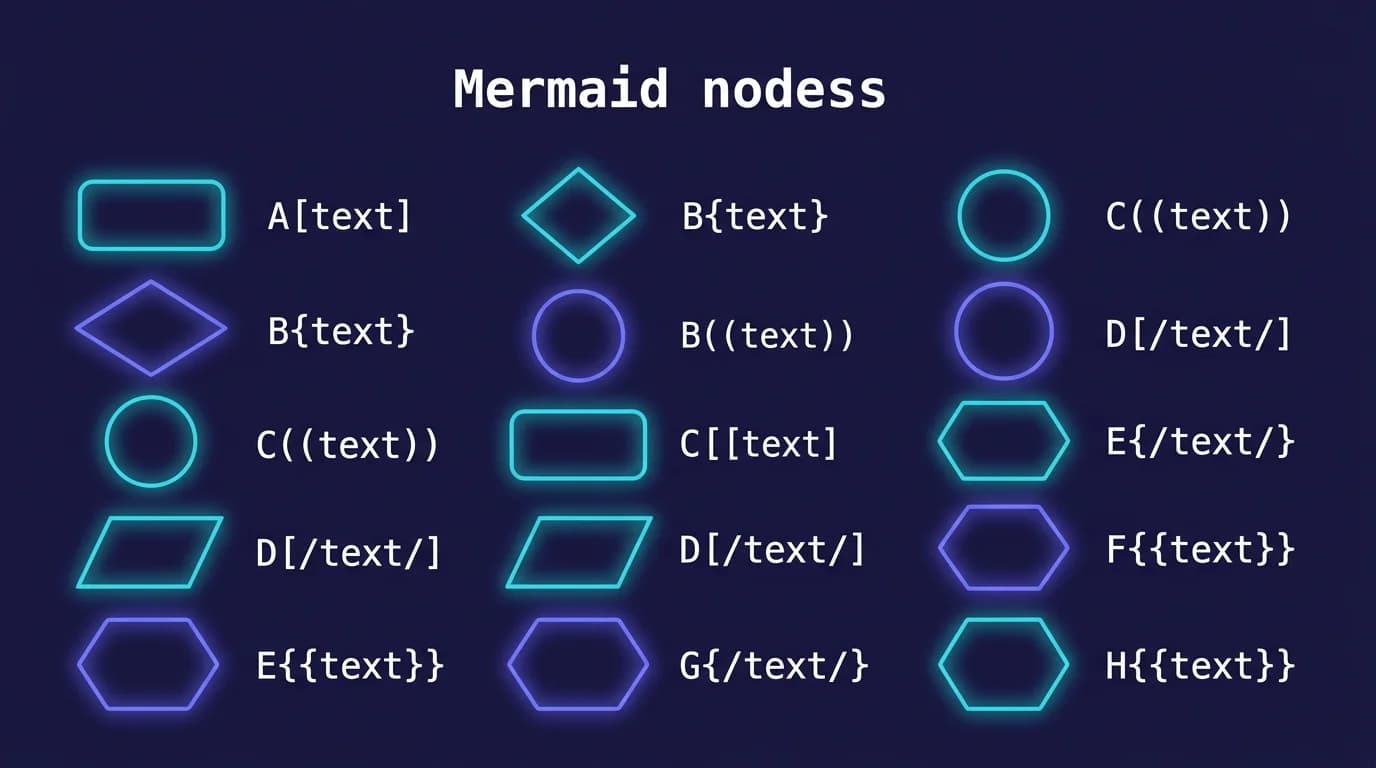
Mermaid supports over ten node shapes for mermaid flowchart diagrams. Each shape maps to a standard flowchart convention. Choose the right shape to communicate the purpose of each step at a glance:
| Syntax | Shape | Use Case |
|---|---|---|
A[text] | Rectangle | Default process step |
A(text) | Rounded rectangle | Terminal or endpoint |
A{text} | Diamond | Decision point |
A([text]) | Stadium | Start or end event |
A[[text]] | Subroutine | Function call or subprocess |
A[(text)] | Cylinder | Database or storage |
A((text)) | Circle | Connector or junction |
A>text] | Asymmetric | Input or output |
A{{text}} | Hexagon | Preparation or loop setup |
A[/text/] | Parallelogram | Input data |
A[\text\] | Alt parallelogram | Output data |
You can mix shapes freely within a single mermaid flowchart. Use rectangles for regular steps, diamonds for decisions, cylinders for databases, and stadium shapes for start and end points. The visual distinction makes complex diagrams scannable without reading every label. Consult the official Mermaid flowchart documentation for the complete list of supported shapes including experimental additions in recent releases.
What Arrow Types Can You Use in Mermaid Flowcharts?
Arrows define the flow between nodes. Mermaid provides multiple arrow styles to represent different relationship types in a mermaid flowchart. Here are the main connection syntaxes:
graph LR
    A --> B
    C --- D
    E -.-> F
G ==> H-->— solid line with arrowhead (standard flow)---— solid line without arrowhead (association)-.->— dotted line with arrowhead (optional or async)==>— thick line with arrowhead (emphasis or critical path)
Add labels to any arrow by placing text between pipes:
graph TD
    A -->|Yes| B
    A -->|No| C
    B -.->|async| D
Connect one node to multiple targets in a single line using the ampersand operator:
graph TD
    A --> B & C & D
That creates three separate arrows from A to B, C, and D. You can also chain connections: A --> B --> C draws two arrows in one statement. Combining multi-connection and chaining lets you express complex mermaid flowchart topologies in very few lines of syntax.
How Do You Add Subgraphs and Styling?
Subgraphs group related nodes inside a labeled boundary. They are essential for organizing large mermaid flowchart diagrams into logical sections. Here is an example with two subgraphs:
graph TD
    subgraph Backend
        API[API Server] --> DB[(Database)]
    end
    subgraph Frontend
        UI[Web App] --> API
    end
Each subgraph gets its own label and boundary box. Connections can cross subgraph boundaries freely. With the flowchart keyword (instead of graph), you can also set a direction inside each subgraph using direction LR or direction TB.
Style individual nodes with inline declarations:
style A fill:#f9f,stroke:#333,stroke-width:2px
style B fill:#bbf,stroke:#33b,color:#fff
For reusable styles, define a class and apply it to multiple nodes:
classDef highlight fill:#ff0,stroke:#333,stroke-width:2px
class A,B,C highlight
You can also make nodes interactive by adding click events:
click A href "https://example.com" _blank
Combining subgraphs, styling, and click handlers transforms a basic text-based mermaid flowchart into a polished, interactive diagram that communicates architecture clearly. For rendering styled diagrams locally on Mac, MacMD Viewer preserves all Mermaid CSS customizations in its preview.
What Are Common Real-World Mermaid Flowchart Examples?
Abstract syntax becomes tangible with practical examples. Here are three production-ready mermaid flowchart templates you can copy directly into your documentation.
1. CI/CD Pipeline
graph LR
    A[Push to main] --> B[Build]
    B --> C[Run Tests]
    C -->|Pass| D[Deploy Staging]
    C -->|Fail| E[Notify Team]
    D --> F{Manual Approval}
    F -->|Approved| G[Deploy Production]
    F -->|Rejected| E
This pipeline diagram shows the complete flow from code push to production deployment. The decision diamond at manual approval creates a clear gate that stakeholders can understand without reading code.
2. User Authentication Flow
graph TD
    A([User Visits App]) --> B{Logged In?}
    B -->|Yes| C[Dashboard]
    B -->|No| D[Login Page]
    D --> E{Valid Credentials?}
    E -->|Yes| F[Create Session]
    E -->|No| G[Show Error]
    G --> D
    F --> C
Authentication flows benefit from diamond decision nodes that make branching logic visible. Product managers and security reviewers can trace every path through the system without reading source code.
3. Error Handling Decision Tree
graph TD
    A[API Request] --> B{Status Code}
    B -->|200| C[Parse Response]
    B -->|401| D[Refresh Token]
    B -->|429| E[Wait & Retry]
    B -->|500| F[Log Error]
    D --> G{Token Valid?}
    G -->|Yes| A
    G -->|No| H[Force Logout]
    E --> A
    F --> I[Alert Team]
Error handling trees map naturally to mermaid flowchart syntax because every status code becomes a labeled branch. This pattern works equally well for HTTP error handling, exception hierarchies, and validation pipelines. For more diagram types beyond flowcharts, see our Mermaid sequence diagram guide.
How Do You Preview Mermaid Flowcharts?
Writing the syntax is half the job. You need a renderer to verify that your mermaid flowchart looks correct before committing it to documentation. Here are the main options:
- MacMD Viewer — native Mac app ($19.99) that renders all Mermaid diagram types in local
.mdfiles. Open a file and the flowchart appears instantly. The bundled QuickLook extension lets you press Space in Finder to preview diagrams without opening any app. - Mermaid Live Editor — free browser-based playground. Paste syntax on the left, see the rendered output on the right. Export as SVG or PNG.
- VS Code — install the Markdown Mermaid extension, open a
.mdfile, and press Cmd+Shift+V to toggle the preview pane.
For a full comparison of rendering tools, see our best Mermaid viewers roundup. If you prefer online tools, the online Mermaid diagram tools comparison covers five browser-based options. Check pricing for MacMD Viewer details.
Conclusion
Mermaid flowchart syntax is straightforward: pick a direction, define nodes with shapes, connect them with arrows, and group with subgraphs. This is part of the Mermaid ecosystem — see our full Mermaid guide for all diagram types. The examples in this reference cover 90% of real-world use cases. Copy them, modify the labels, and paste into your project documentation. Preview locally with MacMD Viewer for instant rendering on Mac, or use mermaid.live in any browser.
Continue reading with AI
Content licensed under CC BY 4.0. Cite with attribution to MacMD Viewer.