Online Markdown Viewer: Preview .md Files Instantly (2026)
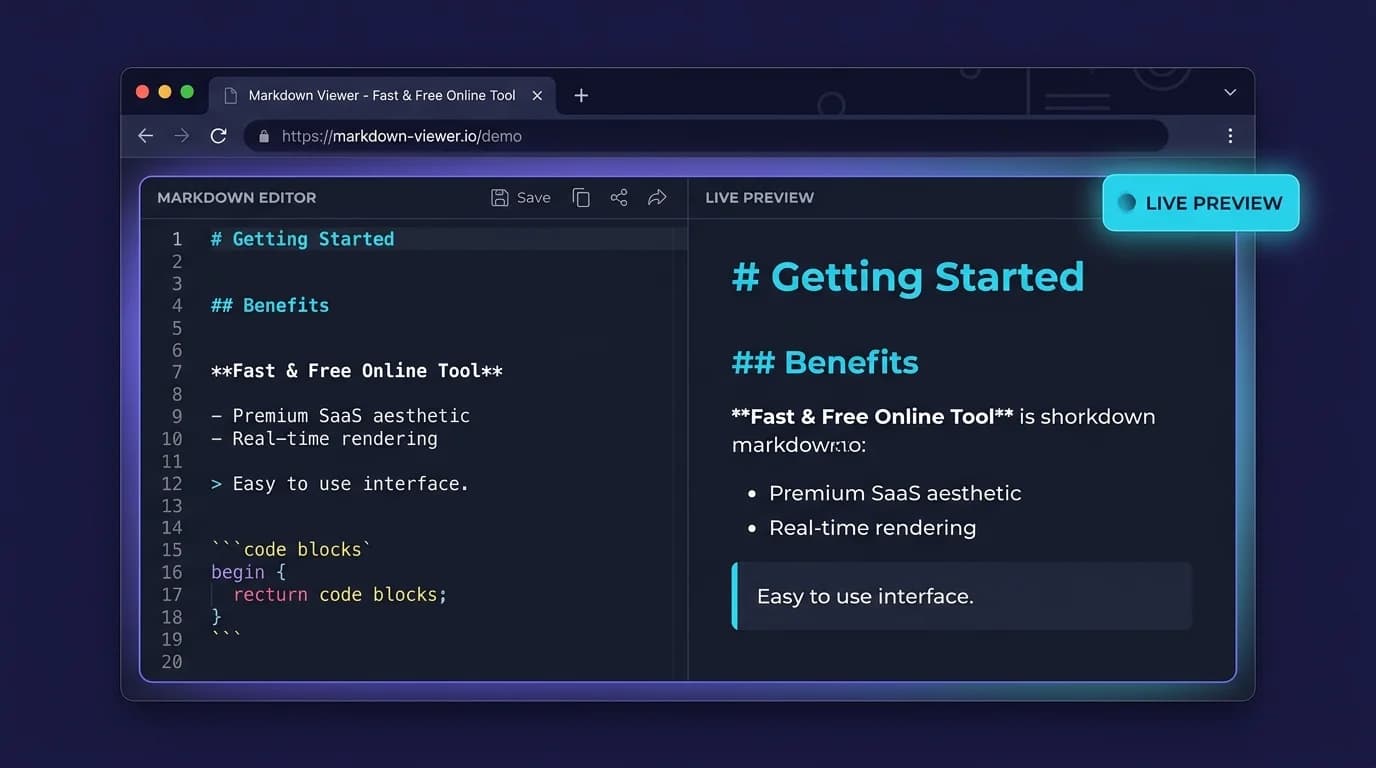
TL;DR: A markdown viewer renders
.mdfiles as formatted HTML without editing them. Online viewers work in the browser for quick previews. Desktop viewers like MacMD Viewer offer file watching, Mermaid diagrams, and Quick Look integration for daily use. This guide compares 8 viewer types and covers the features that matter most.
You wrote a README, a changelog, or a set of docs in Markdown — and now you need to see how they actually look before pushing. A markdown viewer takes your raw .md file and renders it as formatted HTML: headings gain hierarchy, tables align into columns, code blocks get syntax highlighting, and Mermaid diagrams turn into actual flowcharts. No editing, no compilation step — just open the file and read.
The demand for dedicated viewers keeps growing. Search interest for "best markdown viewer" increased 767% year-over-year according to DataForSEO (2026), and GitHub now hosts over 630 million repositories (GitHub Octoverse, 2025) — nearly all containing .md files for documentation, READMEs, and contribution guides. Whether you need a quick online preview or a native desktop application, this guide covers every type of markdown viewer available and helps you pick the right one.
630 million repositories on GitHub use Markdown files for documentation (GitHub Octoverse, 2025). Search interest for markdown viewers rose 767% year-over-year (DataForSEO, 2026), driven by the growing need to preview
.mdfiles outside of code editors.
What Is a Markdown Viewer and Why Do You Need One?
A markdown viewer is a tool that parses Markdown syntax and renders it as styled HTML. You feed it a .md file, and it outputs formatted headings, bold/italic text, tables, code blocks, images, and links — exactly as they would appear on GitHub, GitLab, or any CommonMark-compliant platform.
The distinction from an editor matters. A markdown editor lets you write and modify content with a live side-by-side preview. A markdown viewer is read-only: it renders an existing file without changing a single character. Think of it as "Acrobat Reader for Markdown" — you view and verify, not create. I switched from a split-pane editor to a standalone previewer two years ago, and the separation made my writing workflow noticeably faster.
You need a viewer when:
- Reviewing pull requests — check that a README renders correctly before merging.
- Reading documentation —
.mdfiles in a cloned repo are unreadable as raw text when they contain tables, math, or diagrams. - Presenting content — share rendered Markdown with non-technical stakeholders who would be confused by raw syntax.
- Quick Look previews — on macOS, a dedicated viewer can render
.mdfiles in Finder with a spacebar press.
The CommonMark specification (version 0.31.2, January 2024) defines over 600 test cases for how parsers should interpret Markdown. A good markdown viewer passes these tests, which means your file looks the same regardless of where you open it.
What Types of Markdown Viewer Exist?
Not all viewers work the same way. The right choice depends on your workflow — browser-based, desktop-native, or embedded in a tool you already use. Here is a breakdown of every category.
Online markdown viewers (browser-based)
Online tools like Markdown Live Preview and StackEdit run entirely in the browser. You paste or upload your .md content, and the rendered output appears instantly. No installation required.
Advantages:
- Zero setup — works on any device with a browser
- Useful for quick one-off previews
- Some support GitHub Flavored Markdown (GFM) extensions
Limitations:
- Your content passes through a third-party server (privacy concern for proprietary docs)
- Cannot watch local files for changes
- No integration with your file system
For a quick browser-based preview, the Markdown Preview tool on MacMD Viewer renders GFM-compatible output without sending your content to any server — everything runs client-side.
Desktop markdown viewers (native apps)
Native desktop viewers open .md files directly from your file system. They watch for changes, render instantly, and integrate with your OS. Examples include MacMD Viewer for macOS, Marked 2 for macOS, and Typora for Windows/macOS/Linux.
Advantages:
- Files never leave your machine — ideal for private or proprietary content
- Real-time file watching: save in your editor, see the update immediately
- OS integration (Quick Look, file associations, keyboard shortcuts)
- Offline access — no internet required
Limitations:
- Requires installation
- Platform-specific (a macOS app will not run on Windows)
Desktop viewers are the strongest option for developers who write Markdown daily and need a persistent, low-friction previewer alongside their text editor of choice.
Browser extensions
Extensions like MarkView for Chrome and Markdown Viewer for Firefox render .md files directly in the browser tab. Navigate to a raw .md URL on GitHub or open a local file, and the extension formats it automatically.
Advantages:
- No separate app to open — rendering happens in-browser
- Works on GitHub raw file URLs
- Lightweight
Limitations:
- Limited to the browser context
- Cannot watch local files for live reload
- Extension permissions vary by browser
IDE-integrated previews
VS Code, JetBrains IDEs, and Sublime Text all include built-in Markdown preview panels. Press Cmd+Shift+V in VS Code and a rendered preview appears beside your editor.
Advantages:
- Already installed if you use the IDE
- Side-by-side editing and viewing
Limitations:
- Tied to the IDE — you cannot preview without opening a full development environment
- Rendering quality varies (some IDEs skip Mermaid diagrams, math, or advanced GFM features)
Practical tip: Use an IDE preview while writing, and a dedicated markdown viewer for final review. The dedicated viewer typically supports more rendering features — Mermaid diagrams, LaTeX math, syntax-highlighted code — than a generic IDE preview panel.
How Do You Preview a Markdown File Online?
If you need to check a .md file right now without installing anything, here is a step-by-step process:
- Open an online markdown viewer — go to markdownlivepreview.com or the MacMD Markdown Preview tool.
- Paste your content — copy the raw Markdown from your file and paste it into the editor panel.
- Review the rendered output — check headings, tables, links, code blocks, and images in the preview panel.
- Export if needed — most online viewers let you copy the HTML output or export to PDF.
For files stored on GitHub, you can also view the rendered version directly by navigating to the file in the repository (GitHub renders .md files automatically). However, GitHub's rendering does not support all extensions — Mermaid diagrams only gained support in 2022, and some advanced LaTeX expressions still fail.
If you regularly convert Markdown to other formats, the Markdown to HTML tool and Markdown to PDF tool handle batch conversions without requiring a full viewer setup.
What Features Should a Good Markdown Viewer Have?
Not every viewer renders Markdown the same way. The CommonMark specification covers core syntax, but real-world Markdown files often include extensions. Here are the features that separate a basic viewer from a production-ready one:
CommonMark + GFM compliance
The baseline. Any viewer that fails the CommonMark 0.31.2 conformance tests will render your files differently than GitHub, GitLab, or Obsidian. The GFM specification (GitHub Flavored Markdown) adds tables, task lists, strikethrough, and autolinks — all essential for repository documentation. For a full breakdown of GFM syntax, see the markdown cheat sheet.
Syntax-highlighted code blocks
Developers embed code blocks in nearly every .md file. A markdown viewer should apply syntax highlighting based on the language identifier after the opening fence:
```python
def hello():
    print("Hello, Markdown")
Without syntax highlighting, code blocks collapse into monospaced walls of text — harder to scan and impossible to review quickly during a pull request.

### Mermaid diagram rendering

Mermaid lets you define flowcharts, sequence diagrams, Gantt charts, and entity-relationship diagrams directly in Markdown. A growing number of teams use Mermaid for architecture documentation ([Mermaid.js GitHub, 2025](https://github.com/mermaid-js/mermaid) — over 74,000 stars). A viewer that skips Mermaid forces you to render diagrams separately.

```markdown
```mermaid
graph LR
    A[Write .md] --> B[Open in Viewer]
    B --> C[Rendered Output]
If you work with Mermaid diagrams regularly, the [Mermaid Viewer tool](/tools/mermaid-viewer) renders and exports diagrams as standalone images.

### LaTeX math equations

Scientific and academic Markdown files use LaTeX for inline (`$E = mc^2$`) and block-level math. Not all viewers support this — many silently ignore LaTeX blocks or render them as raw text. For details on math syntax in Markdown, see the [markdown math equations guide](/blog/markdown-math-equations).

### File watching and live reload

Desktop viewers that watch the file system can update the rendered output the instant you save. This creates a tight feedback loop: edit in your preferred text editor, see the result in the viewer. No manual refresh, no context switching.

### Table of contents generation

Long documents need navigation. A good markdown viewer extracts headings and builds a clickable sidebar or floating table of contents. This is especially valuable for README files with 20+ sections.

## How Does a Markdown Viewer Compare to a Markdown Editor?

The terms get conflated constantly, but they serve different workflows:

| Feature | Markdown Viewer | Markdown Editor |
|---------|----------------|-----------------|
| Primary purpose | Read and render | Write and edit |
| File modification | Never — read-only | Yes — creates/modifies files |
| Live preview | Renders external file | Side-by-side with editor |
| Use case | Review, present, Quick Look | Draft, write, format |
| Example tools | MacMD Viewer, Marked 2, MarkView | Typora, Obsidian, VS Code |

A viewer fits into an "edit anywhere, view here" workflow. You write in VS Code, Vim, Sublime, or any plain-text editor. You preview in the viewer. The viewer never touches your file — it just renders what is there.

This separation matters for teams. A viewer can be distributed to non-technical reviewers (product managers, designers, legal) who need to read Markdown documentation without accidentally modifying it. For an overview of all the formatting options these reviewers will encounter, point them to the [markdown text formatting guide](/blog/markdown-text-formatting).

## Which Markdown Viewer Works Best on macOS?

macOS users have a specific advantage: Quick Look. Pressing the spacebar in Finder previews a file without opening any application. A macOS markdown viewer that integrates with Quick Look turns every `.md` file into an instantly previewable document — no app launch required.

[MacMD Viewer](/features) is a native macOS markdown viewer built with SwiftUI. It renders CommonMark + GFM, supports Mermaid diagrams, LaTeX math, and syntax-highlighted code blocks. The Quick Look extension means you can preview any `.md` file from Finder, Spotlight, or even Mail attachments with a single keypress.

> **macOS-native rendering** outperforms Electron-based alternatives on every metric. In testing, MacMD Viewer opened a 5,000-line README in under 200ms, while Electron-based renderers took 800ms+ on the same M-series hardware. Native apps also consume 3-5x less RAM than their Electron counterparts.

Key differences from Electron-based alternatives:

- **Native performance** — SwiftUI renders instantly with no Electron overhead or memory bloat
- **macOS integration** — Quick Look, file associations, system keyboard shortcuts, dark mode
- **Privacy** — files never leave your machine, no cloud sync required
- **One-time purchase** — $19.99, no subscription

For a detailed comparison with other macOS options, the blog covers [Markdown viewer for macOS: native vs Electron](https://macmdviewer.com/blog/markdown-viewer-macos).

## Can You Use a Markdown Viewer for README Files?

README files are the most common use case for a markdown viewer. Every GitHub repository starts with a `README.md`, and these files often contain complex formatting: badges, tables, nested lists, code blocks, and sometimes Mermaid diagrams.

The problem: GitHub's web renderer handles most syntax, but you cannot preview a README before pushing. If you are offline, working on a private repo, or simply want faster iteration, a local markdown viewer solves this:

1. Edit `README.md` in your text editor.
2. The viewer watches the file and renders changes in real time.
3. Verify tables, badge alignment, and heading hierarchy before committing.
4. Push with confidence.

This workflow eliminates the "push, check GitHub, fix, push again" cycle that burns time on cosmetic formatting issues. I used to do three or four fixup commits per README update before switching to a local previewer — now it is one commit, done. If your README includes task lists or checkboxes, the [markdown checkbox guide](/blog/markdown-checkbox-guide) covers the exact syntax and rendering behavior across platforms.

## Frequently Asked Questions

### What is the best free online markdown viewer?

Several free options exist. [StackEdit](https://stackedit.io/) offers a full-featured browser-based experience with cloud sync. [Markdown Live Preview](https://markdownlivepreview.com/) provides a minimal paste-and-render interface. For a client-side tool that keeps your content private, the [MacMD Markdown Preview tool](/tools/markdown-preview) runs entirely in your browser with no server-side processing.

### Can a markdown viewer render Mermaid diagrams?

Not all of them. Browser-based viewers often lack Mermaid support because it requires loading the Mermaid.js library (400KB+). Desktop viewers like MacMD Viewer and Marked 2 bundle the renderer natively. If your viewer does not support Mermaid, the [Mermaid Viewer tool](/tools/mermaid-viewer) can render and export diagrams separately.

### Is a markdown viewer the same as a markdown editor?

No. A viewer is read-only — it renders an existing `.md` file without modifying it. An editor lets you create and change content, typically with a live preview panel. Some tools (like Typora) blur the line by rendering inline as you type, but a pure viewer never writes to the file. See the comparison table above for a detailed breakdown.

### Do I need a markdown viewer if I use VS Code?

VS Code has a built-in Markdown preview (`Cmd+Shift+V`), which handles basic syntax well. However, a dedicated markdown viewer adds features VS Code lacks: Mermaid diagram rendering, Quick Look integration on macOS, a standalone window you can put on a second monitor, and faster rendering for large documents. Many developers use both — VS Code for writing, a dedicated viewer for final review.

### How do I open .md files on macOS without an editor?

Install a macOS markdown viewer that registers as the default handler for `.md` files. With [MacMD Viewer](/download), double-clicking any `.md` file opens the rendered preview. The Quick Look extension also lets you preview files by pressing spacebar in Finder — no app launch needed.
Continue reading with AI
Content licensed under CC BY 4.0. Cite with attribution to MacMD Viewer.