 MacMD Viewer
Confluence Mermaid Diagram: Proven Setup Guide (2026)
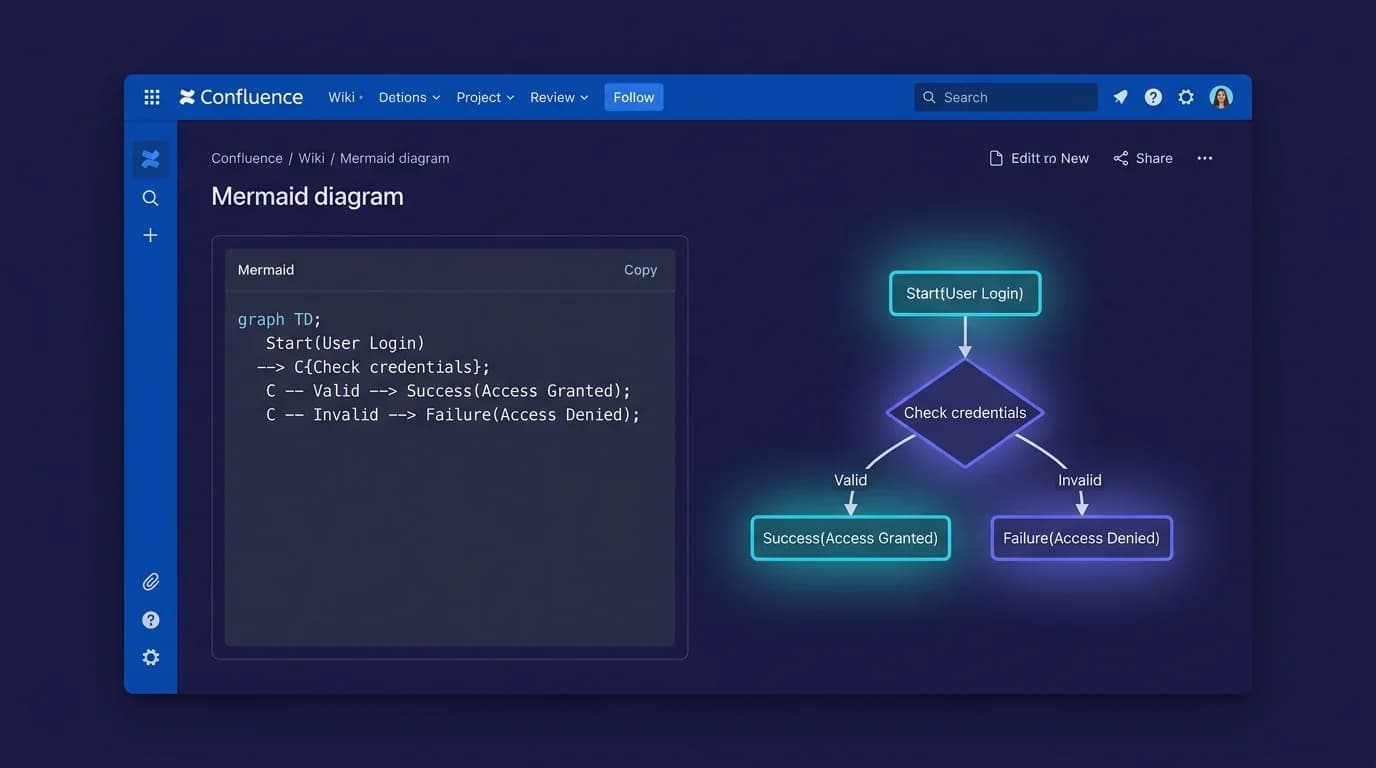
Confluence does not render Mermaid diagrams natively. Unlike GitHub and GitLab, which display Mermaid code blocks as rendered diagrams automatically, Confluence requires a third-party marketplace app to support the confluence mermaid diagram workflow (Atlassian Marketplace, 2026). With over 82,000 GitHub stars and 8 million users worldwide, Mermaid.js has become the standard for diagrams-as-code (GitHub, 2026) — but getting it running inside Confluence takes a few deliberate steps.
This guide evaluates five marketplace apps for adding confluence mermaid diagram rendering, benchmarks their capabilities and cost structures, demonstrates first-diagram creation, and presents free workarounds for teams blocked from installing plugins. Whether your squad documents API contracts with sequence diagrams or visualizes deployment pipelines through flowcharts, you will have operational Mermaid output in Confluence within 15 minutes.
TL;DR: Install the official Mermaid Chart app from the Atlassian Marketplace (free tier available), add a Mermaid macro to any Confluence page, and paste your diagram code. For previewing diagrams offline before publishing, use the free Mermaid Viewer or export to PNG with the Mermaid to PNG converter.
Why Use a Confluence Mermaid Diagram Instead of Static Images?
Mermaid diagrams are text-based, version-controllable, and editable by anyone on the team without design software. Static PNG or SVG diagrams embedded in Confluence pages become outdated the moment the architecture changes — and updating them requires opening Lucidchart, draw.io, or Figma, re-exporting, and re-uploading. A confluence mermaid diagram, by contrast, lives as plain text inside the page itself.
Three advantages over image-based diagrams:
- Searchable text — Confluence indexes the text inside Mermaid macros, so searching for a service name returns the diagram that contains it. Image alt text is not indexed the same way.
- Instant edits — changing an arrow direction or adding a node takes seconds. No round-trip to an external tool, no file re-upload, no broken image links.
- Consistency — Mermaid enforces a uniform visual style across all diagrams on your wiki. Different team members using different design tools produce inconsistent visuals; Mermaid syntax produces identical rendering every time.
Teams already using Mermaid in GitHub READMEs or GitLab wikis can copy the same diagram code into Confluence without modification. The syntax is identical across platforms — only the rendering environment changes.
According to the Mermaid project, over 8 million developers use Mermaid.js across documentation platforms including GitHub, GitLab, Notion, and Obsidian (Mermaid.ai, 2026). Adopting it in Confluence means your diagrams travel with your documentation, regardless of where it lives.
Which Confluence Mermaid Diagram Plugins Are Available?
The Atlassian Marketplace lists over 10 Mermaid-related apps, but five stand out for active maintenance, feature depth, and user reviews. Here is a comparison of the top options as of March 2026.
1. Mermaid Chart for Confluence (Official)
Built by the creators of Mermaid.js, this is the official integration (Atlassian Marketplace, 2026). It launched in 2024 and receives regular updates — version 2.1.0 shipped in October 2025.
Key features:
- Visual editor alongside the code editor
- AI-powered diagram generation from natural language descriptions
- Syntax highlighting with inline error detection
- Real-time collaboration (multiple editors on the same diagram)
- Free tier available
Best for teams that want the most up-to-date Mermaid.js rendering engine and official support from the Mermaid team.
2. Mermaid Charts & Diagrams for Confluence (weweave)
One of the longest-running Mermaid apps on the marketplace, maintained by weweave (Atlassian Marketplace, 2026). Version 1.0.34-AC shipped in August 2025.
Key features:
- Live preview with syntax and error highlighting
- Supports all Mermaid diagram types (flowchart, sequence, class, state, ER, Gantt, pie, and more)
- Confluence Cloud and Data Center versions available
- Established track record with years of marketplace reviews
Best for teams on Confluence Data Center who need a proven, stable plugin.
3. Mermaid Diagrams for Confluence (Amoeboids)
A popular alternative with a clean editor interface (Atlassian Marketplace, 2026). Version 3.1.0 released September 2025.
Key features:
- Full-screen editing mode
- Dark and light theme support
- Export diagrams as PNG or SVG directly from Confluence
- Macro-based insertion (type
/mermaidto add)
Best for teams that want quick diagram exports without leaving Confluence.
4. Excalidraw & Mermaid Diagrams for Confluence
Combines Excalidraw's freehand whiteboard tool with Mermaid rendering (Atlassian Marketplace, 2026). Useful when your team needs both structured Mermaid diagrams and informal whiteboard sketches in the same workspace.
5. Diagrams for Confluence (Mermaid, PlantUML, etc.)
A multi-syntax plugin that supports Mermaid alongside PlantUML, Graphviz, and other diagram languages (Atlassian Marketplace, 2026). Ideal for teams with mixed diagram preferences who want a single app to cover all formats.
The Atlassian Marketplace hosts over 10 Mermaid-compatible apps for Confluence as of March 2026, with the official Mermaid Chart plugin receiving updates from the same team that maintains the 82,000-star open-source Mermaid.js library (Atlassian Marketplace, 2026). Only three of these apps support both Confluence Cloud and Data Center deployments.
Quick Comparison Table
| App | Free Tier | Data Center | Visual Editor | AI Generation | Last Updated |
|---|---|---|---|---|---|
| Mermaid Chart (Official) | Yes | No | Yes | Yes | Oct 2025 |
| weweave Mermaid | Trial | Yes | No | No | Aug 2025 |
| Amoeboids Mermaid | Trial | Yes | No | No | Sep 2025 |
| Excalidraw + Mermaid | Trial | Yes | Yes (Excalidraw) | No | 2025 |
| Multi-Diagrams | Trial | Yes | No | No | 2025 |
How Do You Install a Confluence Mermaid Diagram Plugin?
Installation takes under 5 minutes and requires Confluence admin permissions. Here is the step-by-step process using the official Mermaid Chart app as an example.
For Confluence Cloud
- Open your Confluence instance and click the gear icon (Settings) in the top navigation.
- Select Find new apps from the left sidebar under Atlassian Marketplace.
- Search for "Mermaid Chart" in the search bar.
- Click Install on the Mermaid Chart for Confluence listing.
- Accept the permissions prompt — the app needs read/write access to pages where you insert diagrams.
- Wait for installation to complete (typically 10-30 seconds).
- Navigate to any Confluence page, click Edit, and type
/mermaidto verify the macro appears.
For Confluence Data Center
- Log in as a Confluence administrator.
- Go to Administration > Manage apps.
- Click Find new apps and search for your preferred Mermaid plugin.
- Click Install and follow the prompts.
- Some plugins require a license key — enter it in the Manage apps section after installation.
Verifying the Installation
After installation, create a test page and insert the Mermaid macro. Paste this minimal flowchart to confirm rendering works:
graph TD
    A[Start] --> B{Decision}
    B -->|Yes| C[Action]
    B -->|No| D[End]
If the diagram renders as a visual flowchart rather than displaying raw text, your confluence mermaid diagram setup is complete.
Installing a Mermaid plugin on Confluence Cloud takes under 5 minutes and requires only admin-level permissions. The official Mermaid Chart app adds a
/mermaidslash command to the page editor, letting any team member insert diagrams without touching configuration settings (Mermaid Chart, 2025).
What Mermaid Diagram Types Work in Confluence?
All standard Mermaid diagram types render correctly through marketplace plugins. Mermaid.js supports over 20 diagram types as of version 11 (Mermaid Documentation, 2026). The most useful ones for Confluence documentation are:
Flowcharts
The most commonly used Mermaid diagram type. Map decision trees, process flows, and system architectures:
graph LR
    User[User Request] --> API[API Gateway]
    API --> Auth[Auth Service]
    API --> Data[Data Service]
    Auth --> DB[(User DB)]
    Data --> Cache[(Redis Cache)]
    Data --> DB2[(Main DB)]
Sequence Diagrams
Document API interactions, authentication flows, and microservice communication:
sequenceDiagram
    participant Client
    participant API
    participant Auth
    participant DB
    Client->>API: POST /login
    API->>Auth: Validate credentials
    Auth->>DB: Query user
    DB-->>Auth: User record
    Auth-->>API: JWT token
    API-->>Client: 200 OK + token
Entity-Relationship Diagrams
Map database schemas directly in your Confluence documentation:
erDiagram
    USER ||--o{ ORDER : places
    ORDER ||--|{ LINE_ITEM : contains
    PRODUCT ||--o{ LINE_ITEM : "is in"
    USER {
        int id PK
        string email
        string name
    }
Gantt Charts
Track project timelines and sprint planning:
gantt
    title Q2 Release Plan
    dateFormat YYYY-MM-DD
    section Backend
    API redesign       :a1, 2026-04-01, 30d
    Database migration  :a2, after a1, 14d
    section Frontend
    UI components      :b1, 2026-04-01, 21d
    Integration tests  :b2, after b1, 14d
Other Supported Types
Confluence Mermaid plugins also support class diagrams, state diagrams, pie charts, Git graph visualizations, mindmaps, C4 architecture diagrams, Sankey diagrams, and quadrant charts. If the Mermaid.js documentation lists a diagram type, your Confluence plugin should render it — though always test new syntax against your plugin's bundled Mermaid version.
How Do You Write Your First Confluence Mermaid Diagram?
Start with a flowchart — the simplest Mermaid syntax — and build complexity incrementally. Flowcharts are the most widely used Mermaid diagram type, supporting over 30 node shapes and subgraph nesting (Mermaid Documentation, 2026). Here is a practical walkthrough from blank page to published diagram.
Step 1: Open the Mermaid Editor
Edit any Confluence page and type /mermaid (or the macro shortcut for your specific plugin). The Mermaid editor panel opens with a blank code area on the left and a preview pane on the right.
Step 2: Define the Diagram Type
Every Mermaid diagram starts with a type declaration on the first line:
graph TD       → Top-down flowchart
graph LR       → Left-right flowchart
sequenceDiagram → Sequence diagram
erDiagram      → Entity-relationship diagram
gantt          → Gantt chart
Step 3: Add Nodes and Connections
For a flowchart, define nodes with labels in brackets and connect them with arrows:
graph TD
    PR[Pull Request Created] --> Review[Code Review]
    Review --> |Approved| Merge[Merge to Main]
    Review --> |Changes Requested| Fix[Developer Fixes]
    Fix --> Review
    Merge --> Deploy[Deploy to Staging]
    Deploy --> QA[QA Verification]
    QA --> |Pass| Prod[Deploy to Production]
    QA --> |Fail| Fix
Step 4: Style Your Diagram (Optional)
Add colors and styling to highlight critical paths:
graph TD
    A[Healthy] --> B{Health Check}
    B --> |Pass| C[Running]
    B --> |Fail| D[Alerting]
    D --> E[Auto-Restart]
    E --> B
    style D fill:#ff6b6b,stroke:#c92a2a,color:#fff
    style C fill:#51cf66,stroke:#2b8a3e,color:#fff
Step 5: Publish and Verify
Click Save or Publish on the Confluence page. The Mermaid macro renders the diagram inline with the rest of your page content. Other team members see the rendered diagram immediately — they can edit the code by clicking into the macro.
Before pasting Mermaid code into Confluence, validate the syntax using a free tool like the Mermaid Viewer. This catches syntax errors before they appear as broken macros on your published Confluence page.
What Are Free Alternatives to Confluence Mermaid Diagram Plugins?
Teams that cannot install marketplace apps have three workarounds: embed rendered images, use draw.io's Mermaid import, or link to external Mermaid viewers. None match the seamless editing experience of a dedicated plugin, but they get diagrams onto Confluence pages without admin approval.
Option 1: Render Locally and Embed as Image
Write your Mermaid code in any text editor, render it using the Mermaid to PNG converter, and upload the PNG to your Confluence page. This approach requires no marketplace apps but loses the text-based editability that makes Mermaid valuable.
Workflow:
- Write Mermaid syntax in a
.mdfile or the Mermaid Viewer. - Export as PNG using the converter tool.
- Upload the PNG to your Confluence page via the image macro.
- Store the source
.mdfile in your Git repository for future edits.
Option 2: Use draw.io's Mermaid Import
The draw.io app for Confluence (widely installed in many organizations) supports Mermaid syntax import (draw.io Blog, 2025). Insert a draw.io diagram, click Extras > Edit from Mermaid, paste your code, and the diagram converts to draw.io's native format.
Limitation: this is a one-way conversion. The diagram becomes a draw.io object — you cannot edit the Mermaid source code later.
Option 3: Link to an External Viewer
Paste a link to the Mermaid Live Editor (mermaid.live) with your diagram encoded in the URL. Team members click the link to view and edit the diagram in their browser. Not embedded, but functional for teams with strict plugin policies.
How Do You Preview Confluence Mermaid Diagrams on macOS?
Use a native Markdown viewer with Mermaid support to preview diagrams locally before publishing them to Confluence. Writing Mermaid syntax directly in the Confluence editor works, but complex diagrams benefit from a faster local preview loop.
MacMD Viewer (Mermaid viewer · Mac Mermaid tools) renders Mermaid diagrams natively inside any .md file on macOS. Open a Markdown file containing a Mermaid code block, and the diagram renders instantly in the preview pane — no browser extensions, no plugins, no configuration. This lets you draft and iterate on confluence mermaid diagram code in your local editor, then paste the final version into Confluence.
The workflow for teams that use both Confluence and Markdown-based repositories:
- Write your Mermaid diagram in a
.mdfile in your Git repository. - Preview it locally with MacMD Viewer — the diagram renders in real time as you type.
- Copy the Mermaid code block into your Confluence page's Mermaid macro.
- The same diagram now exists in both your Git repo (for developers) and Confluence (for stakeholders).
This dual-publishing approach keeps technical diagrams in sync across documentation platforms.
Mermaid.js syntax is platform-agnostic: the same code block renders identically on GitHub, GitLab, Notion, Obsidian, and Confluence with a plugin installed (Mermaid.ai, 2026). Teams maintaining documentation in both Git repositories and Confluence can author Mermaid diagrams once and publish to both platforms without modification.
What Are Common Confluence Mermaid Diagram Errors and Fixes?
Most rendering failures come from syntax errors that Confluence plugins surface as blank macros or error messages. Here are the five most frequent issues and their fixes.
Error 1: Diagram Shows Raw Text Instead of a Rendered Image
Cause: The Mermaid plugin is not installed, or the macro type is wrong. Confluence does not render Mermaid natively.
Fix: Verify the plugin is installed (Settings > Manage apps). Ensure you are using the Mermaid macro, not a generic code block.
Error 2: "Parse Error" in the Preview Pane
Cause: Invalid syntax — often a missing arrow type, unclosed bracket, or unsupported character.
Fix: Paste your code into the Mermaid Viewer to see the exact line with the error. Common culprits:
- Using
->instead of-->for arrows - Parentheses
()in node labels without quoting: useA["Label (with parens)"] - Special characters like
&,<,>that need quoting
Error 3: Diagram Renders but Looks Broken on Mobile
Cause: Complex diagrams with many nodes overflow the mobile viewport.
Fix: Use graph LR (left-to-right) instead of graph TD (top-down) for wide diagrams. Break large diagrams into sub-diagrams across multiple macros on the page.
Error 4: Plugin Version Does Not Support New Diagram Types
Cause: Your installed plugin bundles an older version of Mermaid.js that does not support newer diagram types like mindmaps or Sankey diagrams.
Fix: Update the plugin to the latest version in Manage apps. If the maintainer has not updated the bundled Mermaid version, switch to the official Mermaid Chart plugin, which tracks the latest Mermaid.js releases.
Parse errors are the most common Mermaid rendering failure in Confluence. The root cause is usually invalid arrow syntax (
->instead of-->) or unquoted special characters in node labels. Validating syntax in a standalone viewer before pasting into Confluence eliminates most macro failures.
Error 5: Diagrams Disappear After Confluence Migration
Cause: Migrating from Confluence Server to Cloud (or vice versa) can break macro data if the plugin is not installed on the target instance.
Fix: Install the same Mermaid plugin on the destination instance before migrating. If switching plugins, export all Mermaid source code to .md files first as a backup.
Frequently Asked Questions
Does Confluence support Mermaid diagrams without a plugin?
No — Confluence has no built-in Mermaid rendering as of March 2026 (Atlassian Marketplace, 2026). You must install a marketplace app to display Mermaid syntax as visual diagrams. GitHub and GitLab parse Mermaid code blocks natively in Markdown files, but Confluence relies on its proprietary page format and requires a dedicated macro from a third-party vendor.
Is the official Mermaid Chart plugin free?
Yes, the Mermaid Chart for Confluence app includes a free tier for individual and basic team usage (Atlassian Marketplace, 2026). Premium capabilities — AI-assisted generation, advanced collaboration controls — sit behind a paid subscription. Competing third-party plugins generally offer a 7-to-30-day trial window before requiring a purchased license.
Can I use Mermaid diagrams in Confluence Data Center?
Yes, though plugin availability varies by hosting model. The weweave and Amoeboids apps ship Data Center-compatible editions. The official Mermaid Chart app targets Confluence Cloud exclusively as of early 2026. Always verify the "Hosting" filter on any Atlassian Marketplace listing before committing to a purchase.
How do I convert existing Confluence diagrams to Mermaid?
No automated migration path exists from draw.io or Gliffy to Mermaid syntax. You will need to recreate each diagram manually in Mermaid code. Draft your syntax in the Mermaid Viewer, validate the output, then paste the finished code into your Confluence Mermaid macro. For intricate multi-node architectures, describe the layout to an AI coding assistant and request Mermaid output — this accelerates the rewrite significantly.
What is the maximum diagram complexity Confluence Mermaid plugins handle?
Most plugins render 50-100 nodes without noticeable lag. Past that threshold, performance degrades depending on browser resources and the Mermaid.js version bundled with your plugin. Split oversized diagrams into multiple macros on the same page, or use the subgraph keyword to cluster related nodes and reduce rendering overhead.
Mermaid brings diagrams-as-code into Confluence, bridging the gap between developer-facing Git repositories and stakeholder-oriented team wikis. Pick a plugin, author your first flowchart, and iterate at a pace no drag-and-drop canvas can match. If you also maintain Markdown files outside Confluence, MacMD Viewer renders Mermaid natively on macOS — providing a unified preview workflow across every documentation surface your organization touches.
For related workflows, see our guide on converting Confluence pages to Markdown when migrating documentation between platforms.
Content licensed under CC BY 4.0. Cite with attribution to MacMD Viewer.