Markdown Reader: 7 Fast Ways to Read .md Files (2026)
TL;DR: A markdown reader renders
.mdfiles as formatted HTML without editing them. Online readers handle quick previews. Native desktop readers like MacMD Viewer add file watching, Mermaid diagrams, and Quick Look integration for daily use. This guide compares 7 reader types and the features that separate them.
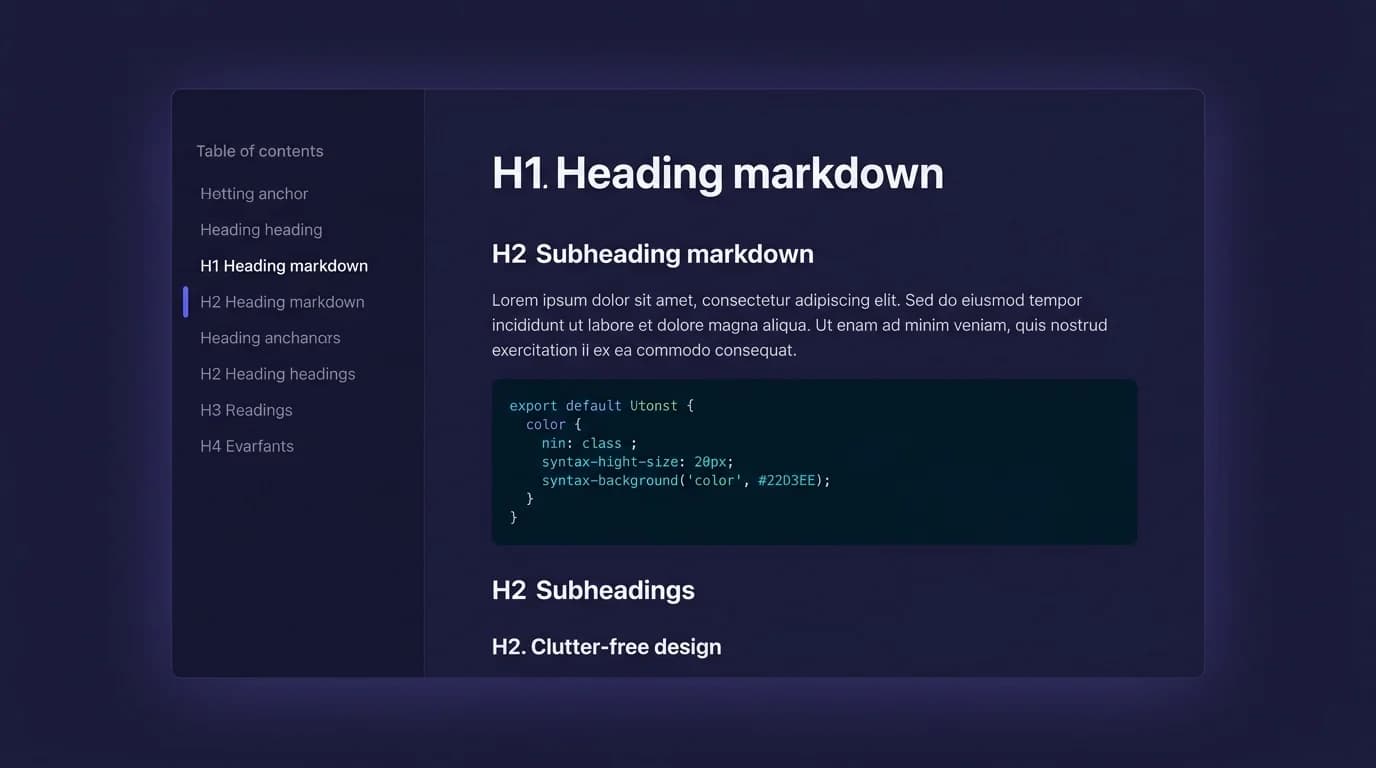
A markdown reader takes a raw .md file and renders it as formatted HTML so you can actually read it — headings gain hierarchy, tables align into columns, code blocks get syntax highlighting, and Mermaid fences become flowcharts. You never edit the file. You just open it, read the rendered output, and move on with your work.
GitHub hosts over 630 million repositories (GitHub Octoverse, 2025), nearly all containing .md files for documentation, changelogs, and contribution guides. The Markdown Editor App market reached USD 1.21 billion in 2024 and is projected to grow at 12.3% CAGR through 2033 (DataIntelo, 2024). That growth signals a basic truth: developers need a reliable markdown reader that fits their platform and workflow, not a bloated editor they will never write in.
USD 1.21 billion — the Markdown editor and viewer market in 2024, projected to reach USD 3.44 billion by 2033 (DataIntelo, 2024). The 12.3% CAGR reflects growing demand for tools that render
.mdfiles natively, driven by remote work and AI-generated documentation.
What Is a Markdown Reader and How Does It Differ from an Editor?
A markdown reader parses Markdown syntax and renders it as styled HTML. You feed it a .md file, and it outputs formatted headings, bold text, tables, code blocks with syntax highlighting, images, and hyperlinks — exactly as they would appear on GitHub or any CommonMark-compliant platform.
The difference from a Markdown editor is critical. An editor gives you a writing surface with a live side-by-side preview. A reader is read-only: it renders an existing file without changing a single byte. Think of it as "Preview.app for Markdown" — you view and verify, not create.
The rendering pipeline works in three stages:
- Parse — the reader tokenizes raw
.mdtext into an abstract syntax tree (AST). A## Headingbecomes a heading node,**bold**becomes a strong-emphasis node. - Transform — the AST nodes convert to HTML elements. Fenced code blocks gain language-specific syntax highlighting. Mermaid fences become SVG diagrams.
- Render — CSS styles the HTML output. The result looks like a polished document instead of raw characters.
The CommonMark specification (version 0.31.2, January 2024) defines over 600 test cases to ensure parsers interpret Markdown identically across tools (CommonMark, 2024). A good markdown reader passes these tests, which means your file renders the same way regardless of which reader you choose.
The CommonMark specification (version 0.31.2, 2024) standardizes Markdown parsing across over 600 test cases, ensuring consistent rendering on every compliant reader. Any markdown reader that claims CommonMark compliance must produce identical output for the same input file.
Which Markdown Reader Methods Work on Each Platform?
Not every markdown reader works on every operating system. The right choice depends on where you work, how often you read .md files, and whether you need features like live reload or Quick Look. Here are seven proven methods.
1. Native desktop markdown reader (macOS)
A native desktop reader opens .md files directly from Finder, watches for changes in real time, and integrates with macOS features like Quick Look and Spotlight. MacMD Viewer is purpose-built for this workflow — you open a file, and it renders with full GitHub Flavored Markdown support, Mermaid diagrams, LaTeX math, and syntax-highlighted code blocks. Save in your editor, and MacMD refreshes the preview instantly.
Best for: developers and technical writers on macOS who read .md files daily alongside their editor of choice.
Key advantage: files never leave your machine. Unlike browser-based tools, a native reader processes everything locally — essential for proprietary documentation and private repositories. I switched from a browser-based previewer to a native desktop reader two years ago, and the file-watching workflow alone cut my context-switching time in half.
2. Browser-based preview tools (online)
Online tools like Markdown Live Preview and StackEdit run entirely in the browser. Paste or upload your .md content, and the rendered output appears instantly. Zero installation required.
For a privacy-focused alternative, the Markdown Preview tool on MacMD Viewer renders GFM-compatible output entirely client-side — your content never touches a server.
Best for: quick one-off previews when you cannot install software, or when sharing rendered output with a colleague.
Limitation: cannot watch local files for changes. Every update requires a manual paste.
3. VS Code built-in preview
Visual Studio Code includes a Markdown preview panel accessible via Cmd+Shift+V (macOS) or Ctrl+Shift+V (Windows/Linux). The preview updates as you type and supports most GFM syntax including tables, task lists, and fenced code blocks.
Best for: developers already working in VS Code who want a quick check without opening another application.
Limitation: Mermaid diagrams require a separate extension (Markdown Preview Mermaid Support). LaTeX math rendering is inconsistent without additional plugins.
4. Browser extensions
Extensions like MarkView for Chrome and Markdown Viewer for Firefox render .md files directly in the browser tab. Navigate to a raw .md URL on GitHub or open a local file, and the extension formats it automatically.
Best for: users who frequently read .md files on GitHub or GitLab without cloning repositories.
Limitation: restricted to the browser context. No file watching, no OS-level integration.
5. Terminal-based CLI tools
Tools like Glow and bat render Markdown directly in the terminal with styled output. Glow applies colors, word wrapping, and heading formatting without leaving the command line.
# Install Glow via Homebrew
brew install glow

# Read a markdown file in the terminal
glow README.md
Best for: developers who live in the terminal and want to read documentation without switching contexts.
Limitation: no graphical rendering. Tables may misalign in narrow terminal windows. Images and diagrams cannot display.
6. GitHub and GitLab built-in rendering
GitHub and GitLab render .md files automatically when you navigate to them in a repository. The rendering supports GFM extensions including task lists, tables, emoji shortcodes, and — on GitHub — Mermaid diagrams natively.
Best for: reading documentation that already lives in a hosted repository.
Limitation: requires internet access. Cannot render local files on your machine. Rendering depends on the platform's parser, which may differ from your local tools.
7. macOS Quick Look with a preview plugin
On macOS, pressing the spacebar in Finder triggers Quick Look — a system-wide preview for any file. By default, Quick Look shows raw .md text. With a dedicated plugin like MacMD Viewer's Quick Look extension, pressing spacebar renders the Markdown as formatted HTML with syntax highlighting and proper heading hierarchy.
Best for: macOS users who browse files in Finder and want instant rendered previews without opening any application.
This method eliminates friction entirely. You see the formatted output in the same gesture you use to preview PDFs and images.
How Do You Choose the Right Markdown Reader?
Selecting a markdown reader comes down to three factors: your operating system, your workflow frequency, and the Markdown features you rely on.
| Factor | Occasional reader | Daily reader |
|---|---|---|
| Frequency | A few times per week | Multiple times per day |
| Best tool | Browser-based or VS Code | Native desktop app |
| Key feature | Zero setup | File watching + Quick Look |
| Privacy | Acceptable to paste online | Files must stay local |
If you read .md files once a week, a browser-based markdown reader or the VS Code preview handles the job. If you read them daily — reviewing READMEs, scanning changelogs, proofing documentation before committing — a native reader that watches for file changes and integrates with your OS delivers a measurably faster workflow.
GitHub hosts over 630 million repositories (GitHub Octoverse, 2025), and nearly all contain
.mdfiles requiring a dedicated reader. The 2025 Stack Overflow Developer Survey ranked Markdown as the most admired sync tool for the third consecutive year (Stack Overflow, 2025), confirming that developers read Markdown files far more often than they write them.
Feature checklist for evaluating a markdown reader
Not every reader supports the same Markdown extensions. Before committing to a tool, verify it handles the syntax you actually use:
- GitHub Flavored Markdown (GFM) — tables, task lists, strikethrough, autolinks
- Syntax highlighting — fenced code blocks with language-specific coloring
- Mermaid diagrams — flowcharts, sequence diagrams, Gantt charts rendered as SVG
- LaTeX math — inline
$...$and block$$...$$equations - Table of contents — automatic heading-based navigation
- File watching — live reload when the source file changes on disk
- Quick Look integration — spacebar preview on macOS (see the complete features list)
For a deeper look at .md file types and how they work, read the guide to MD files. If you want to understand the formatting syntax itself, the markdown cheat sheet covers every element.
What Makes a Native Markdown Reader Better than Online Tools?
Online markdown readers solve the "quick preview" problem well. But for sustained daily use, native desktop readers hold significant advantages.
Speed and responsiveness. A native app renders instantly because it runs compiled code on your CPU — no network round-trip, no JavaScript execution delay. Open a 2,000-line README and the rendered output appears in under 100 milliseconds.
File watching. Native readers monitor the file system for changes. Save a file in Vim, VS Code, or Sublime Text, and the markdown reader refreshes the preview automatically. This creates a live-preview workflow without the reader being an editor.
Privacy. Your files never leave your machine. For teams working with proprietary documentation, internal architecture decision records, or pre-release changelogs, a local markdown reader eliminates the security concerns of pasting content into a web-based tool.
OS integration. Features like Quick Look previews, Spotlight indexing, and file-type associations only work with native apps. These integrations reduce the number of steps between "I have a .md file" and "I am reading the formatted output."
MacMD Viewer is built specifically for this use case — a native macOS markdown reader with file watching, Mermaid support, syntax highlighting, and Quick Look integration. It replaces the gap between your text editor and a rendered preview, without becoming another editor.
The Markdown Editor App market is projected to grow from USD 1.21 billion in 2024 to USD 3.44 billion by 2033 at a 12.3% CAGR (DataIntelo, 2024). Native desktop readers capture an increasing share of this market because they address the privacy, speed, and OS-integration needs that browser-based tools cannot match.
How Do You Convert Markdown After Reading It?
Reading is often the first step. After verifying the content looks correct, you may need to convert it to another format. Several workflows connect naturally to a markdown reader:
- Markdown to PDF — share rendered documentation with non-technical stakeholders. The Markdown to PDF converter handles this without installing additional software.
- Markdown to HTML — embed rendered content in a website or email. The Markdown to HTML tool converts your file with clean, semantic markup.
- HTML to Markdown — reverse the process when migrating content back to
.mdformat. The HTML to Markdown converter preserves heading structure and links.
These conversions work best when paired with a markdown reader that previews the output first. Read the file, verify the rendering, then convert with confidence.
Markdown conversion tools depend on the same CommonMark parsing pipeline that markdown readers use (CommonMark, 2024). Previewing in a compliant reader before converting ensures the output matches expectations — headings, tables, and code blocks render identically in both the preview and the exported format.
Frequently Asked Questions
What is the difference between a markdown reader and a markdown editor?
A markdown reader renders .md files as formatted HTML without modifying them — it is strictly read-only. A markdown editor provides a writing surface with live preview, letting you create and modify content. Use a reader when you want to view existing documentation; use an editor when you need to write new content.
Can I use a markdown reader to preview GitHub READMEs before pushing?
Yes. Open your README.md in a markdown reader that supports GitHub Flavored Markdown, verify the headings, tables, and links render correctly, then commit with confidence. Native readers like MacMD Viewer support GFM extensions including task lists, strikethrough, and Mermaid diagrams.
What is the best free markdown reader for macOS?
For quick previews, the Markdown Preview tool on macmdviewer.com runs entirely in the browser at no cost. For a full native experience with file watching and Quick Look, MacMD Viewer is a one-time purchase at $19.99 — no subscription, no recurring fees.
Do markdown readers support Mermaid diagrams?
Some do, most do not. Browser-based readers and VS Code require extensions for Mermaid support. Native desktop readers like MacMD Viewer render Mermaid diagrams natively — flowcharts, sequence diagrams, and Gantt charts display as SVG without plugins. For a standalone browser-based option, see the Mermaid Viewer tool.
How do I read a markdown file in the terminal?
Install Glow via Homebrew (brew install glow) and run glow README.md. Glow formats the output with colors, heading hierarchy, and word wrapping. For simpler syntax highlighting without Markdown-specific formatting, bat README.md works as a drop-in replacement for cat.
Continue reading with AI
Content licensed under CC BY 4.0. Cite with attribution to MacMD Viewer.