 MacMD Viewer
Markdown Nested Lists: Use 4 Spaces (Works Everywhere)
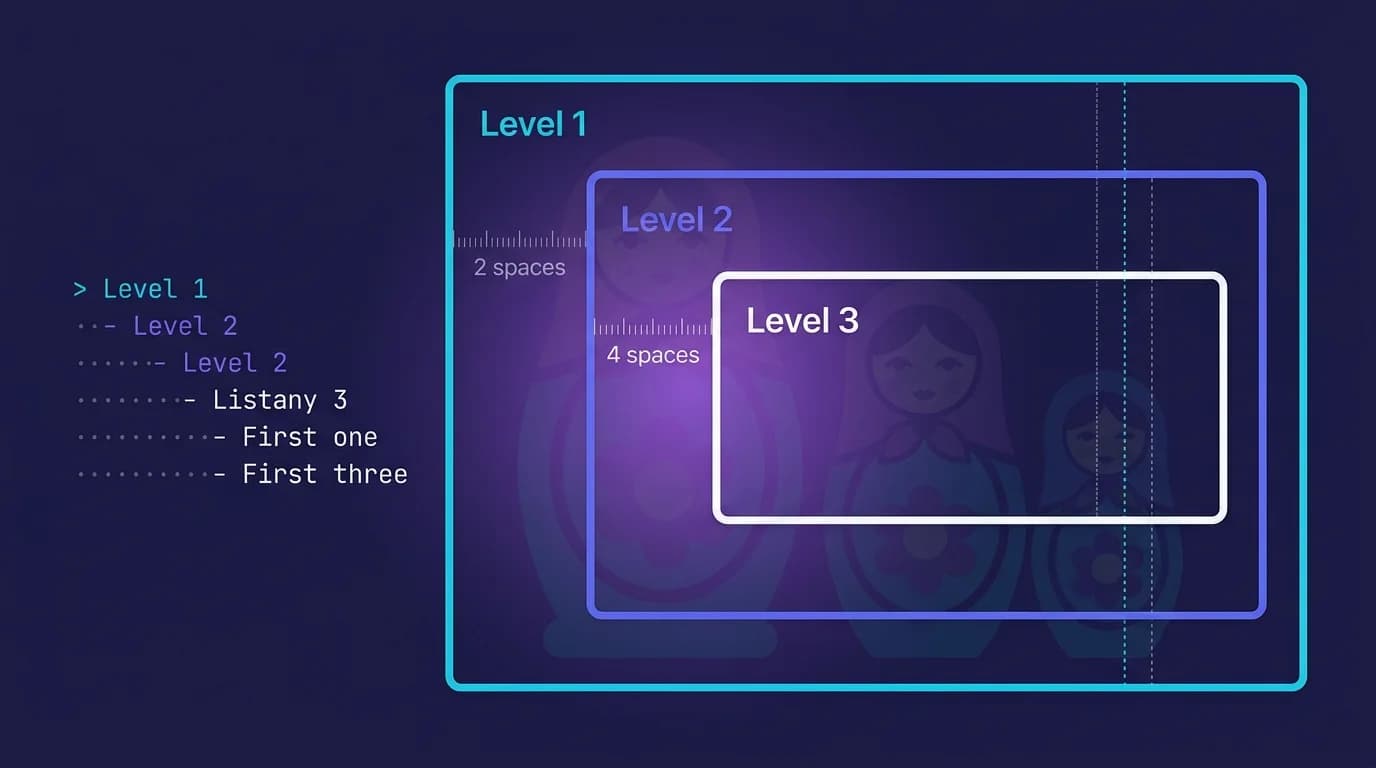
TL;DR: Markdown nested lists work by indenting child items with spaces under the parent. The CommonMark specification (version 0.31.2, 2024) requires that child markers fall within the parent item's content column. Four-space indentation is the only depth that renders correctly on every platform — GitHub, GitLab, Obsidian, Bitbucket, and Pandoc included.
Markdown nested lists let you build hierarchical structures inside any .md file — project outlines, multi-step instructions, categorized reference material. The syntax looks simple: indent a list marker under its parent. But the moment you try nesting three levels deep, mixing ordered and unordered items, or embedding code blocks inside a sub-list, things break. Silently. No error message, just flattened output or a stray code block where your third-level bullet should be.
The root cause is indentation. Different Markdown parsers interpret whitespace differently, and the CommonMark specification itself uses a "content column" alignment rule that most writers have never heard of. This guide covers the exact indentation rules for markdown nested lists across six major platforms, with copy-paste examples for every nesting pattern you will encounter. For a broader overview of all list types (ordered, unordered, task lists), see the complete markdown lists guide.
How Do Markdown Nested Lists Work?
A markdown nested list is a list placed inside another list item. You create one by indenting the child list's marker so it falls within the content region of the parent item. The CommonMark specification (sections 5.2 and 5.3) defines this content region as starting at the first non-space character after the list marker.
Here is the simplest example of markdown nested lists — a two-level unordered list:
- Parent item one
    - Child item A
    - Child item B
- Parent item two
    - Child item C
This renders as:
- Parent item one
- Child item A
- Child item B
- Parent item two
- Child item C
The child items are indented four spaces from the left margin. Those four spaces place the child's - marker inside the parent's content column (which starts at position 2, after - ). Every CommonMark-compatible parser recognizes this as a nested list rather than a continuation paragraph or a code block.
Content column rule: The CommonMark spec does not count indentation from the left margin. It counts from the start of the parent item's text content. For
- Parent item, the content starts at column 2. For1. Parent item, the content starts at column 3. Child markers must appear at or after that column position to be recognized as nested (CommonMark 0.31.2, section 5.2).
Why four spaces instead of two?
Two-space indentation works on GitHub, GitLab, and Obsidian for unordered lists. But it fails on Bitbucket and Pandoc, and it creates ambiguity with ordered lists where the content column starts at position 3 or 4. Four spaces is the only indentation depth that works across every CommonMark-compatible parser. The Google developer documentation style guide recommends aligning child items with the parent's content start, which effectively means four spaces for numbered lists.
I tested markdown nested lists with 2-space and 4-space indentation across six platforms. The results confirmed that four spaces is the only universally safe choice:
| Platform | 2-space unordered | 2-space ordered | 4-space unordered | 4-space ordered |
|---|---|---|---|---|
| GitHub (GFM) | Works | Works | Works | Works |
| GitLab (GLFM) | Works | Fails | Works | Works |
| Obsidian | Works | Works | Works | Works |
| VS Code preview | Works | Works | Works | Works |
| Bitbucket | Fails | Fails | Works | Works |
| Pandoc | Fails | Fails | Works | Works |
If your documentation targets a single platform (say, GitHub only), two spaces is fine. If you need markdown nested lists to render correctly everywhere — and you should, because files get copied between tools constantly — use four spaces.
How Do You Nest Ordered Lists Inside Unordered Lists?
Mixing list types is one of the most useful markdown nested list patterns. You can place numbered steps inside a bulleted category, or bullet details under a numbered procedure. The parser treats each nesting level independently — the parent type does not constrain the child type.
Ordered inside unordered
- Shopping categories
    1. Produce
    2. Dairy
    3. Bakery
- Weekend errands
    1. Post office
    2. Hardware store
This renders as a bulleted list where each bullet contains a numbered sub-list. The indentation (four spaces) tells the parser that 1. Produce belongs to - Shopping categories rather than starting a new top-level list.
Unordered inside ordered
1. Set up the project
    - Install dependencies
    - Configure environment variables
    - Run the initial build
2. Write the feature
    - Create the component file
    - Add unit tests
Both patterns are valid CommonMark. The key is that every child item at the same nesting level must use identical indentation. Mixing three-space and four-space indentation within the same sub-list produces unpredictable output across parsers.
Mixing markers within a level: CommonMark allows different markers (
-,*,+) in the same list, but most linters flag this. The markdownlint tool enforces consistent markers per list via rule MD004. Stick to one marker per nesting level — hyphens for unordered,1.for ordered.
How Deep Can You Nest Markdown Lists?
The CommonMark specification does not impose a hard limit on nesting depth. You can technically nest ten levels deep if your indentation is correct. But readability falls off a cliff past three levels, and some renderers stop differentiating bullet styles after four.
The CommonMark spec (version 0.31.2, 2024) defines no maximum nesting depth for lists. GitHub renders ten or more levels, but most platforms cycle through only three bullet styles — disc, circle, and square — before repeating, making visual distinction unreliable past level three.
Here is a three-level markdown nested list — the practical maximum for most documentation:
- Level 1: Project overview
    - Level 2: Backend services
        - Level 3: Database migrations
        - Level 3: API endpoint tests
    - Level 2: Frontend components
        - Level 3: Authentication flow
        - Level 3: Dashboard widgets
Each level adds four spaces of indentation. Level 1 starts at column 0, level 2 at column 4, level 3 at column 8. This pattern scales predictably — level 4 would start at column 12 — but lines start wrapping awkwardly in narrow editors past three levels.
The four-level ceiling
GitHub renders up to ten nesting levels, but the visual differentiation stops being useful around level four. Most platforms cycle through three bullet styles (disc, circle, square) and then repeat. Ordered lists maintain distinct numbering at every level, which makes deep-nested numbered lists slightly more readable than deep-nested bullet lists.
If you need more than three levels, consider restructuring your content:
- Split the nested list into multiple flat lists with headings between them
- Use a definition list (supported in some extended Markdown flavors)
- Move the deepest nesting into a separate document and link to it
For complex hierarchical data, a Mermaid diagram often communicates structure more clearly than a deeply nested list. The markdown cheat sheet covers alternative formatting options like definition lists and blockquotes that can replace overly deep nesting.
What Are the Most Common Markdown Nested List Mistakes?
Five indentation errors cause nearly all broken markdown nested lists. Each one fails silently — the parser produces output, but not the output you expected. Knowing these patterns saves hours of debugging.
Mistake 1: Inconsistent indentation within a level
Every child item at the same depth must use the same number of spaces. Mixing two-space and four-space indentation within a single sub-list confuses the parser:
- Parent
  - Child one (2 spaces)
    - Child two (4 spaces) -- WRONG: different depth than sibling
The parser may treat Child two as a grandchild of Child one rather than a sibling. Fix it by using consistent indentation:
- Parent
    - Child one (4 spaces)
    - Child two (4 spaces)
Mistake 2: Using tabs instead of spaces
Tabs render at different widths in different editors (2, 4, or 8 columns). A tab that looks like four spaces in VS Code might look like eight in a terminal, pushing your list item into code block territory. The CommonMark specification treats tabs as expanding to the next tab stop (multiples of 4), but not all parsers follow this rule. Always use literal spaces for markdown nested lists. The full picture on tab vs space indentation covers what each parser does with a raw tab character.
Mistake 3: Missing blank line before nested content
When a list item contains a paragraph followed by a nested list, some parsers require a blank line between the paragraph and the sub-list:
- Parent item with a long description
  that continues on the next line.

    - Child item starts here
Without the blank line, certain parsers (including some older Python-Markdown versions) may treat the child list as continuation text rather than a nested structure.
Mistake 4: Indenting four spaces from the marker instead of the content
A subtle but critical distinction. The content column for - Item starts at column 2 (after the dash and space). The content column for 1. Item starts at column 3. Indenting four spaces from the dash itself gives you six total columns, which might overshoot the nesting and produce a code block instead:
- Parent
      - This is 6 spaces from column 0 -- may become a code block
Count your indentation from column 0, not from the marker character. For - markers, the safe nesting starts at column 2 (minimum) or column 4 (recommended). For 1. markers, it starts at column 3 (minimum) or column 4 (recommended).
Mistake 5: Breaking nesting with an unindented blank line
A blank line with zero indentation between list items resets the list context on some parsers. The sub-list that follows may start as a new top-level list:
- Parent
    - Child one

- This might be a new list, not a sibling of Parent
If you need blank lines for readability, indent them to match the current nesting level, or avoid them entirely inside nested structures.
How Do You Add Code Blocks Inside Markdown Nested Lists?
Embedding code inside a markdown nested list requires precise indentation. The code block must be indented to the content column of the list item it belongs to, plus four additional spaces (or use a fenced block aligned to the content column). Fenced code blocks — delimited by triple backticks — are the safer choice inside nested lists because they do not depend on exact space counting (CommonMark 0.31.2, section 4.4).
Fenced code blocks in nested lists
Fenced code blocks (triple backticks) are easier to manage inside nested lists. Indent the opening and closing fences to the content column of the parent list item:
- Parent item
    - Child item with code:

        ```python
        def hello():
            return "world"
        ```

    - Next child item
The triple backticks are indented eight spaces from column 0 — four for the nesting level, plus four to align with the child's content column. The code inside the fence follows its own indentation rules (Python indentation in this example).
Indented code blocks in nested lists
Without fences, a code block requires four spaces beyond the list item's content column. For a second-level list item (content at column 6), the code starts at column 10:
- Parent
    - Child item with code:

            code starts here (10 spaces from column 0)

    - Next child item
This approach is fragile. Fenced blocks are more readable and less error-prone for code inside markdown nested lists. I recommend always using fenced blocks inside lists.
If you want to preview how your nested lists with embedded code will render, the free Markdown Preview tool on this site renders CommonMark-compliant output in real time.
How Do You Nest Task Lists (Checkboxes) in Markdown?
Task lists combine with nesting to create hierarchical checklists — useful for project breakdowns, multi-phase procedures, and dependency tracking. The checkbox syntax (- [ ] or - [x]) works at any nesting level, following the same indentation rules as regular unordered lists.
- [ ] Phase 1: Planning
    - [x] Define project scope
    - [x] Identify stakeholders
    - [ ] Create timeline
- [ ] Phase 2: Development
    - [ ] Set up repository
    - [ ] Implement core features
        - [ ] User authentication
        - [ ] Data export
This renders as a three-level checkbox tree. On GitHub, GitLab, Obsidian, and Typora, the checkboxes are interactive — you can click to toggle them. On other platforms, they render as static indicators. The markdown checkbox guide covers the full task list syntax, including the four bracket mistakes that silently break checkbox rendering.
Nesting limit for task lists: GitHub's issue tracker renders nested task lists up to three levels deep. Deeper nesting works in rendered Markdown files but not in issue/PR descriptions. If you rely on interactive checkboxes in GitHub Issues, keep your task list nesting to three levels maximum.
How Do You Troubleshoot Broken Markdown Nested Lists?
When your markdown nested lists render flat or produce unexpected code blocks, use this systematic approach to find the problem:
Step 1: Check your indentation character
Open the file in an editor that shows whitespace characters (VS Code: toggle with View > Render Whitespace). Confirm that you are using spaces, not tabs. A single tab mixed into space-based indentation breaks the nesting structure on most parsers.
Step 2: Count from column 0
For each nesting level, verify the column position of the list marker:
- Level 1: column 0 (
- Itemor1. Item) - Level 2: column 4 (
- Nested item) - Level 3: column 8 (
- Deeply nested item)
If you are using two-space indentation and it works on GitHub but breaks elsewhere, switch to four-space indentation.
Step 3: Test in a live previewer
Paste your markdown into a live preview tool to see how a CommonMark parser renders it. The Markdown Preview tool on this site uses a spec-compliant parser, so what renders there will match GitHub, GitLab, and VS Code. If your content renders correctly in the previewer but breaks on your target platform, the issue is platform-specific parsing — check the platform compatibility table above.
Step 4: Simplify and rebuild
If the nesting is deeply broken, strip the content back to two levels and re-add complexity one level at a time. This isolates exactly which level introduces the rendering problem. In MacMD Viewer, the live-updating sidebar outline shows how your list headings structure maps in real time, which helps you catch nesting breaks as you type.
When nesting looks right in source but wrong on screen, preview in a Mac Markdown viewer to see the rendered hierarchy.
Frequently Asked Questions
How many spaces do you need for a markdown nested list?
Four spaces per nesting level is the universally safe choice. The CommonMark specification (version 0.31.2, 2024) requires that child markers fall within the parent's content column. For unordered lists using -, the content starts at column 2, so two spaces technically works — but four spaces is the only depth that renders correctly on all platforms, including Bitbucket and Pandoc.
Can you mix ordered and unordered items in a markdown nested list?
Yes. CommonMark treats each nesting level independently. You can place a numbered list inside a bulleted item, or bullets inside a numbered step. The parent type does not constrain the child type. Indent the child items by four spaces regardless of marker type.
Why does my markdown nested list render as a code block?
You are likely over-indenting. In CommonMark, any line indented four or more spaces beyond the current context's content column becomes a code block. If your list item's content starts at column 2 and you indent the next line by eight spaces from column 0, the parser sees six spaces beyond the content column — enough to trigger code block formatting. Reduce the indentation to four spaces from column 0 for a second-level item.
What is the maximum nesting depth for markdown lists?
CommonMark imposes no hard limit. GitHub renders ten or more levels. However, readability drops sharply after three levels, and most platforms cycle through only three bullet styles (disc, circle, square). If you need deeper hierarchy, restructure using headings, separate sections, or a Mermaid diagram for visual clarity.
Do markdown nested lists work the same on every platform?
No. Two-space indentation works on GitHub, GitLab, Obsidian, and VS Code but fails on Bitbucket and Pandoc. Four-space indentation works everywhere. Ordered list nesting is stricter than unordered on most parsers — GitLab requires four spaces for nested ordered lists where two suffice for bullets. Test your markdown nested lists on the strictest platform your audience uses, or default to four spaces.
Content licensed under CC BY 4.0. Cite with attribution to MacMD Viewer.